

Once a response is deleted, it cannot be retrieved. If you need to preserve a response before deleting it, switch to Instructor Paced mode and advance to another slide so the answer cannot be changed. You can also lock responses or end the session to capture the response first.
Require Email Sign-In
To identify which student left a response, students must sign in to sessions with an email address. Email sign-in is on by default in Pear Deck. See How Students Join a Session (specifically the “Let Students Join with an Email Address” section) if you need to confirm or re-enable this setting.Options on the Free Plan
View Who Created a Flashcard
In the Flashcard Factory, hover over any card to see the student who created it. You can do this during a live session or after reopening the session from your Sessions Menu.Export Responses to a Spreadsheet
Exporting responses is the only way on the Free plan to see which student left a text, multiple-choice, or number response in a Slides presentation.- Go to the Pear Deck App home page and click the deck title, or navigate directly to your Sessions Menu.
- Locate the session.
- Click the More Actions (three-dot) button.
- Click Export to Spreadsheet. (End the session first if it is still active.) The spreadsheet is published automatically to a folder titled “Pear Deck” in your Google Drive.
Lock Responses
Locking slides freezes all submitted answers so students cannot change or erase them. Click the Lock button once in the Navigation bar to lock immediately, or click and hold to set the lock-slide timer.Options on the Premium Plan
On the Premium plan, everything available on the Free plan is still available. In addition, you can open the private Teacher Dashboard to see who left a response, hide a response from the Projector View, or block a student from participating.Open the Teacher Dashboard
The Teacher Dashboard shows each student’s response next to their name. From there you can hide individual responses from the Projector View without deleting them. After a session ends, go to your Sessions Menu, find the session, and click the Dashboard icon next to it to review responses.Block a Student from the Session
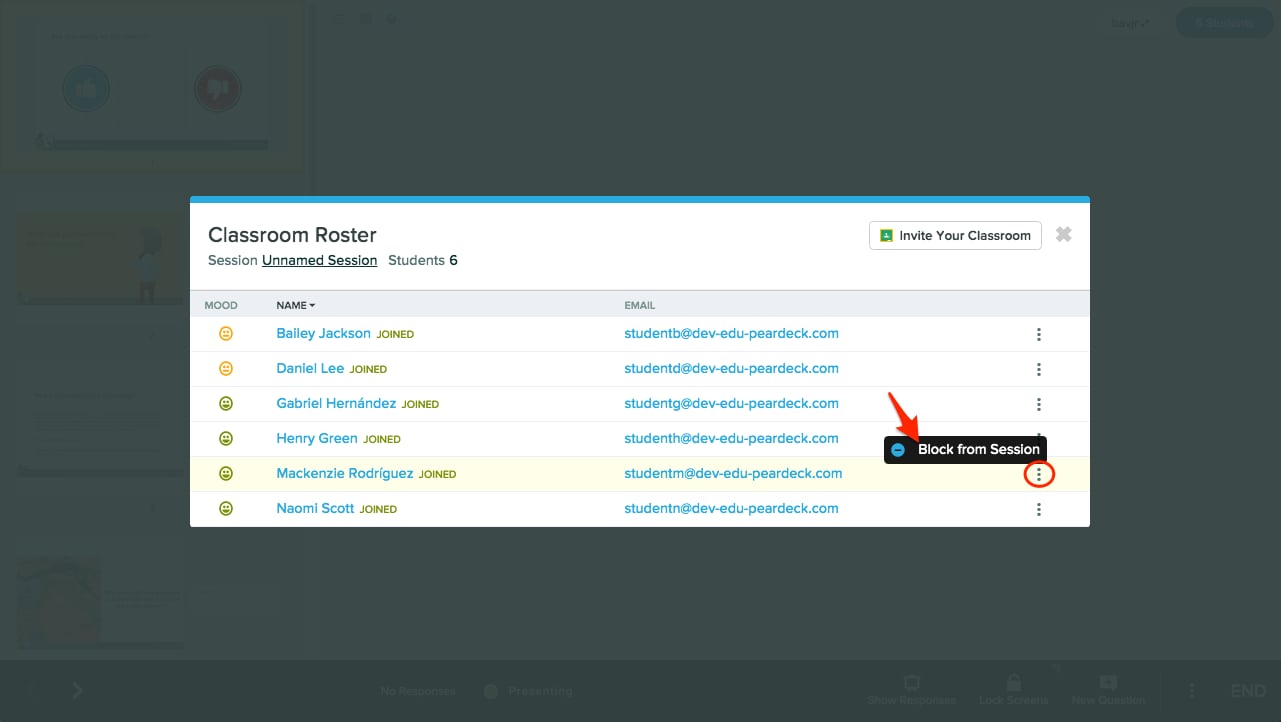
- Open the roster in the top-right corner of the screen.

- Click the More Actions (three-dot) button next to the student’s name.
- Select Block from Session.
Restrict Student Join by Email Domain (Administrators)
School and district administrators on a Premium subscription can restrict session access to specific email domains, preventing anyone outside the school domain from joining. See Restrict Student Join Access to Certain Domains for setup steps.If you have questions not addressed above, or concerns about threats of violence or self-harm, contact Pear Deck support at support@deck.peardeck.com.
Resources
Lock Responses with the Timer
Freeze student answers automatically using the lock-slide timer during a live session.
The Teacher Dashboard
View individual student responses, hide answers from the Projector View, and manage participation.