

Set Up Pear Deck and Flip
- Sign up for a free Flip account. Flip is available for Microsoft and Google users.
- Create a Flip Group. A Group is a shared space within Flip where you can invite learners to join a Discussion.
- Share your Group and invite learners to engage with the Topic.
- Record videos on the Topic or create a new Topic. Learners can record videos in your Group.
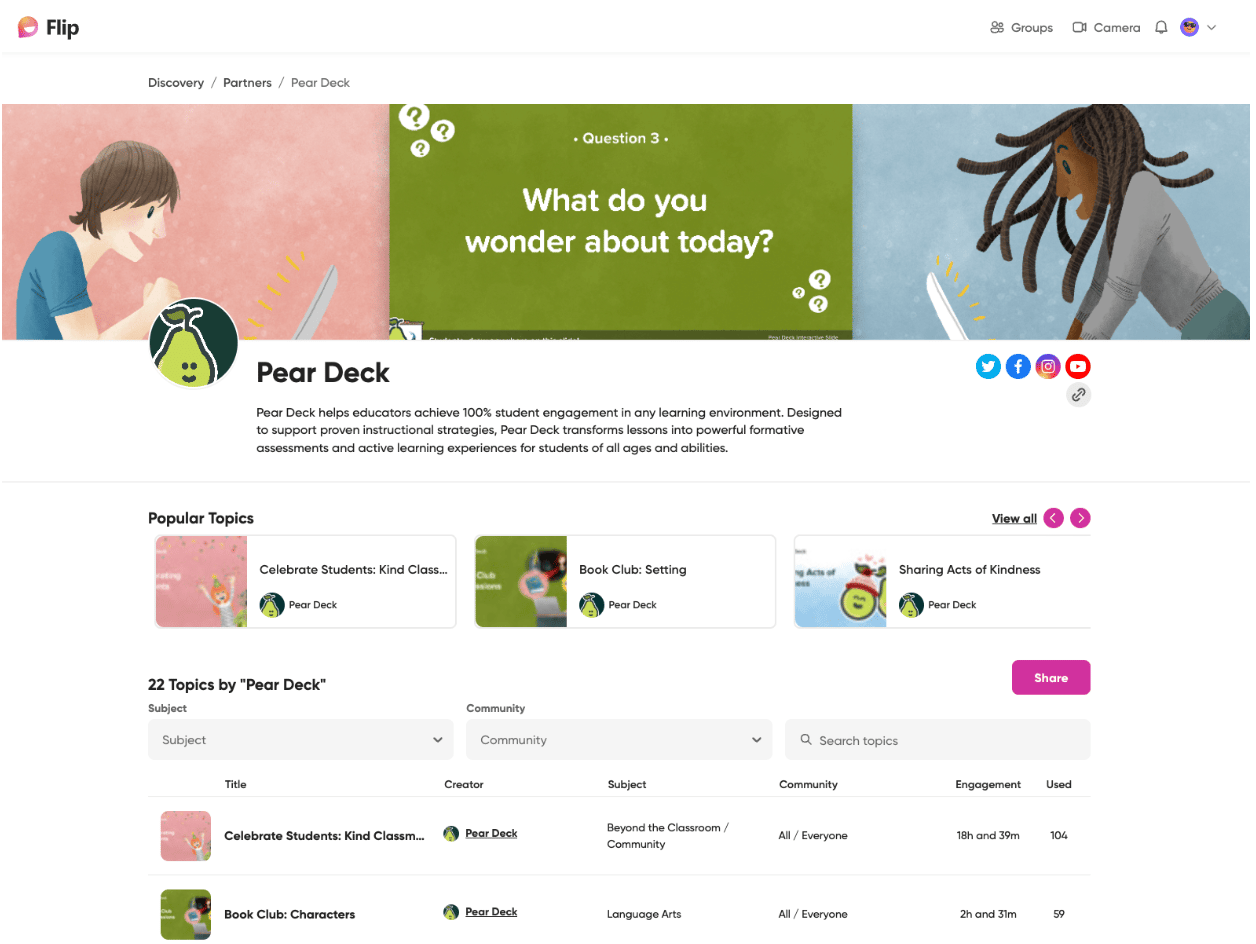
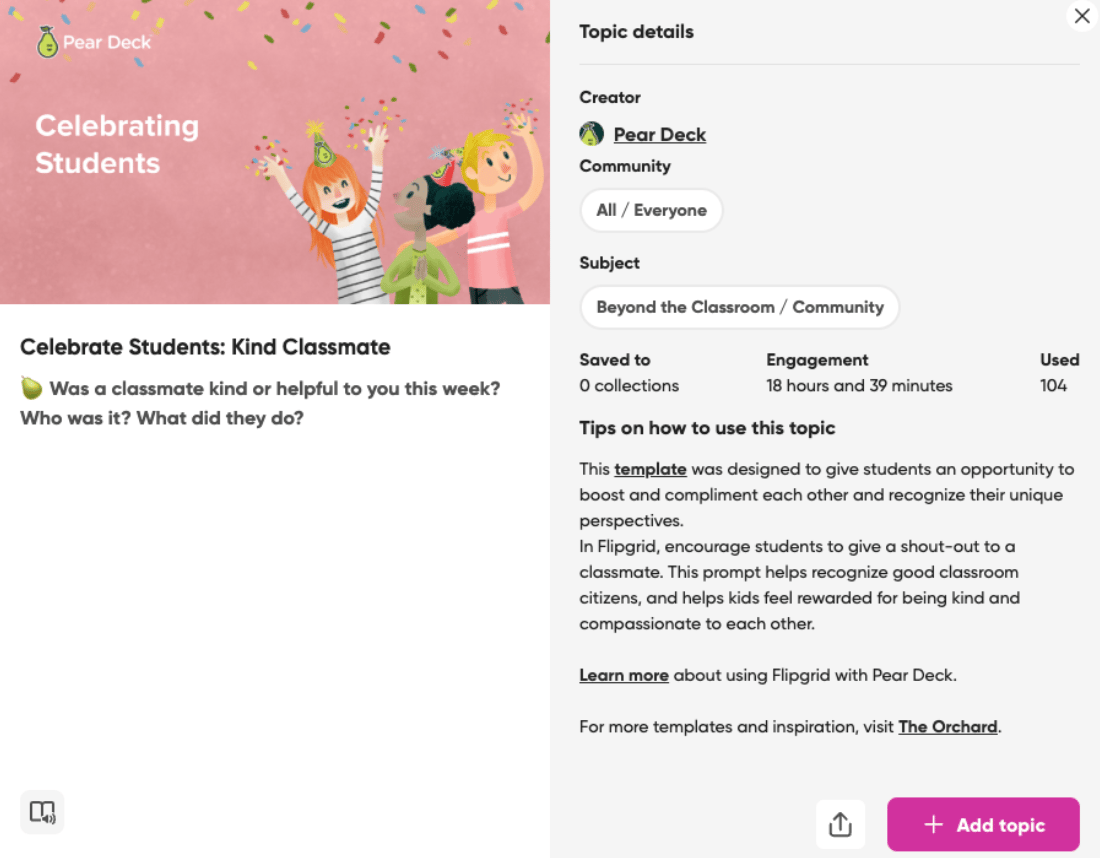
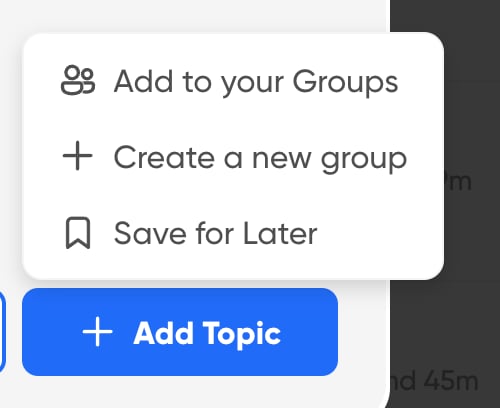
Integrate Pear Deck Templates on Flip
- Navigate to the Flip Discovery page by clicking the dropdown menu in the upper right-hand corner.
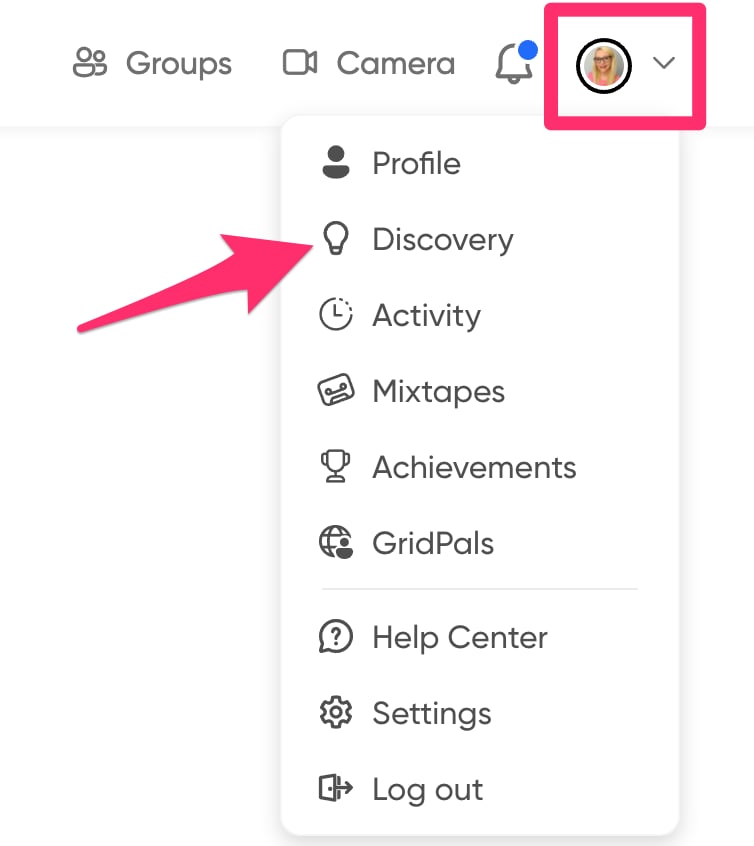
- Scroll down to the Partners section in the Discovery Library. Click View all and search for Pear Deck.
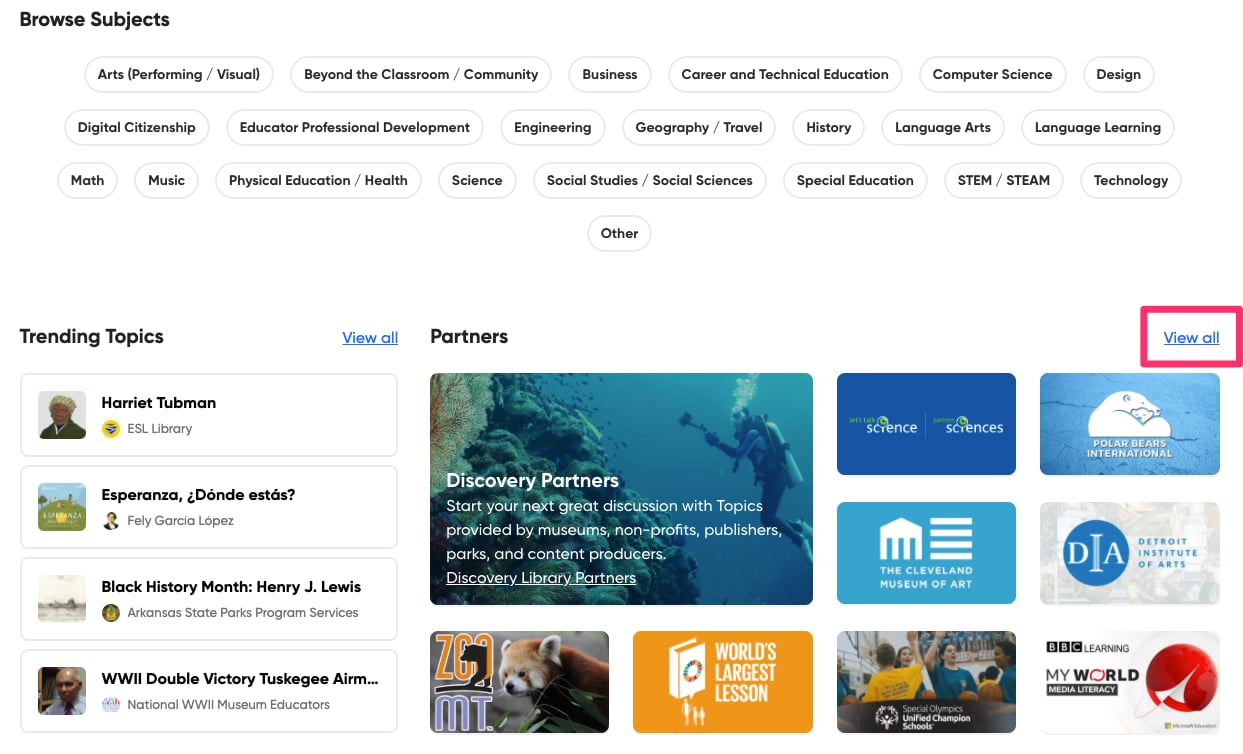
- Click on Pear Deck to start using Pear Deck Template Topics. You can also access Pear Deck templates directly on Flip’s Discovery Library Partner page.
Select a Template Topic
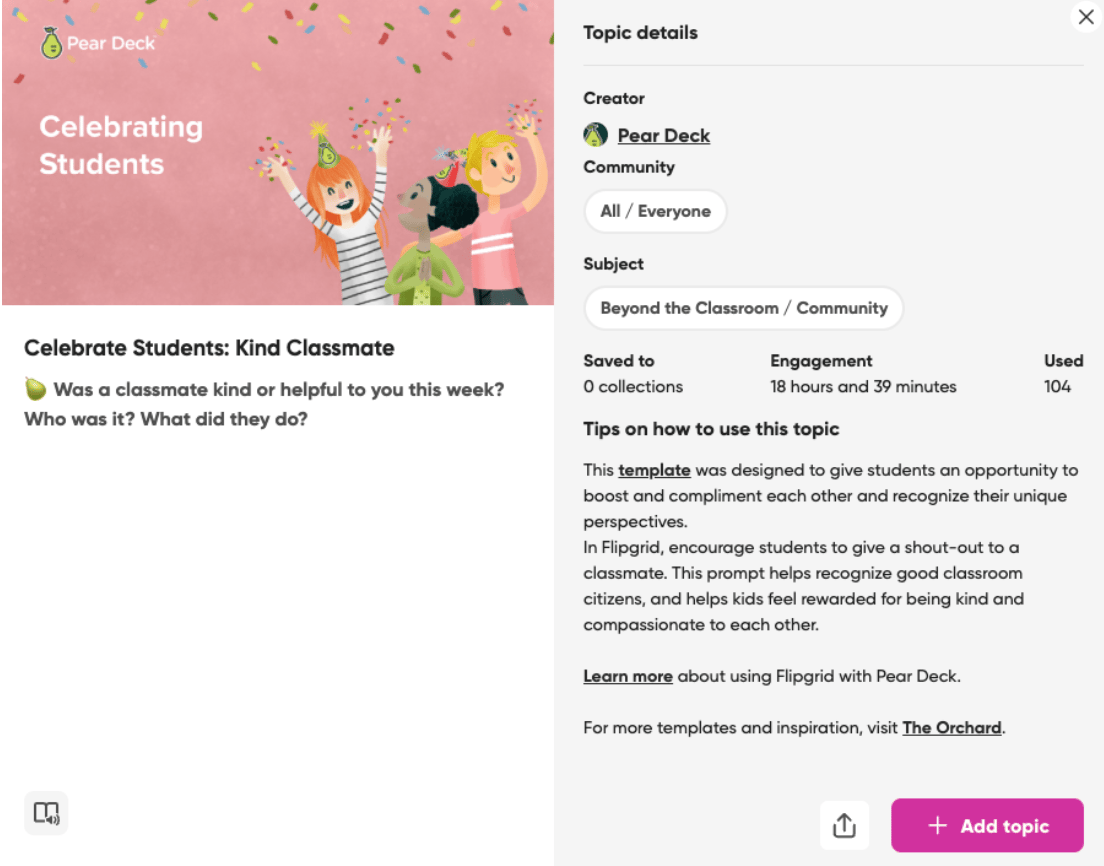
- Select the Pear Deck Topic you want to use and click Add Topic.
- Add the Topic to one of your current Groups or create a new Group.
- When adding to a current Group, select a Group and click Save to group.

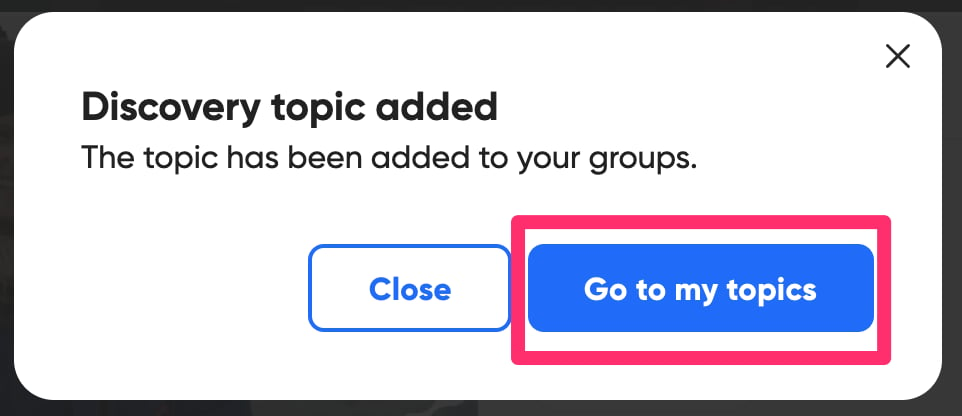
- Click Go to my topics.
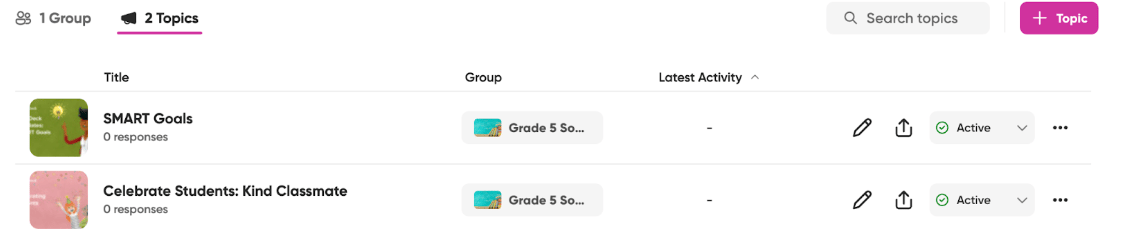
- Click into the Pear Deck Topic to access the templates and embed Flip into your slide deck.
Embed Flip into Pear Deck
- Open the template.
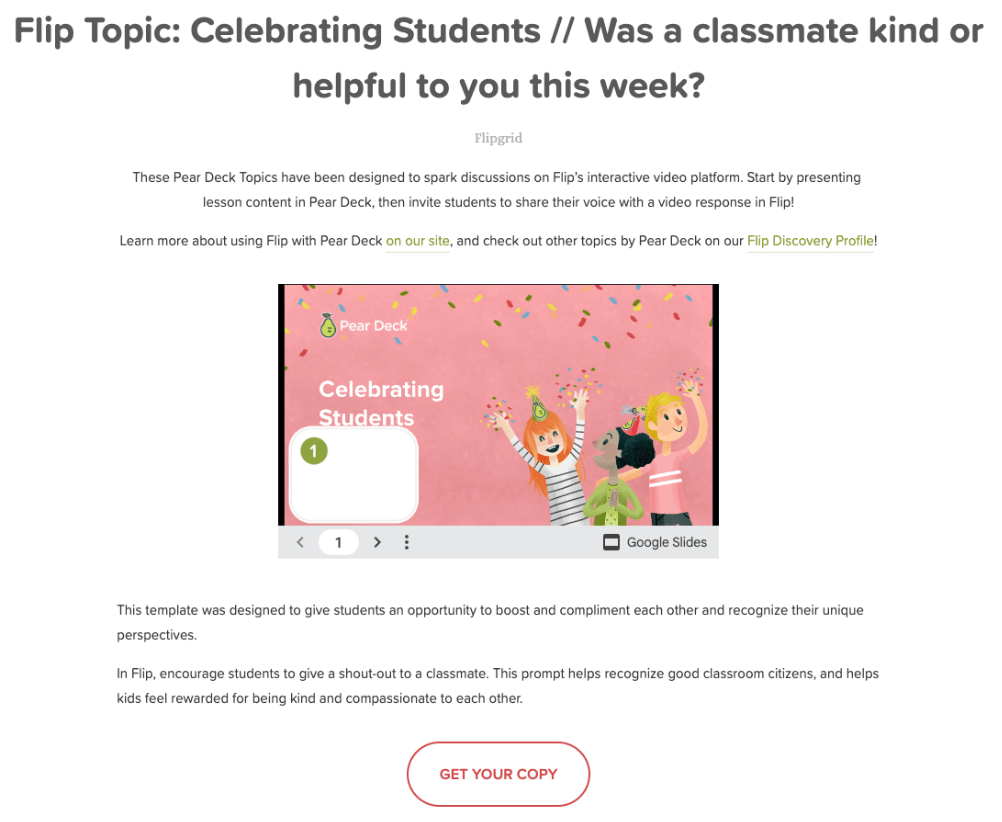
- Click Get Your Copy and copy the file to your Drive.
- Open the Pear Deck Add-On in Google Slides by following the directions in the lower left-hand corner.
- Navigate to the slide where you want the Flip Topic embedded.
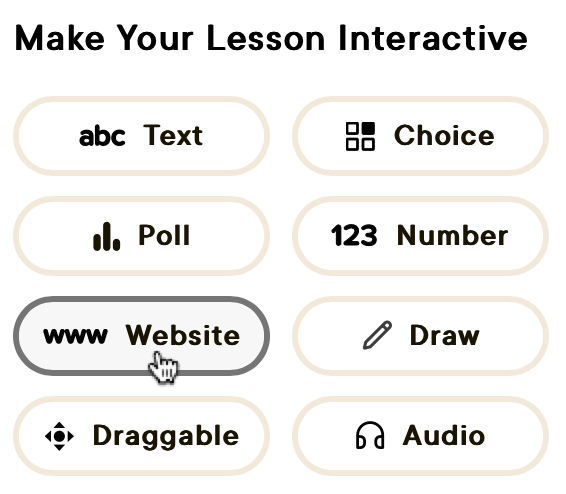
- In the Pear Deck sidebar, click the Website interactive question type.
- Go back to Flip and locate the Share button for the Topic.
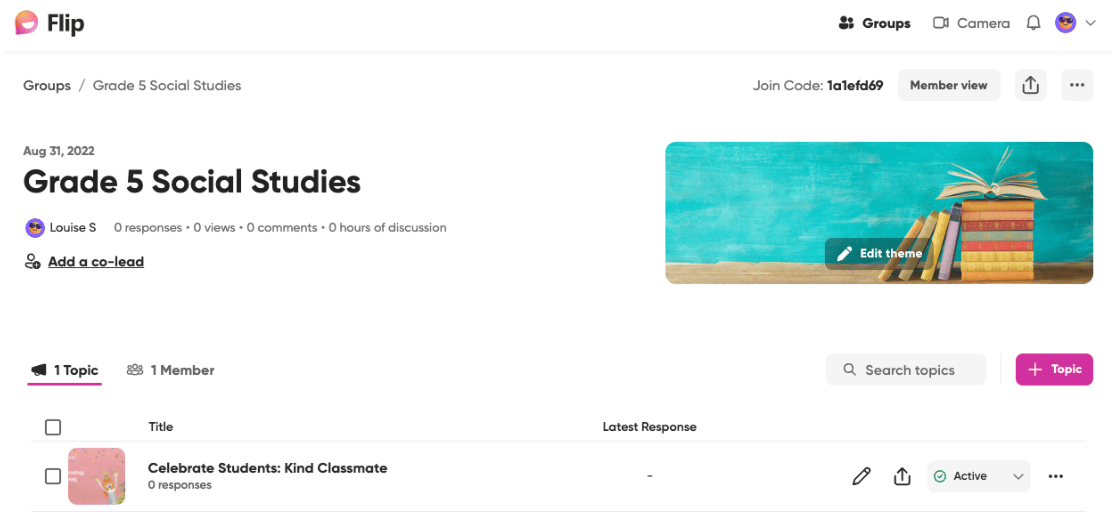
- Copy the URL.
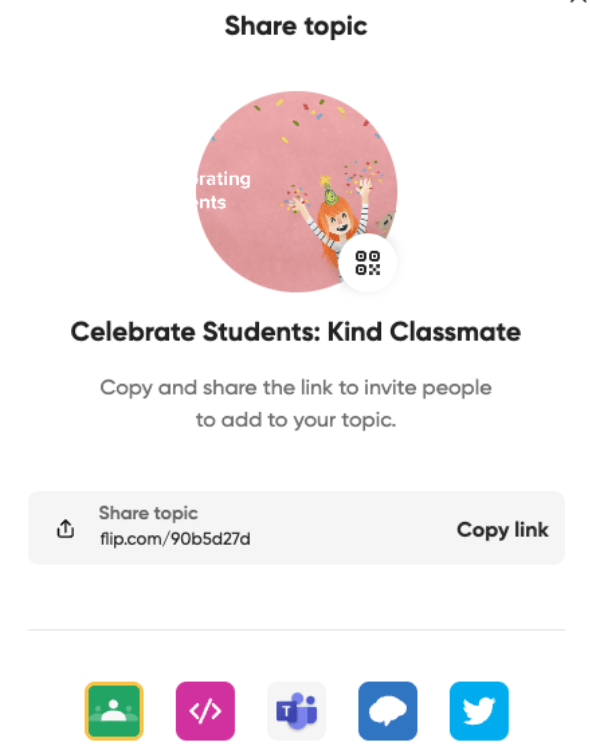
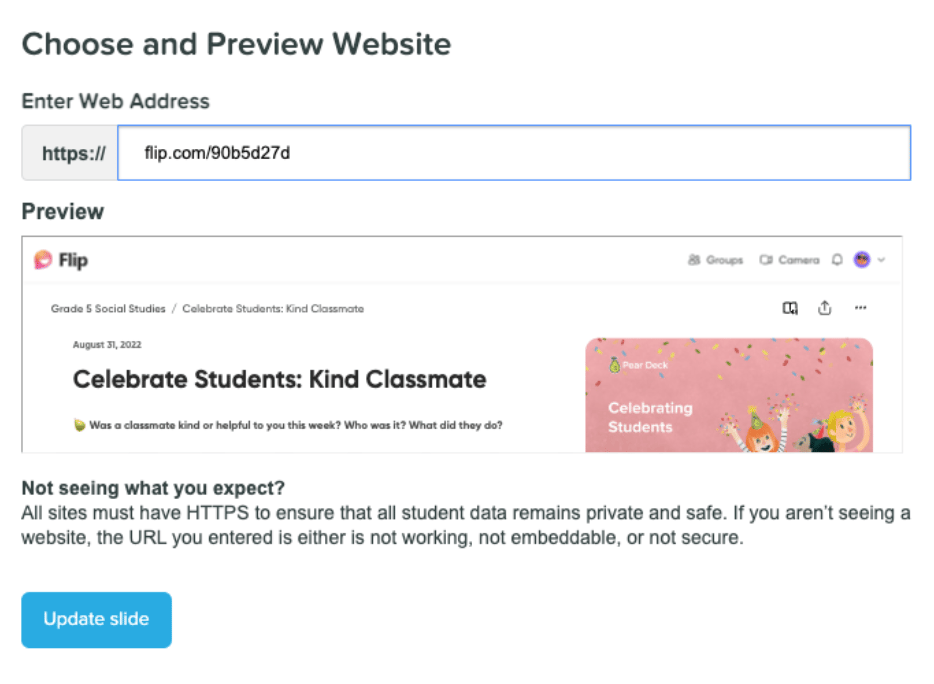
- Go back to the Pear Deck slide, paste the Flip URL, and click Update slide.
- Launch the Pear Deck session by clicking Start Lesson.


Resources
Get Started with Pear Deck
Learn how to set up Pear Deck and run your first interactive lesson.
Use Website Interactive Questions
Embed any website into a Pear Deck slide using the Website interactive question type.