

Chromebook Desks Feature
Google’s Desks feature allows Chromebook users to open multiple desktop windows to help with organization and multitasking. For more information on the Desks feature, refer to Google’s support article on Desks.How GoGuardian Teacher Works With Multiple Desks
The Desks feature can’t currently be disabled in Google Admin Console. GoGuardian will filter and review browsing activity across all open desks. GoGuardian Teacher displays 1 screen view at a time, whichever window a student is actively focused on. Browsing activity from each desktop is reviewed by GoGuardian, and is subject to GoGuardian Admin filtering and GoGuardian Teacher Scenes.Student View
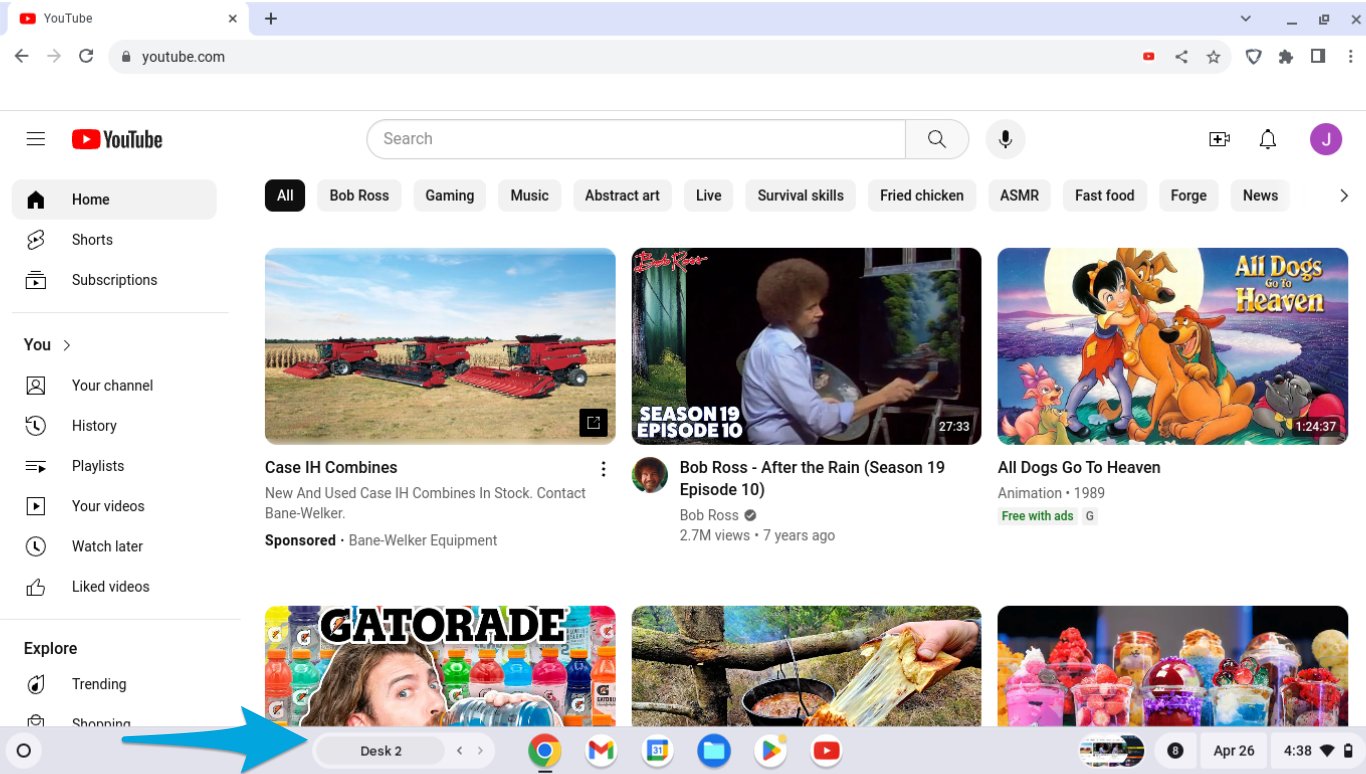
When a student has 2 or more desktops open, their Chromebook displays Desk 1 and Desk 2 indicators near the bottom of the screen.
Teacher View
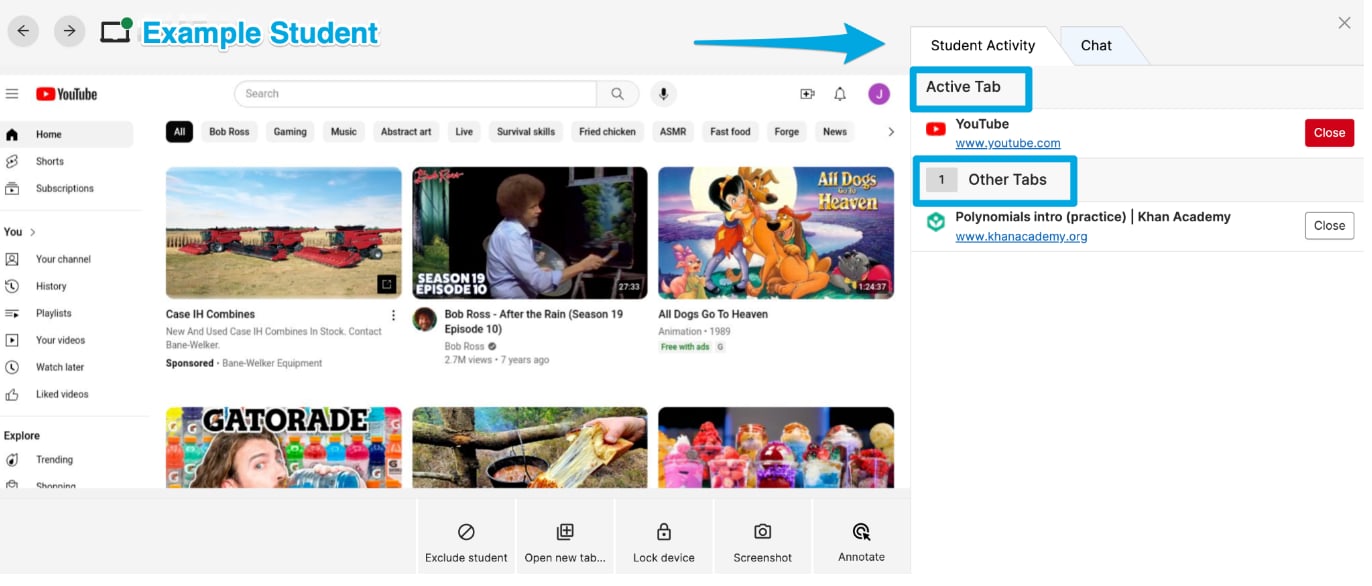
When reviewing a student who’s using multiple desktops, teachers see whichever desktop a student is actively using. The screen view updates as a student switches between desks and open tabs.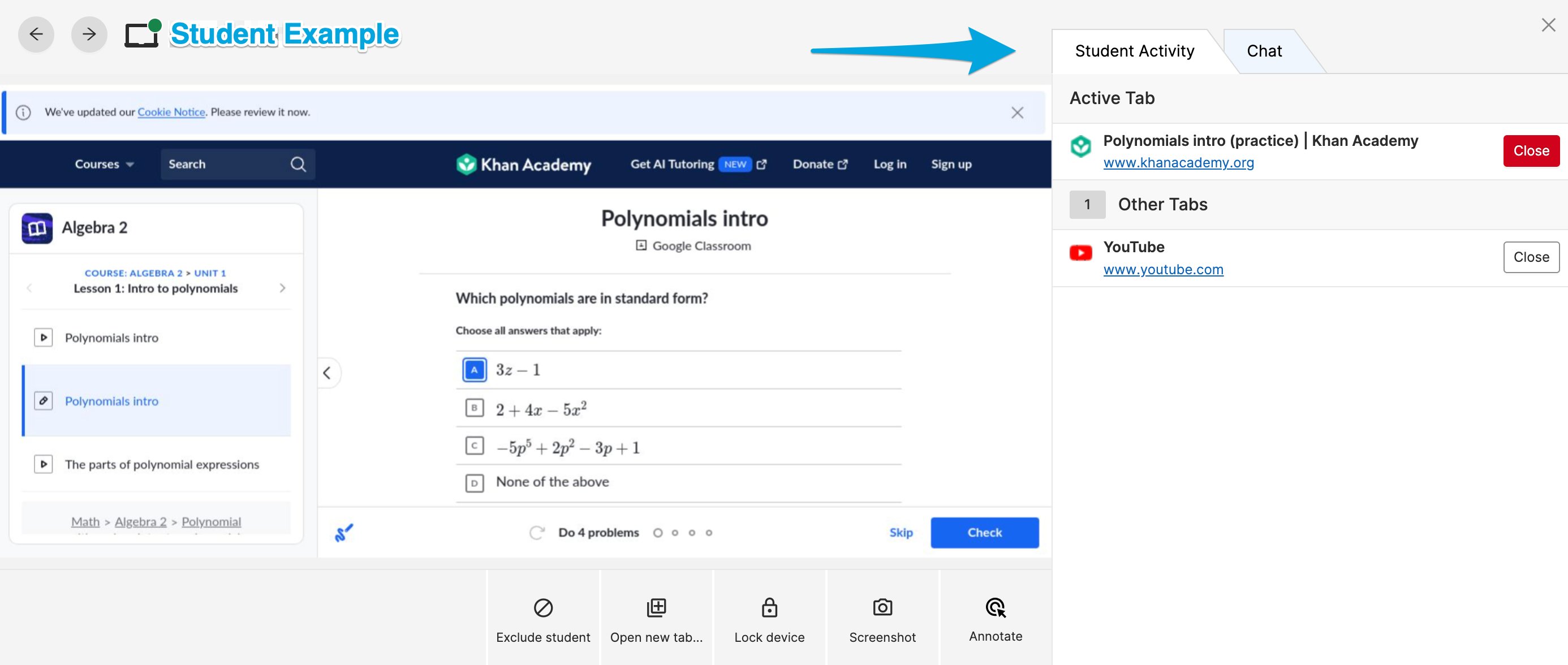
Chrome Split View Feature
Chrome Split View places two pages side by side in one Chrome window. In this student view, both the Math and Science pages are visible.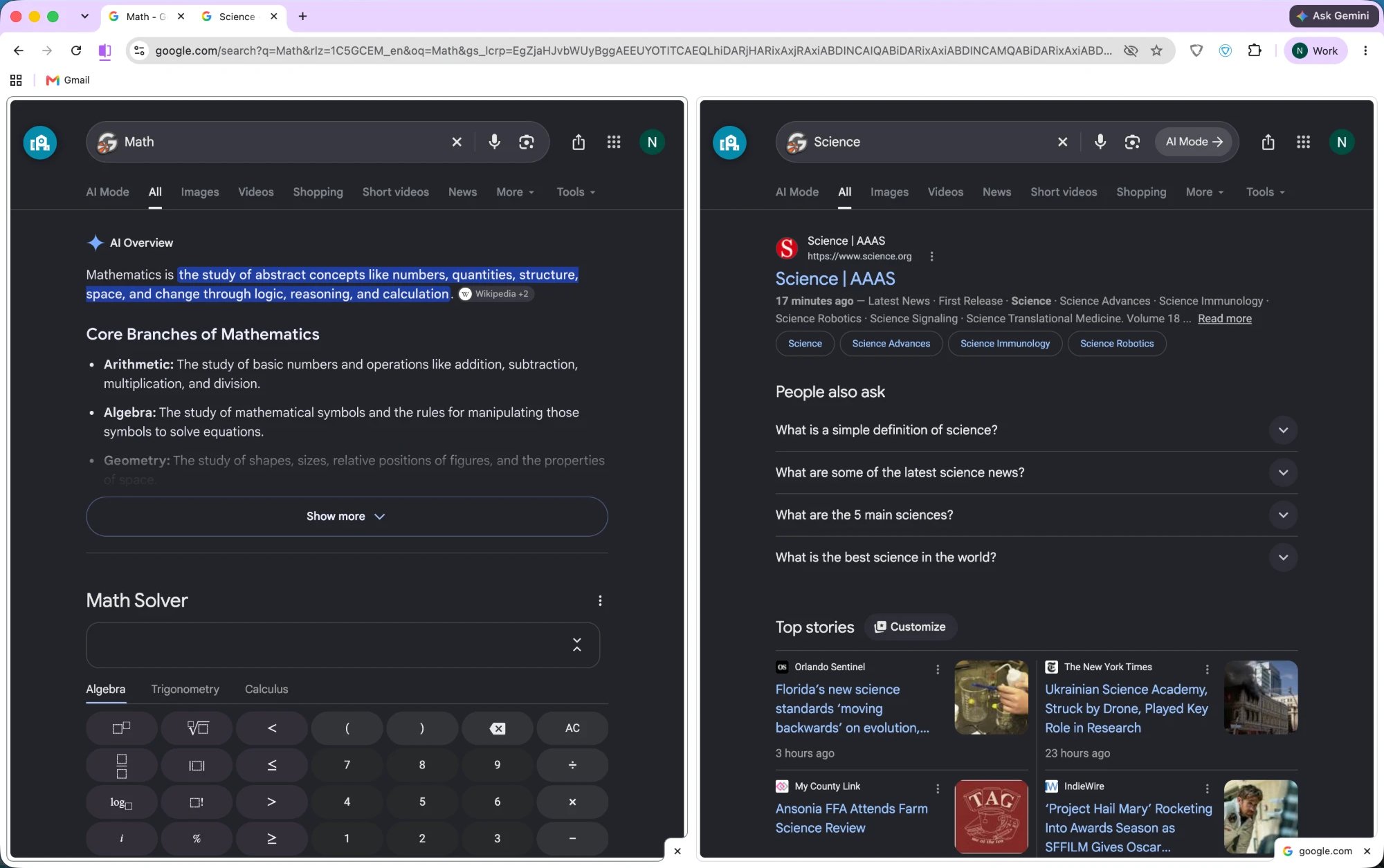
How GoGuardian Teacher Works Chrome Split View
The Chrome Split View feature can’t currently be disabled in Google Admin Console. GoGuardian will filter and review browsing activity across all open tabs. GoGuardian Teacher shows the active Split View tab in the teacher screen view. The inactive tab will show under Other Tabs in Student Activity. Browsing activity from each tab is reviewed by GoGuardian, and is subject to GoGuardian Admin filtering and GoGuardian Teacher Scenes.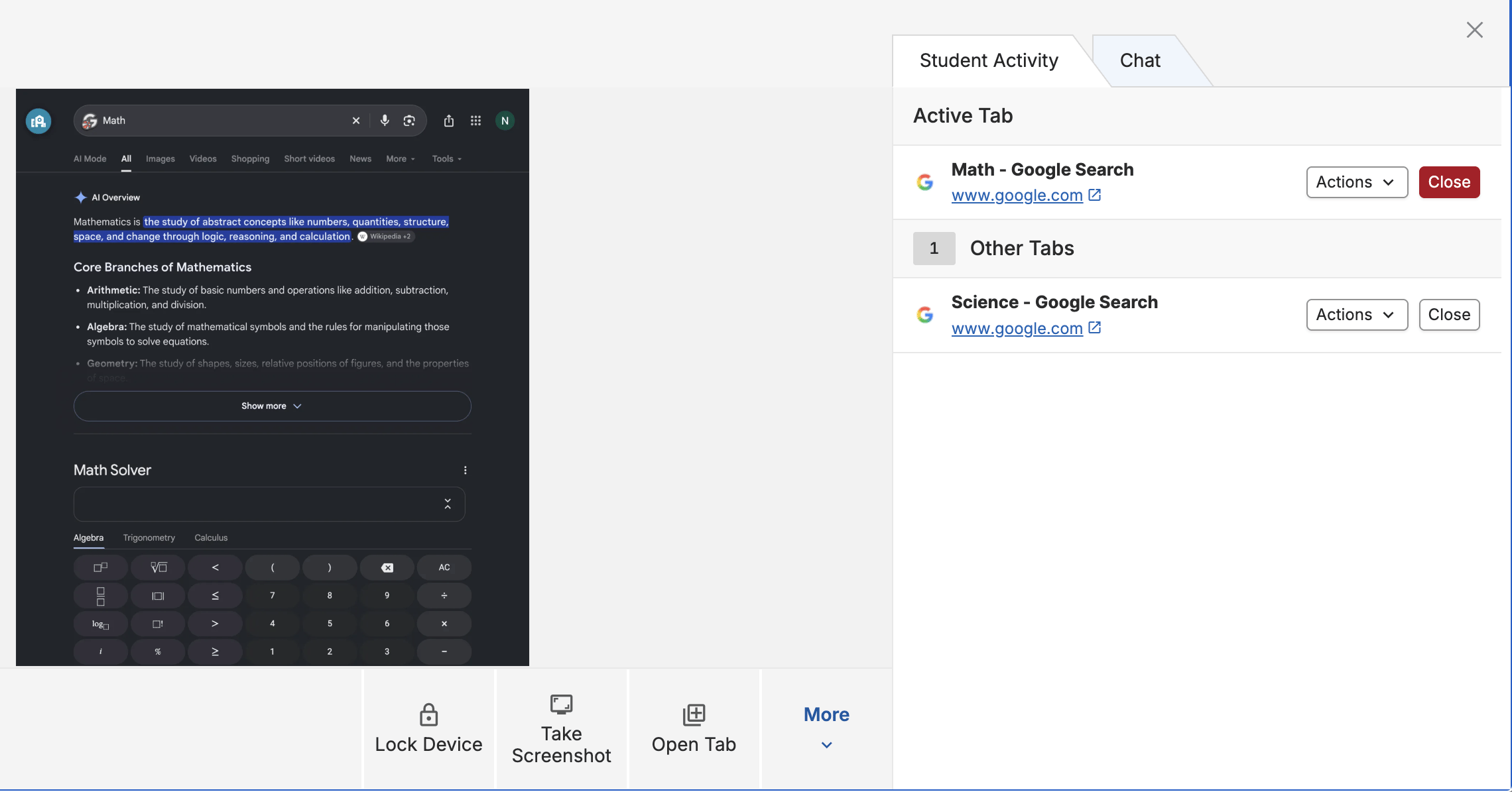
Resources
Commands Overview
Learn about all available Teacher commands, including Close Tab.
Scenes Overview
Understand how Scenes apply filtering rules across student tabs and desks.
Active Screens View
See how to review active student screens during a session.
Focus Tabs
Manage which tabs are visible and active for students.