

Log In As only provides access to GoGuardian Teacher. Even if the teacher has access to GoGuardian Beacon, Admin, or Fleet, the Super User can only access the teacher’s GoGuardian Teacher account using this feature.
Requirements
- The Super User must have GoGuardian Teacher access enabled on their own account.
- The teacher must have already signed in to their account and accepted the GoGuardian Teacher Terms of Service. Super Users cannot accept the Terms of Service on behalf of a teacher.
Log In as a Teacher
-
Sign in to manage.goguardian.com and navigate to User Management.
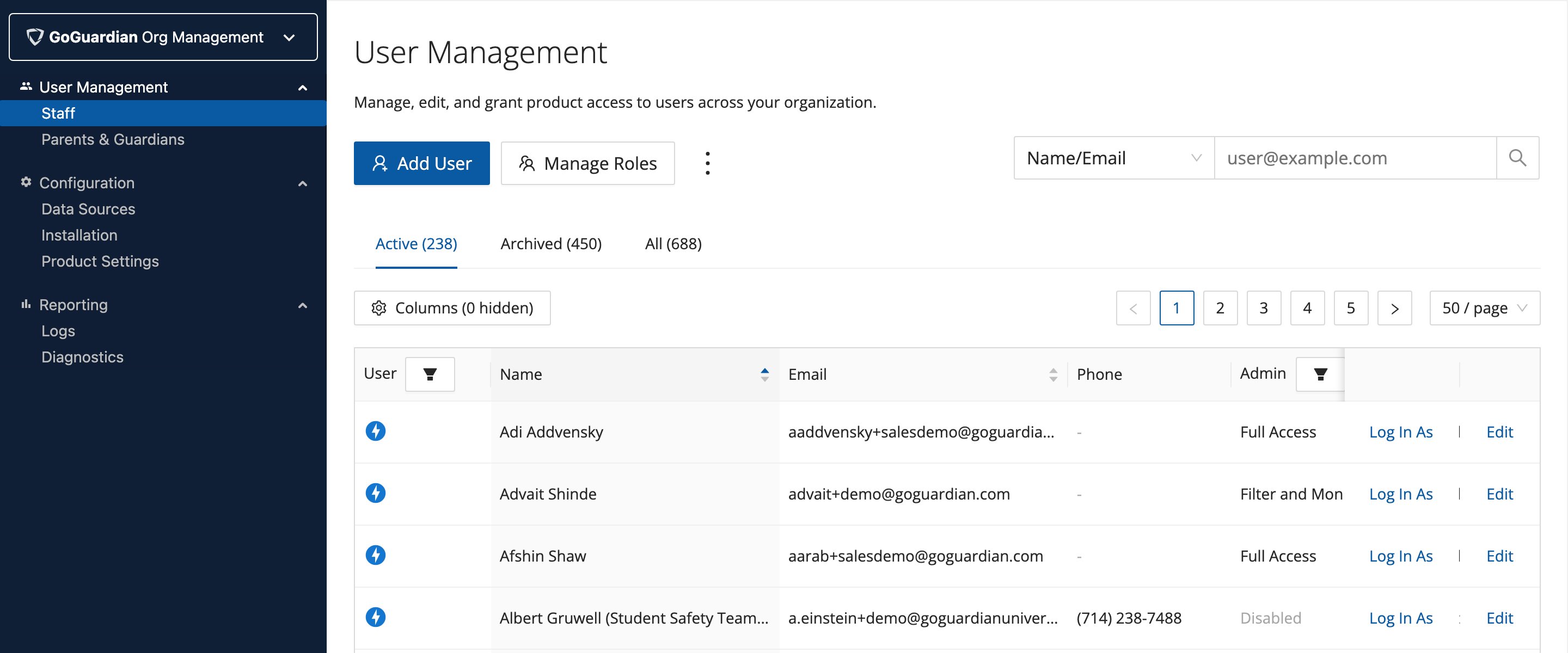
- Locate the teacher’s account in the list.
- Click the Log In As button next to the teacher’s Edit button.
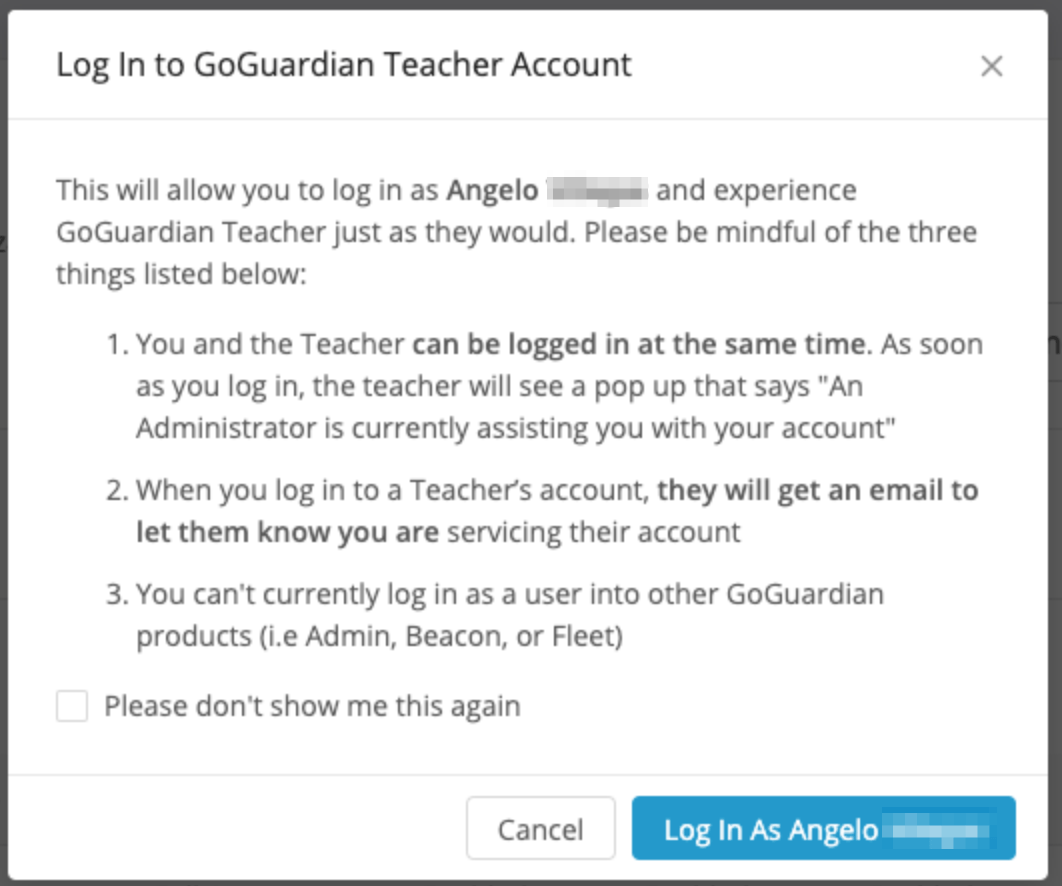
- A pop-up appears explaining how the feature works. Click Log In As [teacher name] to proceed. You are redirected to the teacher’s GoGuardian Teacher dashboard. Both the Super User and the teacher receive an email documenting this action.
- A persistent banner appears in the top navigation while you are signed in as the teacher. Click Switch back to sign out of the teacher’s account and return to Organization Management.



What the Teacher Sees
If both the Super User and the teacher are signed in to the account at the same time, the teacher sees a white banner in the top navigation with the message “A school administrator is assisting you with your account.”Permissions While Logged In
A Super User logged in as a teacher assumes the same permissions as that teacher. For example, if the teacher’s account has the Helper role in a class with multiple teachers, the Super User is also limited to Helper capabilities in that class.Automatic Sign-Out
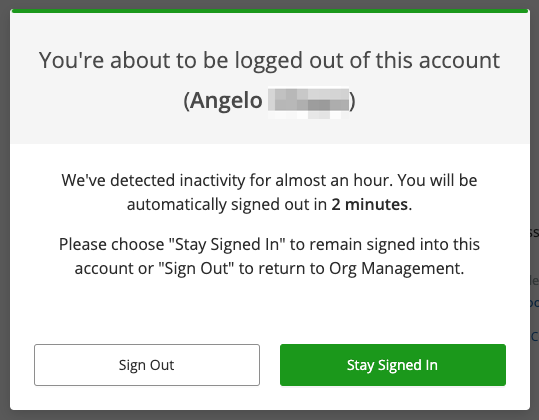
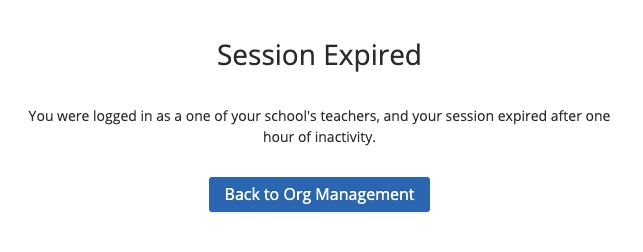
A Super User is automatically signed out of a teacher’s account after 1 hour of inactivity. Before sign-out, a pop-up gives the option to stay signed in or sign out immediately.Troubleshoot Log In As Not Working
If clicking Log In As does nothing or behaves unexpectedly:- Open an incognito window and try signing in to manage.goguardian.com again.
- If the incognito window works, a browser extension such as an ad blocker may be interfering. Disable or pause ad-blocking extensions for manage.goguardian.com.
- If the issue persists, connect to a mobile hotspot and try again. If a hotspot resolves it, the school network may be blocking GoGuardian services. See the Firewalls article for configuration requirements.
Resources
Set Up Teacher Accounts
Create new teacher accounts before using Log In As.
Manage Users and Settings
Edit account permissions and reset passwords from Org Management.