

Manage Teacher Accounts
Add a Teacher
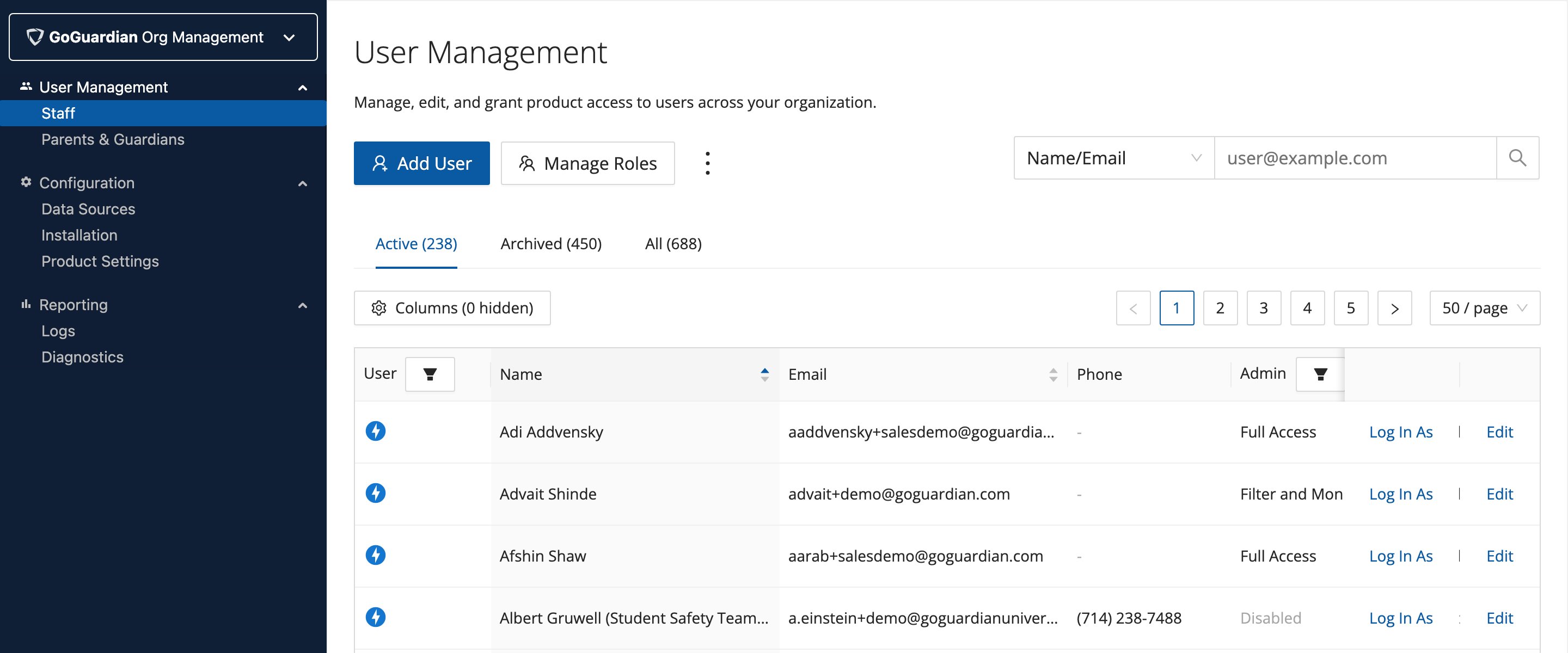
Click Add User, enter the teacher’s name and email address, set GoGuardian Teacher to Enabled, and click Add User. The teacher receives an email with password setup instructions. To add multiple teachers at once, click Add Multiple Users and upload a CSV with one teacher entry per line. Bulk uploads let you set permissions for all users at once.Disable a Teacher Account
- Find the user in the list.
- Click Edit next to their name.
- Turn off the Enable User toggle.
- Click Save User.
Edit a Teacher Account
To update a name, email address, or other account details:- Click Edit next to the teacher’s name.
- Make the needed changes.
- Click Save.
Reset a Teacher’s Password
- Click Edit next to the teacher’s name.
- Click the Reset Password link.
Check Product Licenses
- Go to manage.goguardian.com.
- Click the Products tab.
- Under Product Licenses (selected by default), view expiration dates for active licenses and products available for a free trial.
Configure GoGuardian Teacher Product Settings
To access GoGuardian Teacher product settings:- Go to manage.goguardian.com.
- Click the Products tab.
- Click Teacher in the left sidebar.
- Click the Settings sub-tab (selected by default).
Allow Classroom Sessions
Turn this toggle on or off to control whether teachers can create sessions at all. Turning it off prevents any teacher from starting a classroom session.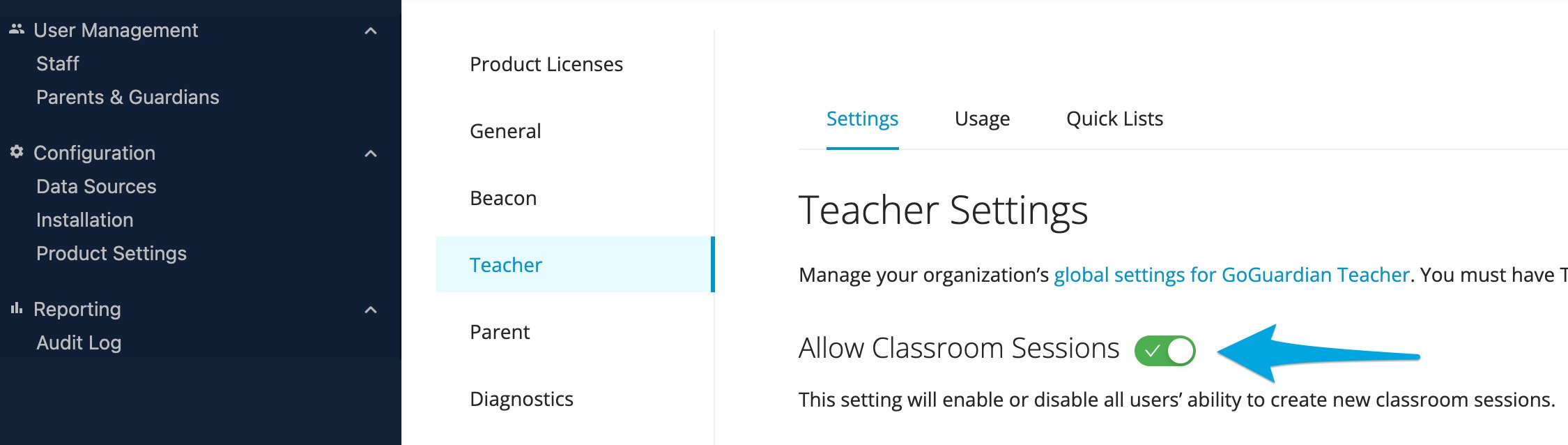
Display Active Session Status to Students
When turned on, the GoGuardian extension on student devices turns lime green when the student is in an active classroom session. This gives students a visible indicator that a session is active.
Conference Call Settings
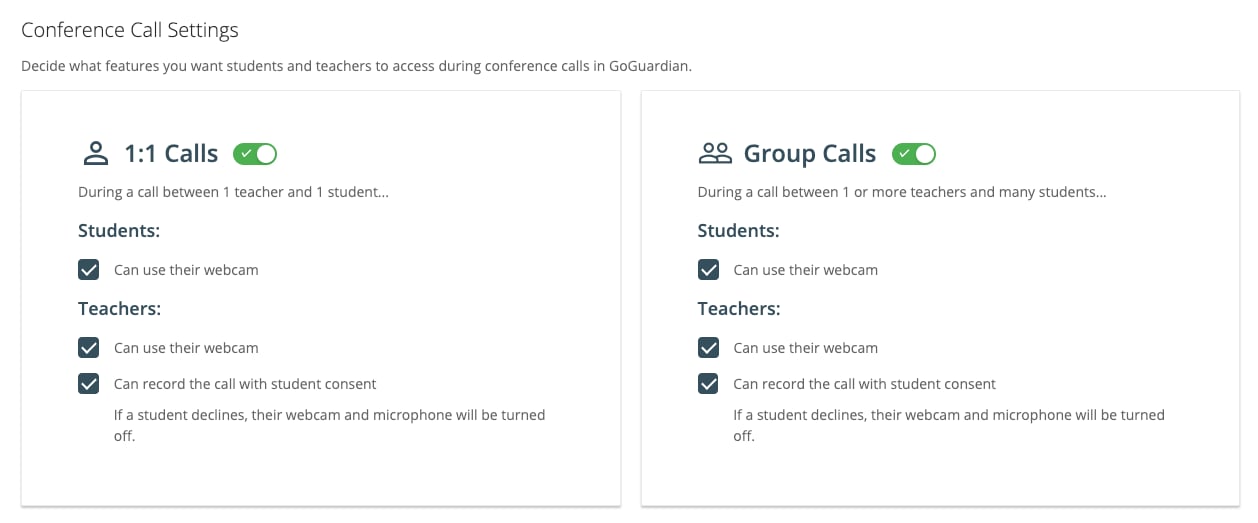
Control which call features are available during class sessions:- Enable or disable 1-on-1 calls and group calls
- Allow or prevent students and teachers from using webcams
- Allow or prevent call recording (with student consent)
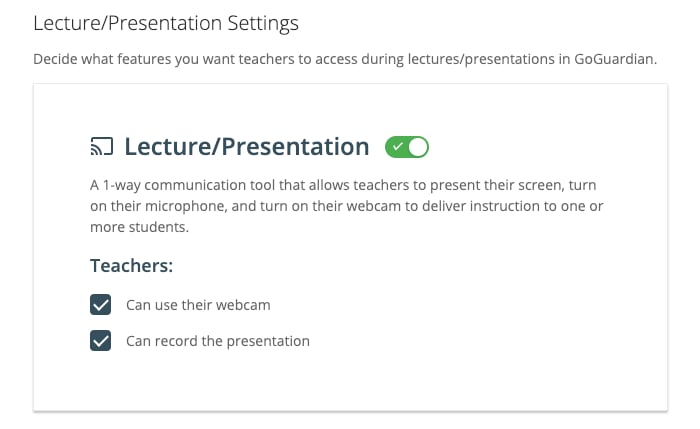
Lecture and Presentation Settings
Control the Lecture / Presentation (Present to Class) mode:- Enable or disable Lecture / Presentation mode
- Allow or prevent teachers from using webcams during presentations
- Allow or prevent presentation recording
Enable Scheduling by Day
When turned on, teachers can only start class sessions during specified days and time windows. Before enabling this setting, confirm the Timezone is set correctly. Select the days and time ranges when sessions are allowed. Disabling a day prevents teachers from starting any session on that day.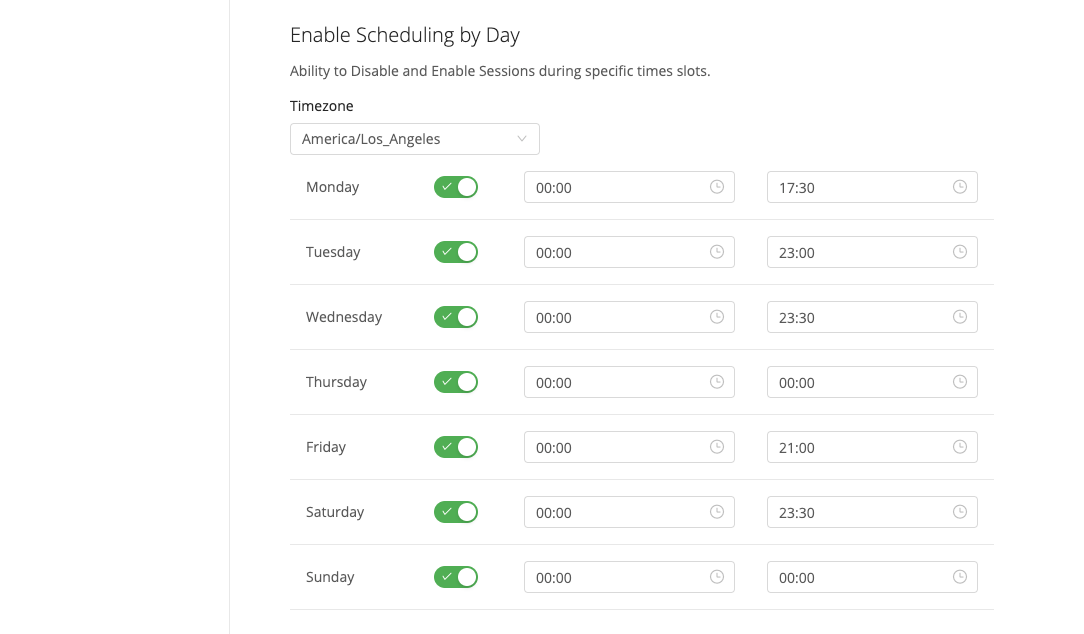
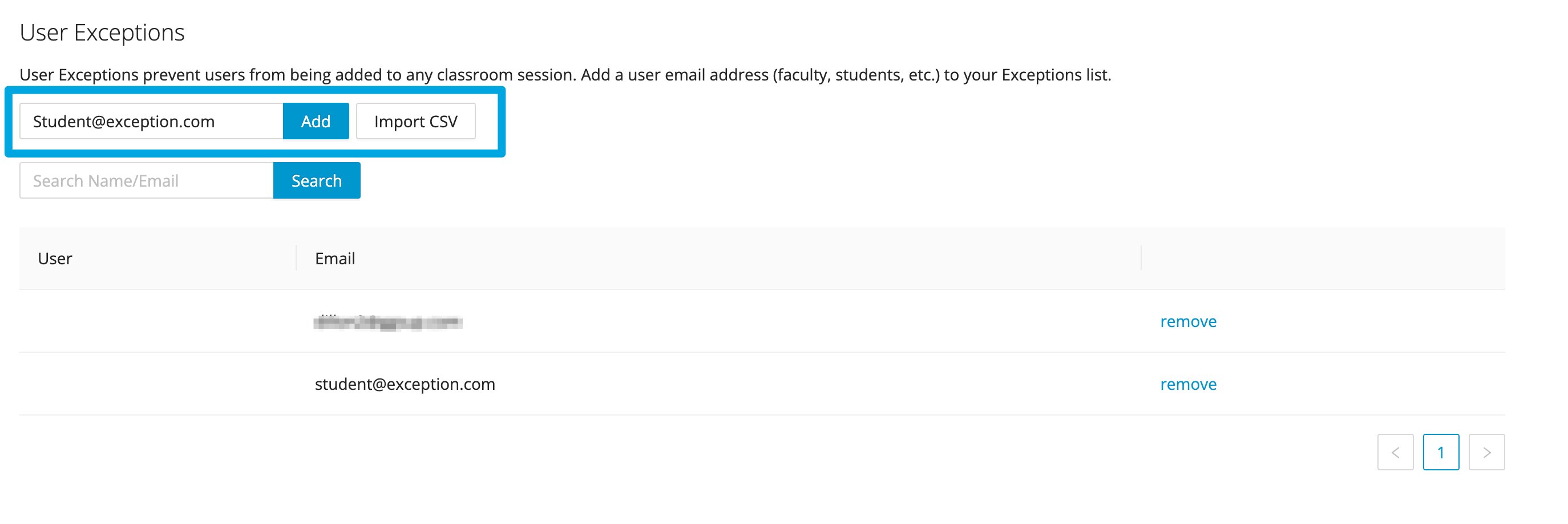
User Exceptions
Add specific users whose devices are never included in classroom sessions regardless of any other setting. Enter an email address and click Add, or import multiple users via CSV.CSV uploads for User Exceptions are limited to 100 users at a time. Break larger lists into separate files if you have more than 100 users to add.
IP Restrictions
Define an allowed IP address range to restrict students from joining classroom sessions from outside the school network. Enter the IP range and click Add. Multiple ranges are supported for organizations with more than one campus or network. To remove a restriction, click Remove next to the IP range.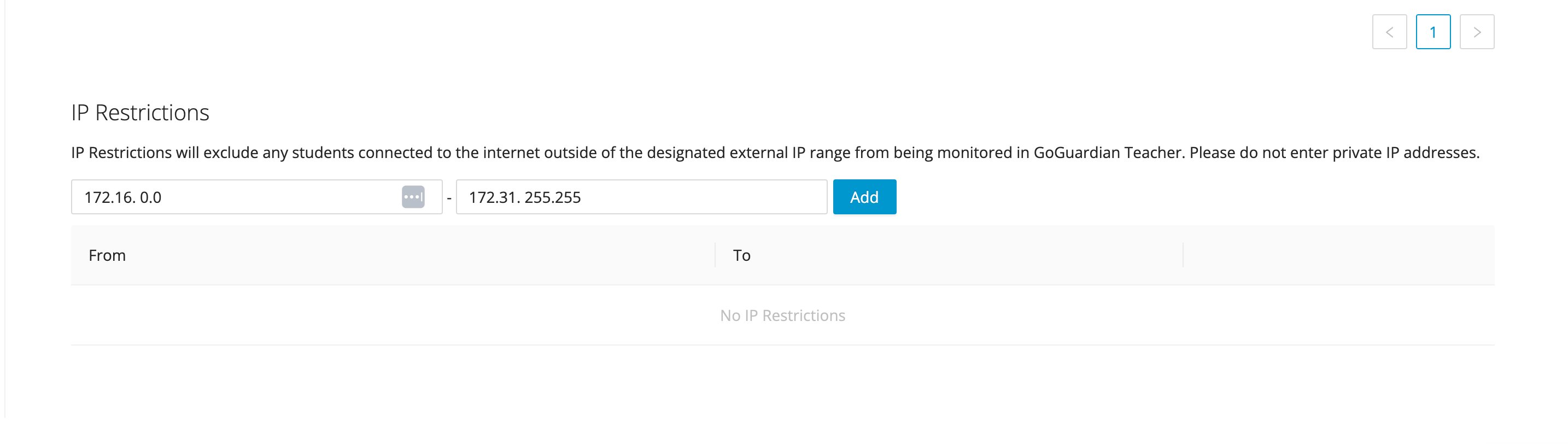
Resources
Set Up Teacher Accounts
Create new teacher accounts individually, by CSV, or through an integration.
Enable Video Conferencing
Configure video conferencing settings for your organization.
Import Teachers from Google Directory
Automate teacher account creation and management through Google.