

GoGuardian Parent requires iOS 12 or later, or Android 5.0 or later.
Download and Open the App
- Download GoGuardian Parent from the Apple App Store or Google Play.
- Open the app after installation.
Sign In with Your Email Address
- Enter the parent/guardian email address on file with your school’s administration.
- Verify the result: A prompt appears to check your email.
Complete Email Verification
- Open the verification email on your mobile device.
- Tap the link in the email to complete sign-in.
Accept the Terms and Conditions
- Read the terms and conditions by scrolling to the bottom of the text.
- Select the checkbox to confirm you have read the terms.
- Click I Agree.
- Verify the result: The app opens to the Your Students page.
Select a Student and Review Activity
- Select a student from the Your Students page.
- Choose a time range: Last Day, Last 7 Days, Last 14 Days, or Last 30 Days.
- Use the navigation bar at the bottom to switch between Summary, Activity, Filters, Time Limits, and Settings.
Configure Parental Controls
Parental controls — website filtering and internet pausing — are available only if your school’s IT administrator has enabled them. Controls apply only during out-of-school hours. To block a website:- Select Filters from the navigation bar at the bottom of the app.
- Tap the button to add a website.
- Enter the domain you want to block — for example,
instagram.comormail.google.com. Subdomains and full domains are both supported. Wildcard expressions are not supported. - Tap Create.
- Verify the result: The site appears in your blocked websites list. It may take up to 2 minutes for the block to take effect.
- Select Time Limits from the navigation bar.
- Tap Pause Internet and select a time increment.
- Verify the result: The app displays a countdown and confirms internet access is paused for your student.
- Select Time Limits from the navigation bar.
- Tap Add Schedule.
- Select one or more days of the week, then set the start and end times for when the internet should be off.
- Tap Create.
- Verify the result: The schedule appears in the Time Limits section and repeats on the selected days.
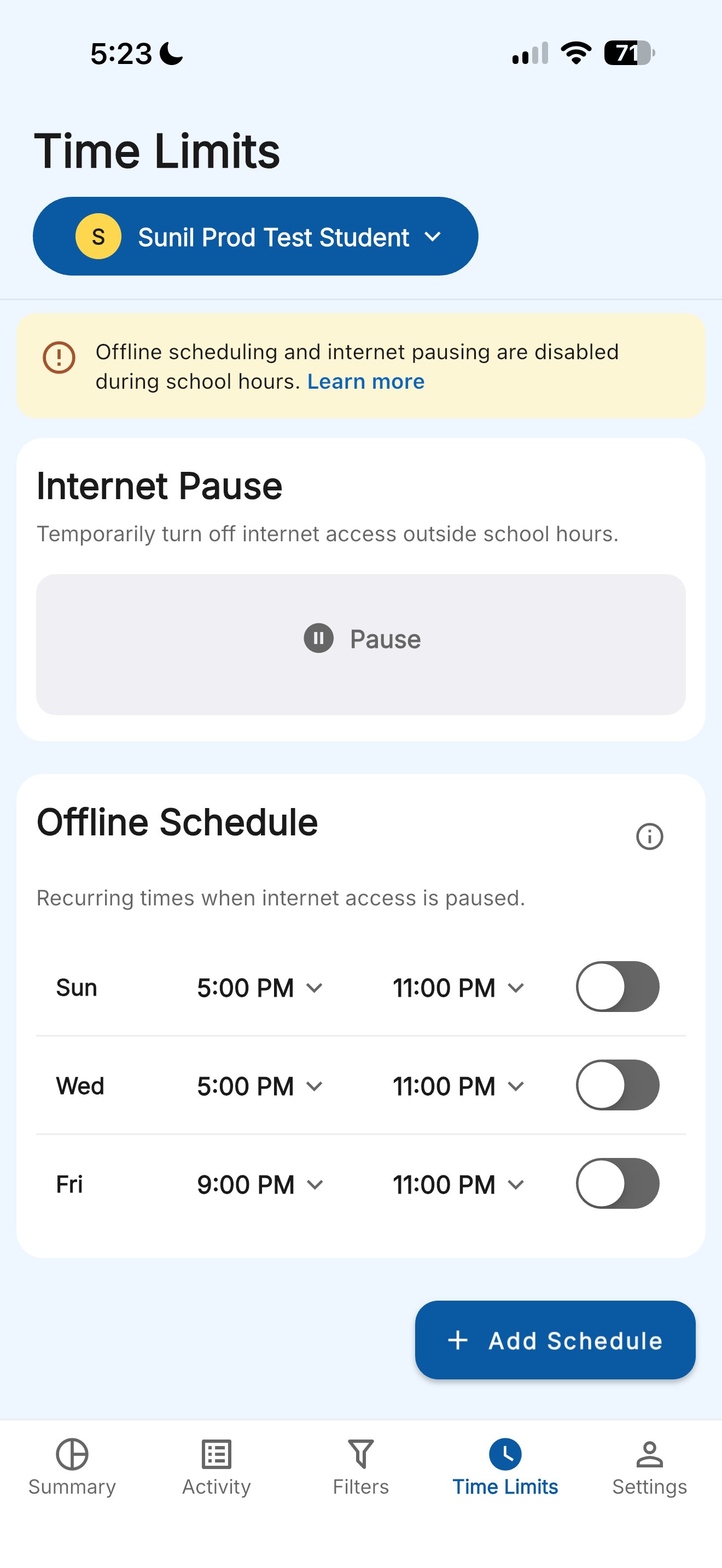
For overnight schedules that span midnight, create two separate schedule entries — for example, one from 9:00 PM to 12:00 AM and one from 12:00 AM to 7:00 AM. Contact your school’s IT department if you have questions about when your student’s out-of-school hours begin.