GoGuardian Parent requires iOS 12 or later, or Android 5.0 or later.
Understand What Administrators Control
Administrators with Super User access configure GoGuardian Parent through GoGuardian Org Management. Administrators:- Add and manage guardian accounts and their relationships to students
- Enable or disable guardian access to the Parent App
- Control access to Top 5 Summary, Teacher Intervention Counts, All Activity View, and Screen Time
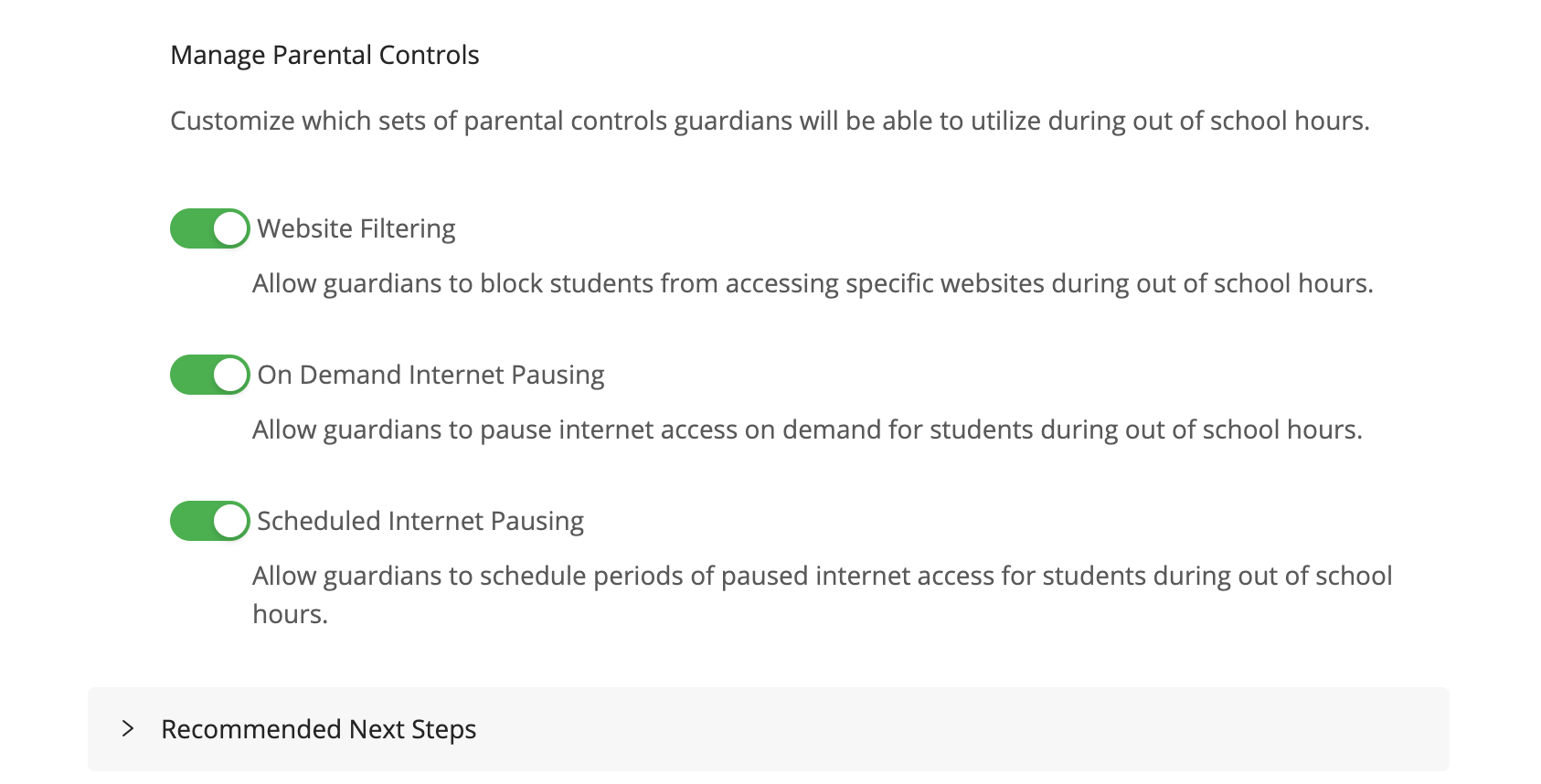
- Enable Website Filtering, On Demand Internet Pausing, and Scheduled Internet Pausing
Understand What Guardians Can View
When an administrator enables access, guardians can view:- Top 5 Summary: the student’s top 5 visited websites, Google Workspace files, apps and extensions, and YouTube videos
- Teacher Interventions: a count of how many times a teacher using GoGuardian Teacher locked screens, opened tabs, or closed tabs for the student. Availability depends on the school’s GoGuardian Teacher subscription.
- All Activity: a chronological list of websites the student visited or attempted to visit, including blocked sites
- Screen Time: the student’s Screen Time data
Understand Parental Controls
Parental controls are optional features administrators can enable for guardians. Controls only apply during out-of-school hours, as defined by the school’s At Home Mode schedule. School filtering policies remain active and take precedence — guardians cannot allow sites the school has blocked. When enabled by an administrator, guardians can:- Block websites — prevent the student from accessing specific domains on their managed device
- Pause internet access — suspend internet access for a set time increment, from 15 minutes to the rest of the day
- Schedule internet pauses — set recurring schedules for when internet access is off
Parental controls require At Home Mode to be configured in GoGuardian Org Management. Contact your school’s IT department to determine when your student is considered “out of school.” These features have no guaranteed functionality on personally owned, unmanaged student devices.