

Understand What Diagnostics Shows
Diagnostics logs up to 1,000 blocked traffic events in the last 24 hours. Each log entry includes: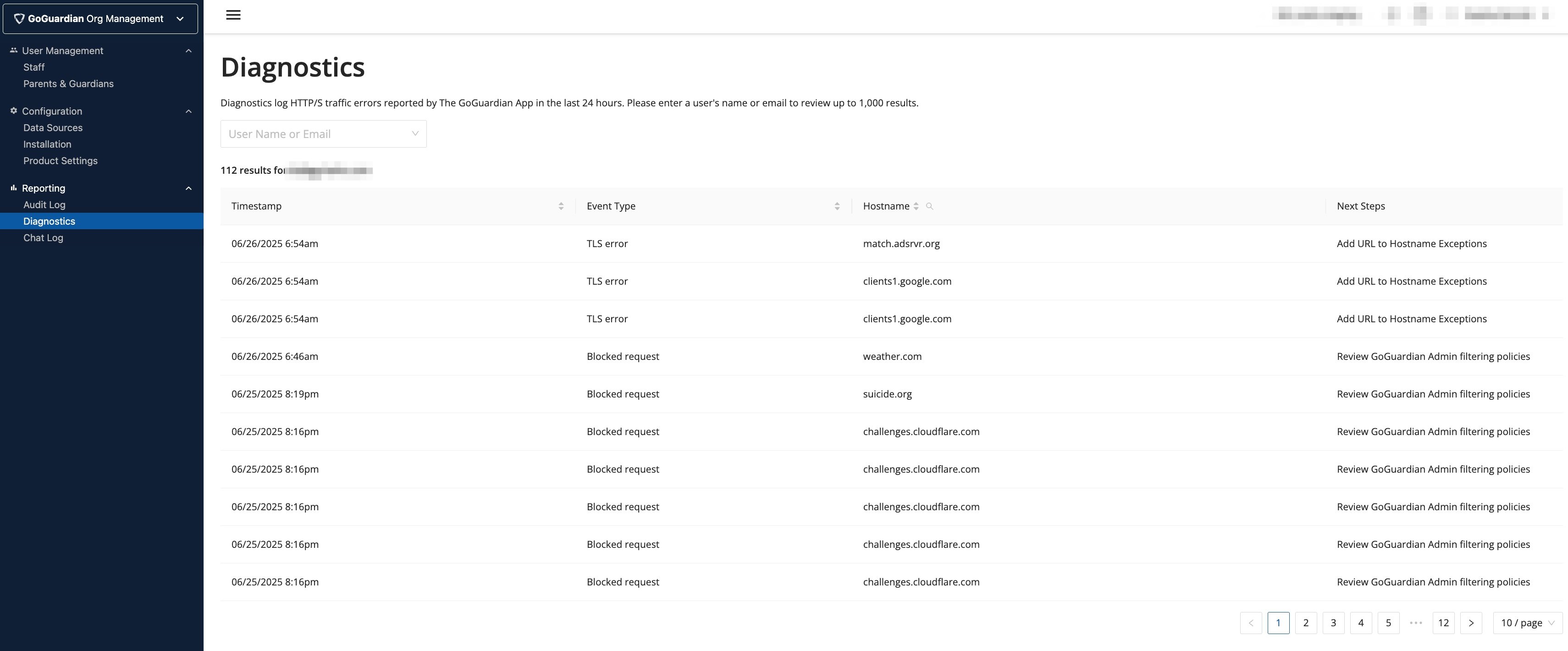
Identify the Block Cause
Diagnostics uses four event types to classify blocked traffic: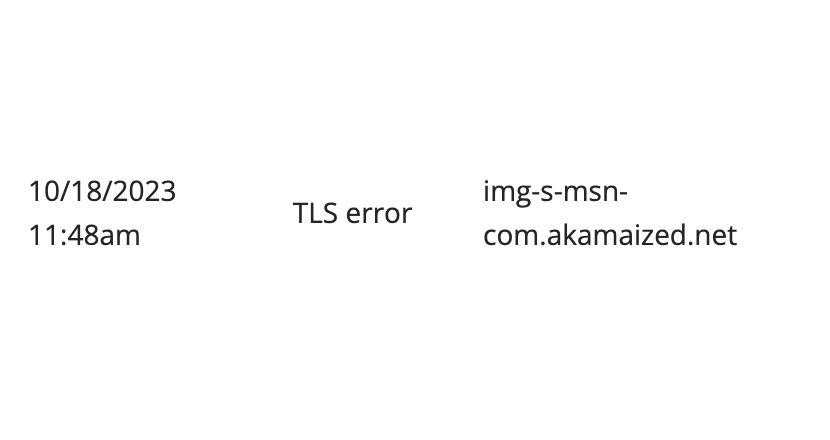
EOF (End of File) message in the log indicates a TLS error where GoGuardian could not connect to the website.
Common causes of TLS errors:
- The web server’s TLS protocol does not match GoGuardian’s protocol
- An invalid or untrusted certificate from the web server
- A local firewall or proxy blocking the connection
- The browser blocking the connection
- An incorrect date or time on the device
- SSL pinning on the website
Troubleshoot a Blocked Resource
- Go to manage.goguardian.com/installations/diagnostics or in Org Management, go to Installations, then select Diagnostics. Search the user’s name to open their profile. Confirm their Last Organizational Unit to verify their active policy.
- Review the Diagnostics log for the blocked URL. Note the Event Type and the Hostname. If the event type is Blocked request, check the Admin policy applied to the user’s OU for the blocked URL or a matching website category. If the event type is TLS error, the hostname needs to be added to Hostname Exceptions.
-
Based on the event type:
- Blocked request — In GoGuardian Admin, open the policy applied to the user’s OU. Find the filtering rule for the blocked URL, then either delete the rule or change it to Allow. Also check whether the URL falls under a website category toggled off in the policy, or whether Restricted Mode is turned on in the policy. Alternatively, add the domain to Hostname Exceptions.
- TLS error or Read response error — Add the hostname to Hostname Exceptions in Org Management.
- Device write failure — Free up disk storage on the device or verify that GoGuardian has the required file permissions.
- After applying the fix, have the user attempt to access the resource again. If the block is resolved, the URL no longer appears as a new blocked event in Diagnostics. If the issue persists, check for additional blocked subdomains or CDN URLs in the log.
- Visit the website in a different browser or an unfiltered device to confirm the site itself is accessible
- Inspect the website’s network requests using browser developer tools to identify additional blocked subdomains
- Confirm that a local firewall or proxy is not blocking the resource independently of GoGuardian
- Use a network packet capture utility to examine traffic at the network level
- Review the provider’s documentation for required hostnames and add them to Hostname Exceptions
Resources
Add Exceptions in Org Management
Add hostname, application, IP, and Windows application exceptions.
Review Filtering Policies
Update Admin filtering policies to allow or block specific URLs.
Review Roles and Permissions
Confirm which roles can access Diagnostics in Org Management.