

Understand How Exceptions Work
Exceptions are used when applications or websites experience unexpected behavior, including:- Websites that fail to load all elements or resolve
- Websites with SSL pinning that cause connection delays
- Applications that cannot open
- Resources blocked by Admin policies that must remain accessible, such as direct IP addresses or subdomains
GoGuardian and Google domains are hardcoded exceptions and do not need to be added manually.
Identify Resources to Add as Exceptions
Before adding exceptions, review the Diagnostics log in Org Management to identify which resources are being blocked. Diagnostics show HTTP/HTTPS traffic blocked in the last 24 hours per user, including the blocked URL, event type, and recommended next steps. Common resources to add as exceptions include:- CDN URLs
- Subdomains used by web applications or single sign-on (SSO) authentication
- Low-traffic websites blocked by Admin policies or unable to establish a secure connection with GoGuardian
Add Hostname Exceptions
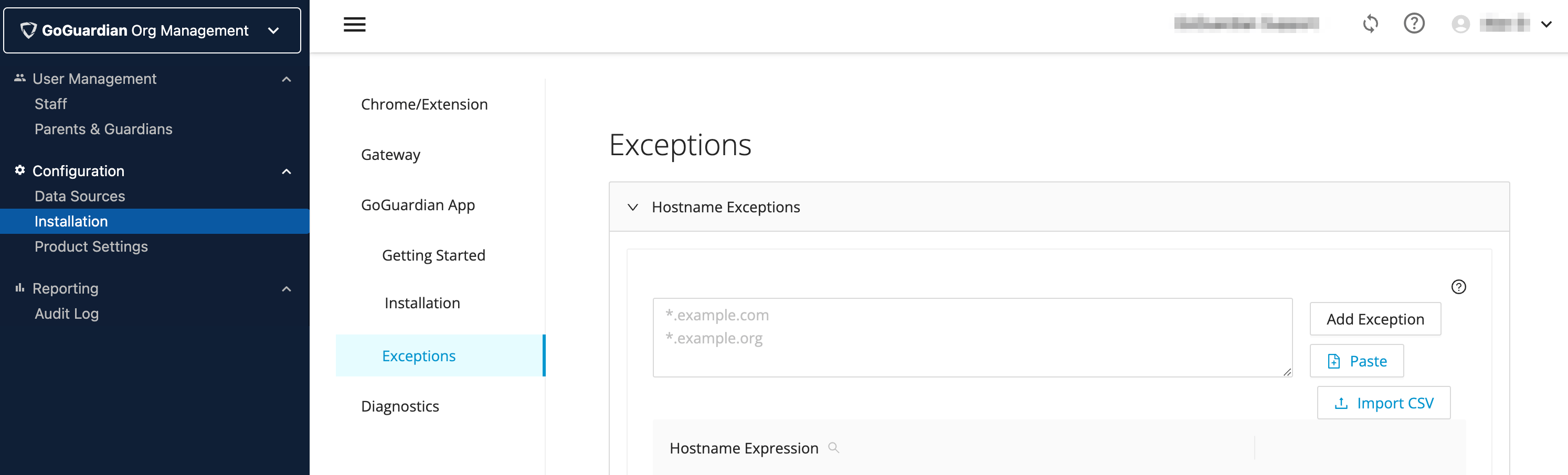
Hostname exceptions exempt specific domains or subdomains from GoGuardian filtering across all browsers and apps.- Go to
manage.goguardian.comand select Installations. - Select The GoGuardian App, then choose Manage Exceptions.
- Select Hostname Exceptions.
- Enter one domain or subdomain per line. Use full domain format (
example.com) or subdomain format (sub.example.com). - Click Save.
- Verify the result: The hostname appears in your exceptions list. Changes take up to five minutes to apply.
- Add wildcards for both the root domain and subdomain when a site has multiple services:
example.comand*.example.com. Adding only one does not automatically apply to the other. - Prefix subdomain exceptions with a wildcard and period (
*.apple.com) to prevent access to misleading websites. Do not use*apple.comwithout the period. - Avoid wildcards on both sides of a domain (
*.example.com*) to prevent unexpected behavior.
Configure Application Exceptions
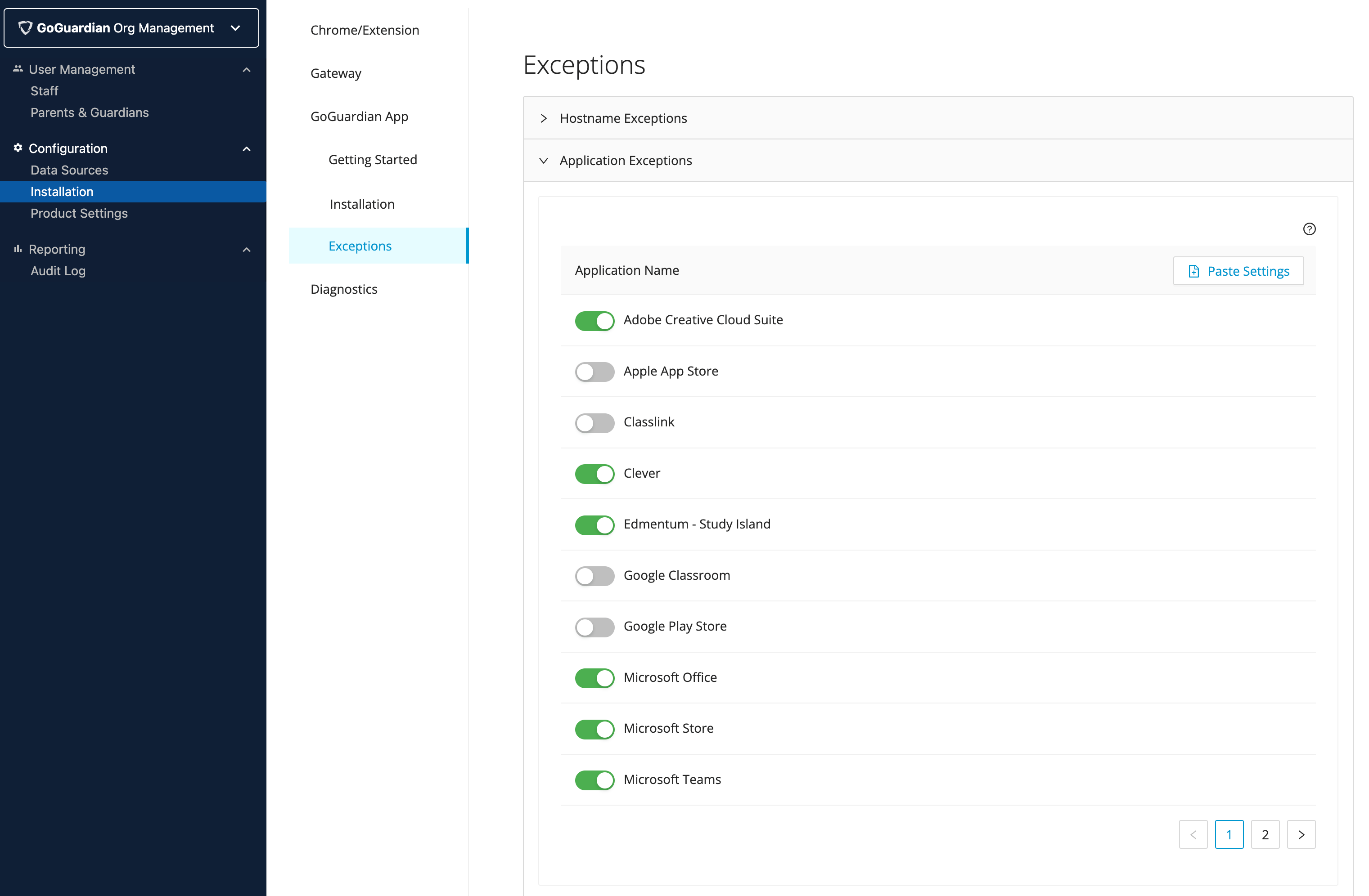
Application exceptions automatically exempt the required domains for commonly used cloud applications. Toggling on an application exception is faster than identifying and entering individual domain exceptions manually.-
Go to
manage.goguardian.com, select Installations, then select The GoGuardian App. - Select Manage Exceptions, then select Application Exceptions.
- Turn on the toggle for each application to exempt.
- Verify the result: The toggled applications appear as active in your exceptions list.
- Adobe Creative Cloud
- Apple App Store
- Classlink
- Clever
- Edmentum - Study Island
- Google Classroom
- Google Play Store
- Microsoft Office
- Microsoft Store
- Microsoft Teams
- Pearson
- Seesaw
- Zoom
Add IP Exceptions
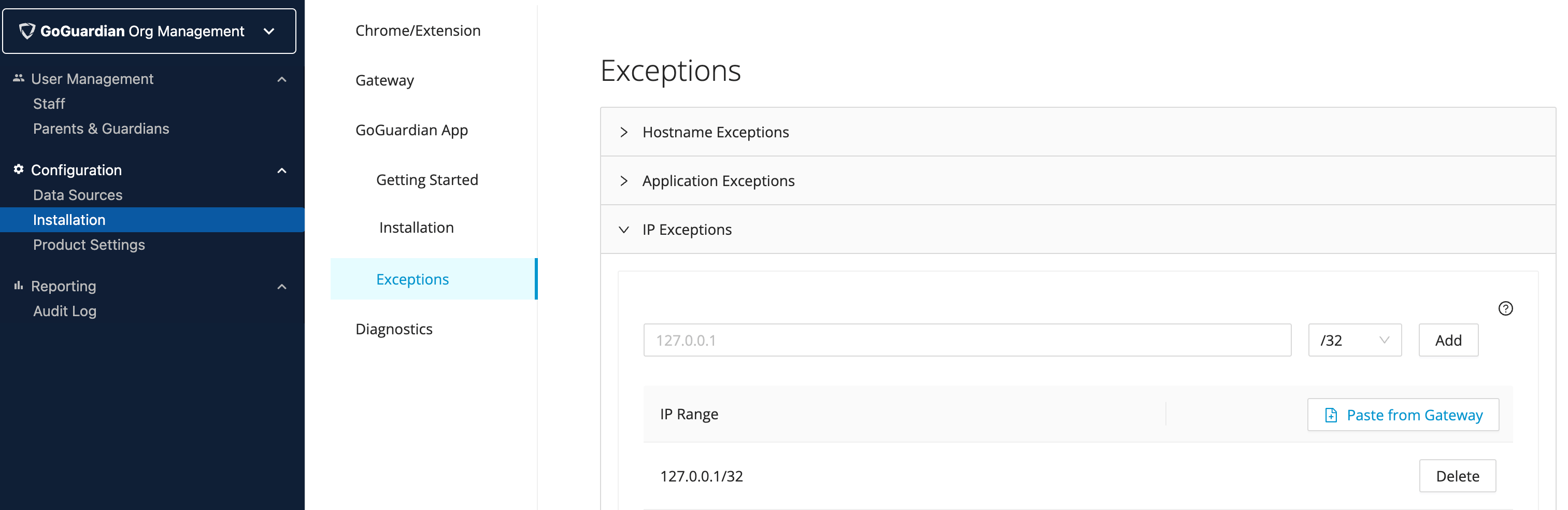
IP exceptions exempt specific static IP addresses from GoGuardian filtering. Use these for network infrastructure resources such as printers that use fixed IP addresses.-
Go to
manage.goguardian.com, select Installations, then select The GoGuardian App. - Select Manage Exceptions, then select IP Exceptions.
- Enter each IP address and click Add.
- Verify the result: The IP address appears in your exceptions list.
Set Up Windows Application Exceptions
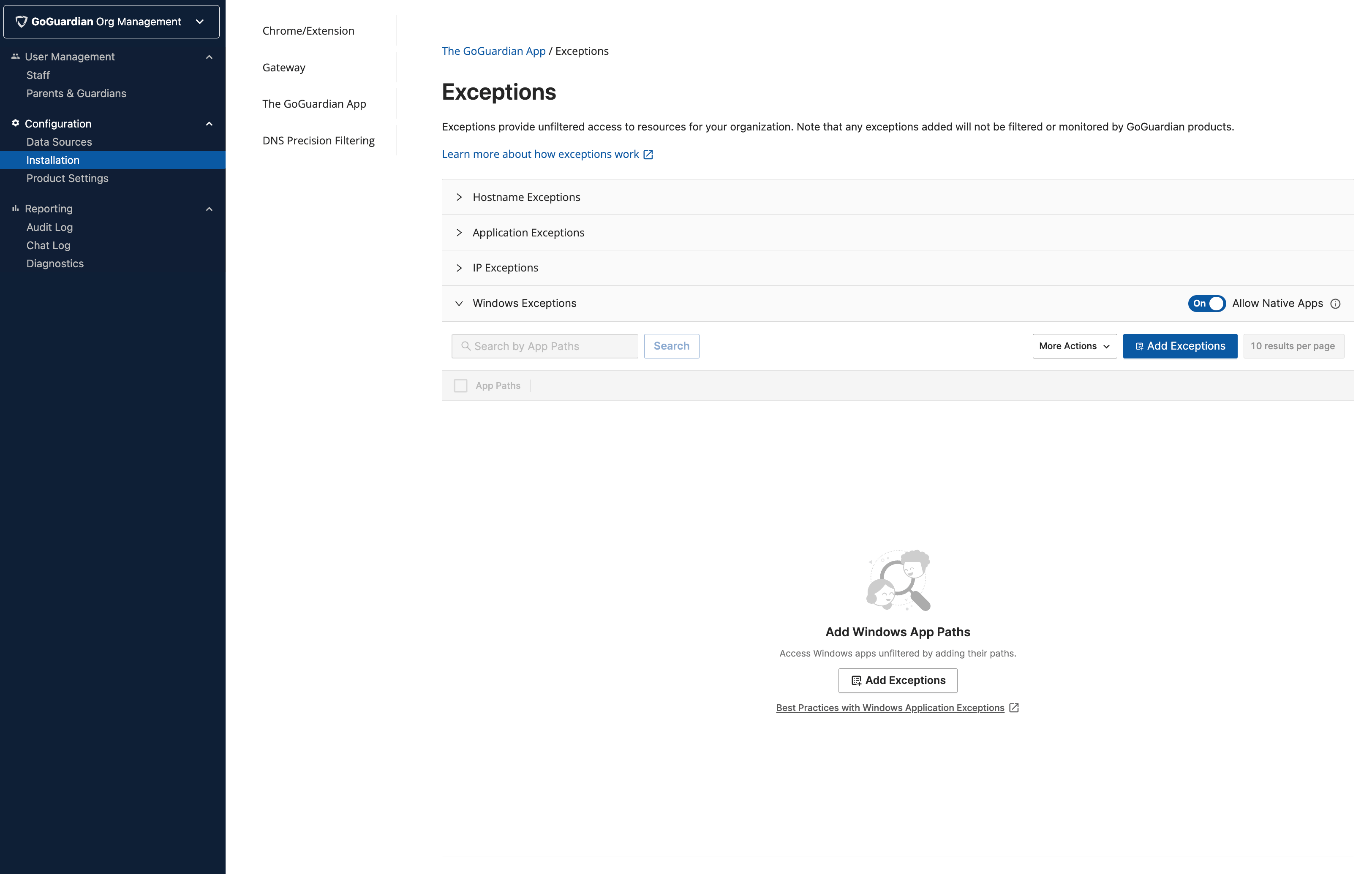
Windows application exceptions exempt specific local application files — such as executables and dynamic-link libraries — from GoGuardian filtering on Windows devices. Requires The GoGuardian App 1.22.0 or later.- Go to
manage.goguardian.com, select Installations, then select The GoGuardian App. - Select Manage Exceptions, then select Windows Exceptions.
- Enter each file path and click Add.
- Verify the result: The file path appears in your Windows exceptions list.
- Add specific app files, including executables (
.exe) and dynamic-link libraries (.dll) - Include the deepest child path or use a wildcard to match it — child paths do not inherit parent exceptions. Example:
C:\Program Files\Vendor\* - Separate path segments with backslashes (
\). Example:C:\Program Files\Vendor\app.exe - Prefix each path with a drive letter (
C:\) or two backslashes for a UNC path (\\server\share\folder) - Limit wildcards (
*) to trusted paths or variable-name paths, such as apps that change install paths after updates - Keep paths to 255 characters or fewer
- Exclude invalid characters:
< > ? " | - Keep Allow Native Apps enabled to allow native Windows applications and reduce troubleshooting
Resources
Troubleshoot with Diagnostics
Review blocked traffic logs to identify resources that need exceptions.
Understand The GoGuardian App on Windows
Review Windows-specific feature behavior and hostname exception context.
Review Roles and Permissions
Confirm which roles can manage exceptions in Org Management.