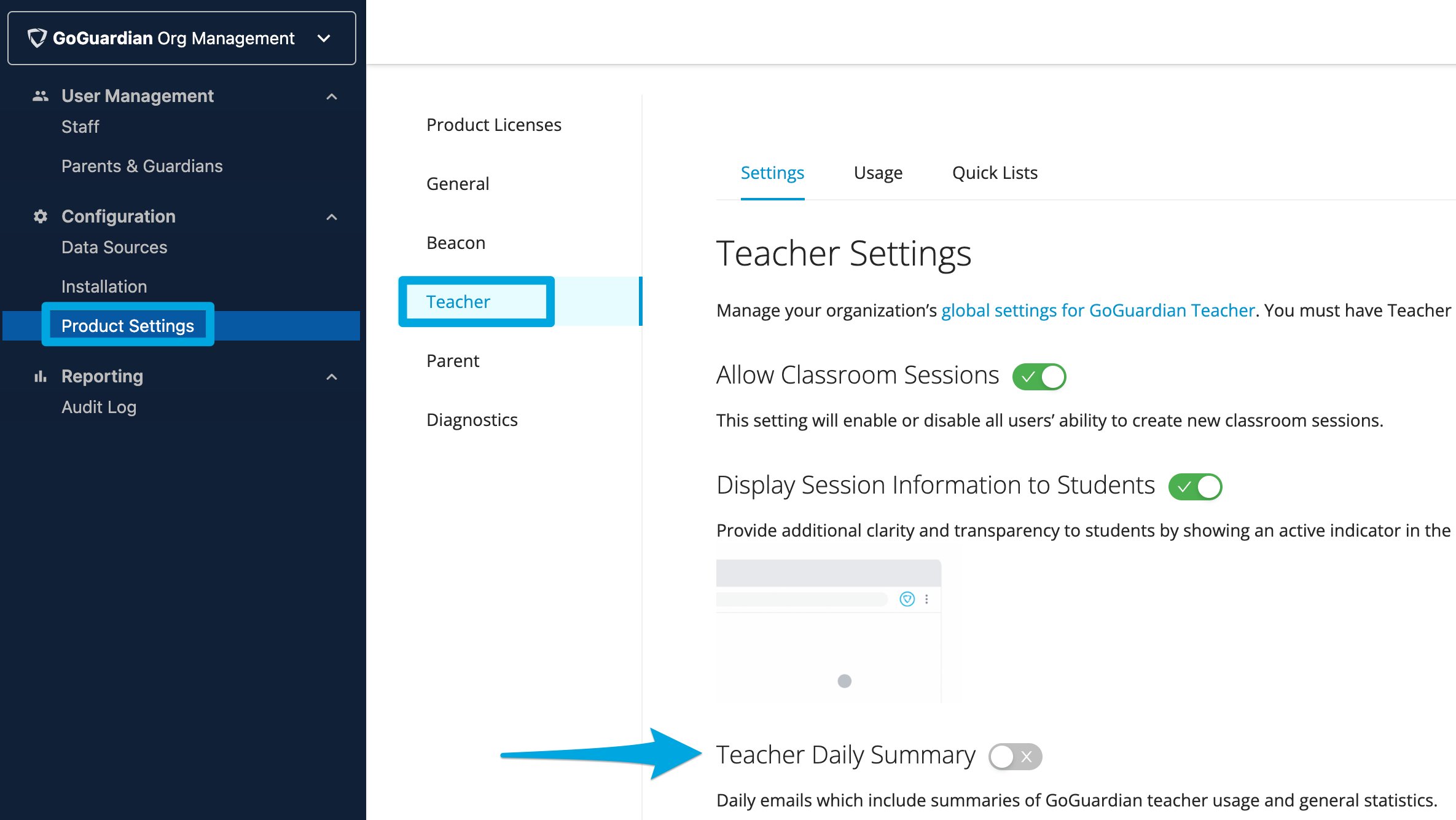
In GoGuardian Org Management, Super Users can turn on Teacher Daily Summary emails to receive a daily summary report of overall GoGuardian Teacher usage. Teacher Daily Summaries are an individual setting. Turning them on or off does not affect other Super Users.

Turn On or Off Teacher Daily Summary Emails

  1. Sign in to manage.goguardian.com as a Super User.
  2. Click the Product Settings tab, then click Teacher.
  3. Turn on or turn off Teacher Daily Summary. A green toggle means the feature is on. A gray toggle means it is off.
  4. Verify the result: The toggle reflects your selection and the change takes effect immediately.
Turning Teacher Daily Summary emails on or off requires the user to have GoGuardian Teacher access set to Enabled.

Read a Teacher Daily Summary Email

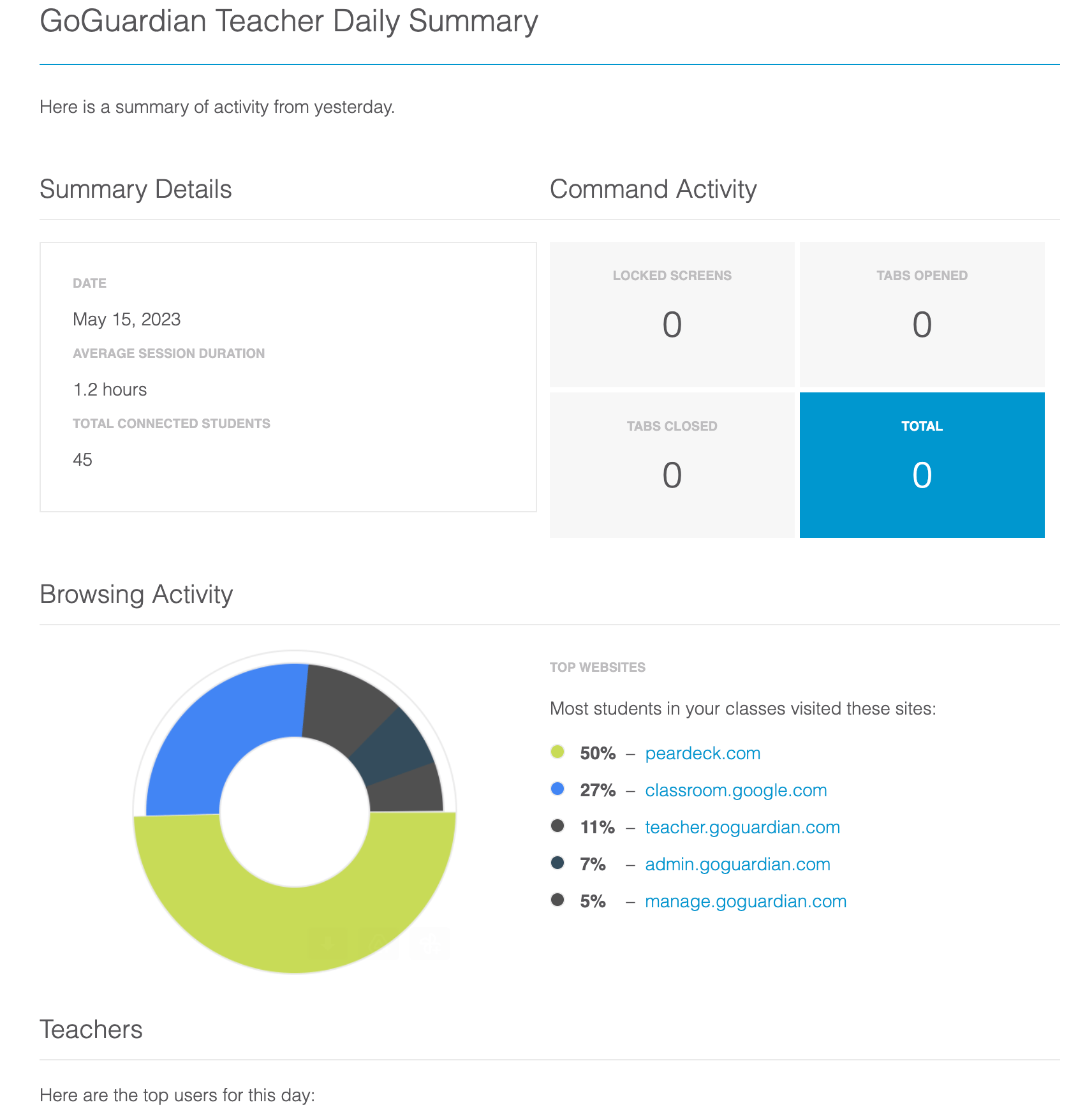
Each email contains four sections: Summary Details
  • Date
  • Average session duration (in minutes)
  • Total connected students across all sessions that day
Command Activity: statistics on commands issued by teachers across all sessions that day:
  • Number of screens locked
  • Number of tabs opened
  • Number of tabs closed
  • Total commands issued
Browsing Activity: a diagram of the top websites visited by students during sessions that day, shown as percentages of all websites visited. Teachers: a list of teachers for that day and the number of hours each had classroom sessions running. GoGuardian Org Management > Product Settings (selected) > Teacher (selected) > Teacher Daily Summary (selected)… GoGuardian Teacher Daily Summary: Here is a summary of the activity from yesterday: Date, Average Session Duration,…
Last modified on July 15, 2026