Learn when GoGuardian filters content and reviews student activity based on your organization’s product configuration and settings.
GoGuardian products filter content and review activity for students who have the GoGuardian Extensions or The GoGuardian App installed on their school email address. When and how a student is filtered or has their activity reviewed depends on which products the organization uses and how settings are configured.
Activity review means a student’s online activity is captured in GoGuardian Admin, GoGuardian Teacher, or GoGuardian Beacon. When this occurs depends on each organization’s settings.GoGuardian Admin captures websites that students visit. Flagged Activity and Smart Alerts may also be generated when potentially concerning activity is identified.GoGuardian Teacher captures websites accessed by students in the teacher’s class roster, but only while the teacher’s class session is active.GoGuardian Beacon is a student safety tool that captures websites and takes screenshots when a GoGuardian Beacon alert is generated.
Filtering means a student’s online activity (websites, individual webpages, embedded content, or YouTube videos) is blocked by GoGuardian Admin filtering or GoGuardian Teacher Scenes.Filtering is primarily determined by policies in GoGuardian Admin, which can block website URLs, categories, YouTube videos, and Chrome Apps and Extensions. Teachers can also filter websites using Scenes, but only during active class sessions.Both filtering and activity review settings are controlled at the organization level by GoGuardian administrators.
The Restrict Filtering & Monitoring to Chromebooks Only setting in manage.goguardian.com/products controls which devices GoGuardian is active on.When this setting is on, GoGuardian only filters and reviews activity on Chromebook devices. When this setting is off, other devices (Windows, Mac) can have activity reviewed while an account with GoGuardian installed is signed into the browser or The GoGuardian App.
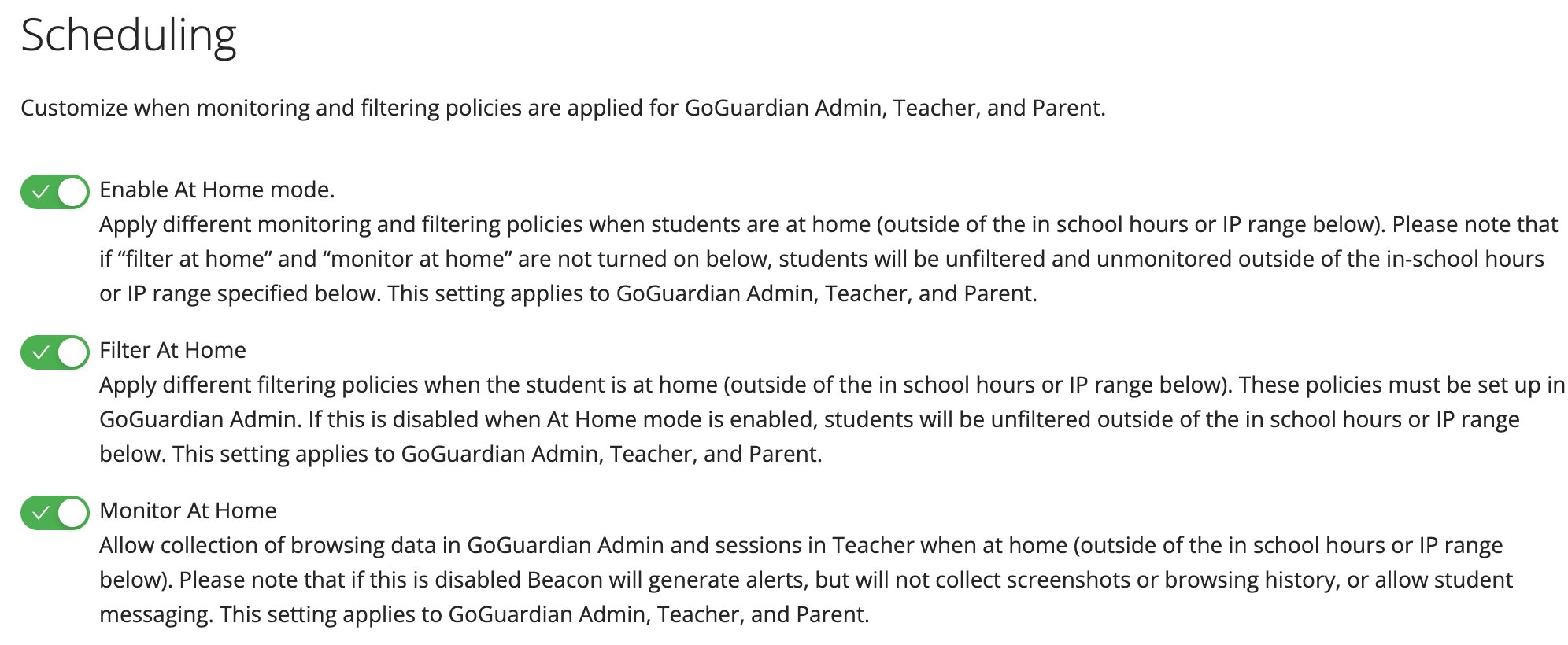
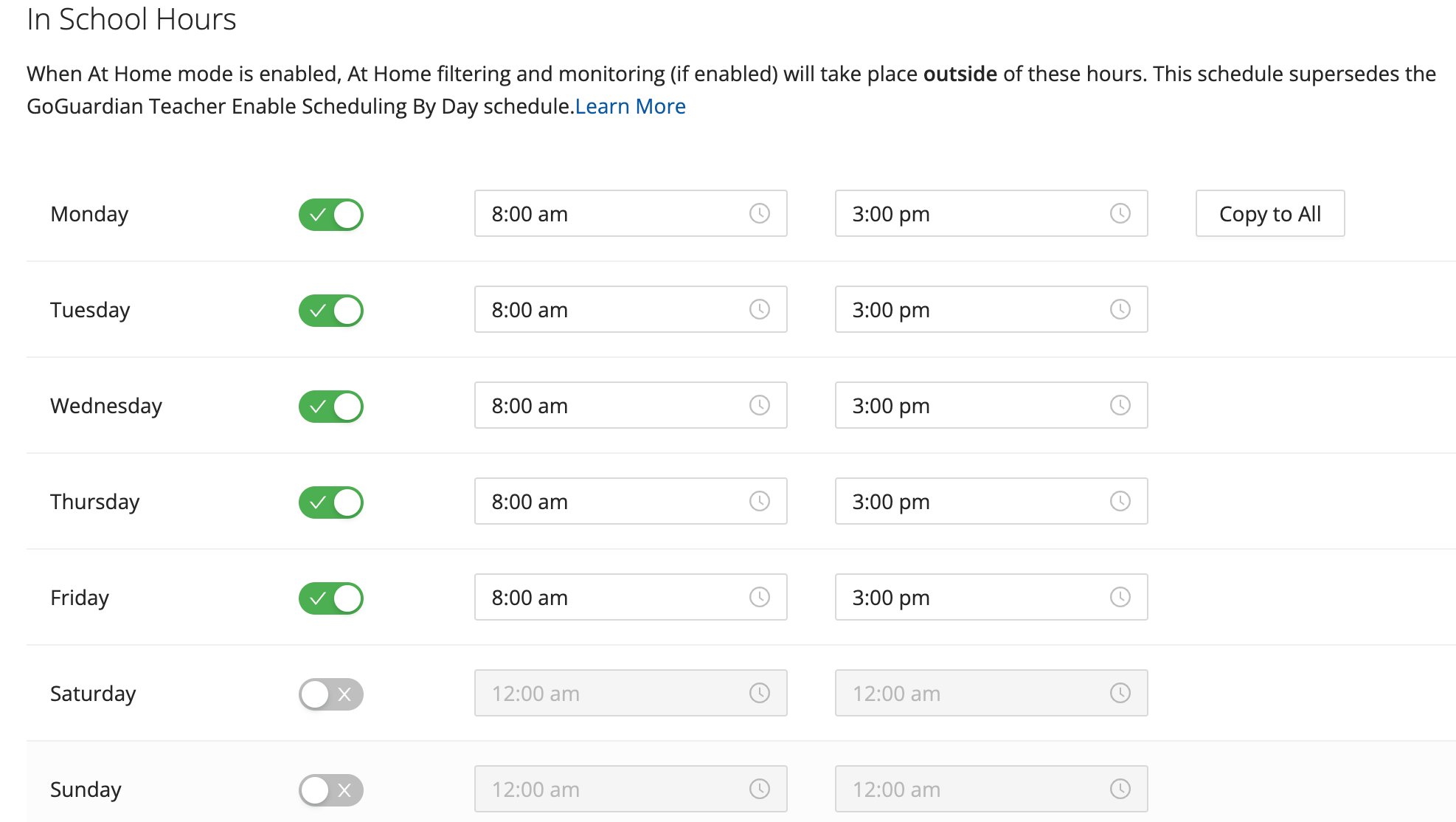
At Home Mode is an optional setting that lets organizations filter and review student activity differently during “in school” hours versus outside of school hours.When At Home Mode is off, students are filtered and have activity reviewed the same way around the clock.When At Home Mode is on, organizations can configure Filter at Home and Monitor at Home settings independently.Filter at Home example: With Filter at Home on, an organization could block social media and gaming sites during school hours but allow them in the evenings.Monitor at Home example: An organization can choose to review activity only during school hours by turning Monitor at Home off, or keep activity review on at all times by leaving Monitor at Home on.In School Hours settings determine which days and times are considered “in school.” These are configured at manage.goguardian.com/products.
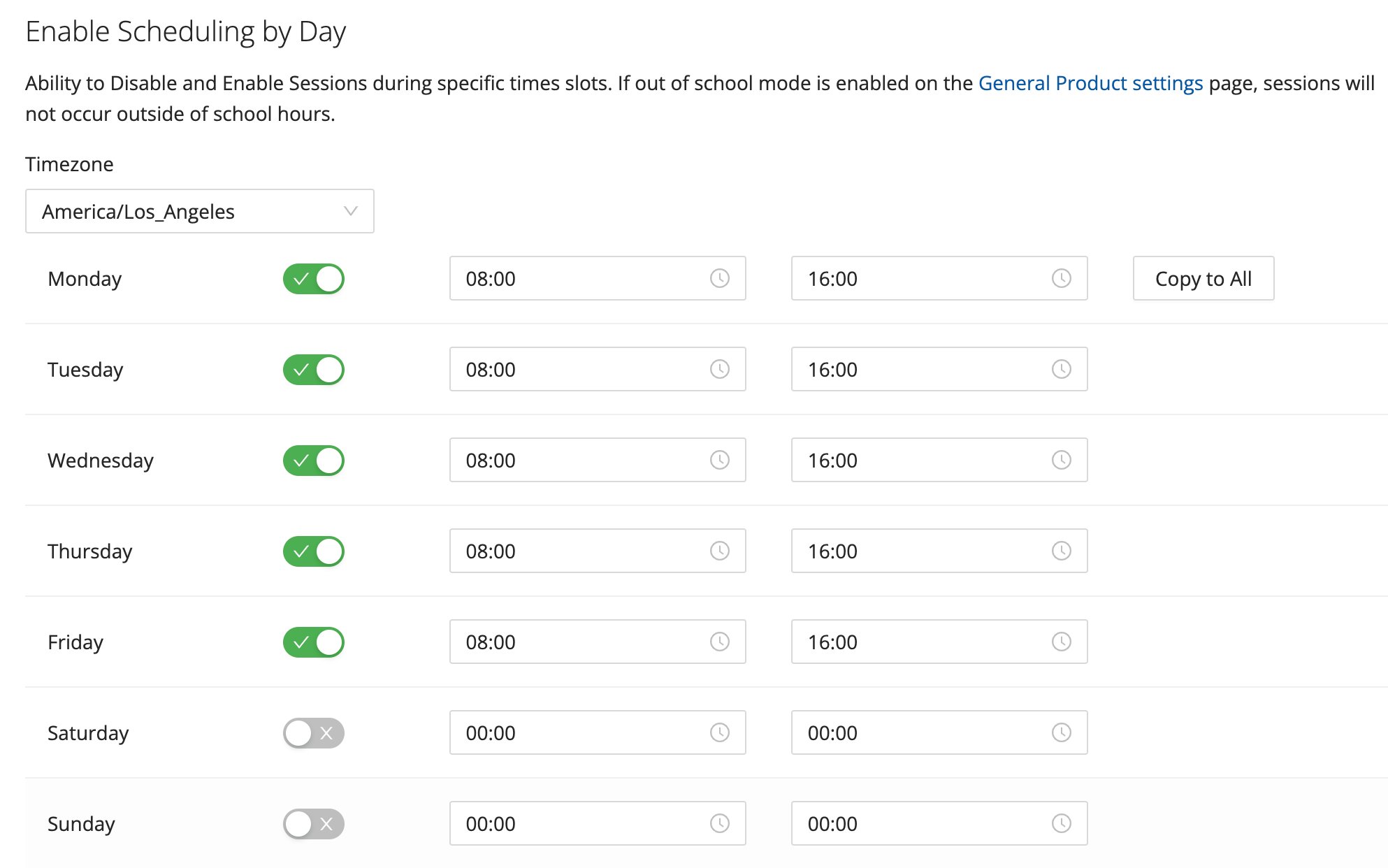
GoGuardian Teacher settings control when Teacher class sessions can run. These are managed in the Teacher section of Org Management at manage.goguardian.com/products/teacher/settings.The Allow Classroom Sessions toggle controls whether Teacher class sessions can run. This toggle should typically stay on during school hours.Session hours can be further restricted using Scheduling by Day settings. When a day is enabled, sessions can only run during the selected hours for that day.
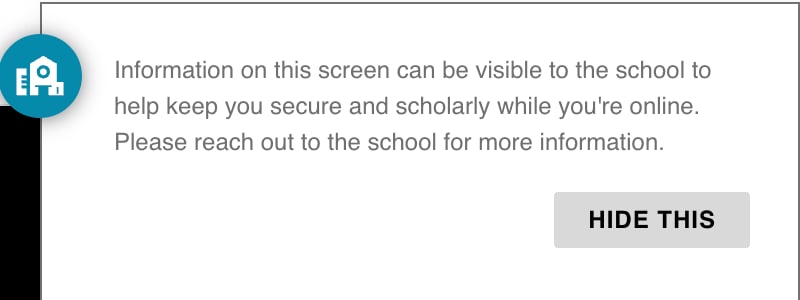
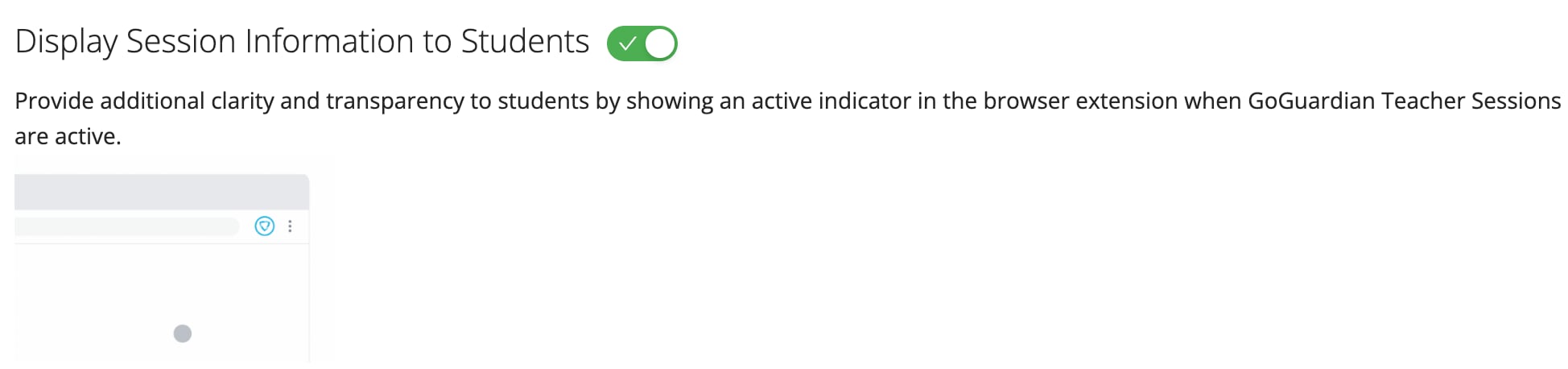
Two privacy settings provide transparency to students about GoGuardian activity.Notify End Users When GoGuardian is Active is found in the General section of Org Management. When on, a persistent notification is displayed so students are aware their account has GoGuardian active.Display Session Information to Students is found in the Teacher section of Org Management. This displays a browser notification to students when a GoGuardian Teacher class session becomes active.
GoGuardian Admin offers a range of reporting options, including student browsing history reports. For a full overview of Admin reporting capabilities, see GoGuardian Admin Reporting Overview.GoGuardian Teacher captures student browsing history only while a class session is active. Teachers can review previous class sessions to see websites visited during class, and can generate Student Browsing Reports or email a Student Report as a PDF.
GoGuardian recommends reaching out to parents and guardians to let them know about GoGuardian and when their student’s school account may be filtered or have activity reviewed. For guidance, see the parent and guardian communication articles for the products your organization uses:
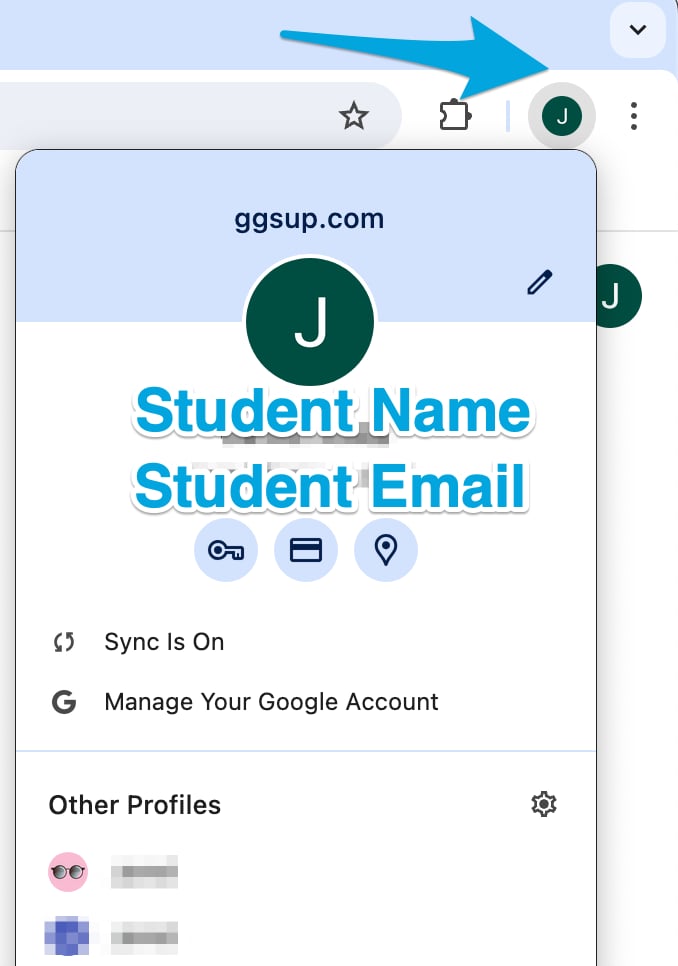
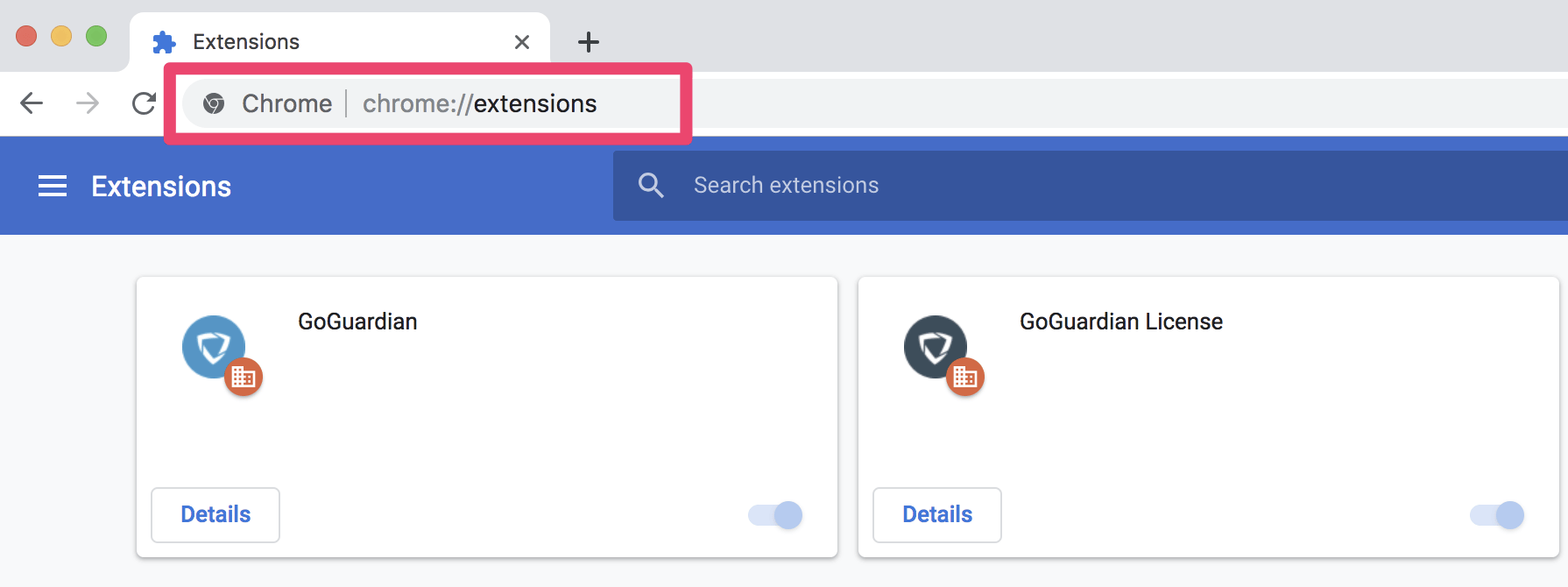
Extensions are installed to each user’s managed email address and are active while the user is signed into that account in Chrome (or Edge, if configured).To confirm which account is signed into Chrome, click the profile icon in the upper corner of the browser or go to myaccount.google.com.To verify the GoGuardian Extensions are installed, go to chrome://extensions and confirm both GoGuardian and GoGuardian License are listed.