

Understand Data Availability and Filtering
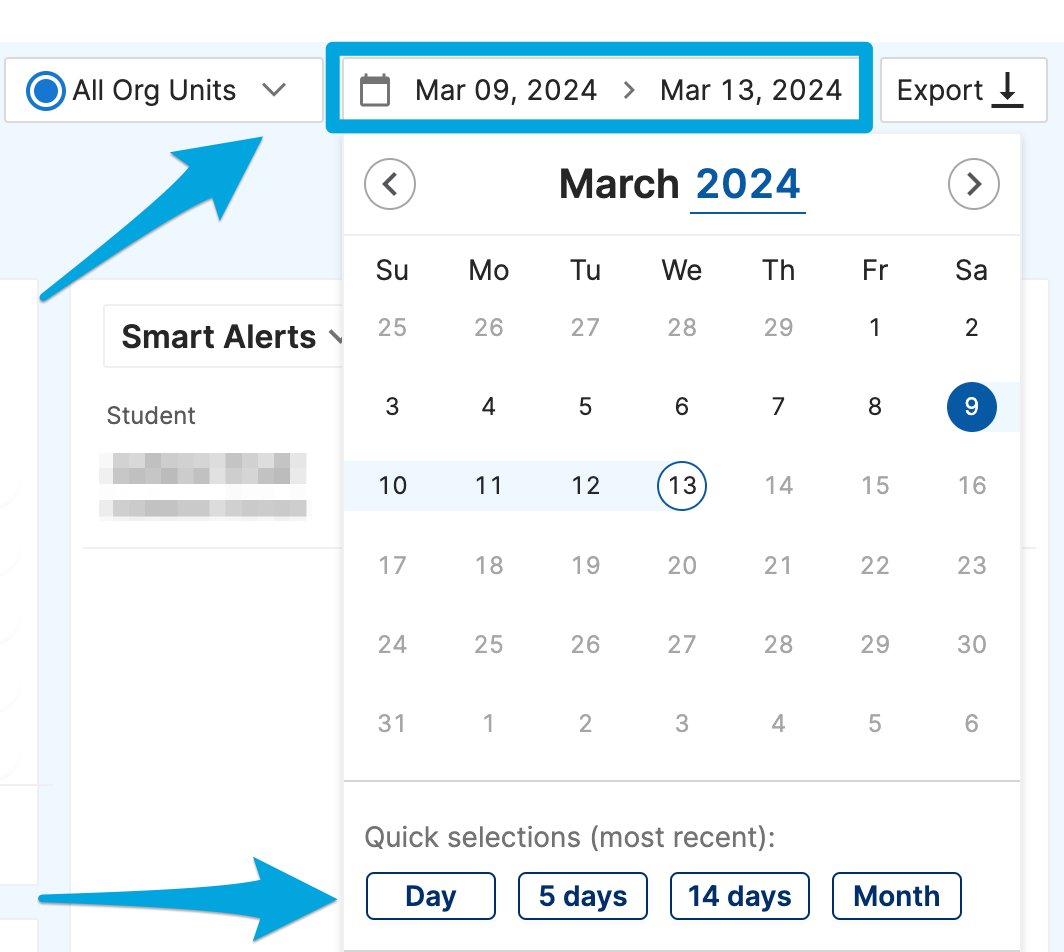
All reports in GoGuardian Admin share a common filtering system and a shared data availability window. Data availability: GoGuardian Admin retains report data for up to 6 months. Reports cannot be generated for dates outside this window. Date range: Each report can be filtered by a custom date range. The maximum range for a single export is 1 month. Shorter presets (single day, 1 week, 2 weeks) are also available. Org unit filtering: Every report can be filtered by one or more org units (OUs). Filtering by OU limits the data to users assigned to that OU. Leaving the OU filter set to the full organization returns data for all users.Administrators receive data only for the org units they can access in Org Management. If your report appears incomplete, confirm your org unit access with your tech director.
Review Report Types
Dashboard Reports
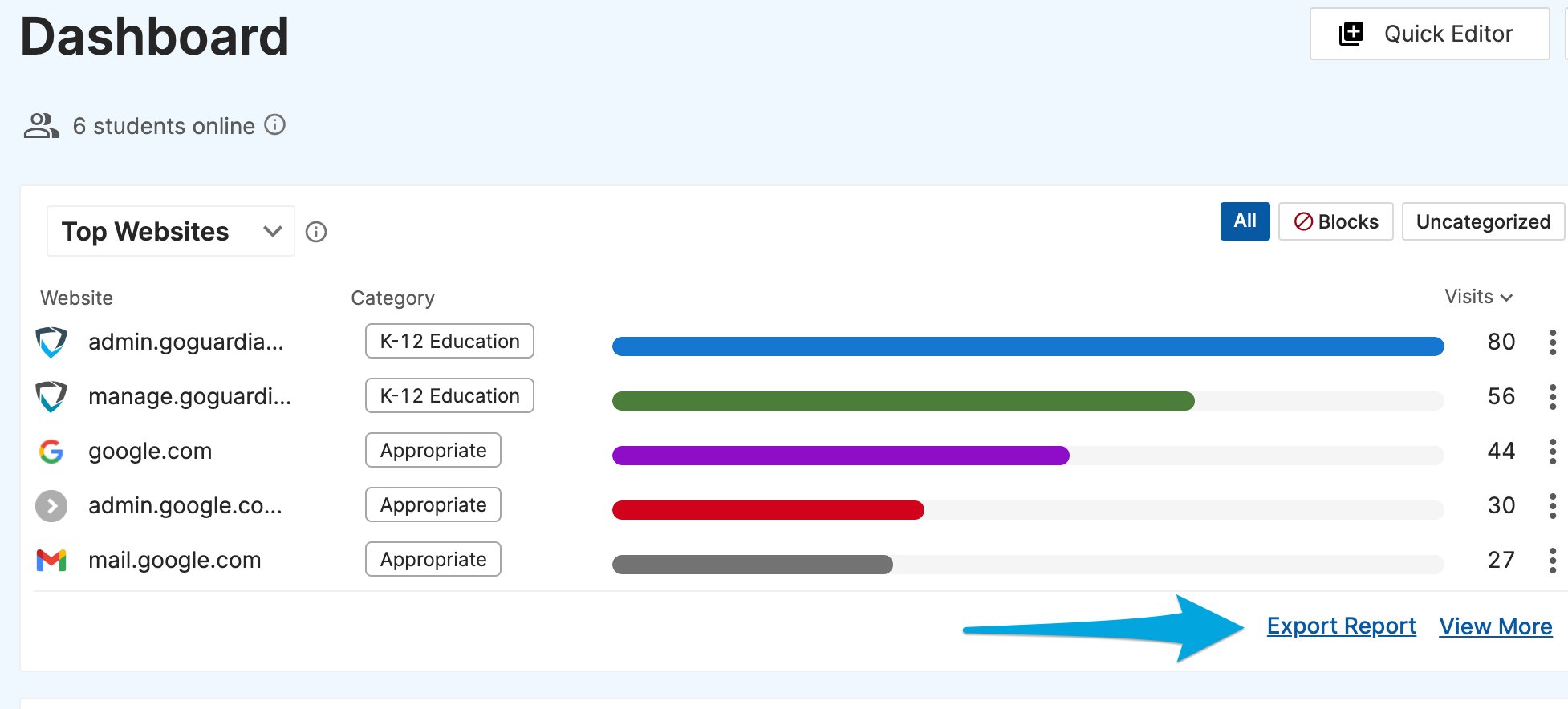
The GoGuardian Admin Dashboard provides a high-level view of activity trends across your organization. Dashboard reports cover the following data types:- Top Websites: most-visited web destinations
- Top Videos: most-watched YouTube videos
- Top Searches: most common Google searches
- Top Docs: most-accessed Google Docs
- Top Apps: most-used Chrome Apps
- Top Categories: most-visited website categories
Browsing Activity Reports
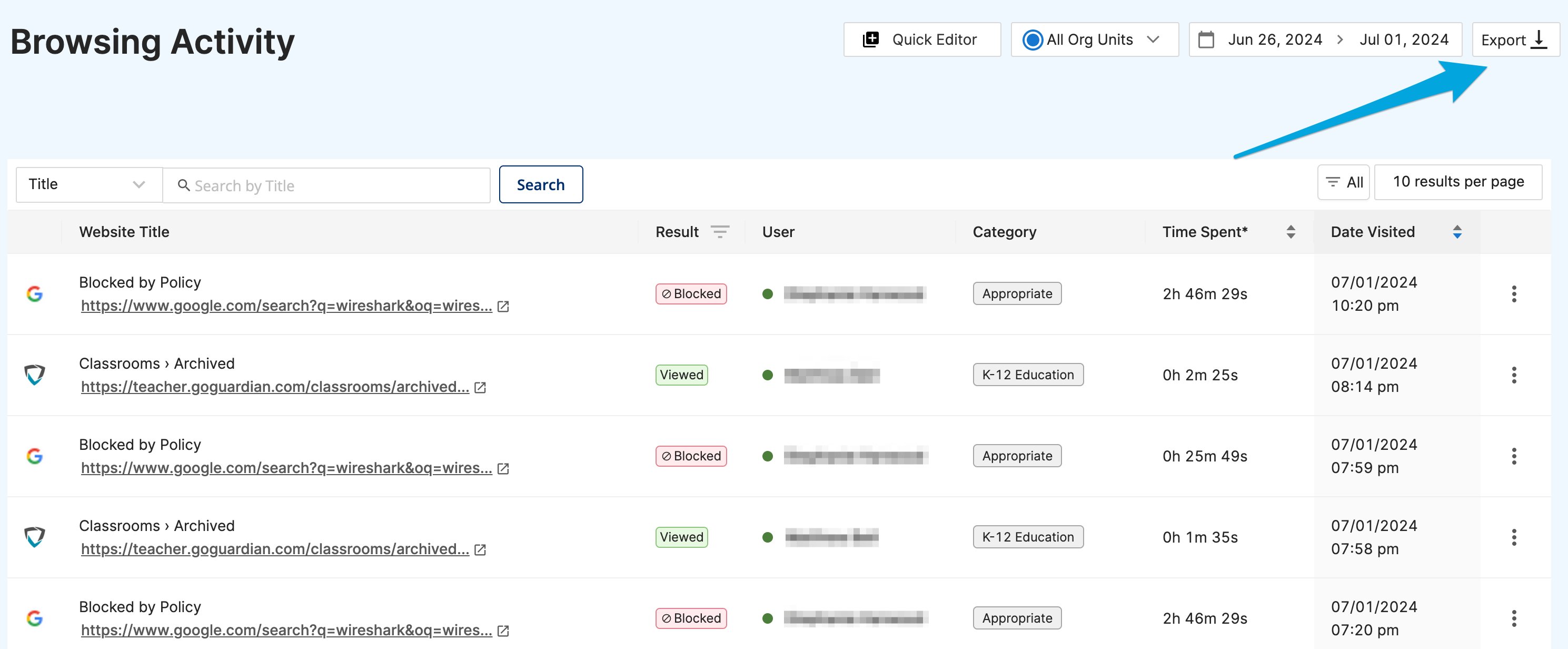
The Browsing Activity report is a CSV export of all student web activity for the selected org unit and date range. Each row in the export includes:- URL and hostname
- Result (Viewed or Blocked)
- Date visited and time spent
- Content type (search engine or direct website access)
- User name
Student Activity Reports
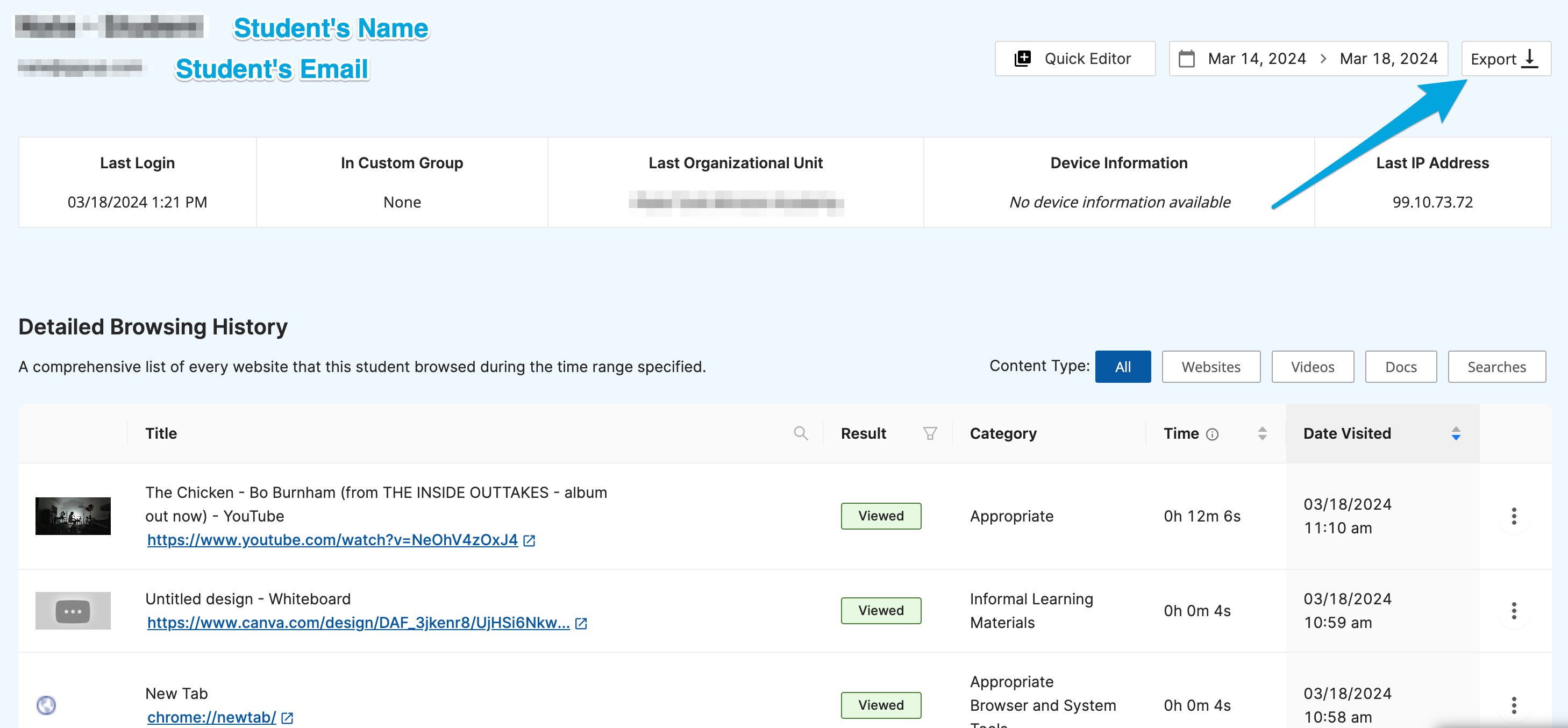
Each student has an individual activity report accessible from their profile page. Student Activity reports contain the same fields as Browsing Activity reports, but scoped to a single user:- URL and hostname
- Result (Viewed or Blocked)
- Time spent and date visited
- Content type (search engine or direct website access)
Review Screen Time Reports
The Screen Time report summarizes how long students spend on websites. Review district activity by organizational unit, website category, or classroom, then open an individual student report for daily totals. The report separates activity during and outside teacher sessions, as well as during and outside school hours. For definitions, permissions, and export steps, see Review Screen Time Activity.Review AI Activity Reports
The AI Activity report shows supported student interactions with browser-based AI tools. For classified interactions, use Interaction Type to prioritize conversations labeled Concerning, Appropriate, or Needs Context, then open the details drawer to read the captured conversation. Google Search conversations remain visible but are not classified. For supported tools, collection settings, limitations, and export steps, see Review AI Activity with Prompt Visibility.Flagged Activity Reports
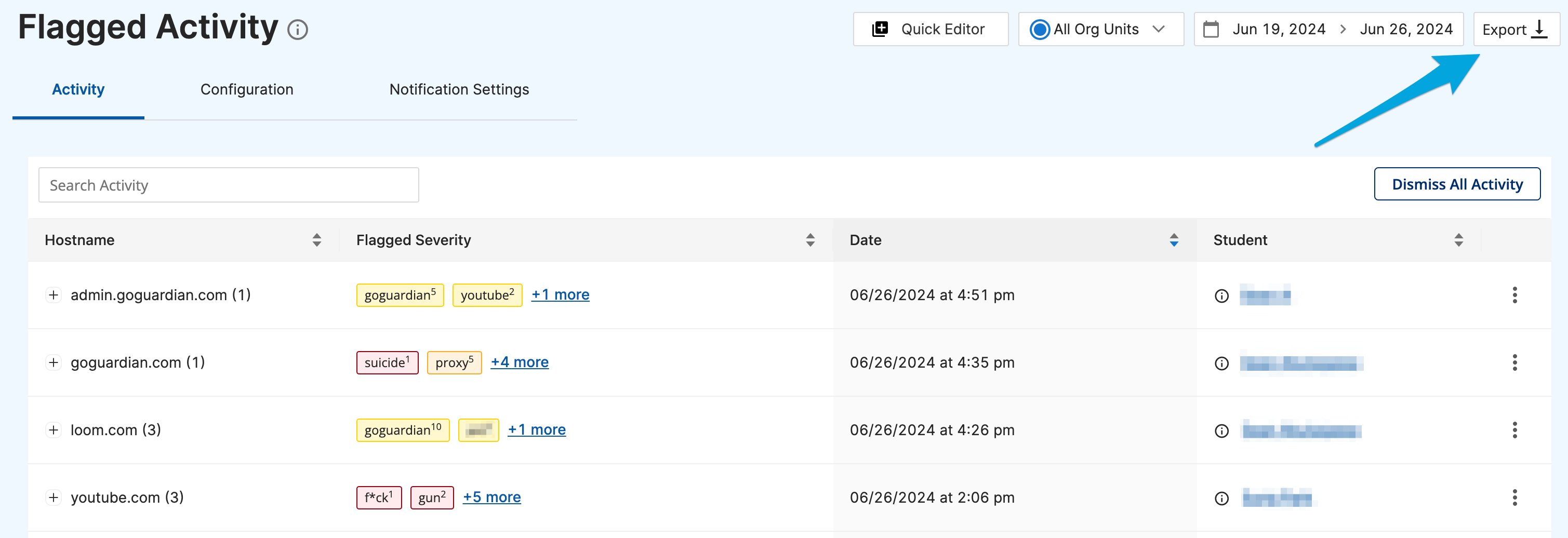
Flagged Activity reports are available from the Flagged Activity page in GoGuardian Admin. Each exported row includes:- User name and email
- Public IP address
- Time accessed
- URL
- Flagged terms identified on the page
Exported Reports
Every CSV export generated in GoGuardian Admin is placed on the Exported Reports page (admin.goguardian.com/exported-reports). The page lists each report’s type, creation date, creator, and expiration date . From the Exported Reports page, you can download or delete any report.
Reports may take some time to process after you request them. A system notification appears when a report is ready to download.
Understand What Reporting Does Not Cover
GoGuardian Admin does not currently support automated or scheduled report delivery. All reports must be generated manually. GoGuardian Admin does not provide device-level reporting for individual student devices. For device data, organizations using GoGuardian Fleet can export device records, including serial numbers, asset IDs, assigned status, and assigned users, from the Fleet portal. GoGuardian Admin does not provide a dedicated export for individual website traffic. To identify users who visited a specific hostname, use Global Search to find the hostname and review the associated user list. This data can be saved as a PDF using the print-to-PDF method described above. If you need a reporting capability that is not currently available, submit a feature request at ideas.goguardian.com.Resources
Review the Admin Dashboard
Filter dashboard data, review activity cards, and export reports in GoGuardian Admin.
Review Browsing Activity
Filter, export, and investigate browsing activity data in GoGuardian Admin.
Manage Flagged Activity
Review flagged terms, export flagged activity data, and configure notifications.
Review Screen Time Activity
Compare website activity across school hours, teacher sessions, organizational units, categories, and classrooms.
Review AI Activity with Prompt Visibility
Review supported AI conversations and configure AI activity detection.