

Filter Activity Data
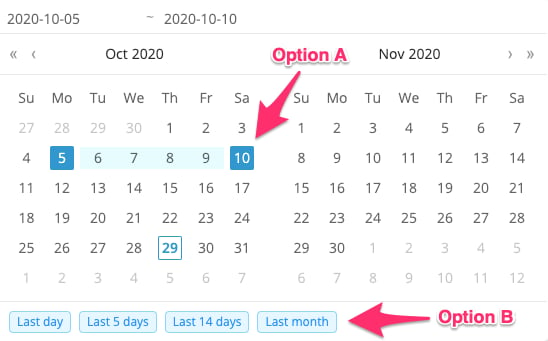
The page displays the past 5 days of data for all organization units by default. Apply filters to narrow the view by org unit, date range, content type, or result.Filter by Org Unit and Date Range
Select a specific org unit and date range from the filters at the top of the page. Data from all organization units is shown unless a specific org unit is selected.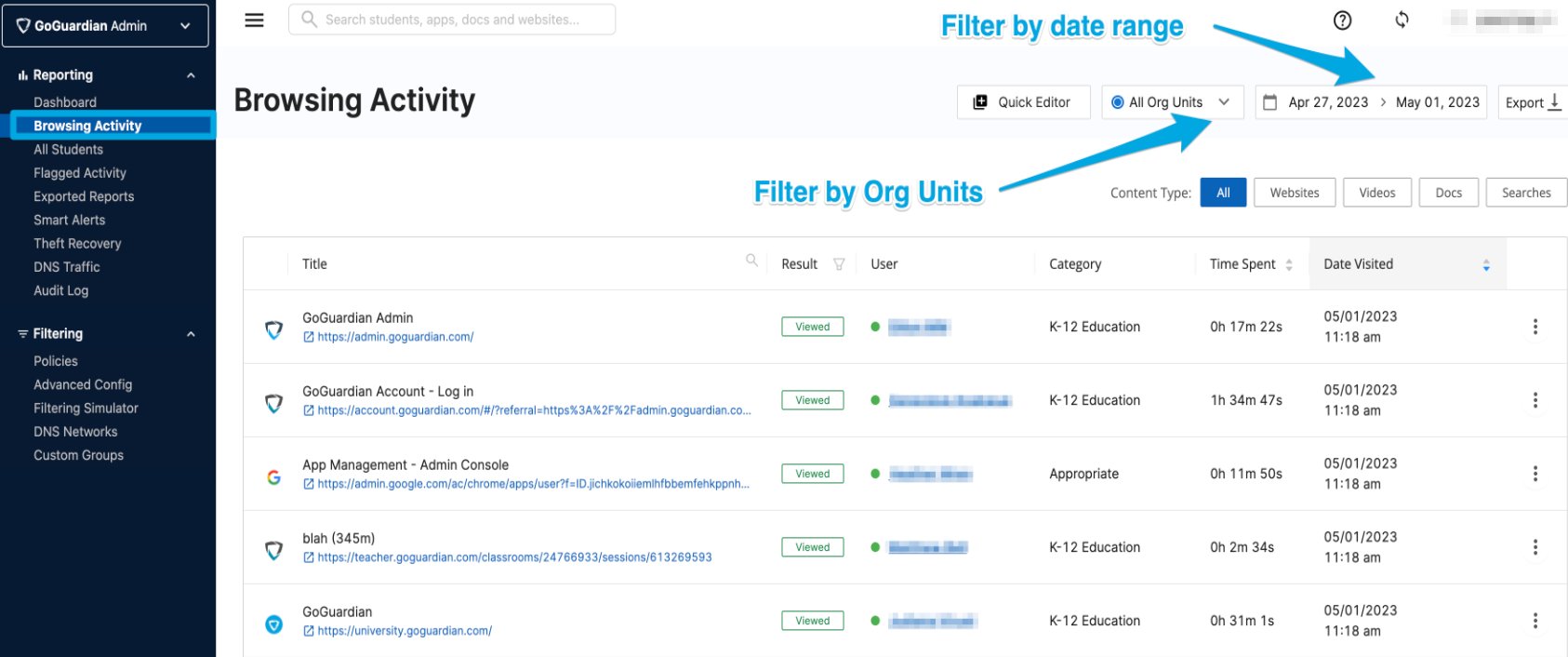
Filter by Content Type
Filter activity by the following content types:- Websites: web pages visited in a browser
- Videos: YouTube videos students watched
- Docs: Google Docs accessed during a session
- Searches: Google searches performed
YouTube pages that were visited appear under Websites. This includes video pages, but it does not mean the videos themselves were watched. YouTube videos that were actually watched appear under Videos.
Filter by Result
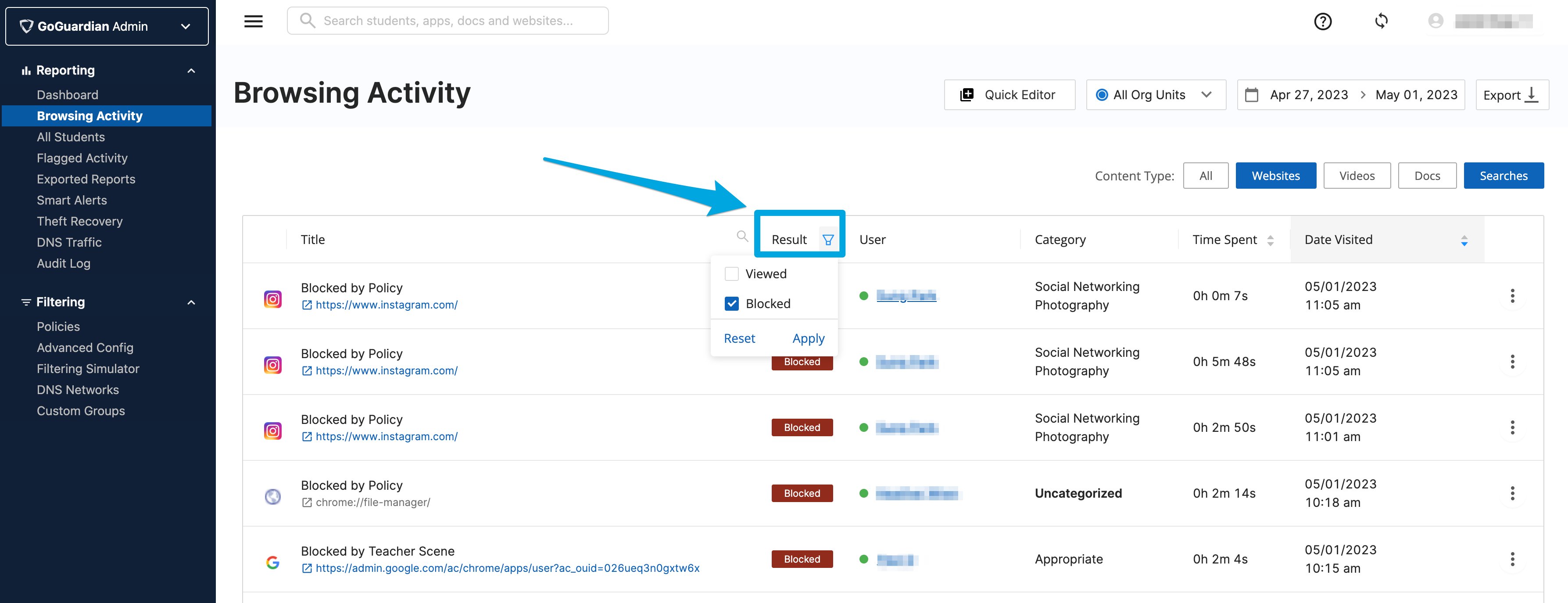
Use the Result filter to view content that was blocked or allowed by GoGuardian filtering. Select Blocked to see only blocked content, or Viewed to see only allowed content.Navigate to a Student Report
Click a student’s name in the User column to open that student’s individual browsing report and review their detailed activity history.Review Embedded Content
When a student visits a webpage, GoGuardian Admin can collect information about embedded content loaded within that page — such as YouTube videos, login forms, interactive activities, and other external resources. This visibility helps you troubleshoot filtering issues and identify why students cannot access specific portions of a page. Click any row in the Browsing Activity table to open a details drawer for that event. The drawer shows information organized into the sections described below.The details drawer is only available when the Filter Embedded Content setting is enabled in the policy applied to the user. Embedded content data is not available for activity recorded before you enable this setting.
Enable Filter Embedded Content
- Go to Advanced Config in GoGuardian Admin.
- Find the Filter Embedded Content toggle.
- Turn on Filter Embedded Content.
Open the Details Drawer
- Go to Browsing Activity in GoGuardian Admin.
- Find the browsing event to investigate.
- Click the event row to open the details drawer.
Website Overview
The Website Overview section shows details about the visited webpage: title, URL, description, category, and filtering result. From this section, you can also add the URL to Quick Editor or suggest a category change.User Information and User Activity
The User Information section shows the user’s name, email address, organizational unit, last login time, custom group membership, filtering mode, and assigned or inherited policies. The User Activity section shows the exact date and time of the visit, total time on the page, classroom information, device ID (when available after a sync), and IP address.Blocked Embedded Content
The Blocked Embedded Content section lists embedded items that were blocked while the user visited the page. For each blocked item you can view the URL, category, dimensions, and the specific blocking policy. Use this section to troubleshoot cases where an educational website loads but an interactive element or activity does not appear. Identify the blocked resource and determine whether a policy adjustment is needed.YouTube Videos
The YouTube Videos section lists both viewed and blocked YouTube videos associated with the page. For each video you can see the video URL, channel, YouTube category, and — if GoGuardian Admin blocked it — the blocking policy.Smart Alert Actions
If the browsing event triggered a Smart Alert, the Smart Alert Actions section shows the specific trigger that flagged the content and the automated actions taken. Click the alert link to open the corresponding alert for additional investigation.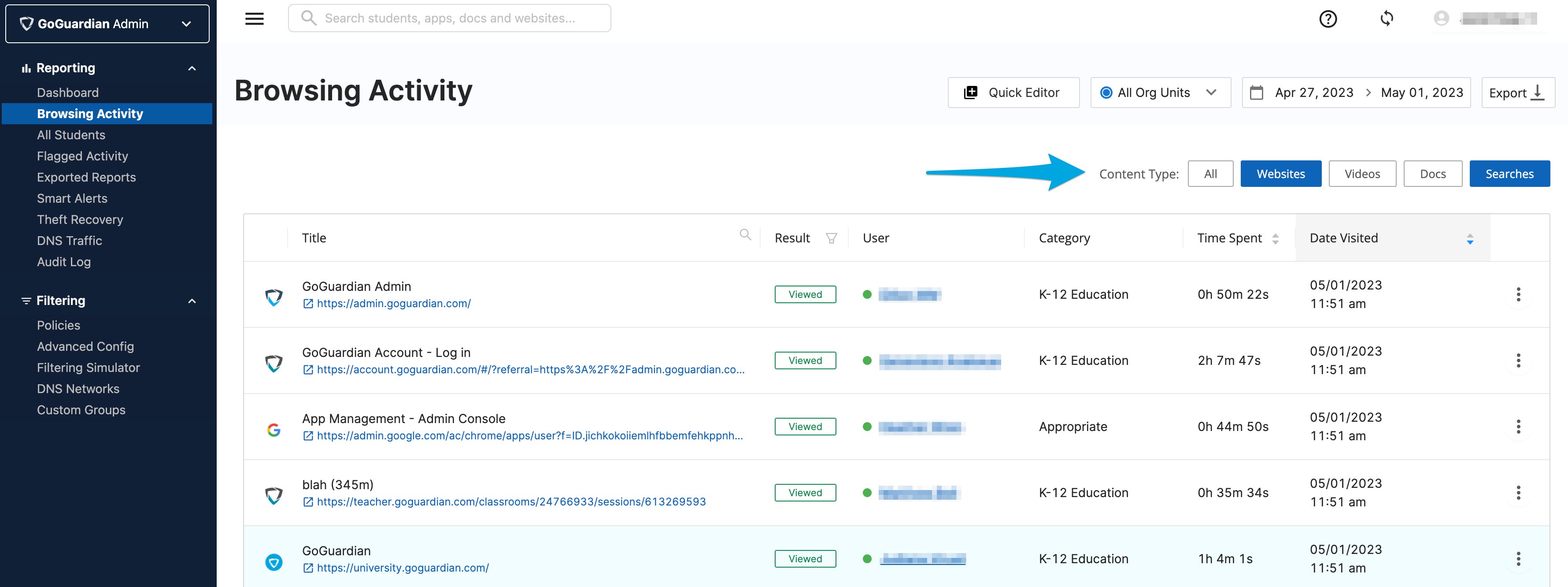
Identify Why a Site Was Blocked
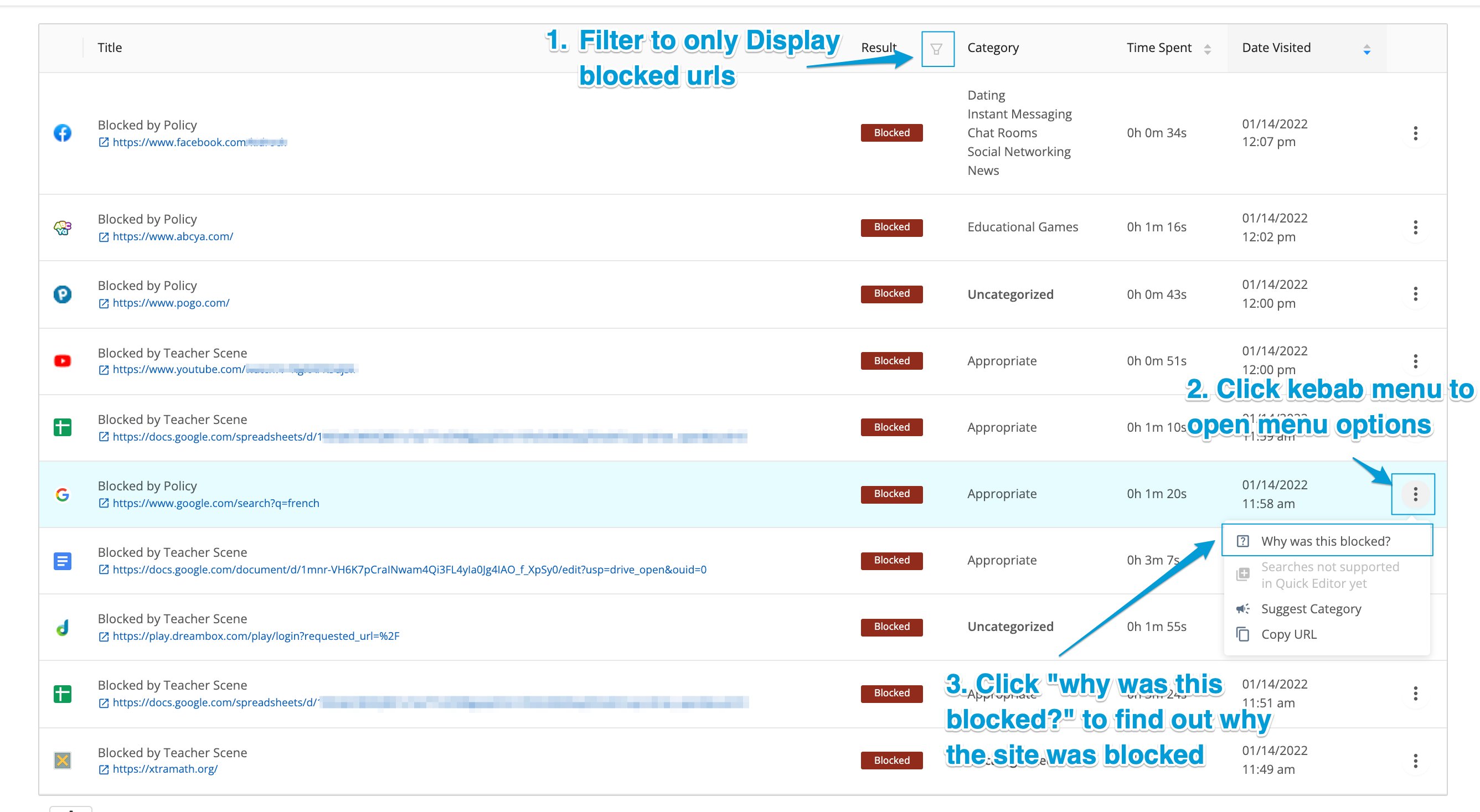
Use the “Why was this blocked?” feature to find the filtering rule responsible for a blocked website.This feature does not support GoGuardian DNS filtering blocks, YouTube video filtering, or embedded content blocked via iFrames.
- Navigate to the Browsing Activity tab in GoGuardian Admin.
- Choose the target org unit and date range at the top of the page.
- Use the Result filter to select Blocked and display only blocked content.
- Find the row containing the blocked URL you want to investigate.
- Click the three-dot (kebab) menu icon at the far right of that row.
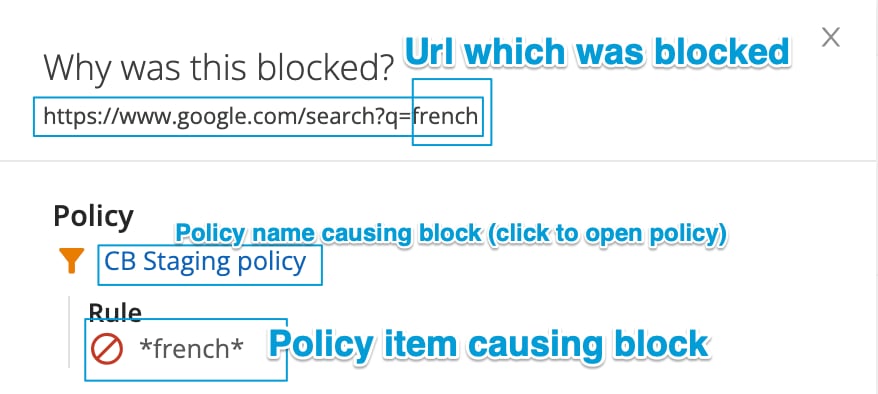
- Click Why was this blocked? to view the filtering rule that caused the block. If the site should not be blocked, click the policy name link to open that policy and adjust the filtering rules.
- The filtering rule responsible for the block appears in the panel. If you updated a policy, confirm the policy name reflects your change before closing the panel.
Export Activity Data
Download a CSV of the activity currently displayed on the page. The export reflects the active content type filter and date range. The default results-per-page setting is 10. To include more records in a single export, change the results-per-page selector in the lower-right corner of the page to a value up to 300. Then click Export and select Download CSV.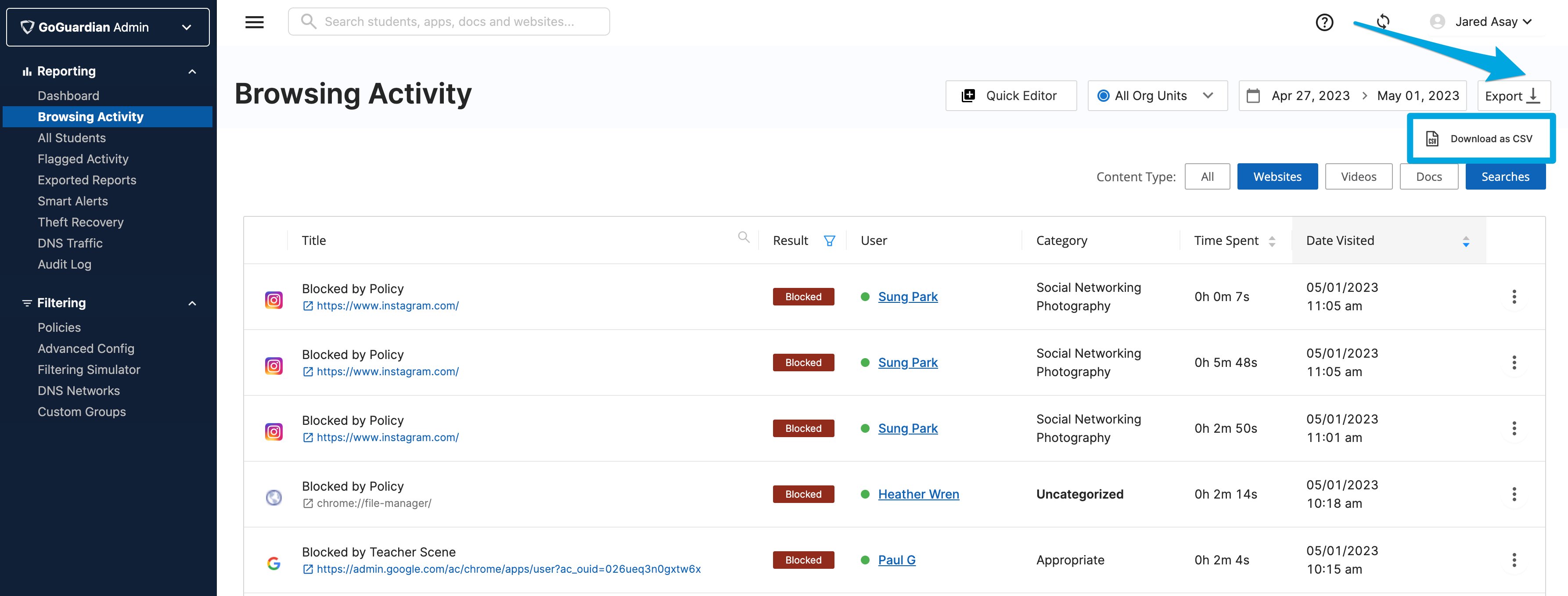
Frequently Asked Questions
Where do YouTube pages and videos appear? Visited YouTube pages appear under the Websites content type, including video pages. YouTube videos that students actually watched appear under Videos. Why don’t I see any embedded content? Embedded content visibility requires the Filter Embedded Content setting to be enabled in the policy applied to the user. If the setting is off, embedded content data is not collected or displayed. Does this feature change how filtering works? No. The embedded content details view provides additional visibility into activity already captured by GoGuardian Admin. Filtering behavior continues to be governed by your existing policies. What types of embedded content are supported? Supported content includes embedded YouTube videos and other resources loaded within an iframe on a webpage. Can I see why embedded content was blocked? Yes. For blocked embedded content, GoGuardian Admin displays the policy responsible for the block to help you identify and troubleshoot filtering issues. Can I take action directly from Browsing Activity? Yes. You can add URLs to Quick Editor directly from the details drawer, then review and apply them to 1 or more filtering policies.Resources
A Site Is Blocked Unexpectedly
Troubleshoot reports of sites being blocked when they should be allowed.
Update Multiple Policies with Quick Editor
Add website URL allow and block rules to 1 or more filtering policies.
Understand Filtering Policies
Review how filtering policies are structured and applied across your organization.
Configure Smart Alert Triggers
Set up Smart Alerts to flag and respond to specific browsing activity automatically.
Export Student Reports
Export browsing activity and other student data reports from GoGuardian Admin.