

Navigate to a Student Activity Page
- Go to GoGuardian Admin and sign in.
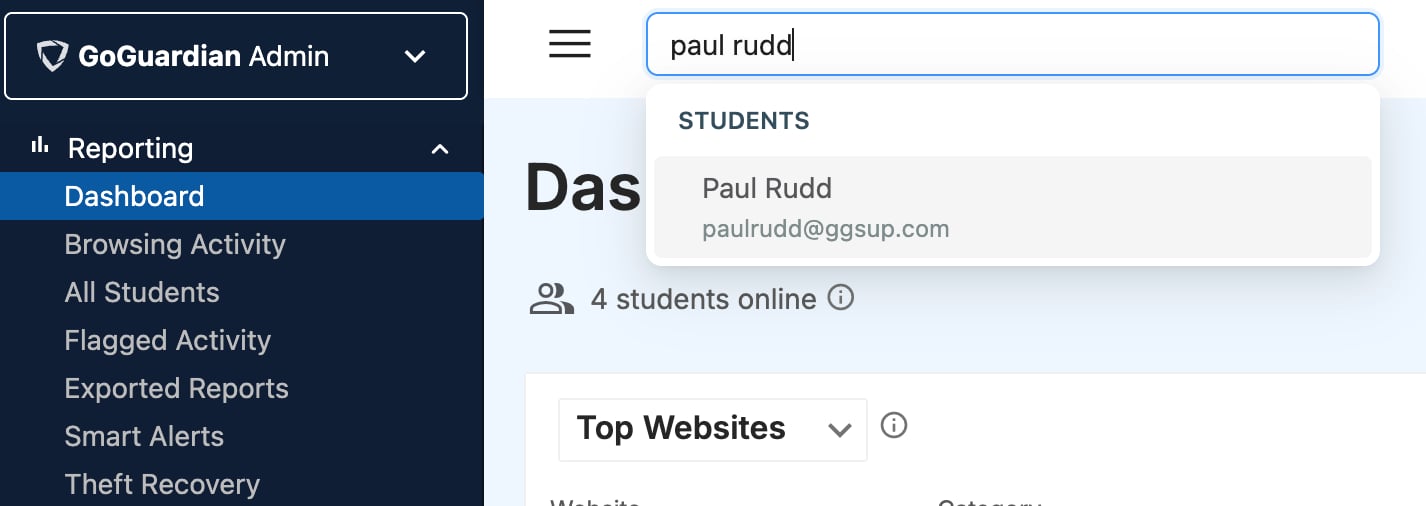
- Use the global search bar at the top of the page to enter the student’s name or email address.
- Select the student’s name from the search results to open their individual activity page.
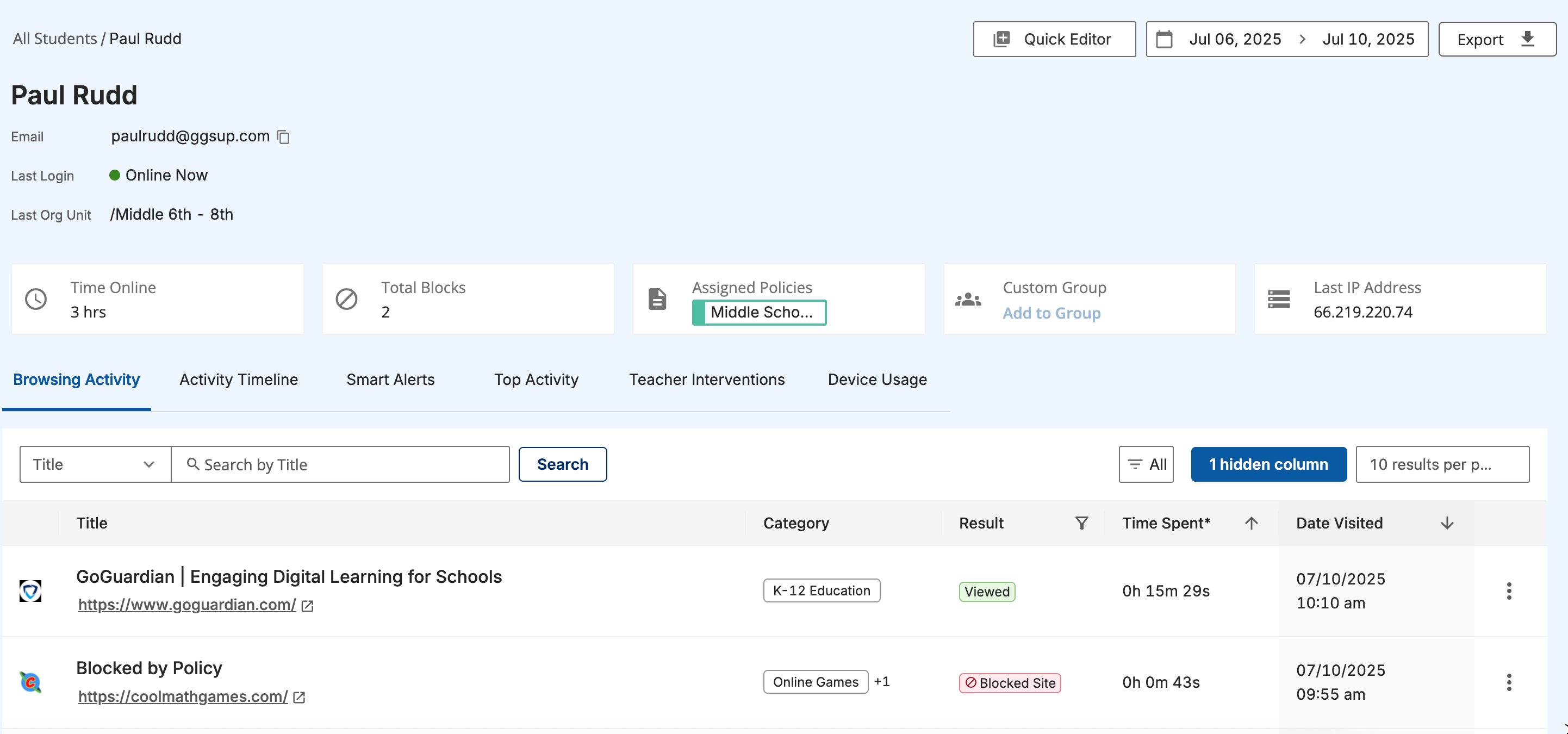
- The student’s activity page opens, showing their name, email address, last login date, organizational unit, device information, and last public IP address.
The Last Login date represents the last time GoGuardian saw the user online or was able to collect data from their device.
You can also open a student’s activity page by clicking their name in the Browsing Activity page.
If the organizational unit displayed on the student’s page does not match their current OU in Google Admin Console, the OU source may need to be manually resynced. See Sync OUs from Google Admin Console.
Set the Date Range
By default, the student activity page displays data from the last 5 days. Use the date picker to extend or change the range. Student data is available for up to 6 months. The date picker allows viewing data in increments of up to 1 month at a time.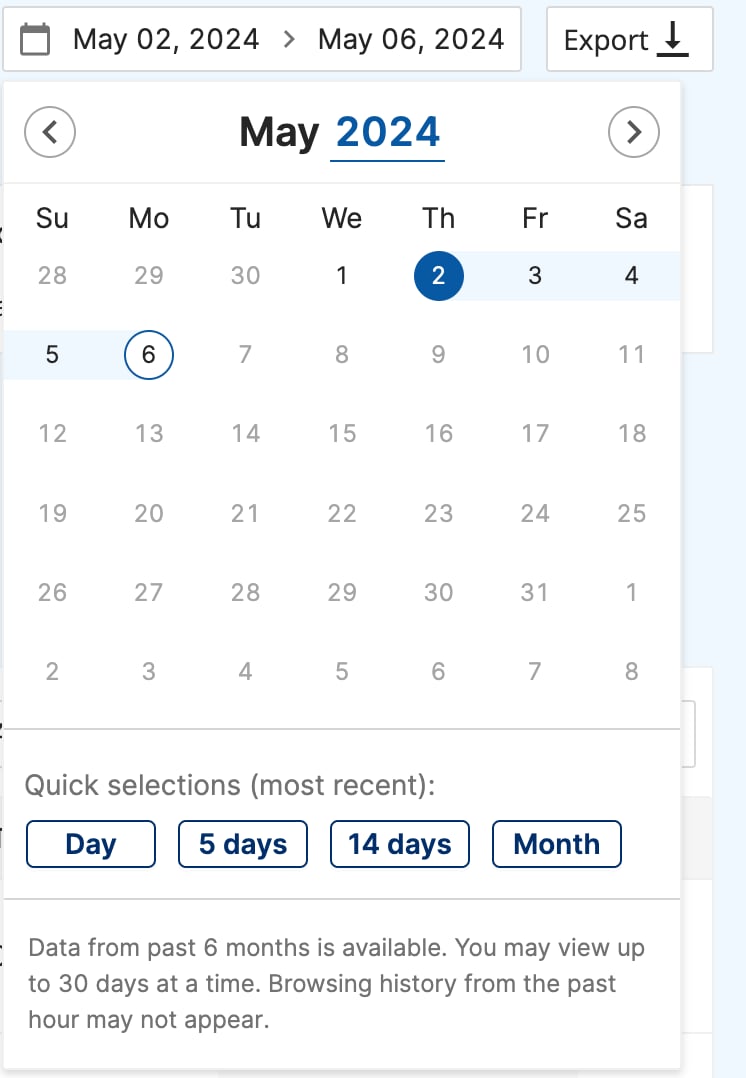
Review Browsing History
The Detailed Browsing History section lists every page the student visited and every blocked event, in reverse chronological order.Filter by Content Type
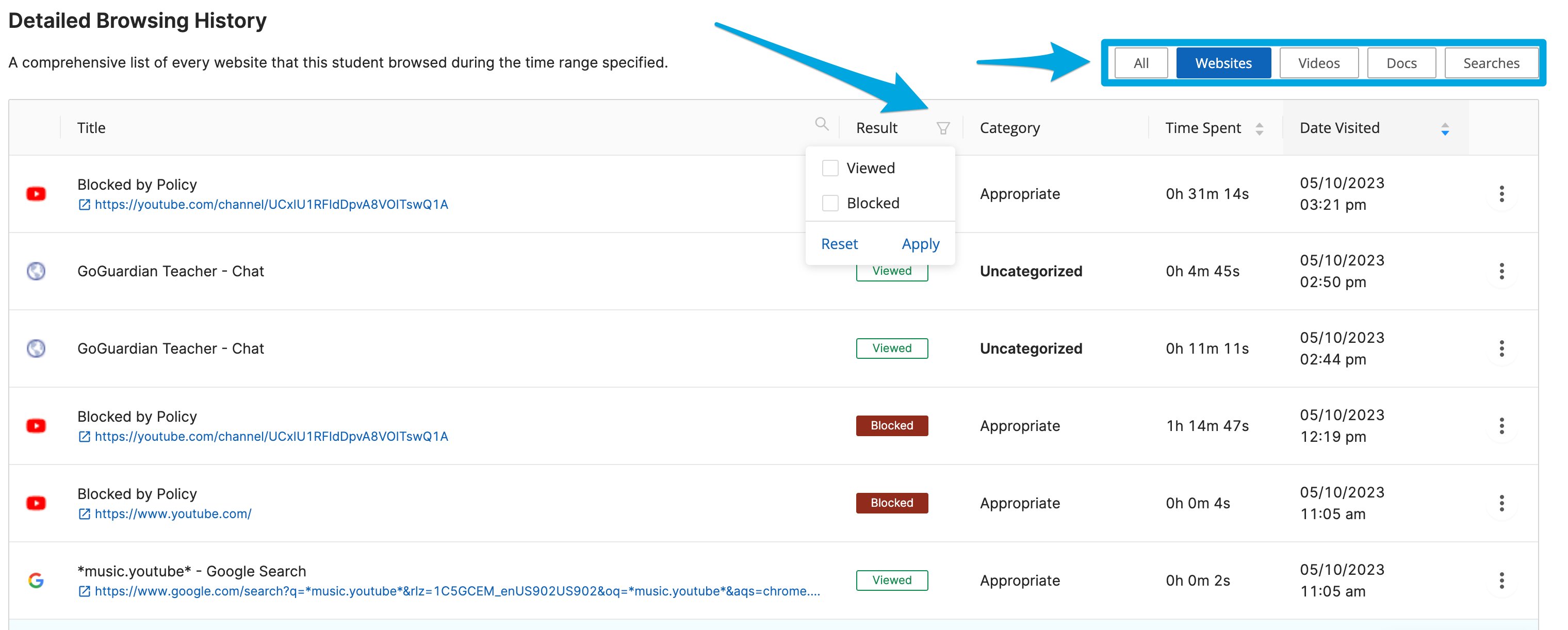
Use the Activity filter to narrow the history view to one or more content types:- Websites: web pages visited in a browser
- Videos: YouTube videos watched
- Google Docs: Google Docs accessed
- Web Searches: Google searches performed
Filter by Result
Use the Result filter to display only blocked content or only allowed content. This is useful when investigating which content was blocked by a filtering policy, a Smart Alert trigger, a teacher scene, or a Parent App restriction.Filter by Title or URL
Apply a text filter to the Title or URL column by clicking the magnifying glass icon next to that column header, entering the text to filter for, and clicking Apply.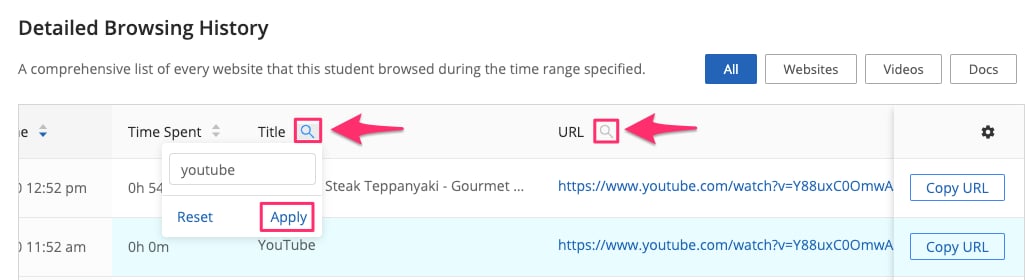
Review the Activity Timeline
The activity timeline appears within the Detailed Browsing History section and summarizes the student’s activity across four categories for the selected date range. Use the toggle to switch between an hourly and a daily view.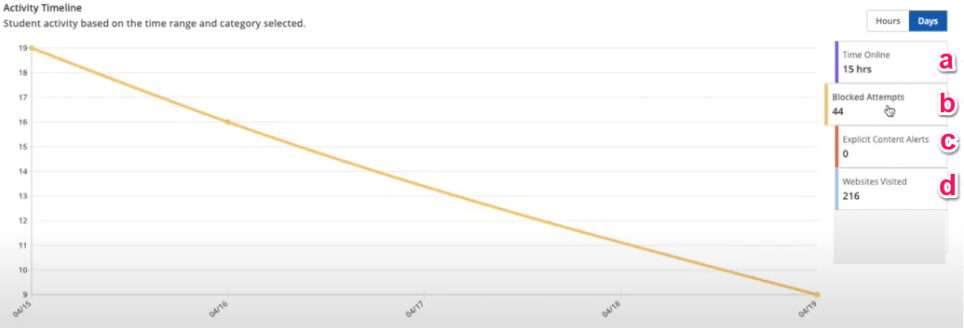
Identify Blocked Events
When a student’s browsing history includes a blocked event, the row shows the block source. GoGuardian Admin, Smart Alerts, GoGuardian Teacher, and the Parent App can each generate blocks that appear in the student’s history.
For Teacher scene blocks, the classroom owner’s name appears in the row.
For Smart Alert blocks, the Smart Alerts timeline provides additional detail about the alert, including the trigger that fired and the content that matched it.
Find the Rule That Caused a Block
- Navigate to the student’s activity page using the global search bar or by clicking the student’s name in the Browsing Activity page.
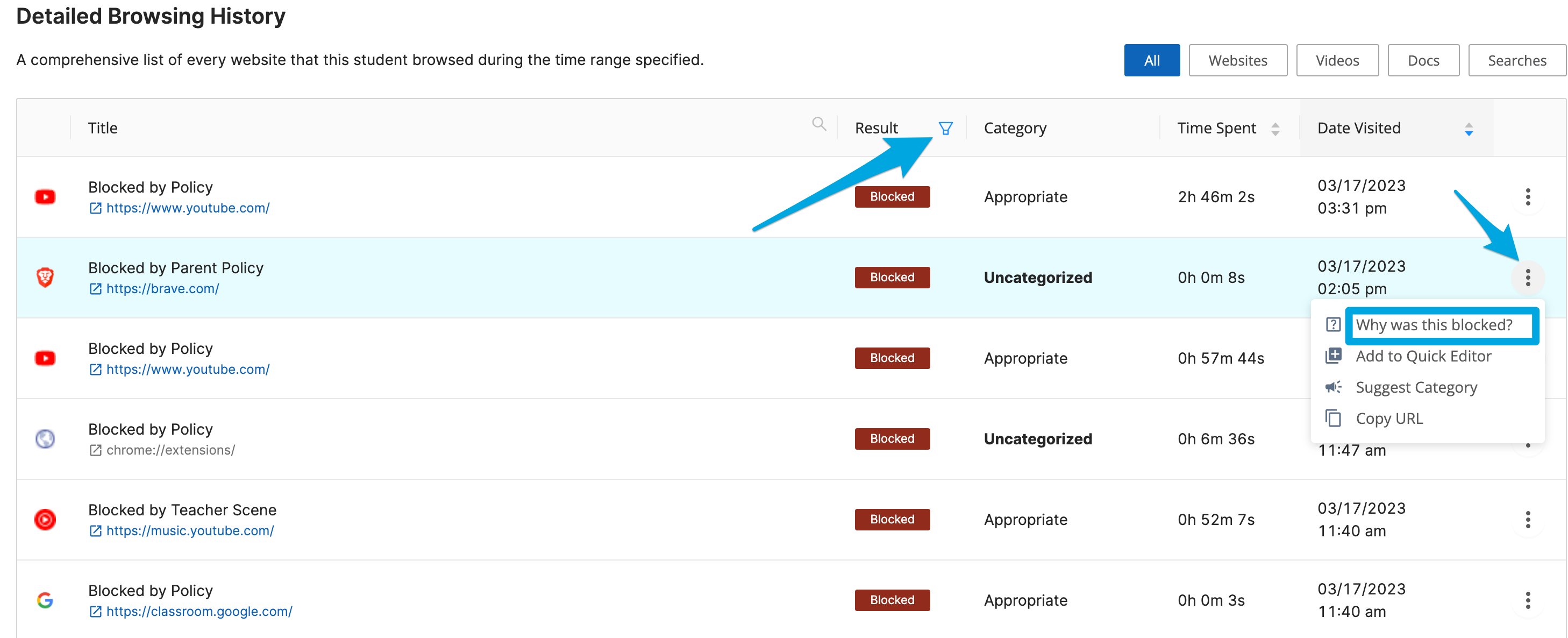
- In the Detailed Browsing History section, use the Result filter to display only blocked content.
- Find the row containing the blocked URL you want to investigate.
- Click the three-dot (kebab) menu icon at the far right of that row.
- Click Why was this blocked? to open the block details panel.
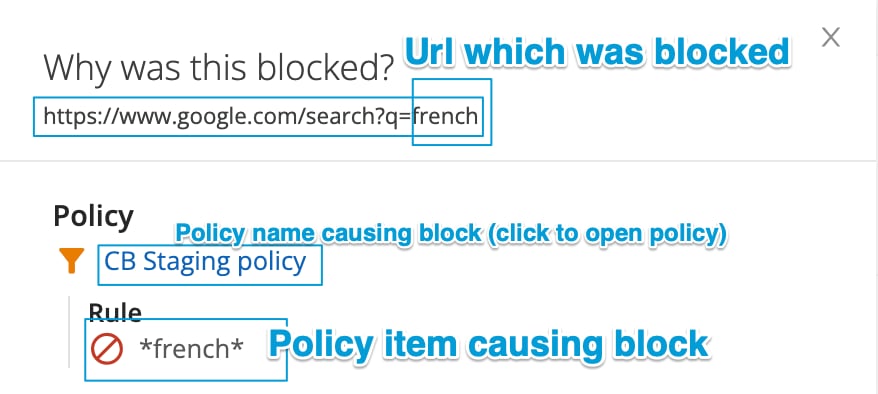
- The panel displays the blocked URL, the policy that contains the rule, and the specific rule that caused the block. Click the policy name to open that policy and adjust the filtering rules if needed.


Review Teacher Interventions
The Teacher Intervention area on the student activity page shows the number of times a teacher or staff member issued a command during a GoGuardian Teacher session, or when the student was locked by a teacher scene. Each intervention count reflects a direct action taken by a teacher to redirect the student’s device during class. For details about teacher commands and scenes, see the GoGuardian Teacher documentation.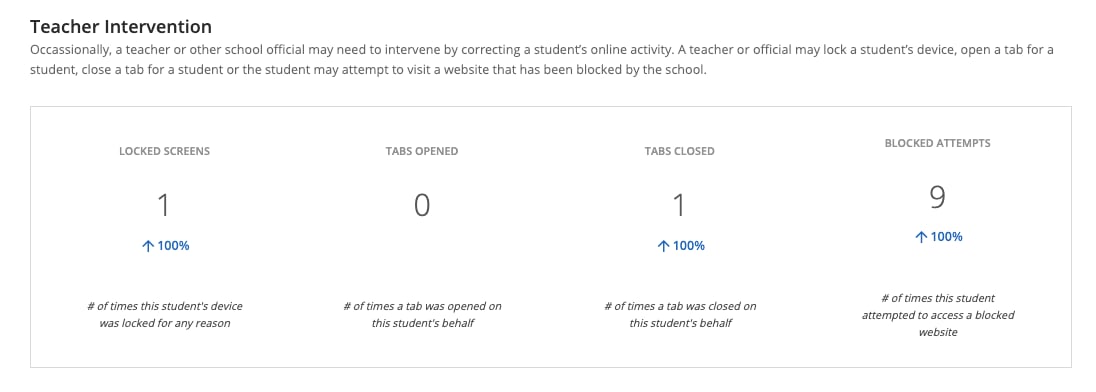
Review Top Content
The Top Content section displays the five most-visited websites, Google Docs, and Google searches for the selected date range, along with a chart showing the relative proportion of time or page views for each item. The chart shows:- The proportion of time spent on each of the top five websites, as a fraction of total time on those five sites
- The proportion of time spent on each of the top five Google Docs, as a fraction of total time on those five docs
- The number of page views for each of the top five Google searches

Review Student Screen Time
Select the Screen Time tab on the student’s report to review daily website activity during and outside teacher sessions, as well as during and outside school hours. Screen Time data follows your role’s Activity permission. For metric definitions and export steps, see Review Screen Time Activity.Review Student AI Conversations
Select the AI Conversations tab to review prompt and response content captured from supported browser-based AI tools. This tab receives new conversations only while Detect AI Activity is on and the updated setting has reached the student’s device. For interaction types, supported tools, and collection settings, see Review AI Activity with Prompt Visibility.Review Device Usage
The Device Usage section lists every device the student signed into for the first time during the selected date range. If a student used a device during the date range but first signed into that device before the range began, that device does not appear in this section. Only devices the student signed into for the first time within the range are listed.If a student has not signed into a school-managed device for the first time within the selected date range, the Device Usage section displays “No Device Information.”

Resources
Review Browsing Activity
Filter and investigate browsing activity across your organization from the Browsing Activity page.
Export Student Reports
Download a CSV of a student’s activity data for external reporting or record-keeping.
Reporting Overview
Understand the reporting tools available in GoGuardian Admin and when to use each.