

Data from the past 6 months is available for reporting. Each report covers a maximum range of 30 days. Browsing activity from the past hour may not appear — allow up to 1 hour after a session before generating a report.
What’s in a Report
Each student report includes:- Pie charts showing top activity (websites, documents, and Google Searches) and time spent on each
- Detailed browsing history for the student during the selected class sessions
- Teacher interventions: instances where a Scene blocked the student’s browsing or a teacher issued a command (locked screen, opened or closed tabs)
- Screenshots taken by the teacher during the selected class and time range
- Chat history between the teacher and student during the selected sessions
View or Email a Report
-
Click Student Reports in GoGuardian Teacher.
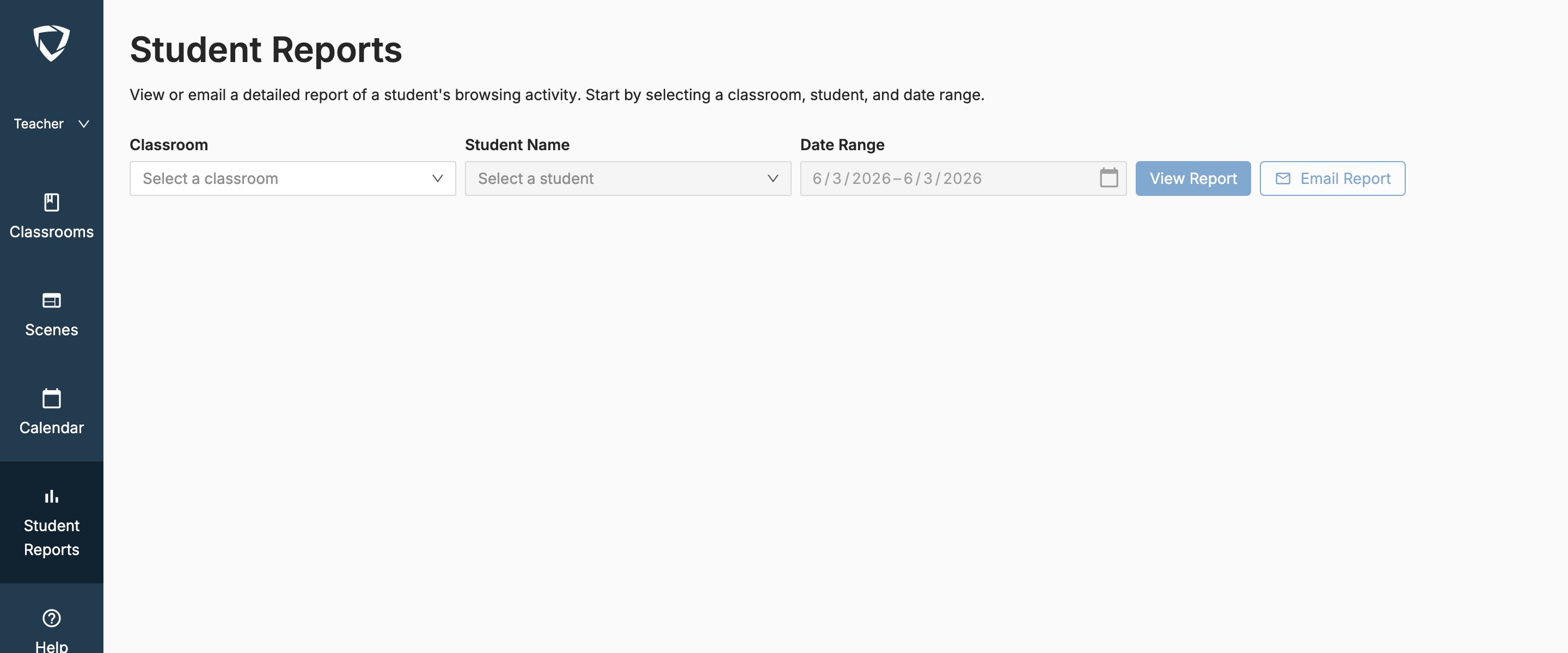
- Select a Classroom, a Student, and a Date Range.
- Click View Report to open the report in your browser, or Email Report to receive a PDF copy by email.
If a student’s report shows
blocked.com-default.ws, this corresponds to GoGuardian Teacher Scene block page URLs — it is not an external site the student visited.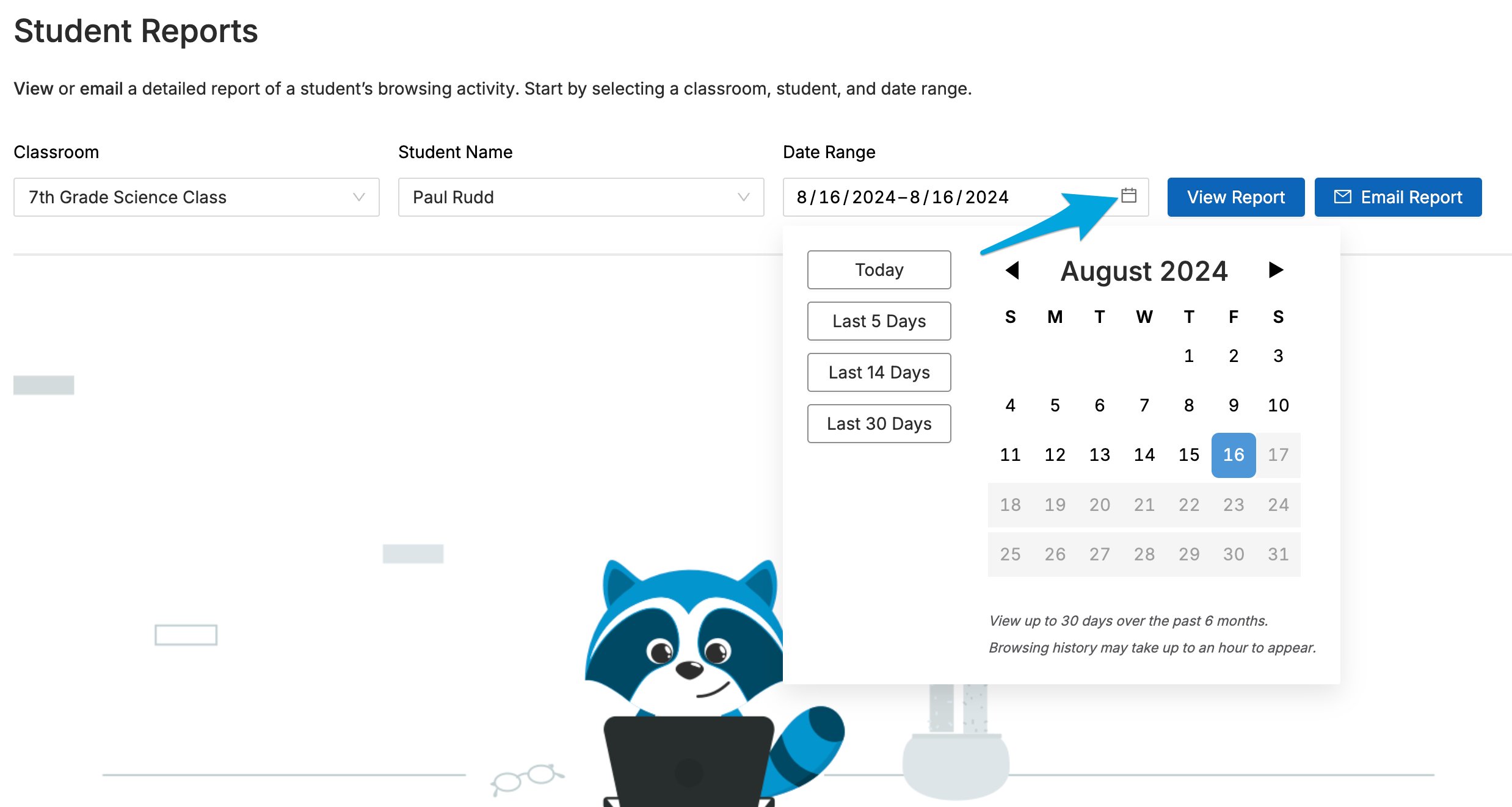
Resources
Use Teacher Chat
Review where to find chat history in Student Reports.
Commands Overview
Review teacher commands that appear in reports as interventions.
Session Report Emails
Review the class-level session summary sent after each session.
Take a Screenshot
Capture screenshots that are saved and included in reports.