

Access Past Session Data
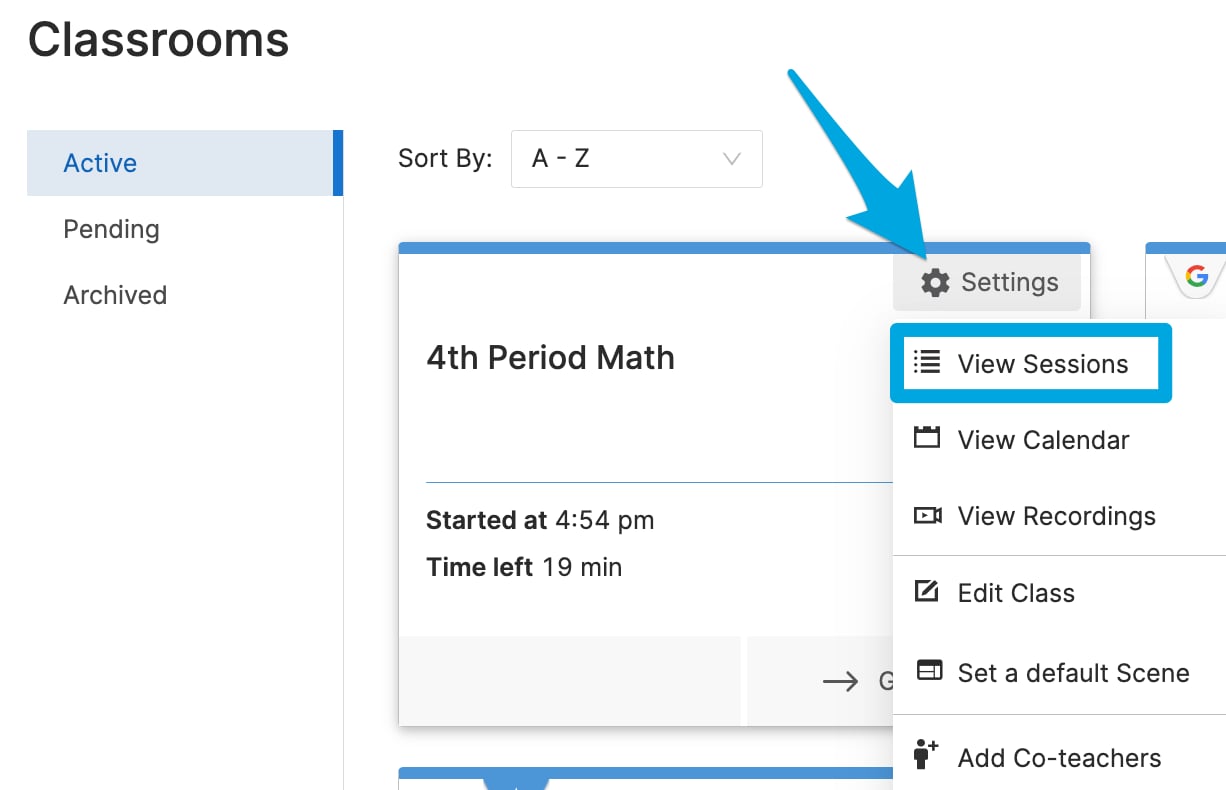
- Go to Settings > View Sessions. All past session data for each classroom is available, organized by most recent sessions.
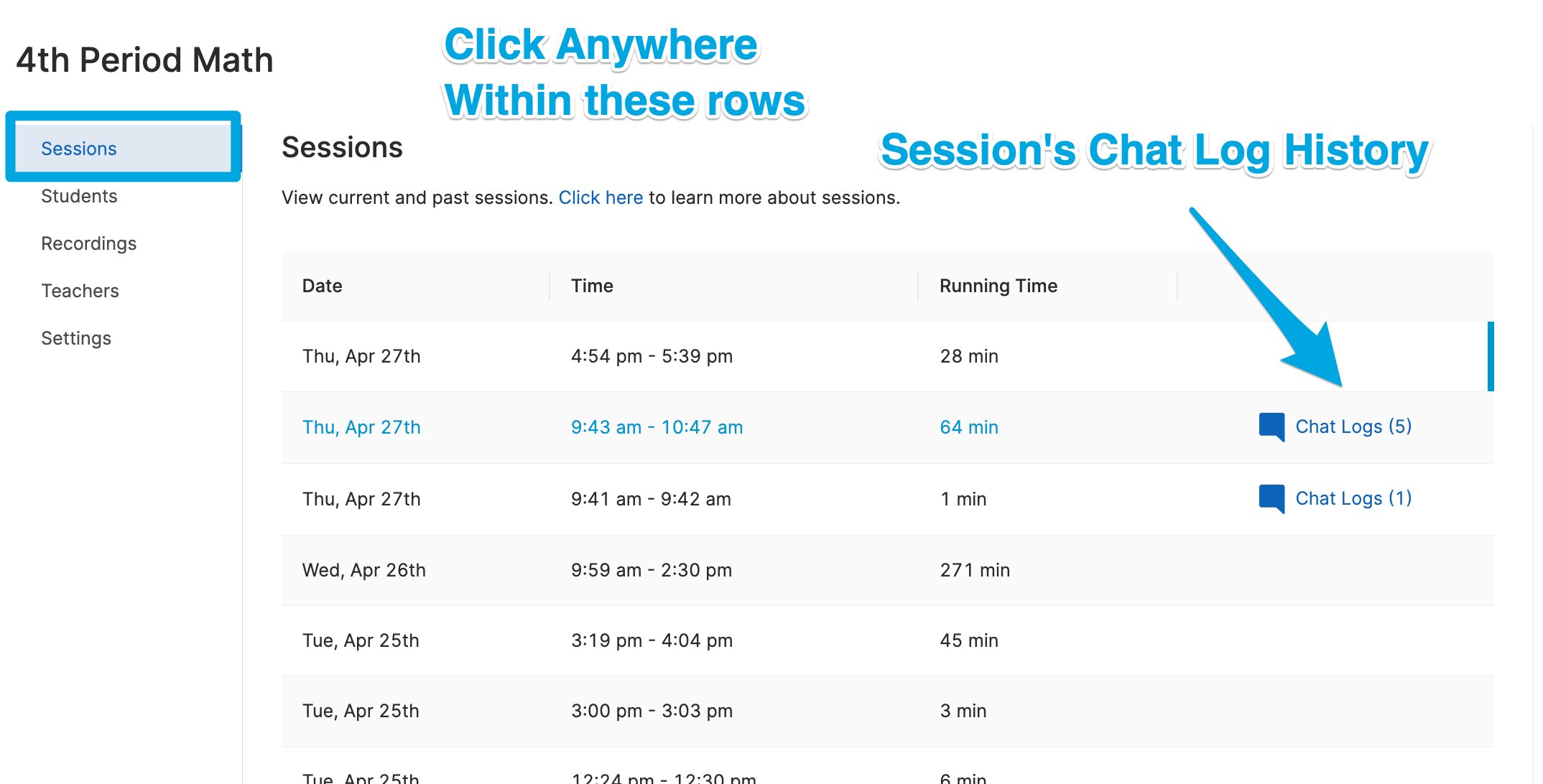
- Any class sessions with Teacher Chat history will have a Chat Logs button within the class session row.
- Click the session’s date and time to open the Timeline view for that session.
-
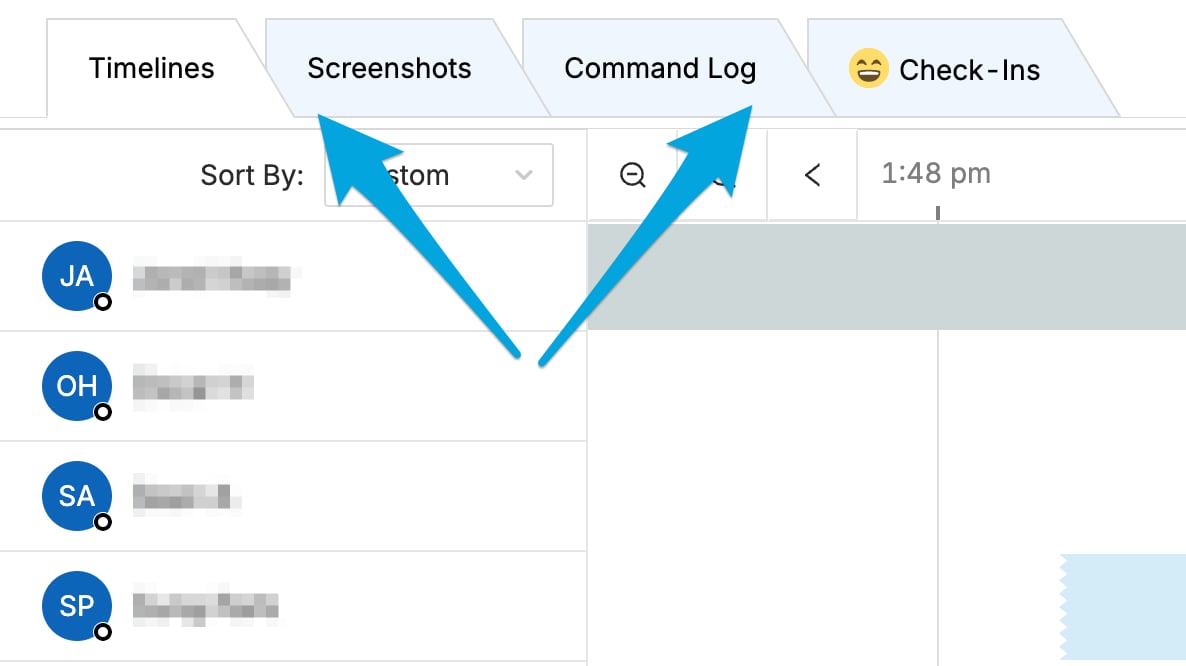
Switch between Timeline, Screenshots, Command Log, and Check-Ins using the tabs at the top of the page, just under the date and time.
- Timeline: Timeline data from the session is saved here. Use your keyboard arrow keys, the scroll bar, or click and drag to scroll through the session timeline.
- Screenshots: All screenshots taken during the session are stored under the Screenshots tab. You can download the screenshots at any time.
- Command Log: All commands sent during the session are stored here indefinitely.
- Chat: Past chat data can be reviewed by clicking Chat Logs.
Resources
Use Teacher Chat
Enable and use real-time chat with students during class sessions.
Take a Screenshot
Capture screenshots of student screens during an active session.
Commands Overview
Learn about the commands available during a session.
Session Report Emails
Set up automated session summary emails after class ends.