

Capture a Screenshot
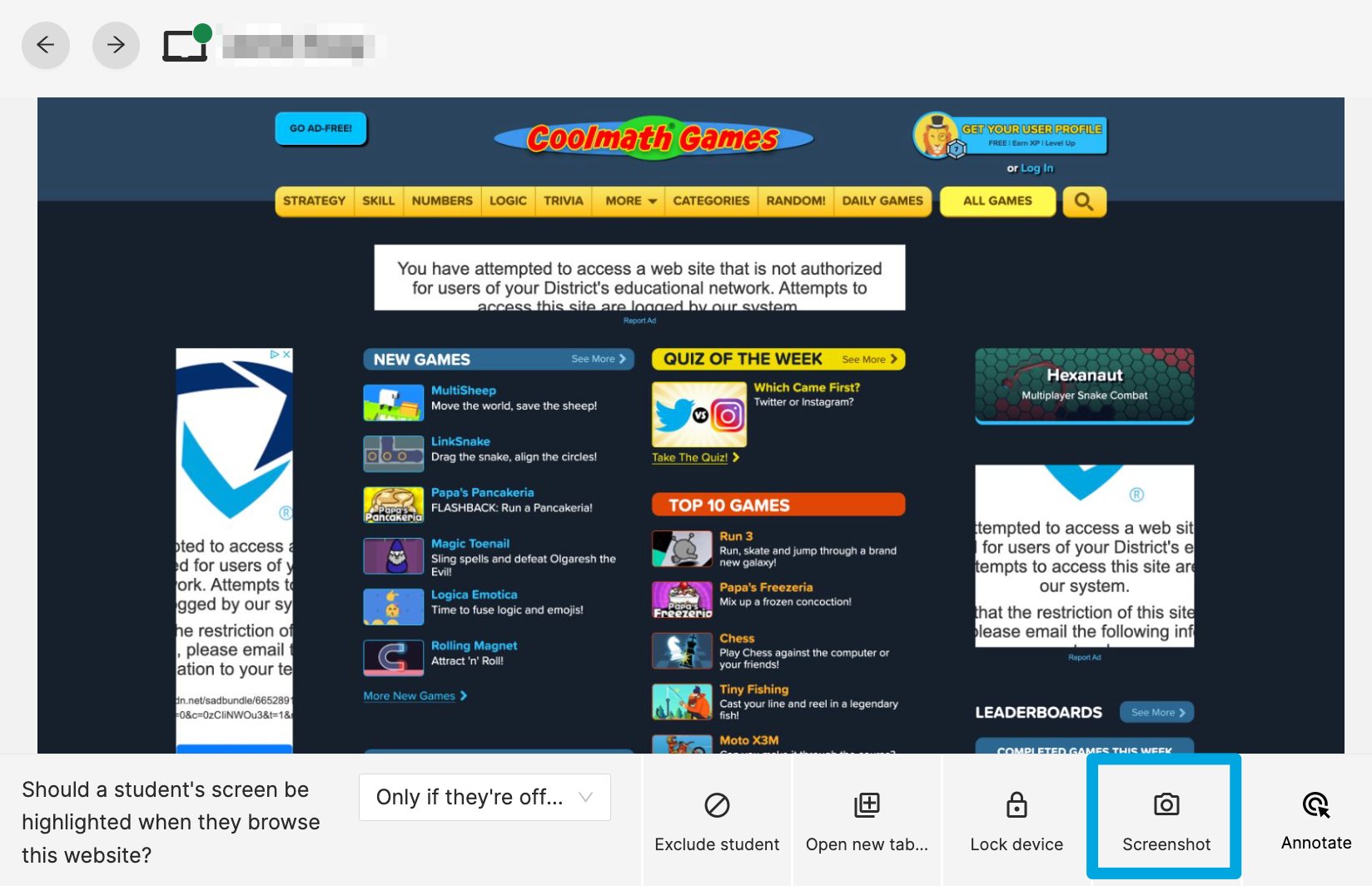
- During an active session, click a student’s tile to expand their screen view.
- Click the Screenshot button.
- The screenshot is saved automatically. Confirm it appears when you access the Screenshots tab.
Access Screenshots from the Current Session
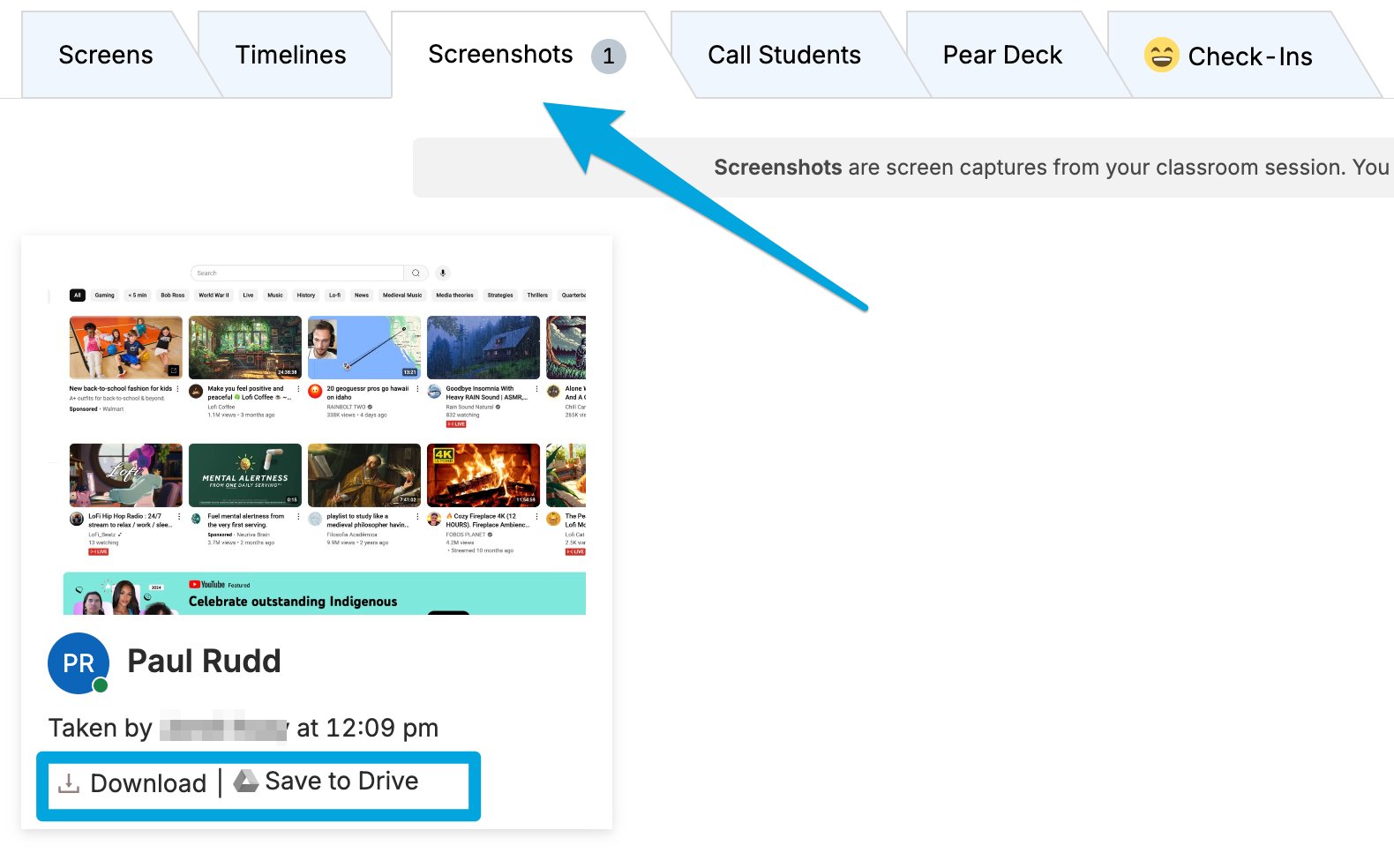
- Go to the Screenshots tab during an active class session.
- Click Download to download the screenshot as a JPEG file.
- Click Save to Drive to save the screenshot to your Google Drive.
Access Screenshots from a Past Session
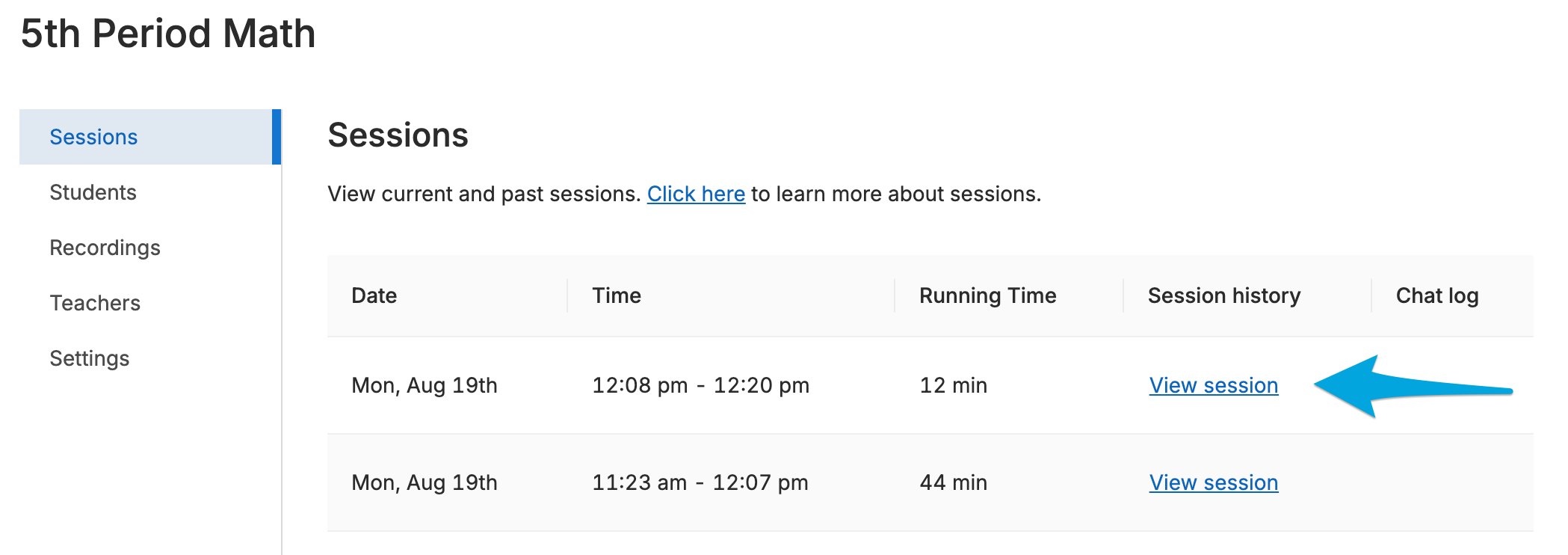
- Select the classroom that contains the screenshot.
- Click the Sessions tab.
- Select the class session during which the screenshot was taken.
- Click the Screenshots tab.
- Click Download or Save to Drive.
Resources
Active Screens View
Review all controls available in Student View, including the Screenshot button.
Student Browsing Reports
Screenshots taken during a session are also included in Student Reports.