

Emails are sent from noreply@goguardian.com. Make sure this address isn’t filtered by your email system.
Email a Student Report
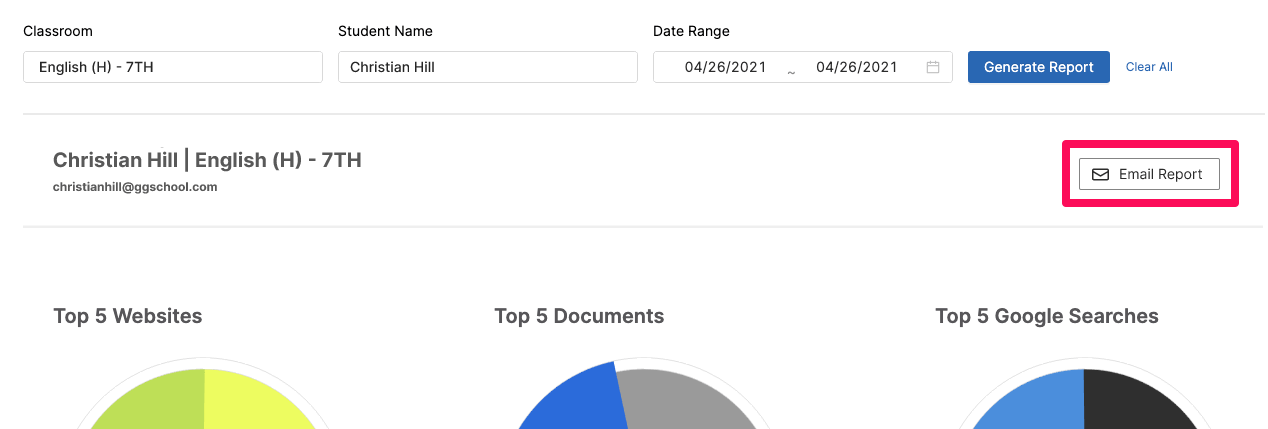
- In GoGuardian Teacher, navigate to the individual student report you want to send.
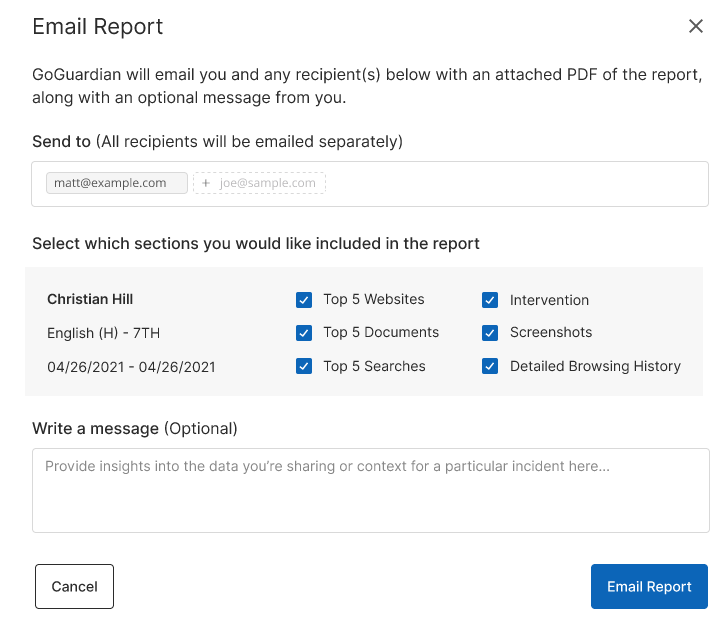
- Click Email Report. The Email Report window opens with instructions and options for configuring the email.
- Enter 1 or more email addresses in the recipient field. You’re always included as a recipient by default and can’t be removed.
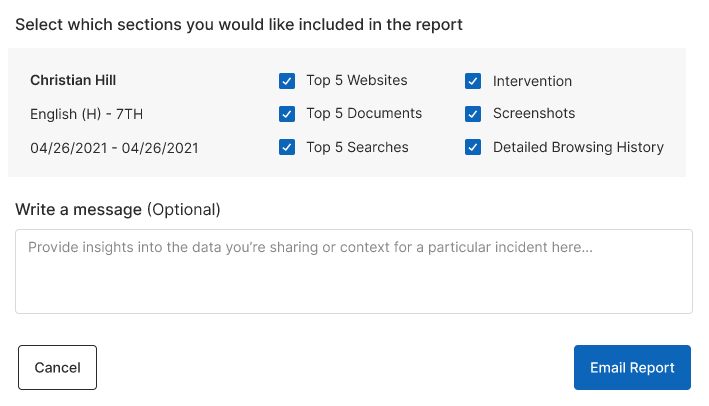
- Select the checkboxes next to the report sections you want to include, such as Top 5 Websites or Screenshots. All sections are selected by default. Deselect any you want to exclude.
- Enter a message in the Message field if you want to include a note in the email body.
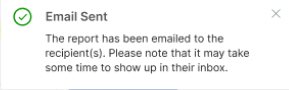
- Click Email Report. A success message appears in the top-right corner of your window confirming the report was sent.


Recipient Experience
Recipients receive an email from noreply@goguardian.com with the subject line:GoGuardian Teacher Student Browsing Activity Report for [Student’s Name]The email includes the student browsing report as an attached PDF. If a recipient doesn’t receive the email, have them check their spam, deleted, or archived folders, and confirm that noreply@goguardian.com isn’t being filtered.
Resources
Student Browsing Reports
Learn about the contents of individual student browsing reports.
Session Report Emails
Set up automated session summary emails after class ends.
Take a Screenshot
Capture a screenshot of a student’s screen during a session.
Reviewing Activity
Review student browsing activity from within Teacher.