

Classroom sessions can also be scheduled to run automatically using the Calendar. See Schedule Classroom Sessions for details. Scheduled sessions require Chat to be enabled manually each time.
Start a New Session
-
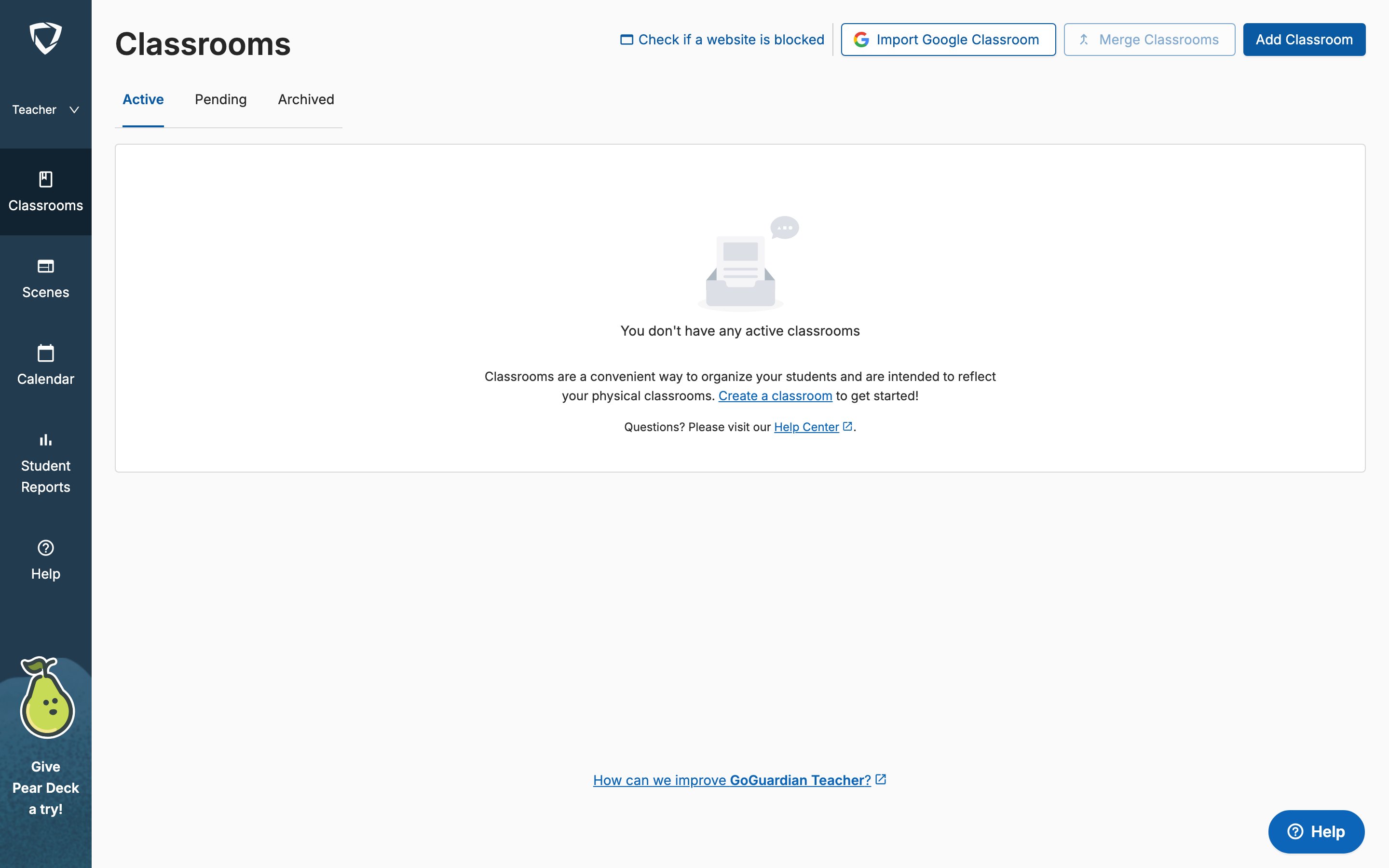
Go to teacher.goguardian.com and sign in.
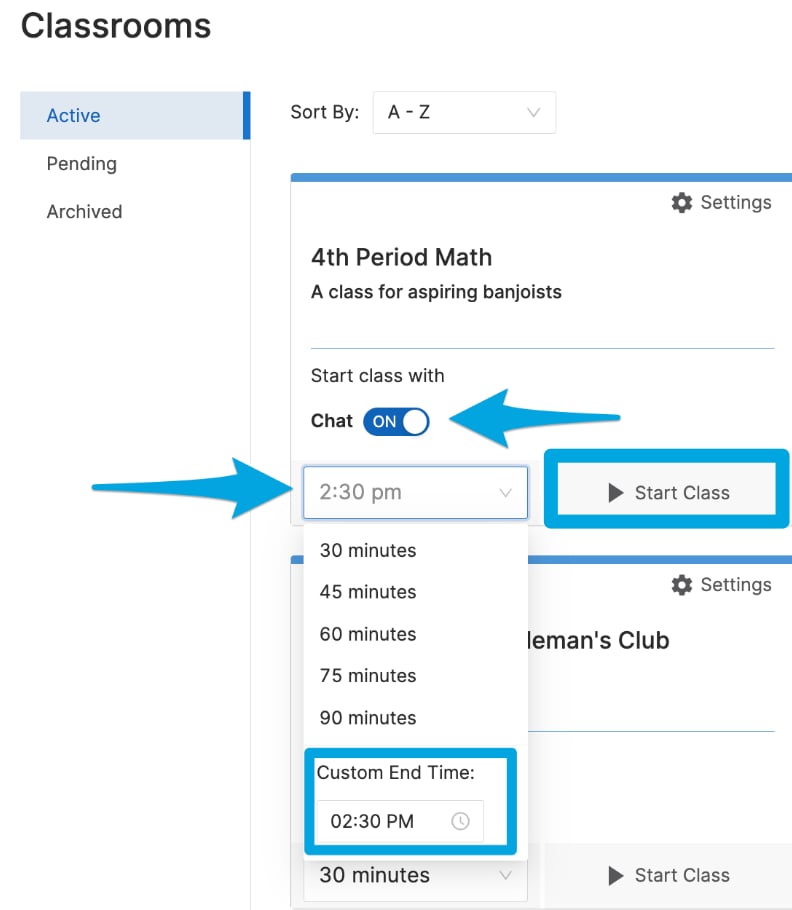
- Select a session length or enter a custom end time from the drop-down menu on the class tile. New classes default to a 45-minute session length.
- Optionally turn the Chat toggle on or off to enable or disable Teacher Chat at the start of class.
- Click Start Class to begin the session. Students with GoGuardian installed and signed into their school accounts will join automatically.
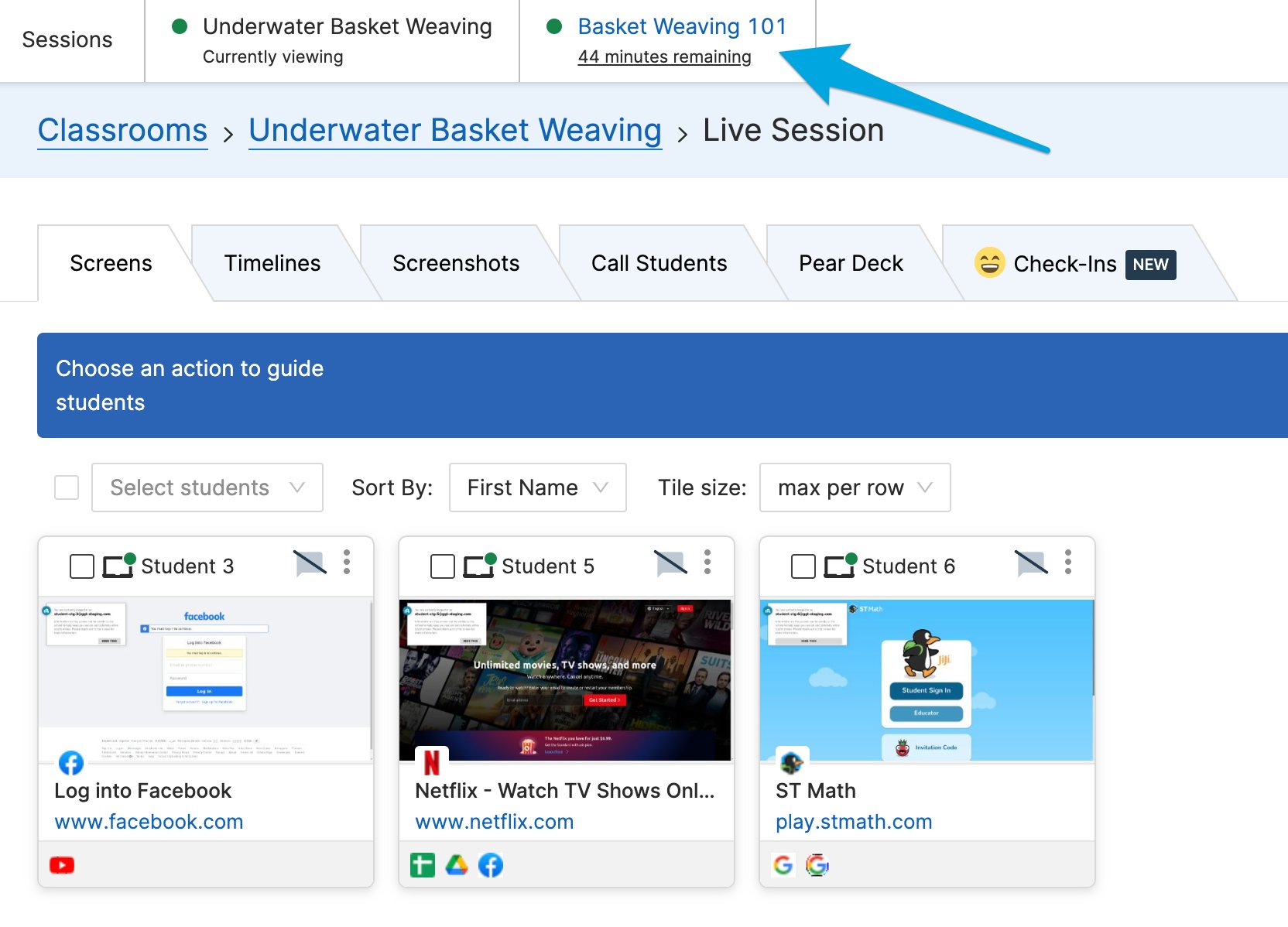
- Confirm that your enrolled students appear in the Screens view. Students who are online and connected will show their active tab.
Extend or End a Session
To end a session before the scheduled end time, click End Session. To extend an active session:-
Click Update Time.

- Select an amount of time to add, or enter a new end time.
- Click Update Session.

Review Past Sessions
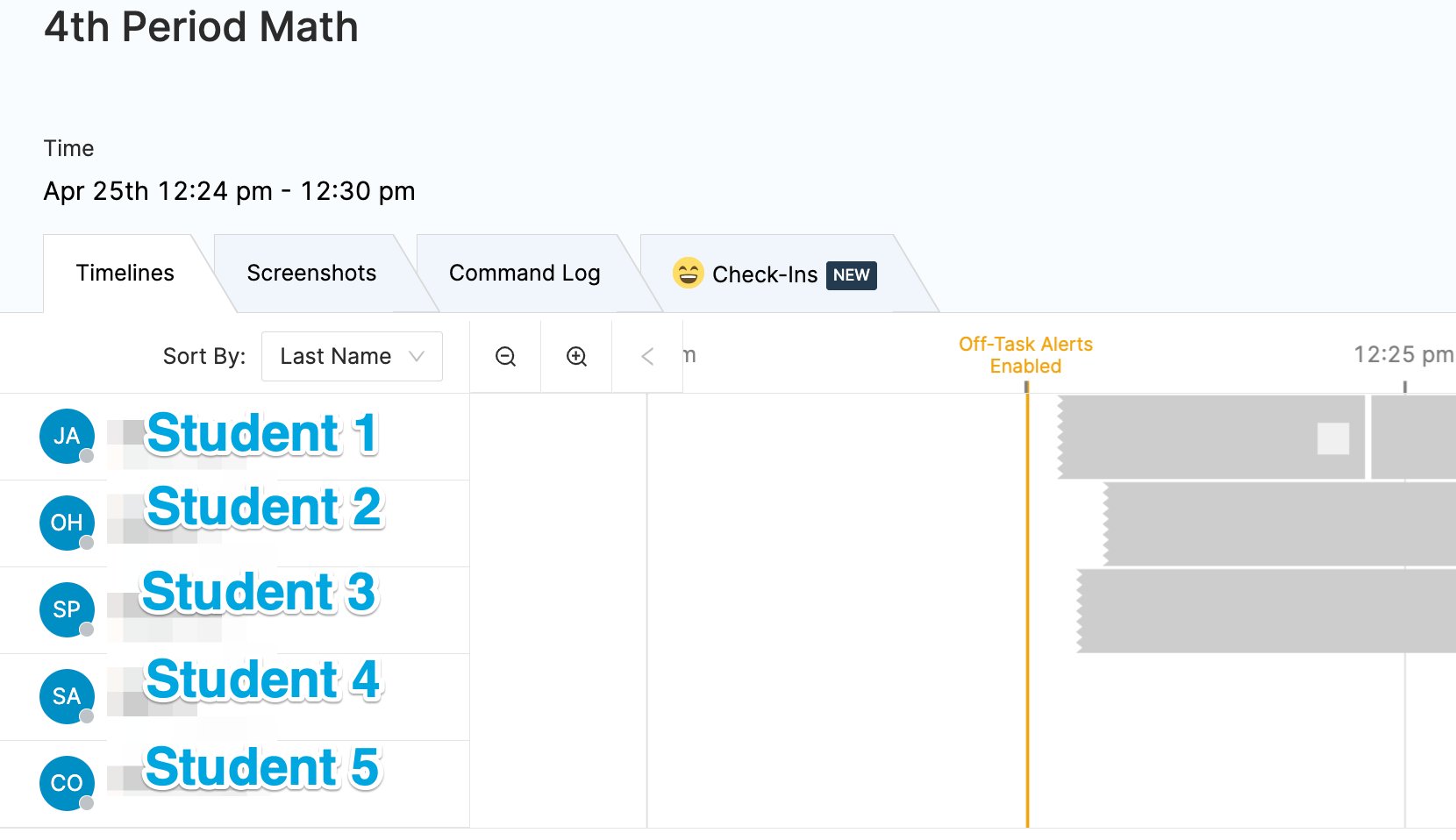
GoGuardian Teacher automatically saves session data: student browsing history, Chat records, screenshots, student check-ins, and a command log. To review a past session:-
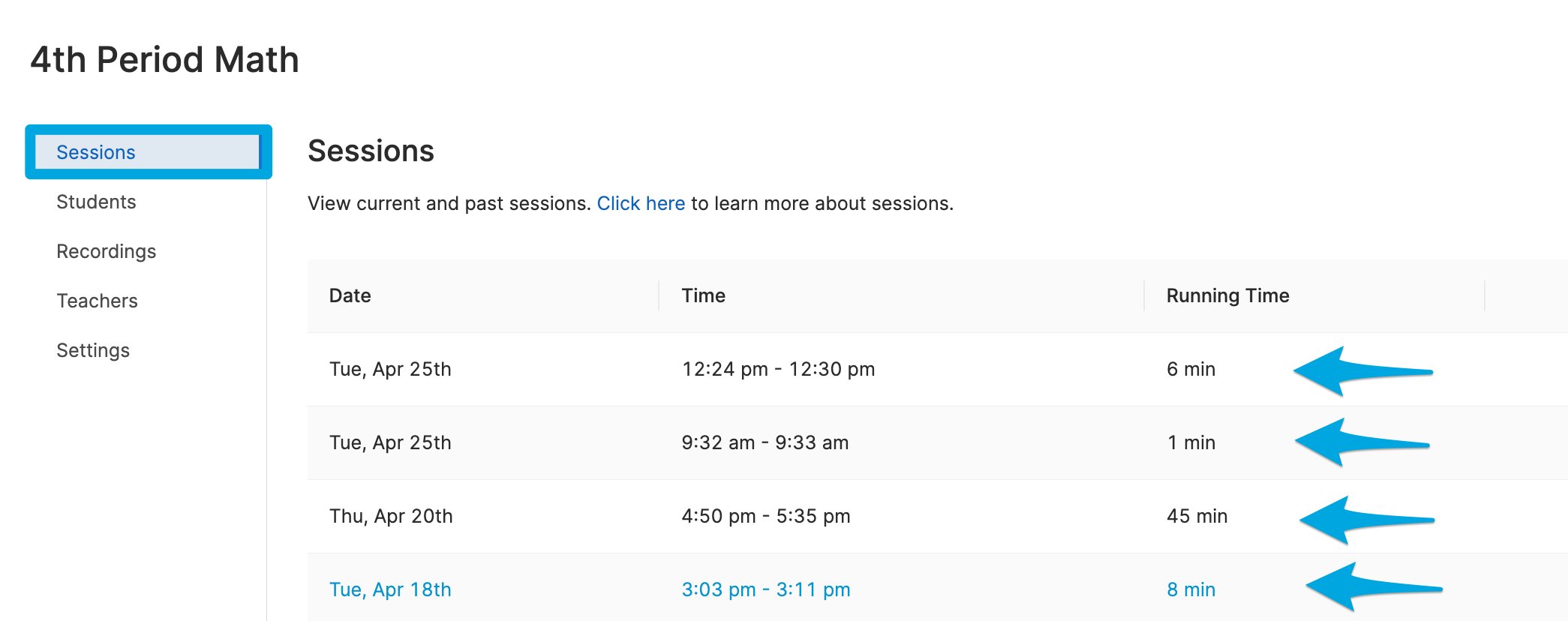
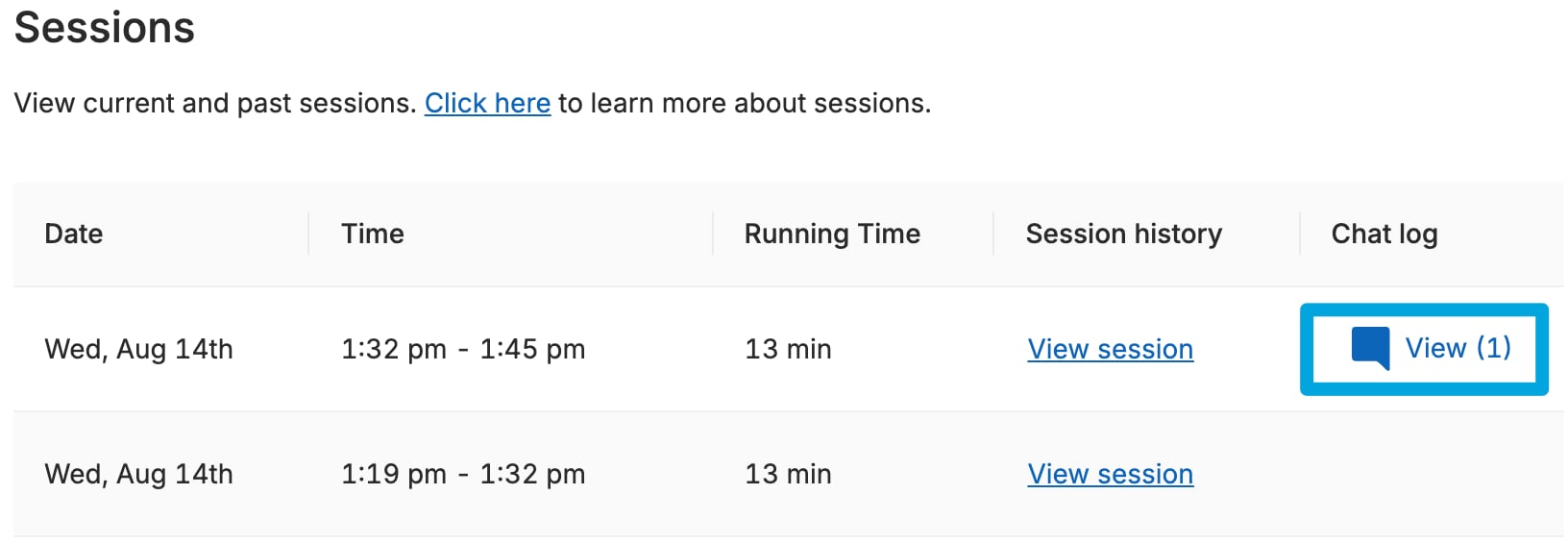
Click on the class tile or select View Sessions from the Settings cogwheel menu to open the Sessions tab.

- Under the Date, Time, and Running Time columns, click the session you want to review.
- Select from the Timelines, Screenshots, Command Log, and Check-Ins tabs to view the corresponding data.
Sessions with Chat history show a Chat Logs button next to the session entry on the main Sessions page.
Resources
Use Teacher Chat
Enable and use 1-on-1 chat with students during a session.
Schedule Classroom Sessions
Set up recurring or one-time automatic session schedules.
Commands Overview
Review all available teacher commands for managing student devices.
Session Report Emails
Review the session summary email sent after each class.