

Send an Announcement to the Whole Class
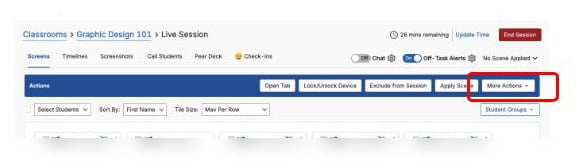
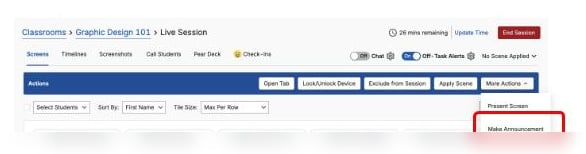
- During an active class session, click More Actions in the Command Bar, then select Make Announcement.
- On the prompt that appears, select All to send the announcement to every student in the class, then click Next.
- Enter your message in the text box. Optionally, insert an emoji using the smiley face button. Click Make Announcement to send.
- Verify the result: Each student sees the message in a pop-up box with the class name at the top. Students click Got it to acknowledge it and confirm delivery.
Send an Announcement to a Student Group
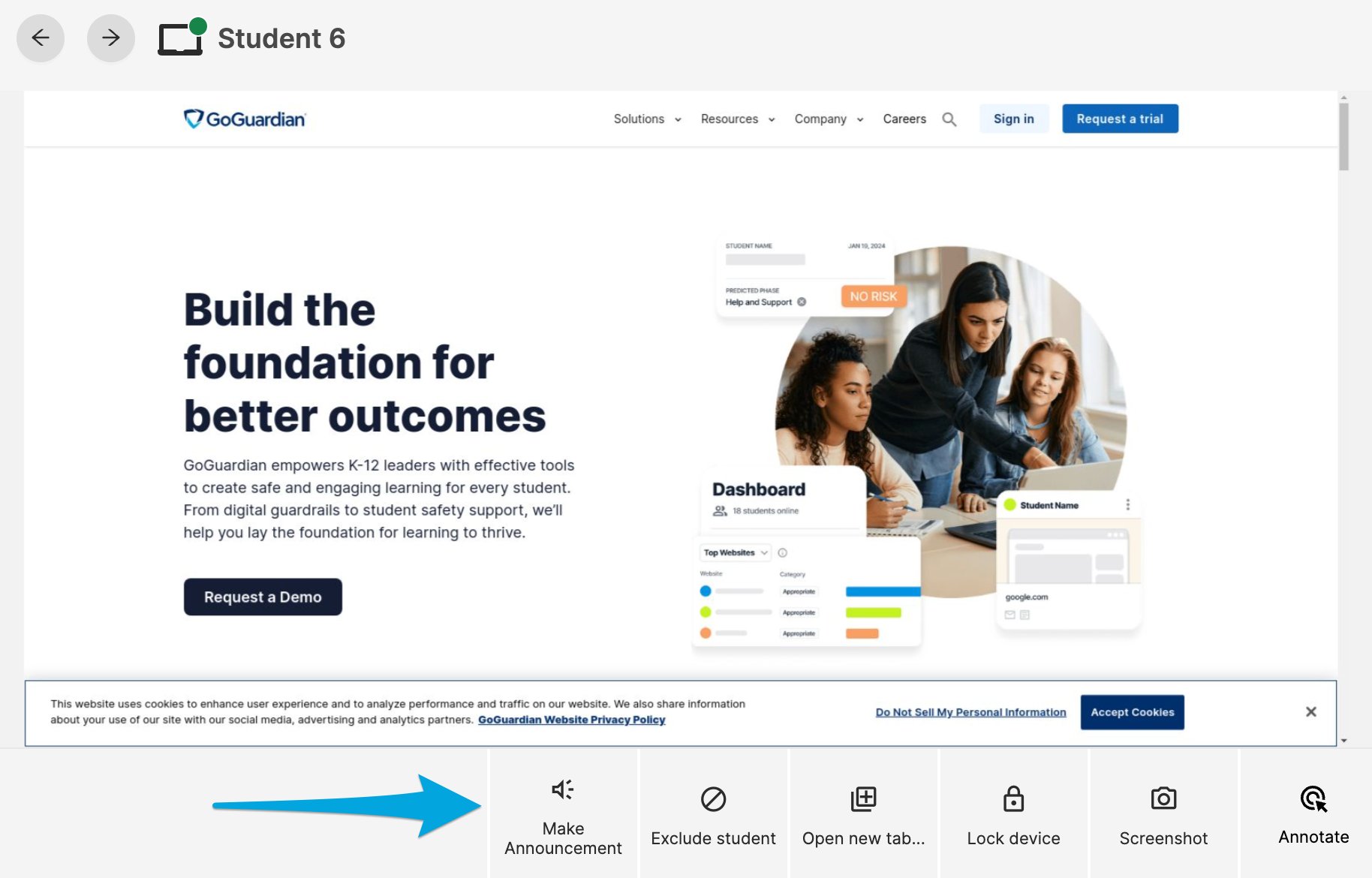
When you have students organized into groups, you can send announcements to each group separately.- In the active class session, find the student group you want to message.
- Click Make Announcement for group. All students in the selected group will receive the message and must acknowledge it by clicking Got it.
Send an Announcement to an Individual Student
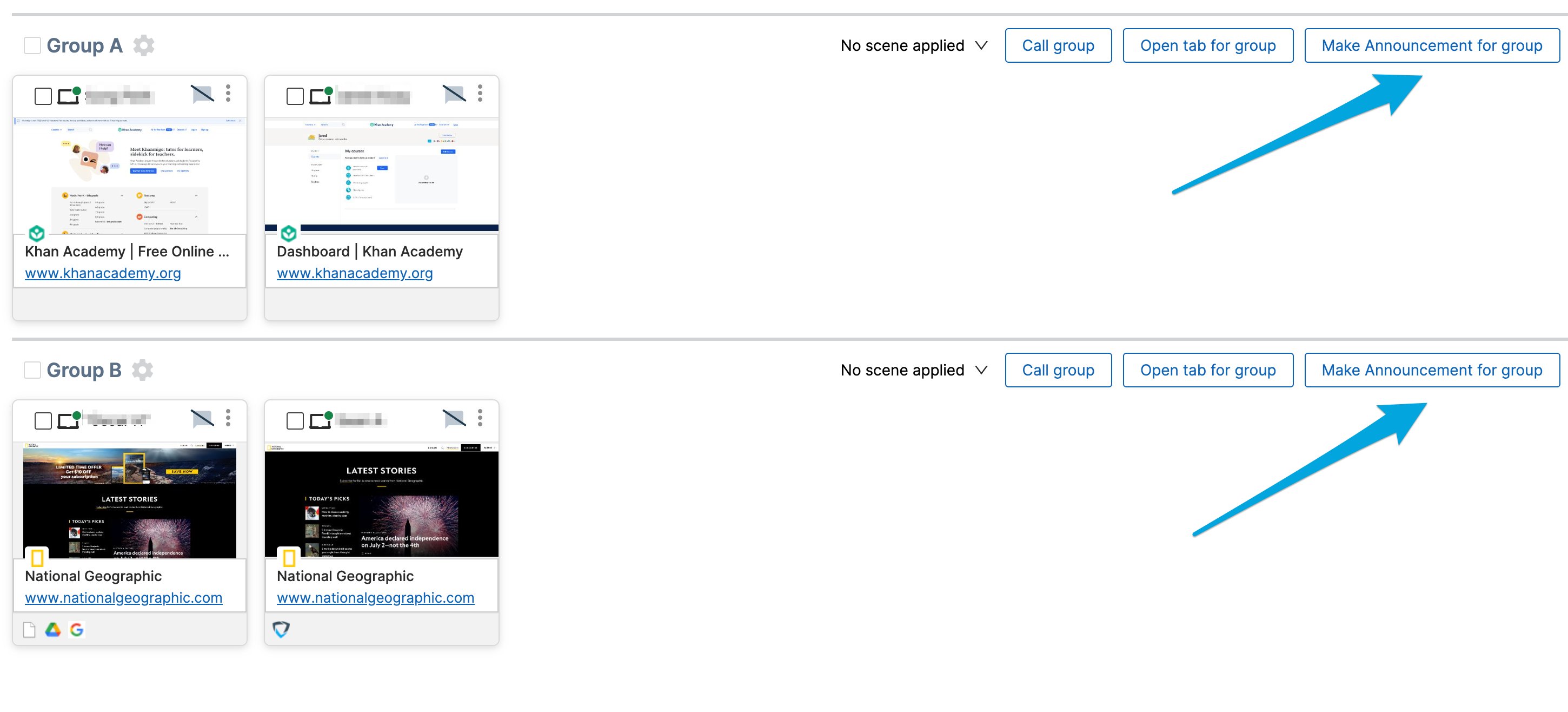
- In the active class session, click the individual student’s screen view.
- Click Make Announcement to send a message to that student only.
Student Experience
When you send an announcement, the student sees the message in a pop-up box that displays the class name at the top. The student must click Got it to acknowledge and dismiss the announcement.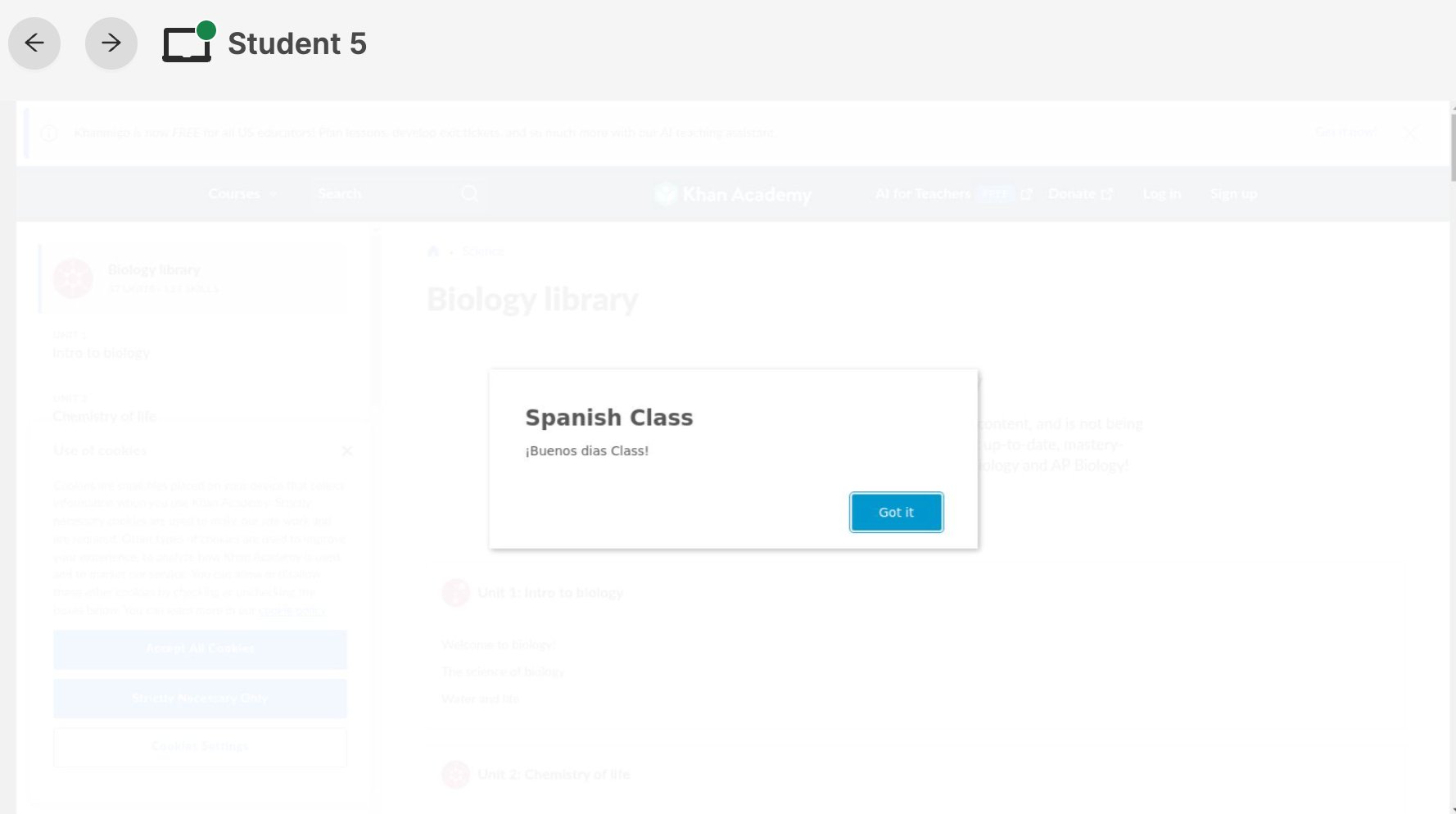
Resources
Use Teacher Chat
Send direct messages to students during a class session.
Commands Overview
Explore all available commands in the Command Bar.
Start a Classroom Session
Learn how to begin an active class session.
Active Screens View
Review what students are doing during a session.