

Off-Task Alerts currently supports the following class subjects: English, History, Math, and Science.
How It Works
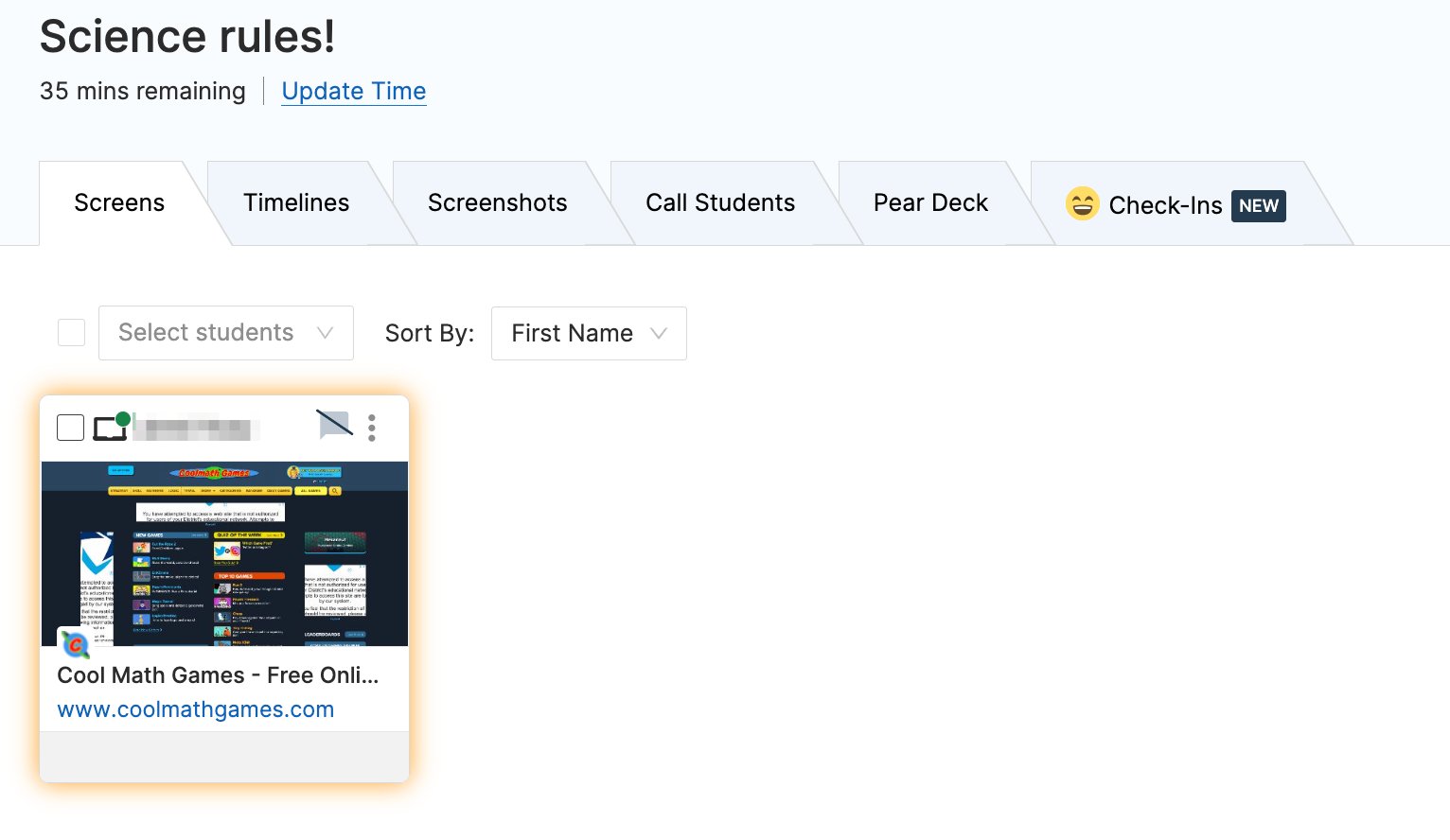
Off-Task Alerts analyzes the content of each student’s current webpage and compares it against the selected classroom subject. When a student is actively engaged with content that appears off task, a yellow border appears around their tile in the Screens view.Sensitivity Levels
Sensitivity controls how long a student must appear off task before their tile is highlighted.Enable Off-Task Alerts
During an active class session:- Set the Off Task Alerts toggle to On.
- Select the appropriate class subject.
- Adjust the Sensitivity slider to match your preference.
Change the Subject Mid-Session
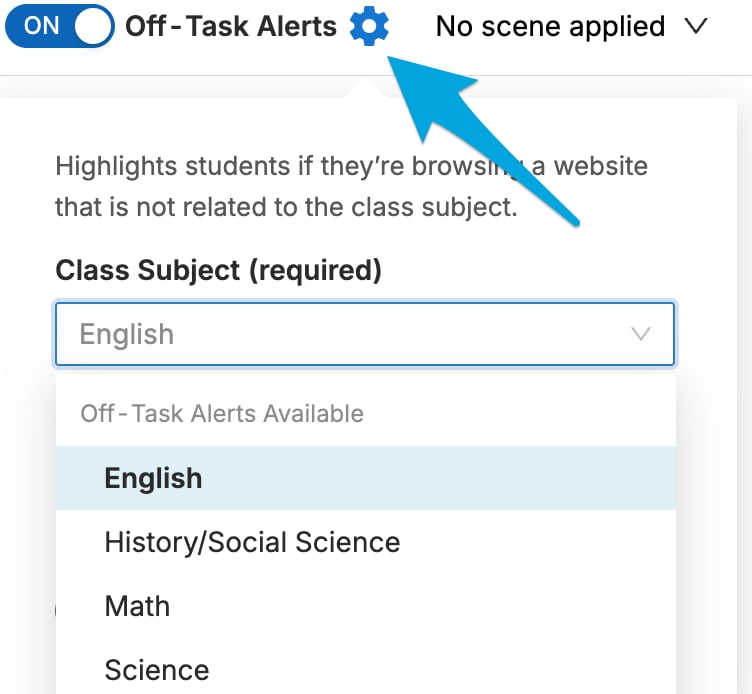
If the subject changes during a session, click the Off-Task Alerts cogwheel and select a new subject.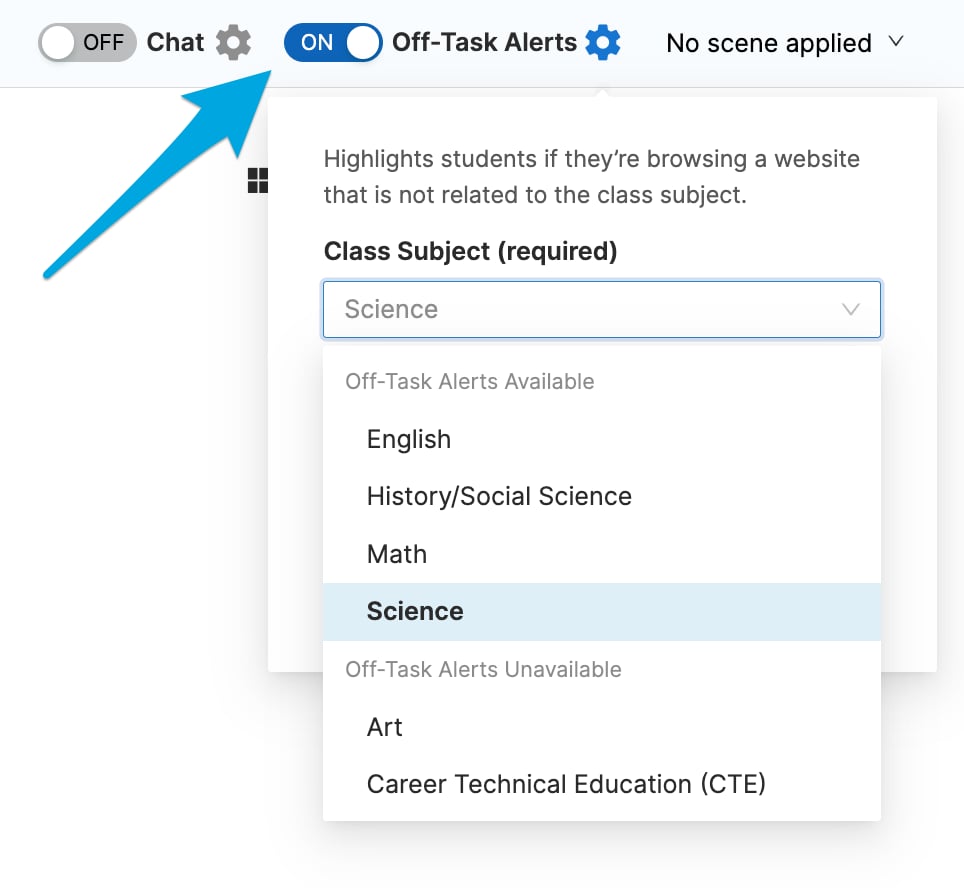
Prevent Alerts for Specific Websites
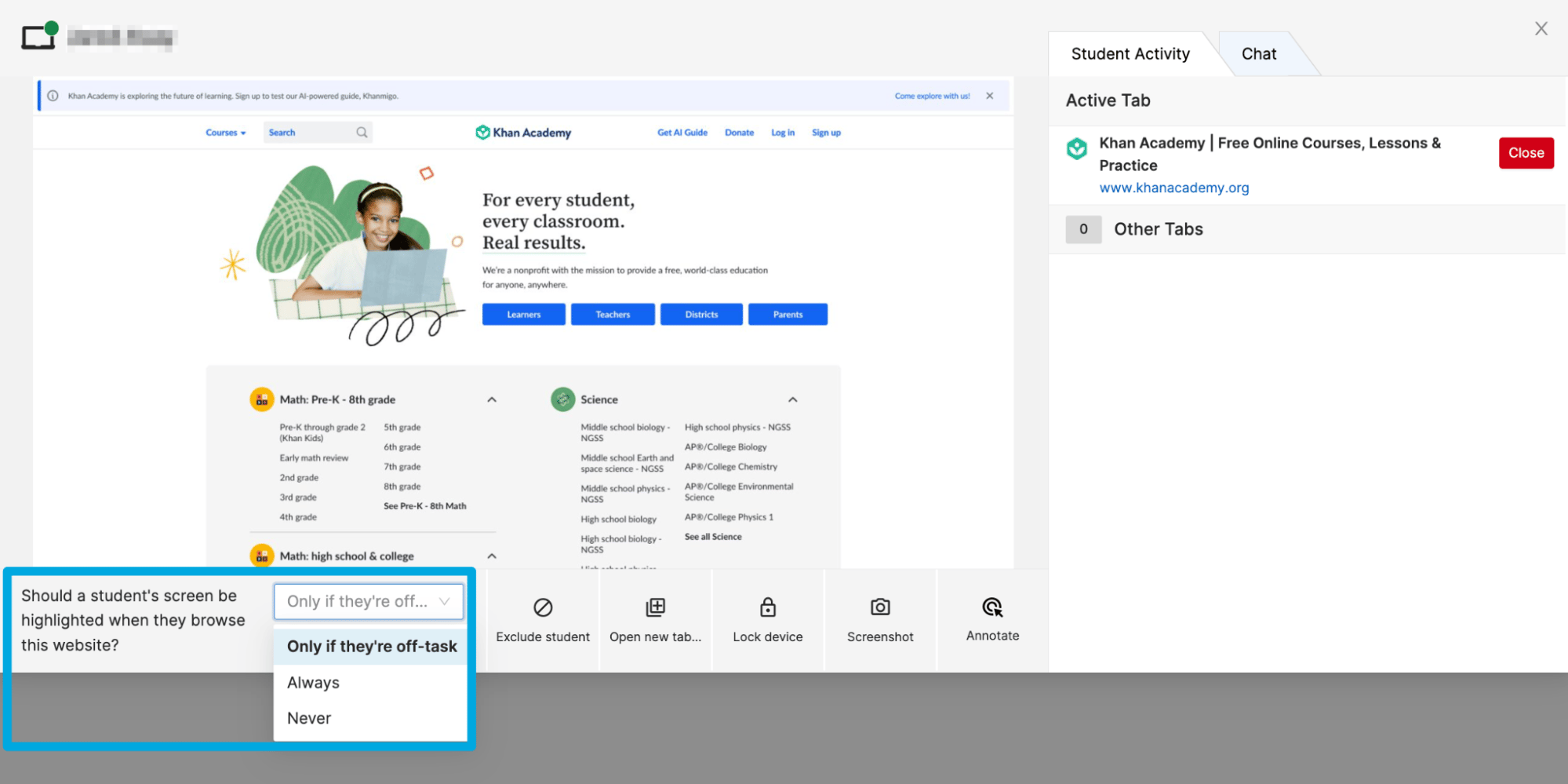
Off-Task Alerts may flag students who are on task. You can prevent alerts for specific websites:- Click the student’s screen tile.
- Click the Highlight this student… drop-down menu.
- Select Never.
Review Off-Task History
If Off-Task Alerts were active during a session, off-task behavior is saved for up to 1 calendar year.- From the GoGuardian Teacher dashboard, click the classroom tile.
- Click the date and time of the session you want to review.
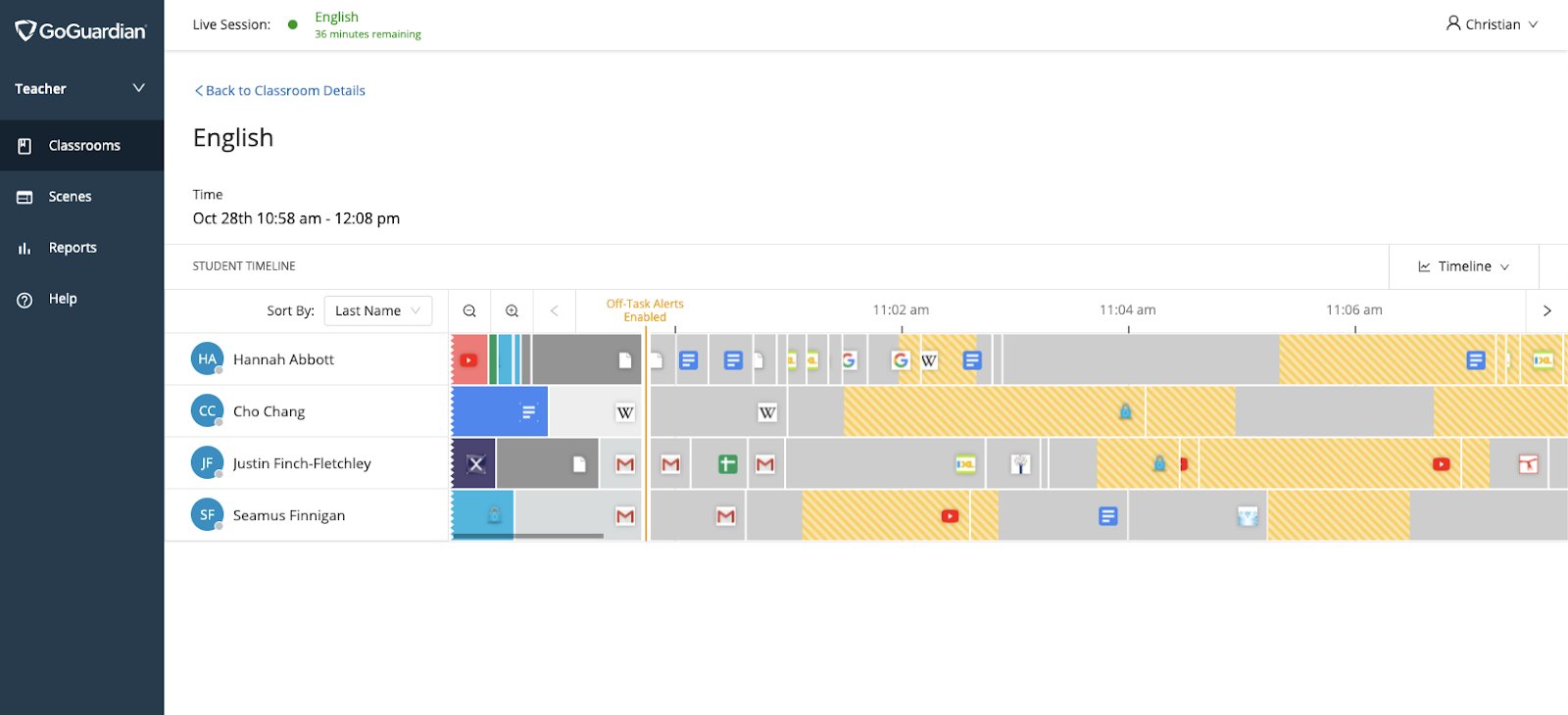
- Scroll through the timeline view. Off-task periods are highlighted in gold. The points at which Off-Task Alerts were enabled or disabled appear as gold vertical lines through all student timelines.
Resources
Active Screens View
Review the Screens view controls where Off-Task Alerts highlights appear.
Student Browsing Reports
Access detailed individual student activity for a session.