

Identify Which Product You’re Signing In To
GoGuardian’s staff-facing products share one account system, but each has its own sign-in page. Confirm you’re on the right page for the product you need:- GoGuardian Admin: admin.goguardian.com
- GoGuardian Teacher: teacher.goguardian.com
- GoGuardian Beacon: beacon.goguardian.com
- Fleet: fleet.goguardian.com
- Org Management (Super User account management): manage.goguardian.com
Pear Assessment, Pear Deck, and Pear Practice use separate sign-in pages and account systems. This article covers the GoGuardian staff products above. For Pear sign-in issues, see the troubleshooting article for that product.
Fix “You’re almost there…admin approval required”
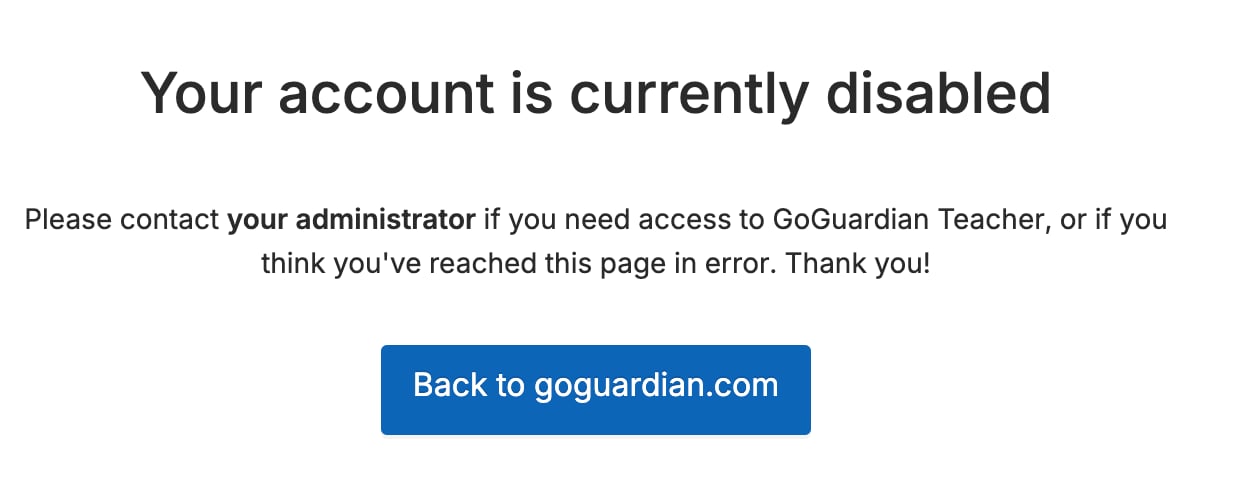
This error appears when a user tries to sign in to teacher.goguardian.com but has GoGuardian Teacher access disabled. For teachers: contact a GoGuardian Super User at your organization for help. For Super Users: go to manage.goguardian.com and set the user’s GoGuardian Teacher access to Enabled. Account access can be updated one at a time by clicking Edit next to a user’s name, or in bulk via CSV upload.
Fix “Let’s get started…”
This error appears when a user with no GoGuardian product access tries to sign in to GoGuardian Admin. A similar error appears when a user tries to sign in to GoGuardian Beacon while Beacon access is disabled. For administrators or counselors: contact a GoGuardian Super User at your organization. For Super Users: go to manage.goguardian.com and set the correct role:- GoGuardian Admin: Full Access, Filter & Monitor, Monitor Only, or a custom RBAC role
- GoGuardian Beacon: Super Counselor, Counselor, or View Only

Resolve “Your account could not be found. Please reach out to your IT Administrator”
This error appears when a user tries to sign in via Google SSO but does not have an active GoGuardian account matching that Google email. Resolution: confirm the Google email address matches the email registered to your organization’s GoGuardian account. Contact a GoGuardian Super User to verify or update the email on file.
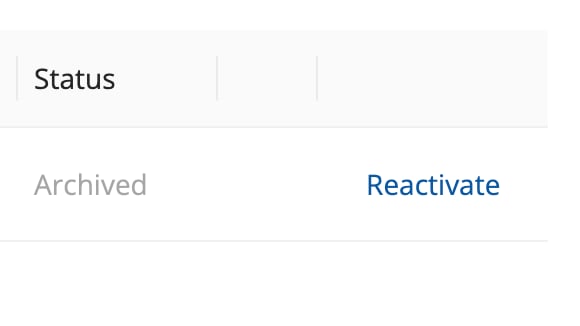
Reactivate “Your account has been disabled by your organization’s admin” or “Your Account is Currently Disabled”
This error appears when a user’s GoGuardian account has been archived. For GoGuardian users: contact a GoGuardian Super User to reactivate your account. For Super Users: click the Reactivate button next to the user’s name in manage.goguardian.com.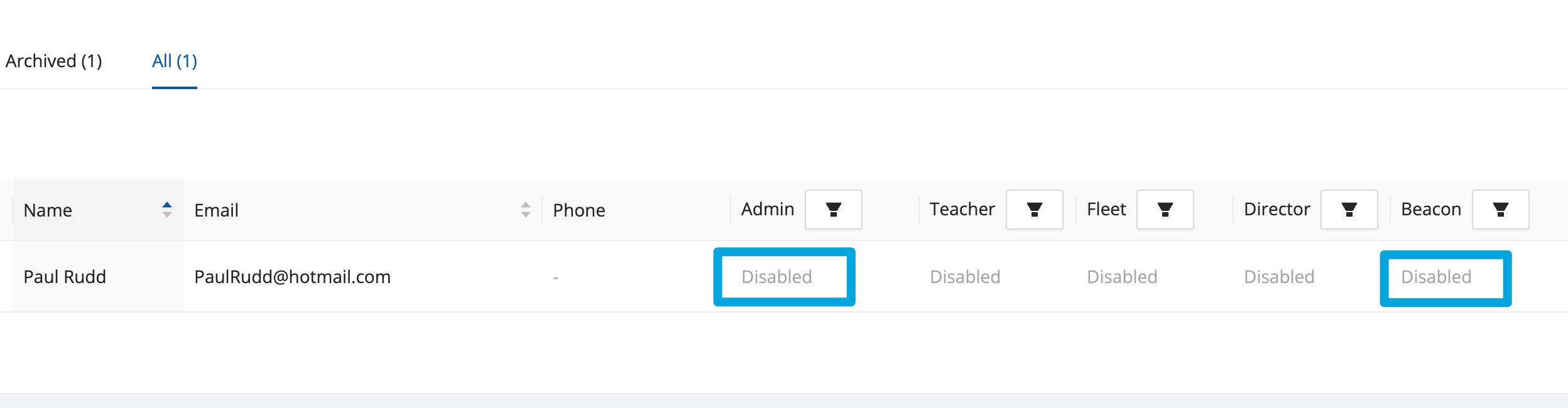
Fix “Incorrect email or password, please try again”
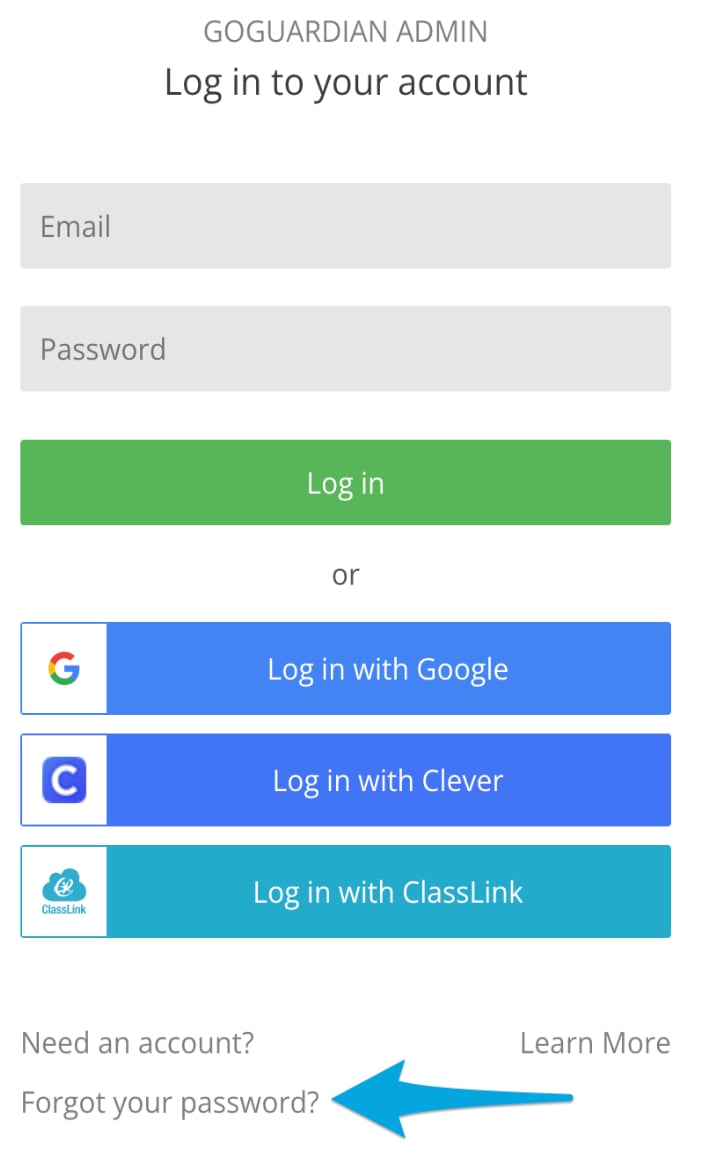
This error appears when the email or password entered does not match a GoGuardian account. For Google Workspace users: try signing in with the Login with Google option. For users with GoGuardian passwords: check the spelling of the email and password. Click Forgot your password? on any GoGuardian sign-in page to receive a password reset link. GoGuardian password requirements:- At least 8 characters
- At least 1 uppercase letter
- At least 1 lowercase letter
- At least 1 number
- At least 1 special character:
@,$,!,%,*,?, or&

Resolve Single Sign-On (SSO and SAML) Problems
If your organization uses single sign-on, sign-in problems often trace to the identity provider rather than the individual account.- The SSO button doesn’t appear or doesn’t work: Use the Sign in with Single Sign-On option on GoGuardian’s login pages rather than launching from a third-party app — SSO sign-in through third-party applications is not currently supported. Staff can also use the direct SAML link:
https://account.goguardian.com/#/staff-saml-login. - SSO returns an error or an unexpected account: Confirm the email your identity provider sends matches the email on the GoGuardian account. A mismatch produces the “Your account could not be found” error above.
- A newly added provider isn’t working for staff: A Super User should confirm the SAML provider is configured and listed in Org Management. See Configure Staff SAML SSO for setup, the ACS URL and Entity ID, and supported identity providers.
MFA is not required when signing in through SSO. Google, Clever, ClassLink, and RapidIdentity sign-ins are exempt.
Resolve Multi-Factor Authentication Problems
Users signing in with email and password must complete multi-factor authentication (MFA).- The six-digit code didn’t arrive: Check inbox and spam folders, then click Resend at the sign-in screen.
- The user is fully locked out: A Super User can generate a one-time backup code, valid for 10 minutes. See Set Up Multi-Factor Authentication for the steps.
- The user is prompted every sign-in: After entering a code, users can trust the device for 30 days to skip the prompt during that period.