

Review Requirements
Before setting up SAML, confirm you have:- Super User or custom role access to the Staff SAML SSO section of manage.goguardian.com
- Access to your organization’s identity provider
Set Up SAML
- Go to manage.goguardian.com and select Staff SAML SSO from the navigation menu.
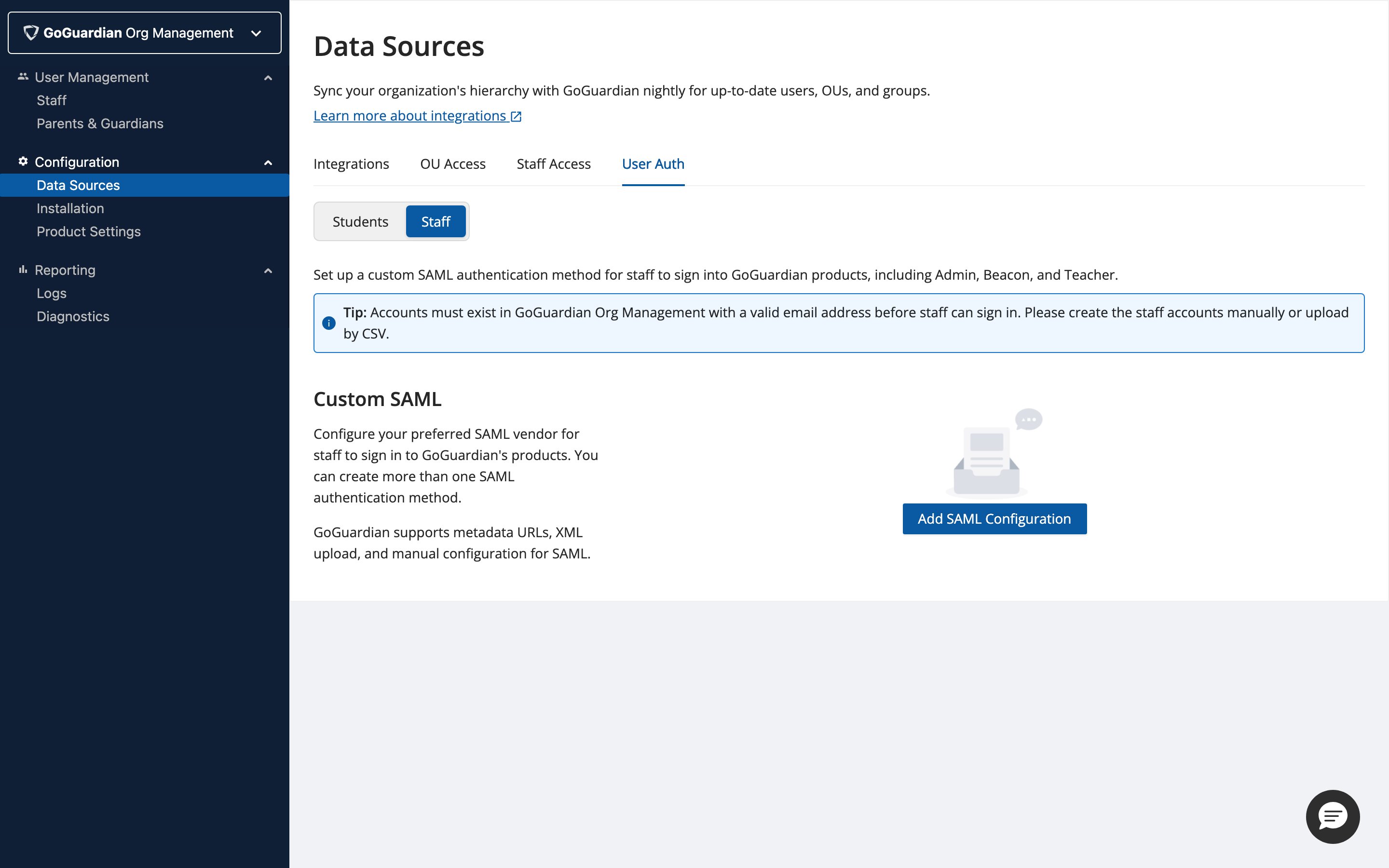
- Click Add Additional Provider.
- Enter an IdP nickname, select XML File URL or XML File Upload / Manual Configuration, and fill in the required fields from your IdP.
- Copy both the ACS URL and Entity ID and enter them in your IdP configuration.
- Customize the login button label and styling.
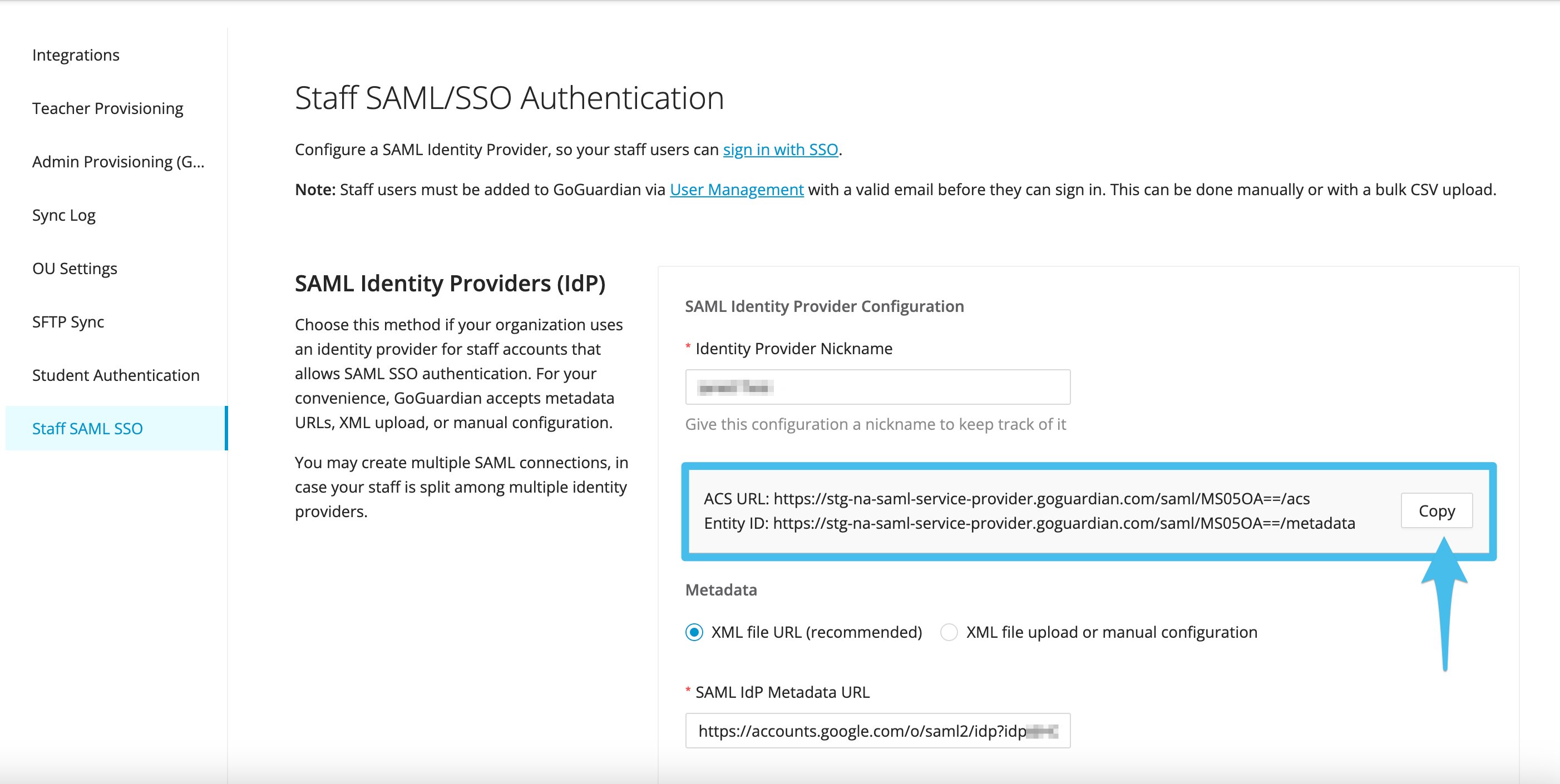
You can create multiple SAML connections if staff credentials are split across more than one identity provider.
Sign In with SSO as Staff
- Go to GoGuardian Admin, GoGuardian Beacon, GoGuardian Teacher, or Fleet.
-
Click Sign in with Single Sign-On.
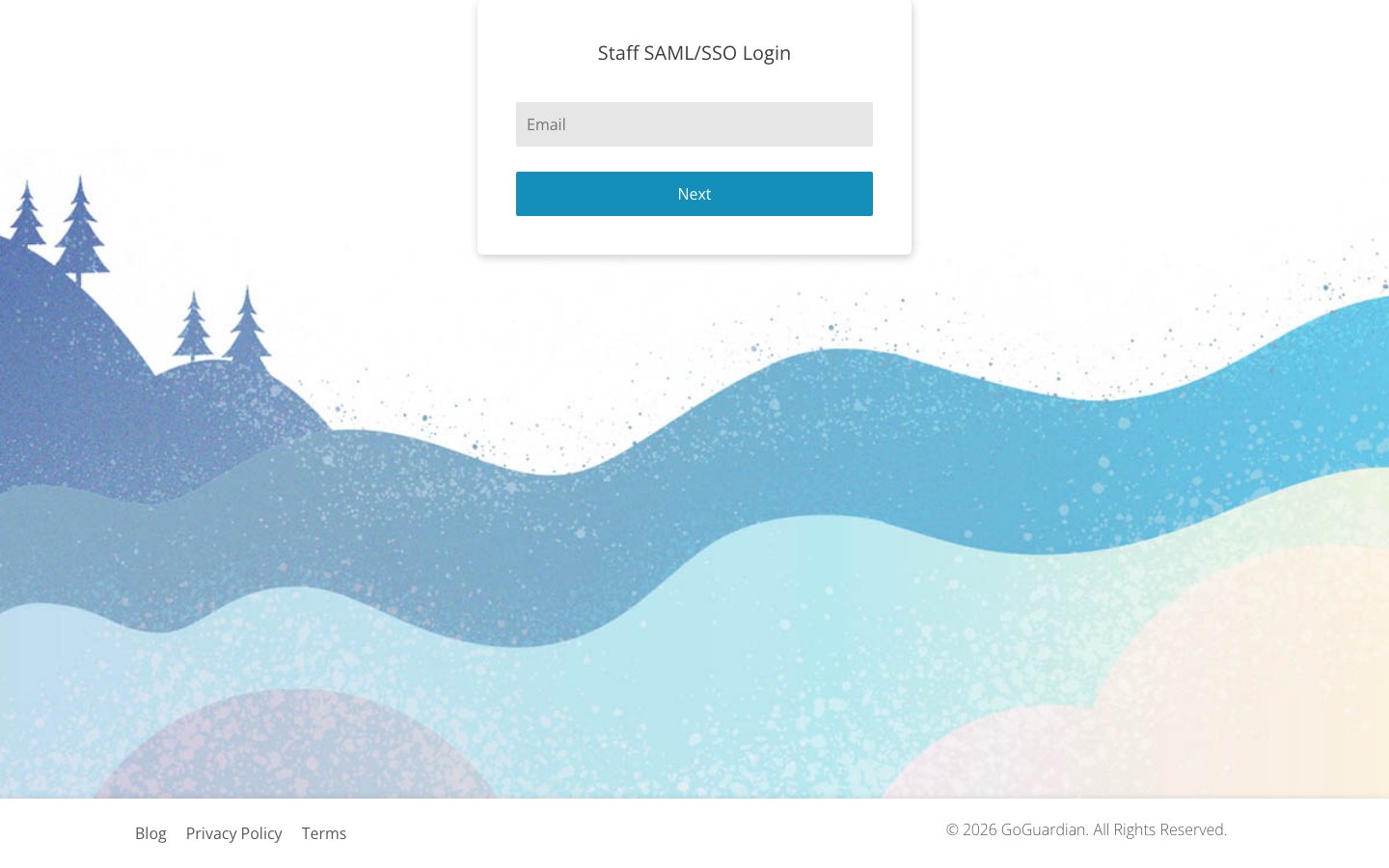
- Enter your staff email address.
- Select your account from the list.
SSO sign-in through third-party applications is not currently supported. Use the Sign in with Single Sign-On option on GoGuardian’s login pages, or use the direct SAML sign-in link:
https://account.goguardian.com/#/staff-saml-login