

Set Up Theft Recovery in Google Admin Console
Configure Managed Guest Session Settings
- Sign in to Google Admin Console as an administrator.
- In the navigation menu, go to Directory > Organizational units.
- Click Create organizational unit and name it Lost Devices.
- Open Devices > Chrome > Settings > Managed guest session settings.
- Select the Lost Devices OU from the sidebar.
-
Apply the following settings:
Managed guest session
- Configuration: Auto-launch managed guest session
- Session name: Guest
- Auto-launch delay: 0
javascript://*Screenshot: Allow users to take screenshots and video recordings Developer tools: Never allow use of built-in developer tools - Save your changes.
Apply Device Restrictions
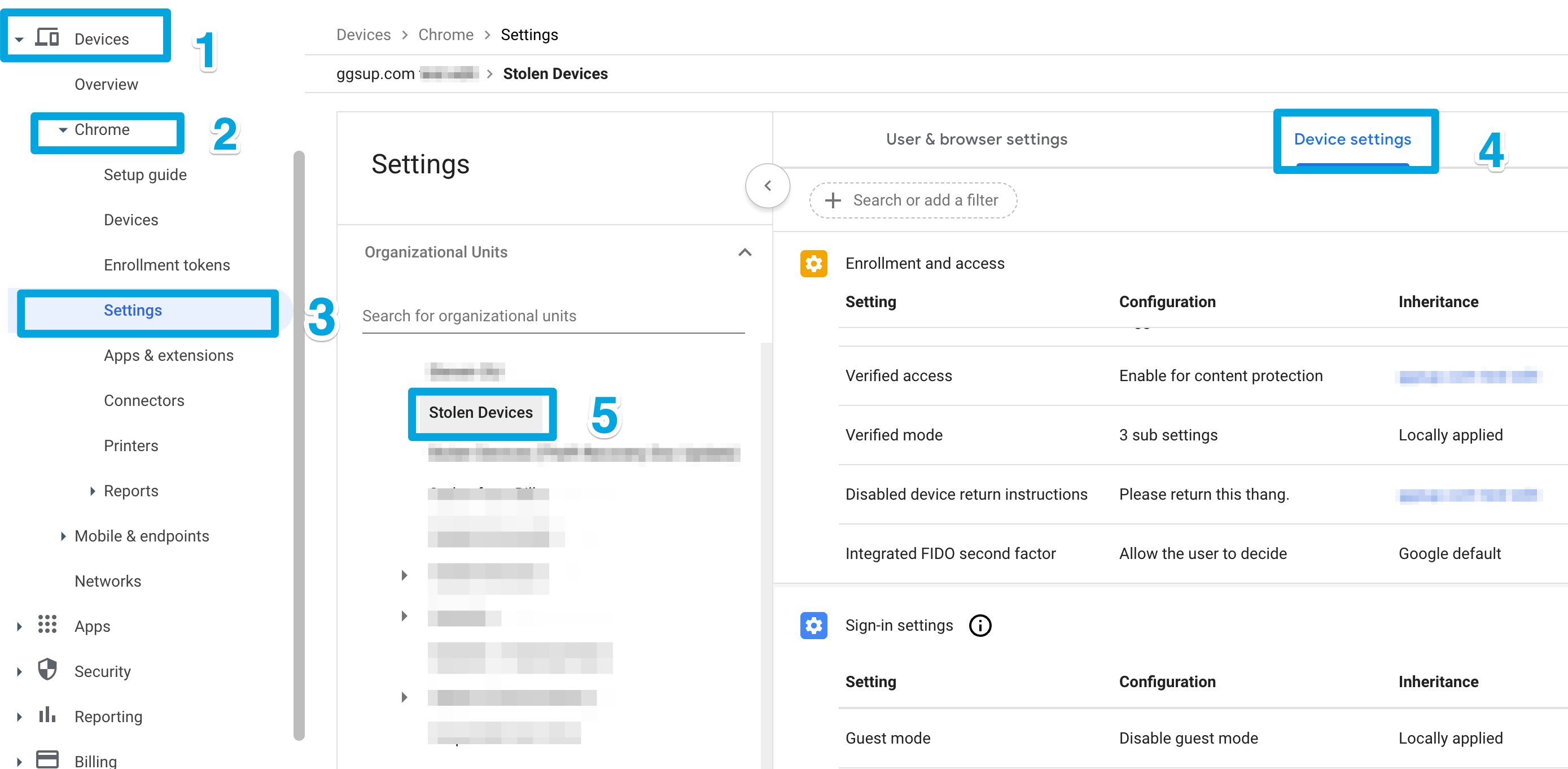
- Go to Devices > Chrome > Settings > Device settings.
- Select the Lost Devices OU from the sidebar.
- Configure the following settings: Sign-in restriction: Do not allow any user to sign in Guest mode: Disable guest mode Forced re-enrollment: Force device to re-enroll after wiping
- Save your changes.
Install the Theft Recovery Extension
- Go to Devices > Chrome > Apps & extensions > Managed guest sessions.
- Select the Lost Devices OU.
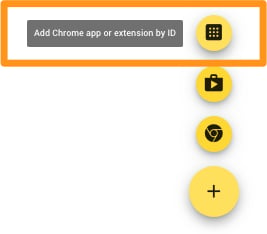
- Click the Add icon and choose Add Chrome app or extension by ID.
-
Enter the following extension ID:
ejblgkabfnkbdjmdkpfgojkohmgnpblh - Select From a custom URL.
-
Enter the following URL:
https://theft-recovery-ext.goguardian.com/production.xml - Select Force install.
- Save your changes.
- Verify the result: On a target device, confirm that guest session mode is enabled on the login screen. After signing in as a guest, confirm that the Theft Recovery extension is installed in Chrome.

Move Chromebooks to the New Organizational Unit
- In the navigation menu, go to Chrome > Devices.
- Select the organizational unit with the old Theft Recovery extension installed.
- Select the devices you want to move.
- Click Move in the toolbar.
- Choose the Lost Devices OU created in the previous section.
- Click Move.
Authorize and Sync in GoGuardian Admin
- Sign in to GoGuardian Admin and go to Theft Recovery.
- Click the three-dot menu and select Settings > Authorize with Google.
- Log in with a Google Admin Super User account.
- Click Allow Access.
- In the three-dot menu, select Sync Devices.
- Click Sync Google Admin Console.
- Verify the result: Find the device in the list. Once the device successfully checks in, its status changes to Detected in the Theft Recovery dashboard.