

Assign Intervention only appears when standards are assigned to the assessment’s items, and at least 50% of students in the class are graded for the assignment.
Create a Targeted Intervention
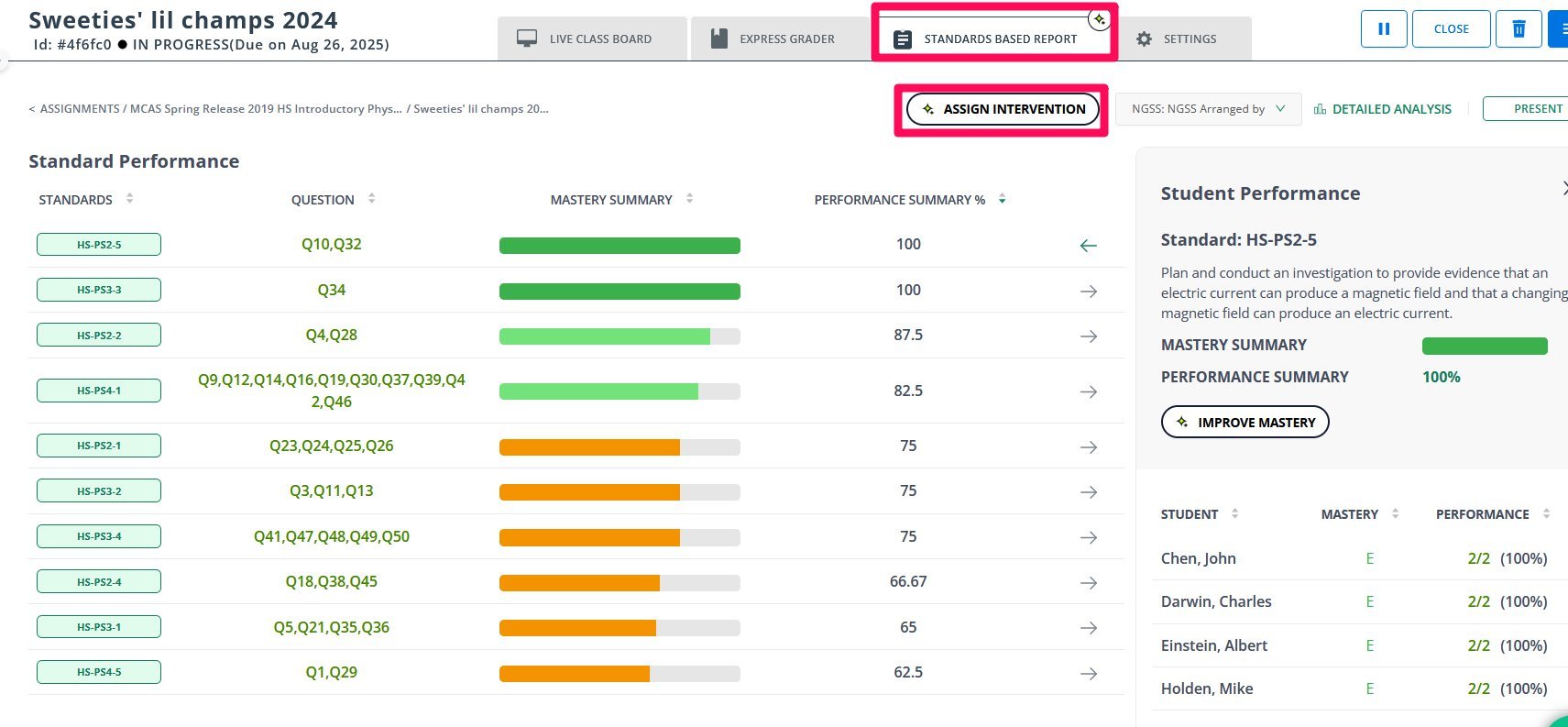
- Go to your Live Class Board and select the Standards Based Report tab.
- Click Assign Intervention.
- Use the slider to choose a mastery Performance Range (for example, 0–50%). Pear Assessment shows standards where at least one student falls within the range, sorted by how many students fall in that range, and the students who scored in that range on at least one of those standards.
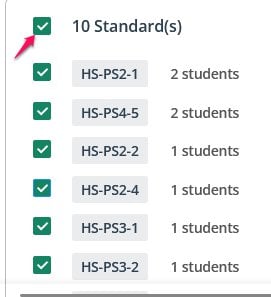
- Select the standards you want to target.
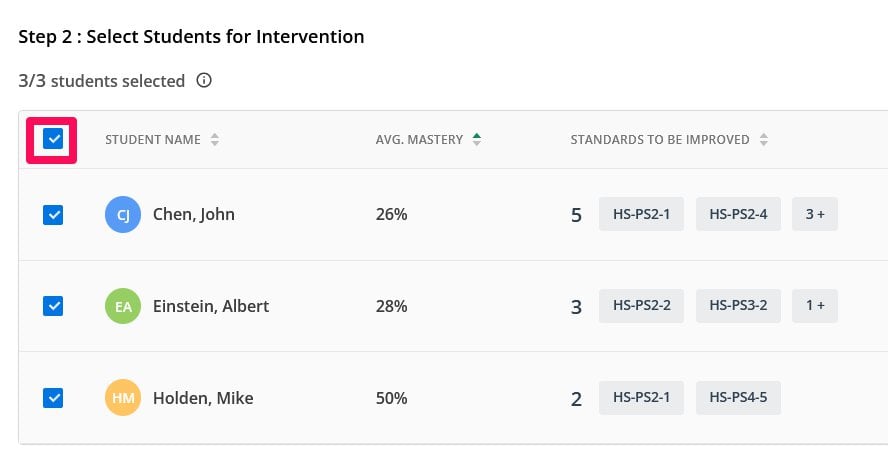
- Choose the students who need support.
- Pick an intervention type:
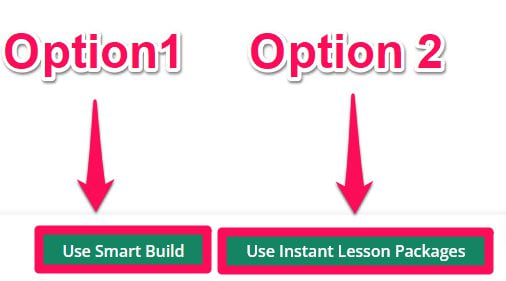
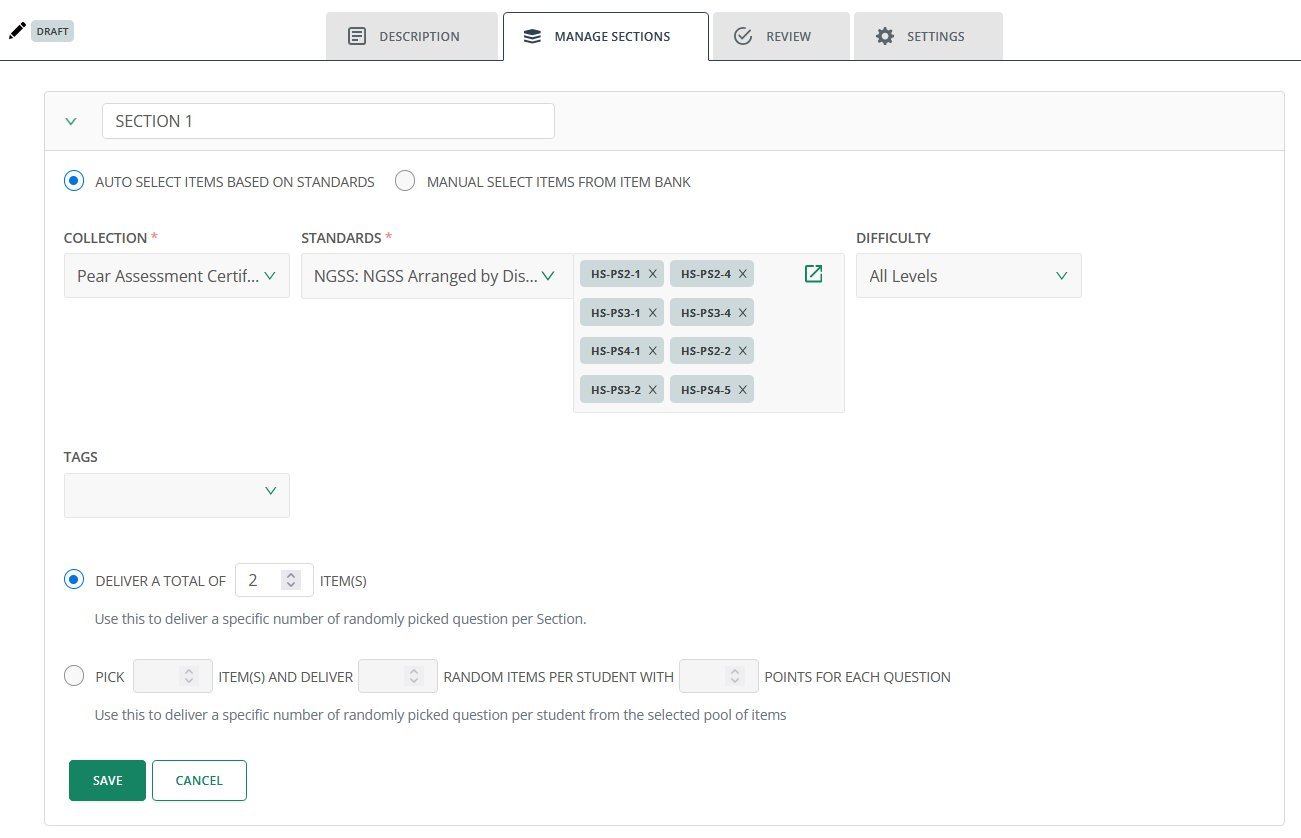
- SmartBuild (Premium and Enterprise) — Automatically populates the selected standards into a quiz. Customize the difficulty level, select specific collections, and adjust other parameters.
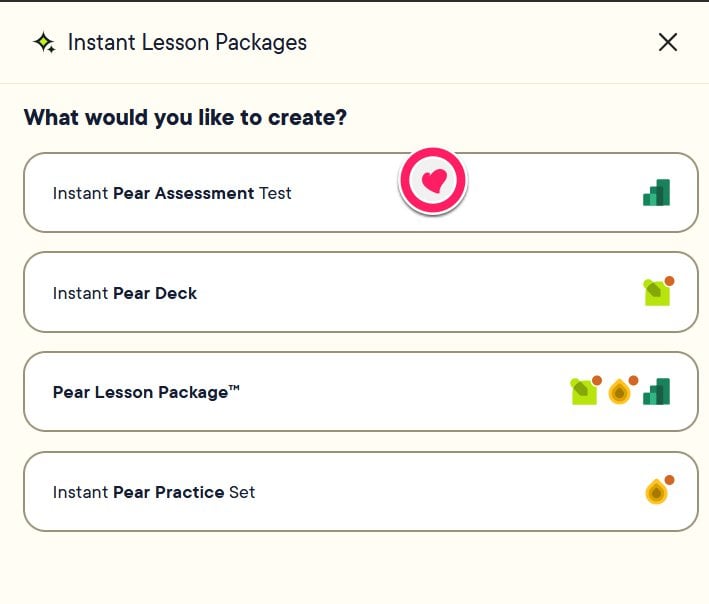
- Instant Lesson Package (Enterprise + AI) — Generate a lesson (Pear Deck), practice set (Pear Practice), assessment (Pear Assessment), or all three, automatically aligned to the average mastery of the selected students on the chosen standards.
- Click Assign. The student list you selected is pre-filled on the assignment screen. Adjust as needed, then click Assign.
- Verify the result: the intervention appears as a new assignment on your Live Class Board, scoped to the students you selected.
FAQ
Can I edit or remove an assigned intervention? Yes. Interventions in Pear Assessment can be edited or deleted directly from the Live Class Board, just like regular assignments. See Delete Assignment. For Pear Deck and Pear Practice interventions, switch to the respective application using the Pear icon in the top left, then edit or delete the assignment there. What if no students appear for interventions? No students fall within the mastery range you selected. Adjust the Performance Range slider to widen the range. Why don’t I see the Assign Intervention option? This option only appears if the assessment’s items have standards assigned and your account has Premium or Enterprise access. If either condition isn’t met, the intervention option doesn’t appear.Resources
Delete Assignment
Remove an assignment, including an assigned intervention, from your Live Class Board.