

Share a Report
- Open the report you want to share.
- Select Share Report.
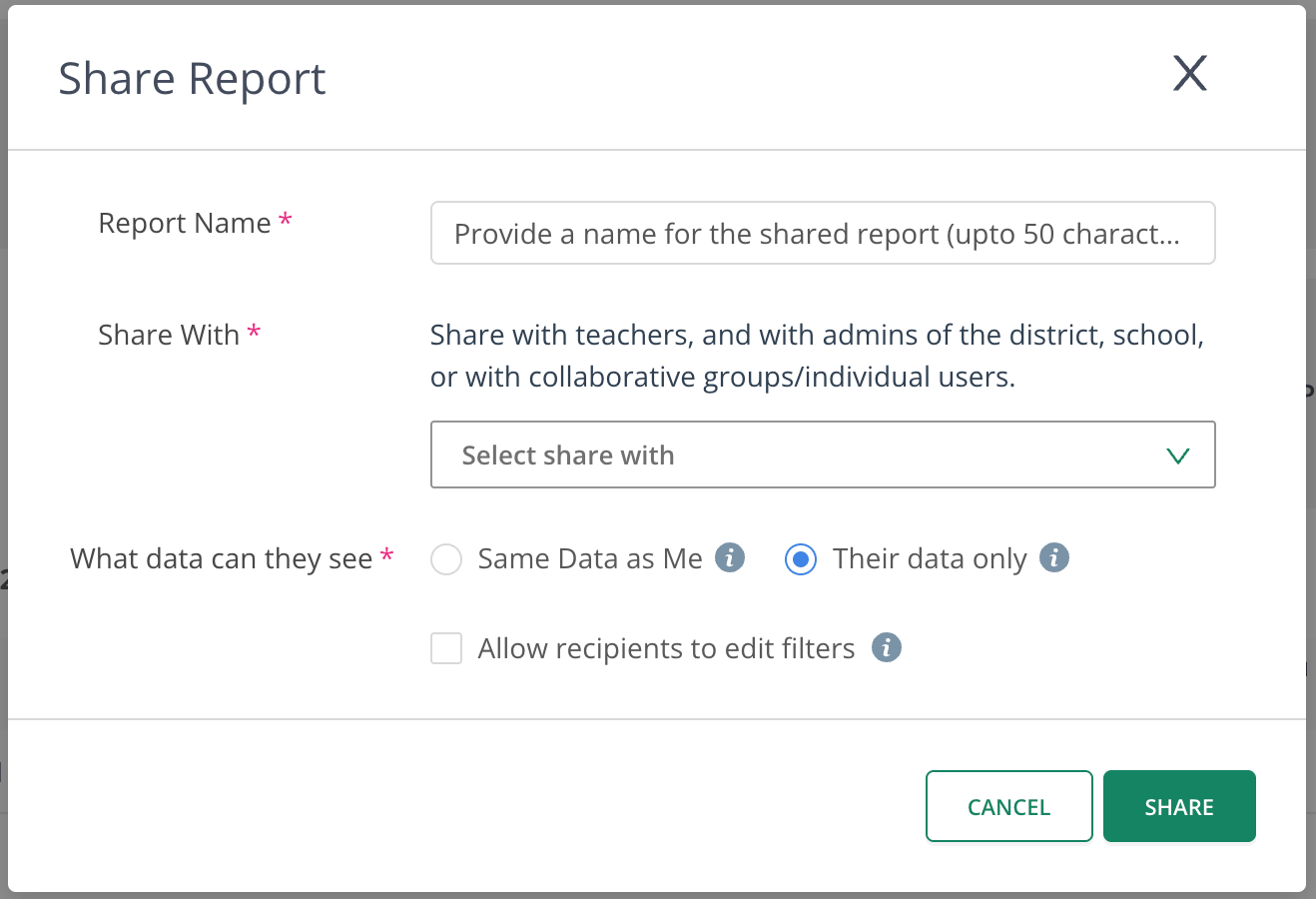
Use the Share Report dialog to configure recipients, data access, and filter editing.
- Configure the following settings:
- Report Name: Enter a name for the shared report, up to 50 characters.
- Share With: Select the recipients. Available audiences include teachers, school administrators, district administrators, Collaboration Groups, and individual users.
- What data can they see: Select Same Data as Me or Their data only.
- Allow recipients to edit filters: Select this checkbox if recipients should be able to change the report’s available filters.
- Review your sharing settings.
- Click Share.
Choose What Data Recipients Can See
Choose between 2 options to control what data recipients can access when viewing a shared report.Use Same Data as Me
Use Same Data as Me when you want recipients to see the same data scope available to you in the report.- All recipients see the same data scope as the person sharing the report.
- Recipients see the same set of data regardless of their individual organizational access.
Use Their Data Only
Use Their data only when each recipient should see data based on their own permissions and organizational access.- Each recipient sees data relevant to their own access level.
- School administrators see data available for their respective schools.
- Teachers see data relevant to their assigned students or classes, based on their permissions.
- Teacher A sees data for their assigned students.
- Teacher B sees data for their assigned students.
Choose Whether Recipients Can Edit Filters
The Allow recipients to edit filters checkbox controls how recipients can interact with the report.- Selected: Recipients can change available filters to explore the data.
- Cleared: Recipients can view the report using the filters configured by the person sharing it.
Filter editing does not independently change data access. The data recipients can view depends on the selected data access setting.
- With Same Data as Me, recipients can modify available filters within the data scope shared with them.
- With Their data only, recipients remain within their own data permissions, even when filter editing is enabled.
View Shared Reports
You can view reports shared by you and reports shared with you from the Shared Reports tab under Insights.- Navigate to Insights.
- Select the Shared Reports tab.

Find reports and review their sharing configurations in Insights > Shared Reports.
- Find the report you want to view.
- Click the report to open it.
Select Recommended Sharing Settings
- School-wide reporting: Choose Same Data as Me when all recipients should see the same school-wide data.
- Recipient-specific reporting: Choose Their data only when recipients should see data based on their own organizational access, such as a teacher’s classes or an administrator’s school.
- Interactive analysis: Enable filter editing when recipients need to explore different available grades, subjects, or other report dimensions.
- A predefined report view: Disable filter editing when recipients should use the filters you selected.
Check Availability
Report sharing is available across all report types for users with the following subscriptions:- Premium
- Enterprise
- Data Studio