

Create a Collaboration Group
- In the navigation menu, click Manage School or Manage District, depending on your role.
- Select Groups > Collaboration Groups.
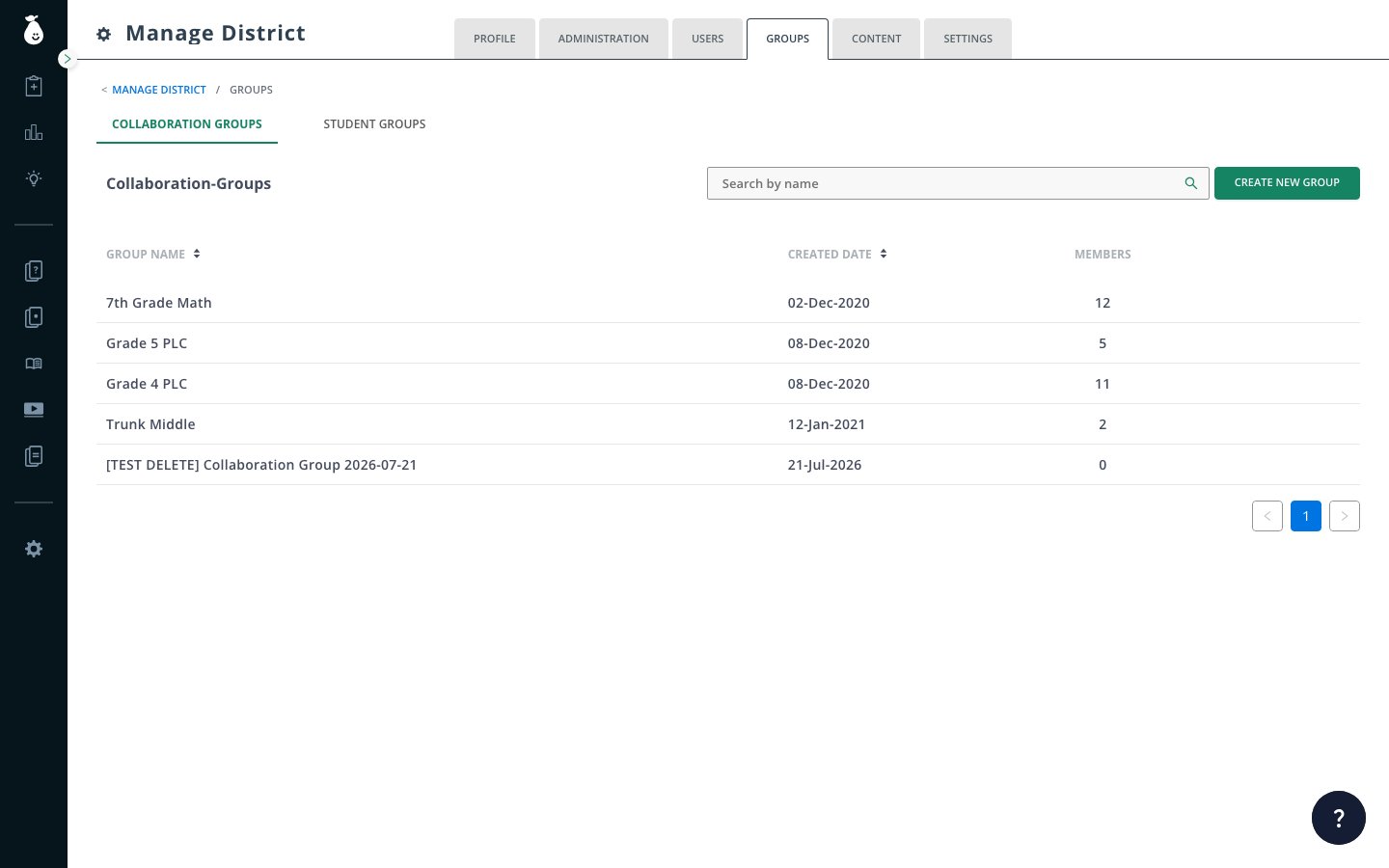
- Click Create Group.
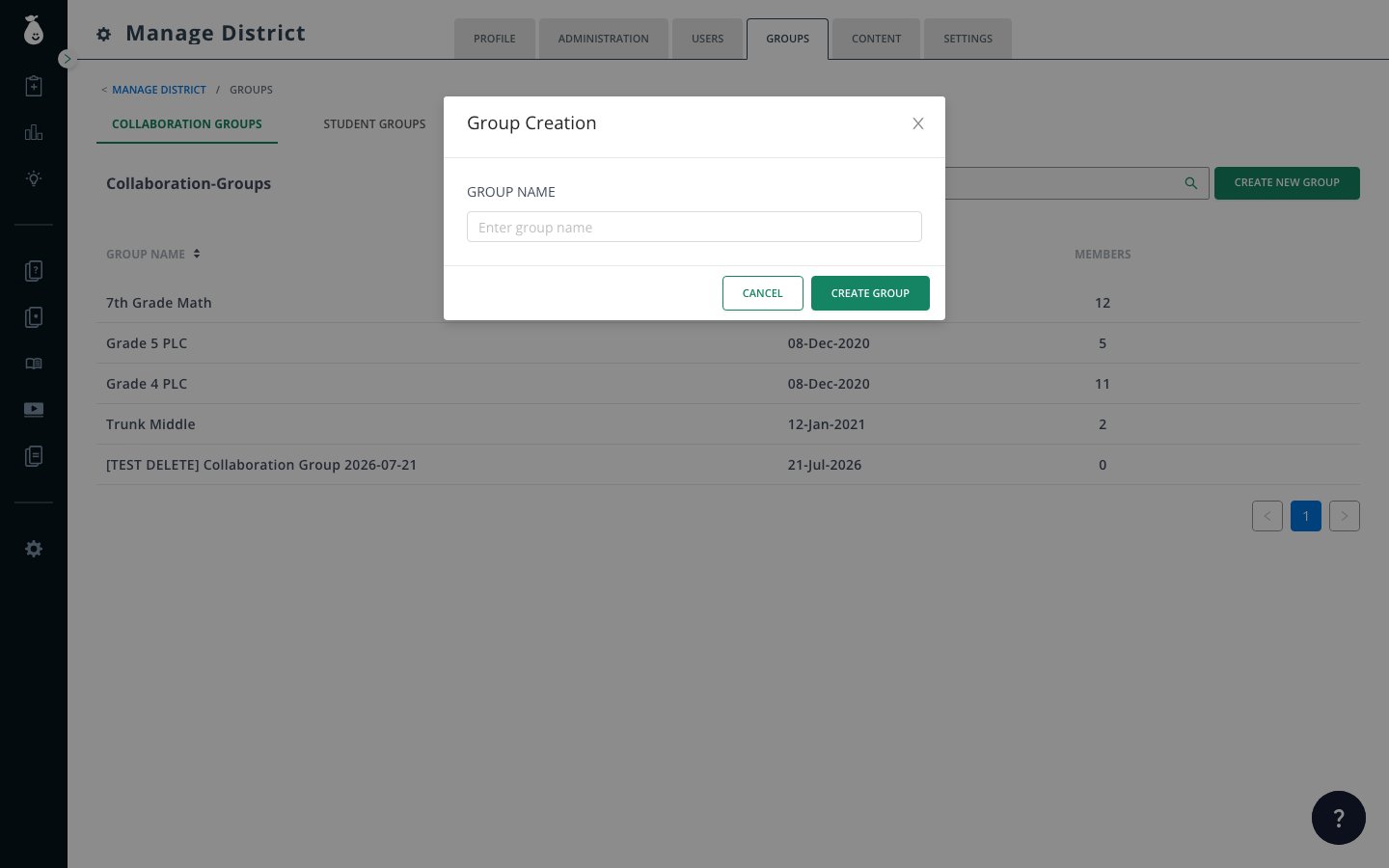
- Follow the prompts to name the group and add members.
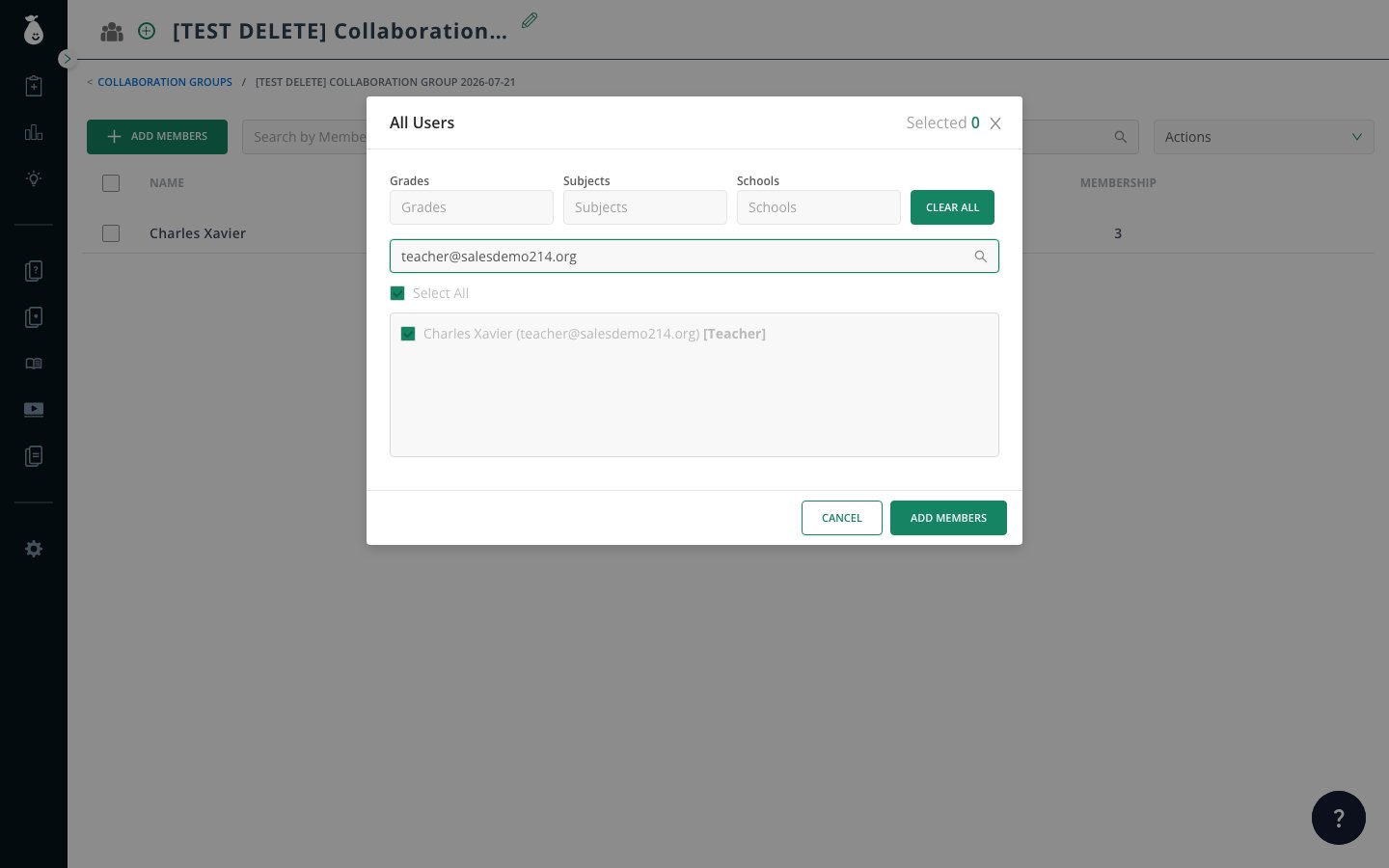
- Add or remove users from the group as needed.
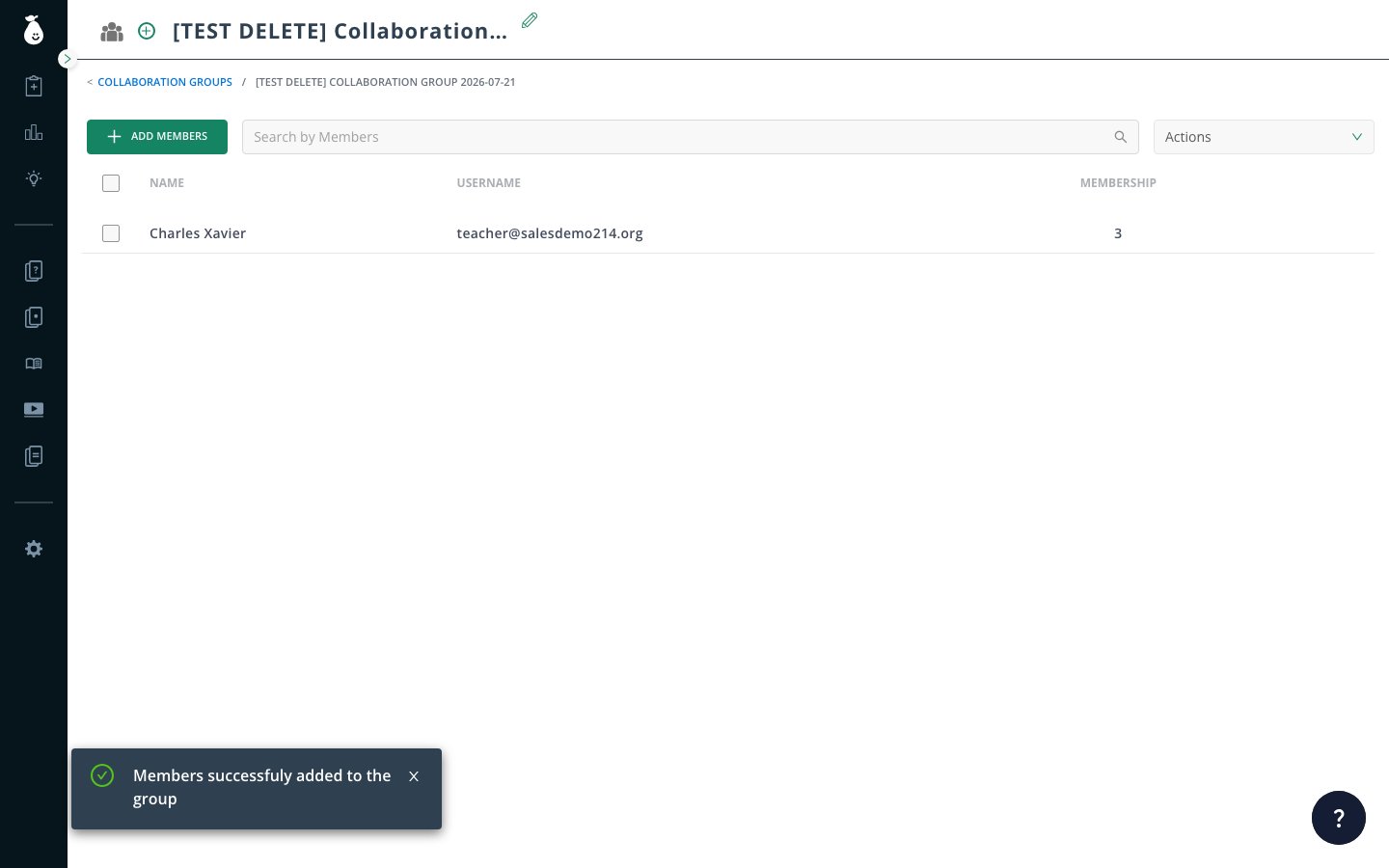
- Once a user is added to a group, the Collaboration Groups button appears in their navigation menu. Teachers can view their groups by clicking Collaboration Groups.
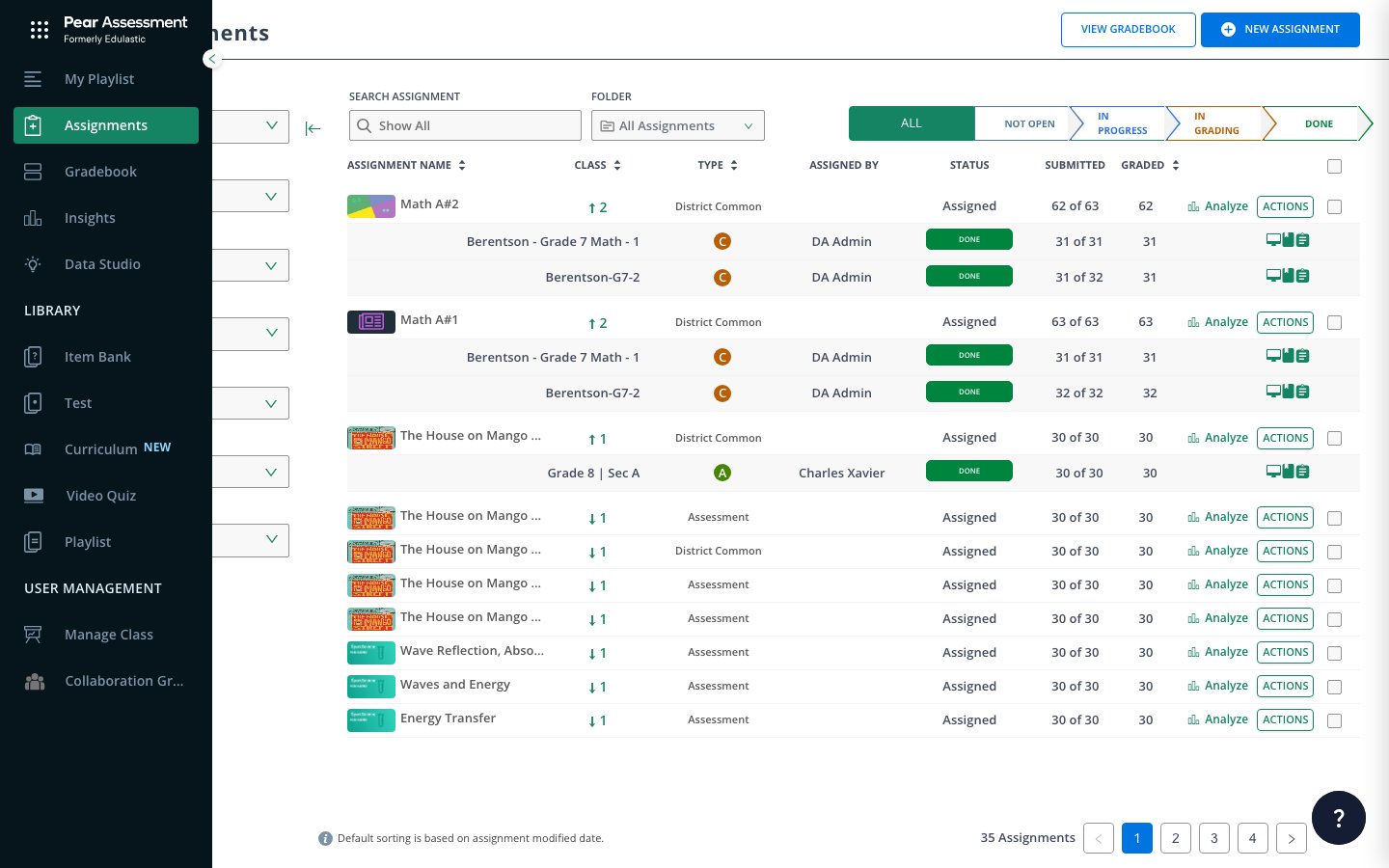
- Under Insights, a teacher can find reports shared with them and share reports with others.
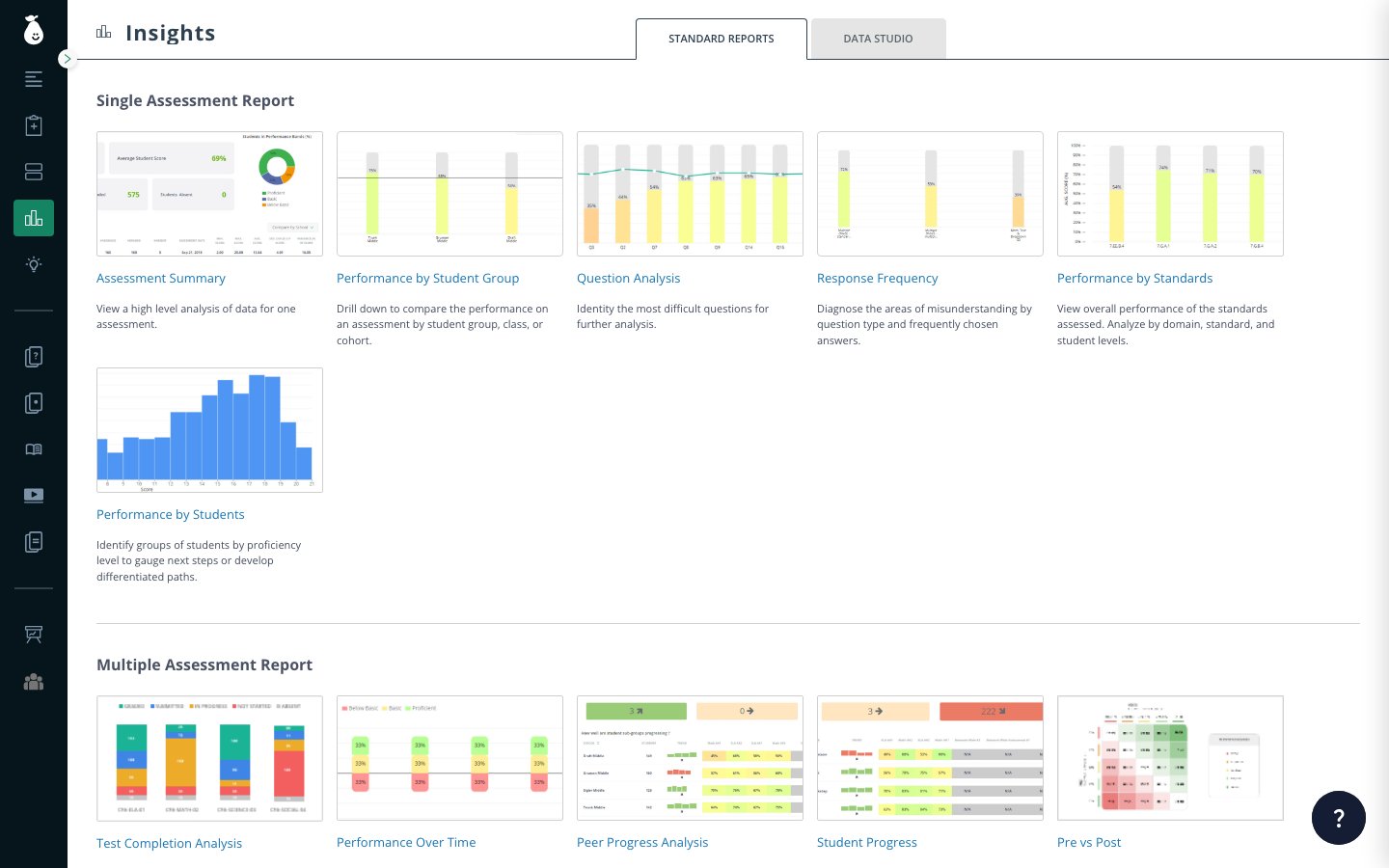
Teachers can share their own classroom data. Administrators can share all data for an assessment across a school or district. If a group is analyzing data across the school or district, it is more efficient to have an administrator share the report with the group.
Resources
Use the Co-Author Feature
Share an assessment with colleagues so they can use or co-edit it.