

Print a Hard Copy or Save as PDF
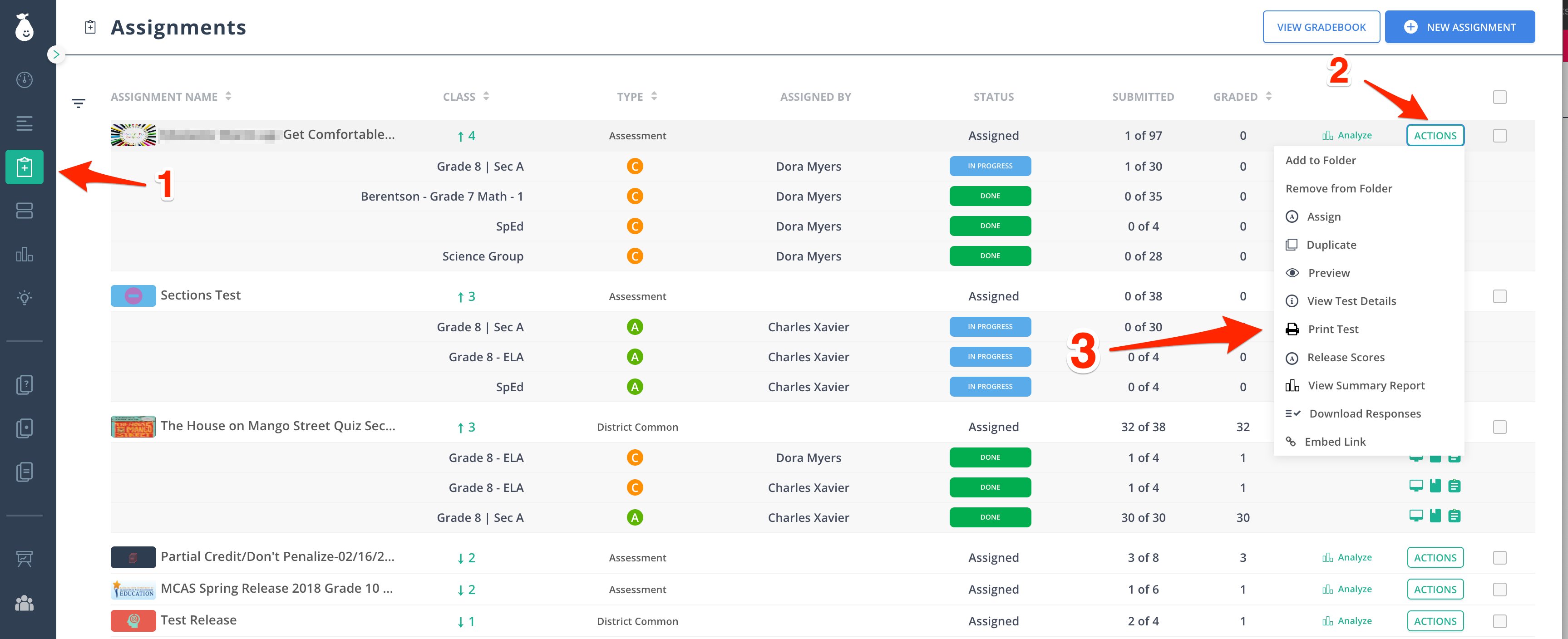
Print a blank version of an assessment so students can complete it on paper. This option is available immediately after you assign the assessment and works well when students are offline or you prefer to grade by hand.- Navigate to Assignments and click on an assignment.
- Click Actions.
- Click Print Test.
- In your browser, go to File > Print and select your printer to complete the process.
To save the assessment as a PDF instead of printing, use your device’s built-in save-to-PDF option:
Print Individual Student Assessments with Answers and Scores
Print a copy of each student’s completed assignment showing their answers and scores.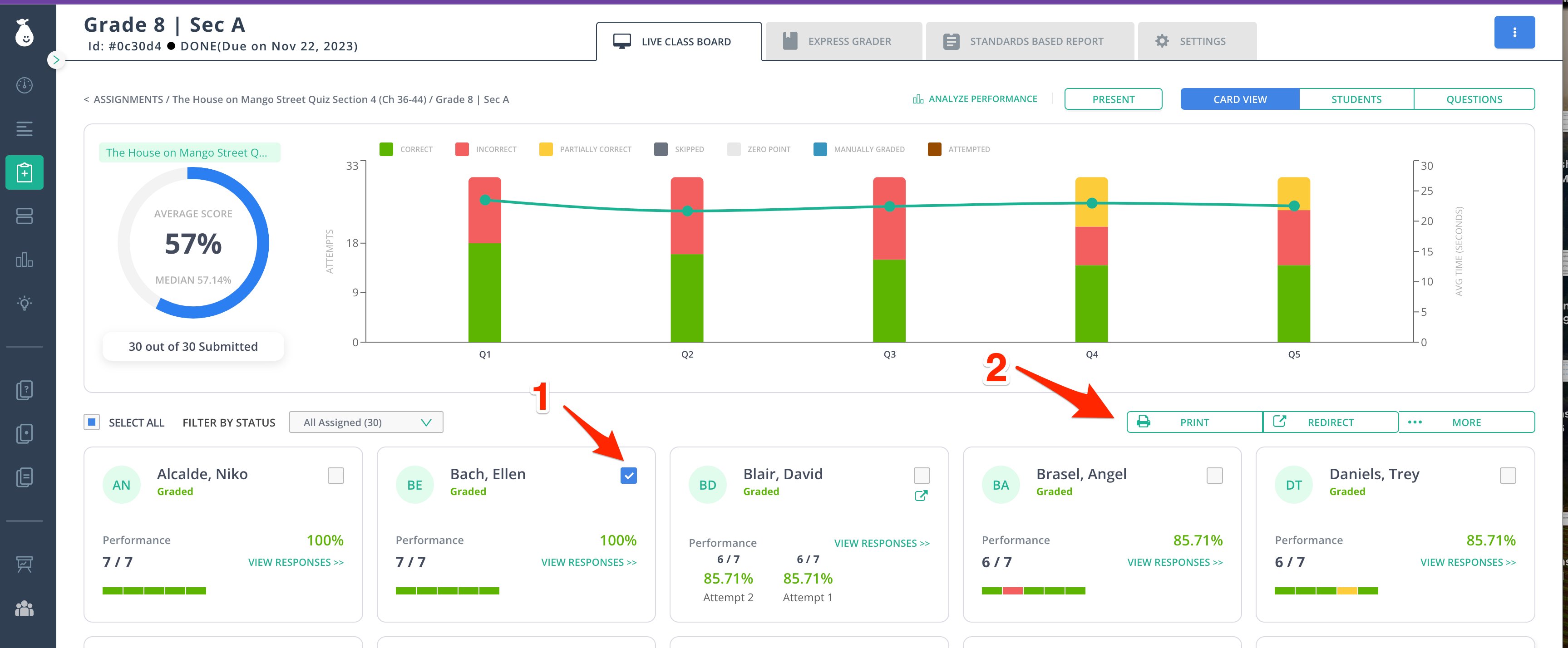
Print Student Report Cards
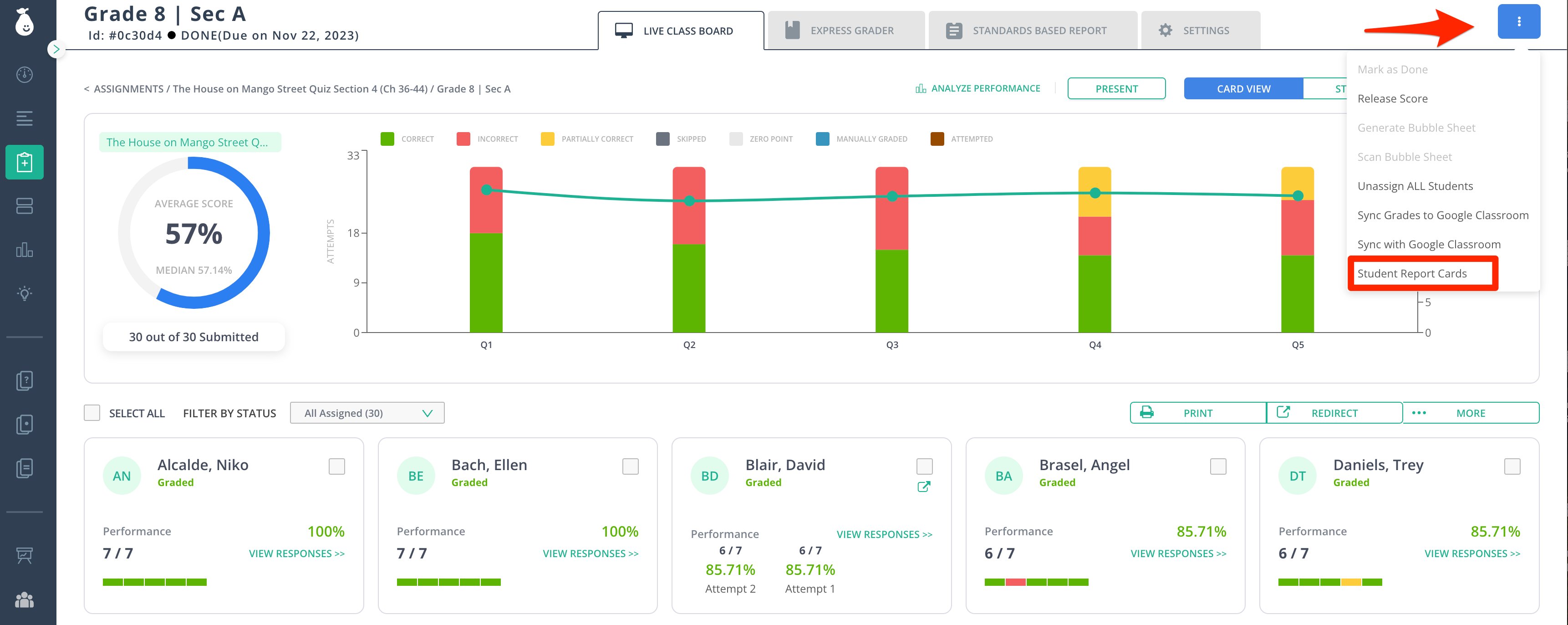
Premium feature. The report card generates a print-ready file with a single student’s performance record. You can access it from the Live Class Board.- Go to the Assignments tab and select the assignment.
- Click the ellipsis menu in the upper-right corner of the window.
- Click Student Report Cards.
Resources
Print a Report Card
Generate a print-ready performance record for individual students.