

Assign Assessments as Admin
- Click Test in the navigation menu.
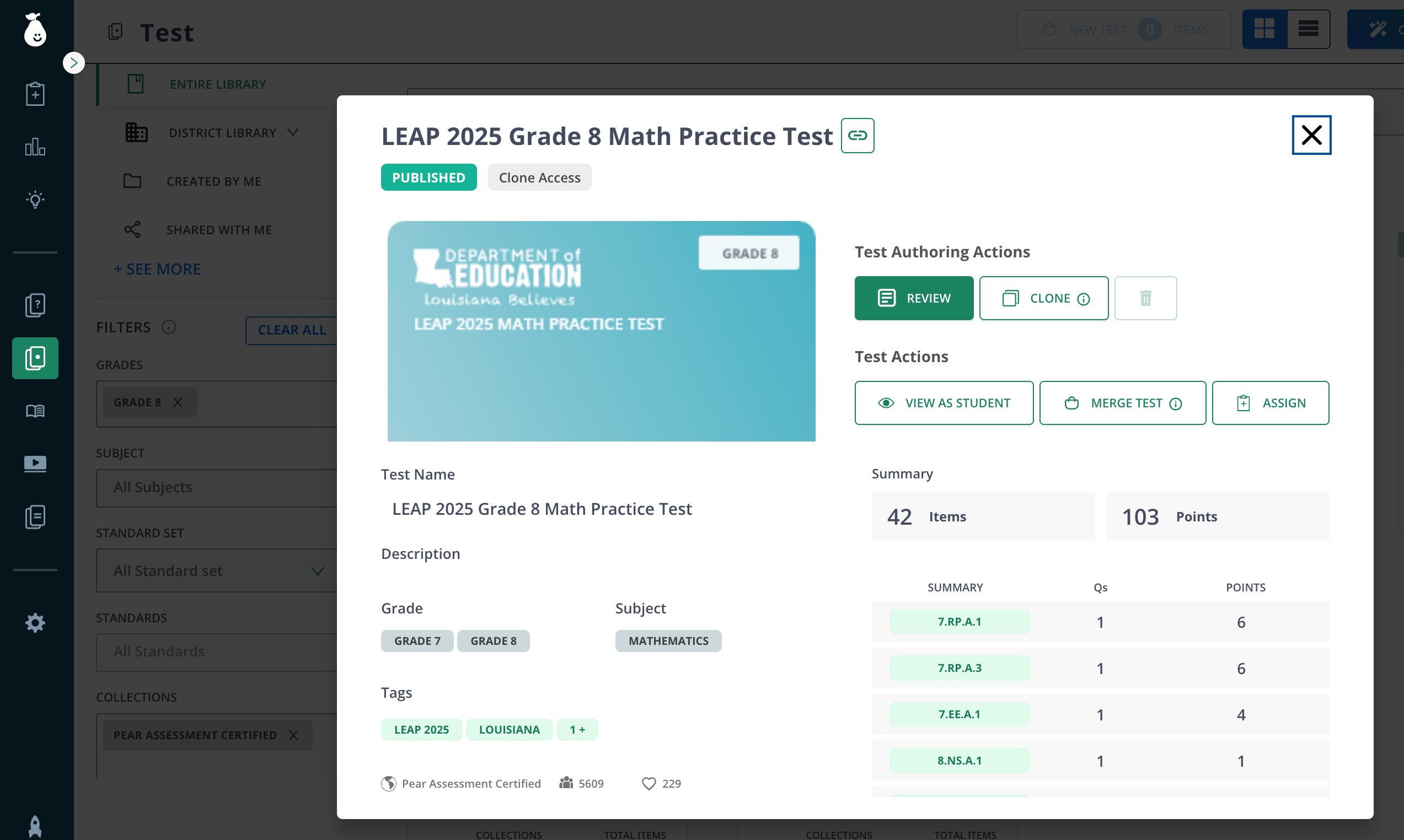
- Click on the test card and click Assign.
-
Use the filters to select the classes you need under Class/Group.
If your district uses Google or manually created teacher rosters, these filters may not be accurate because fields are populated manually. Teachers can update their manually created classes at any time.
- Select all students or specific students under Students.
- Decide whether to allow late submissions on the assignment.
-
Select the following settings:
- Open Date
- Close Date
- Open Policy
- Close Policy
- Student Attempt Window
- Tags
- Choose any tab at the top to update test settings, including the Anti-Cheating tab.

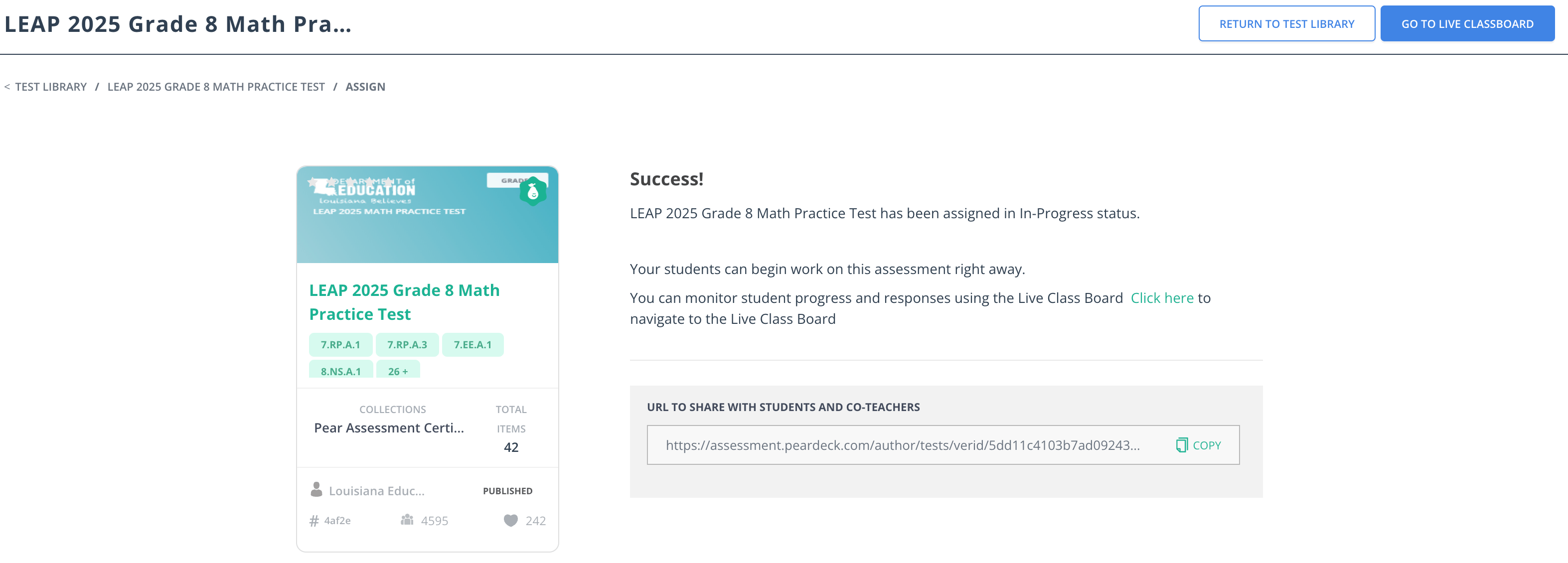
- Click Assign. The confirmation screen lists the classes to which you have assigned the common assessment. Students can begin working on the assessment immediately or when their teacher or admin opens it for them.
Because this assessment is admin-assigned, keep it private (the default) or visible only to other admins and coaches without student rosters.
- The next step is for teachers to open and administer the common assessment. See Managing Students on a Live Assessment for details. District admins can also review the status of common assessments after assignment: see Common Assessment Status Tracking for more information.
Resources
Teacher vs Admin Assigning
Compare teacher-assigned and admin-assigned common assessments to choose the right approach for your district.
Managing Students on a Live Assessment
Learn how teachers open, review student progress in, and close a common assessment session.
Common Assessment Status Tracking
Track the status of admin-assigned common assessments across your district.
Tags in Pear Assessment
Use tags to organize assessments and assign them to specific classes or groups.