We have Clever setup for pushing rosters and the sync is complete. How do students and teachers access Pear Assessment?
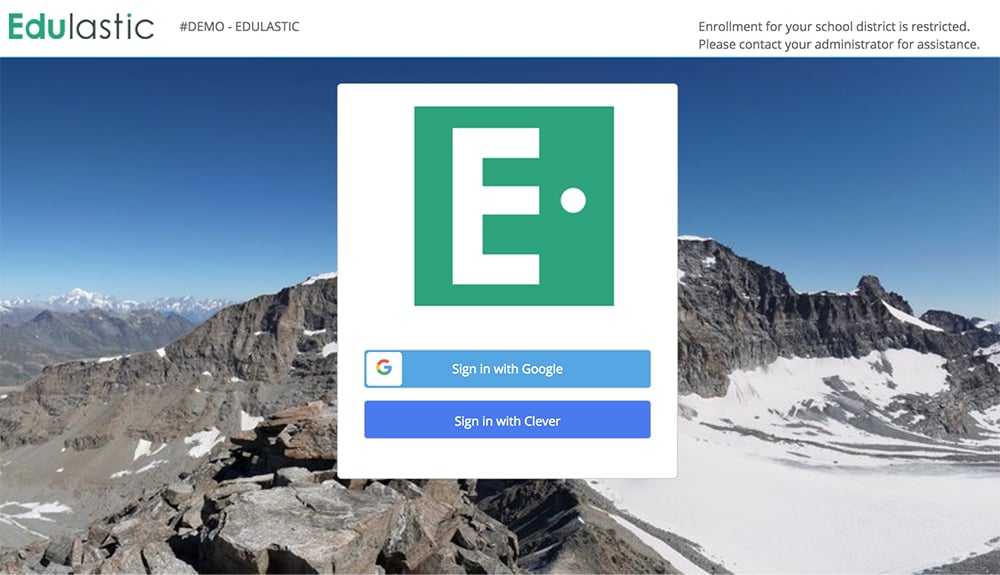
We have Clever setup for pushing rosters and the sync is complete. How do students and teachers access Pear Assessment?When the Clever sync is complete, Pear Assessment automatically creates student, teacher and admin accounts. Accessing Pear Assessment is pretty straightforward using any of the following approaches:Access from Clever District Portal:Clever Single sign-on (SSO) allows district users to access hundreds of applications with their existing Clever Account. This way they need to remember one way to sign in. Once teachers and students sign in to the district’s Clever Portal, a single page with all of the single sign-on (SSO) applications and links set up for you by your district.To access Pear Assessment, simply click on the Pear Assessment icon, and you’ll be taken to the Pear Assessment application automatically.Access from Pear Assessment:You can also ask students and teachers to sign-in directly from Pear Assessment sign-in page:https://app.Pear Assessment.com/From here, you can select one of the following 3 options:
Sign in with Google: If you have shared Google IDs for student and teachers with Pear Assessment using Clever, it is possible to use the Sign in with Google button to sign in. Students and teachers will be prompted to enter their Google username and password. Once authenticated by Google, they get instant access to Pear Assessment.
Sign in with Office 365: If you have shared Office 365 IDs for student and teachers with Pear Assessment using Clever, it is possible to use the Sign in with Office 365 button to sign in. Students and teachers will be prompted to enter their Office 365 username and password. Once authenticated by Office 365, they get instant access to Pear Assessment.
Sign in with Clever: You can use Clever SSO directly from Pear Assessment sign-in page – you and your students simply click the Sign In with Clever button, enter the Clever user ID and password and get instant access to Pear Assessment.
If you are Pear Assessment enterprise customer, we can also provide you with a custom sign-in portal that can have:
District logo
District image
District message
District sign-in buttons (e.g. we can remove username and password field if you only use Clever SSO)
District sign-in policies (e.g. we can enforce that your students sign-in using Google SSO only)
Please write to support@Pear Assessment.com with your requirements if you need a custom sign-in portal.