

Admin Install
Before you can use the add-on, your Google admin must perform a domain install so teachers can access it. Admins can initiate the install from the Google Workspace Marketplace. If they need instructions, refer them to the admin install guide.Assign a Pear Deck
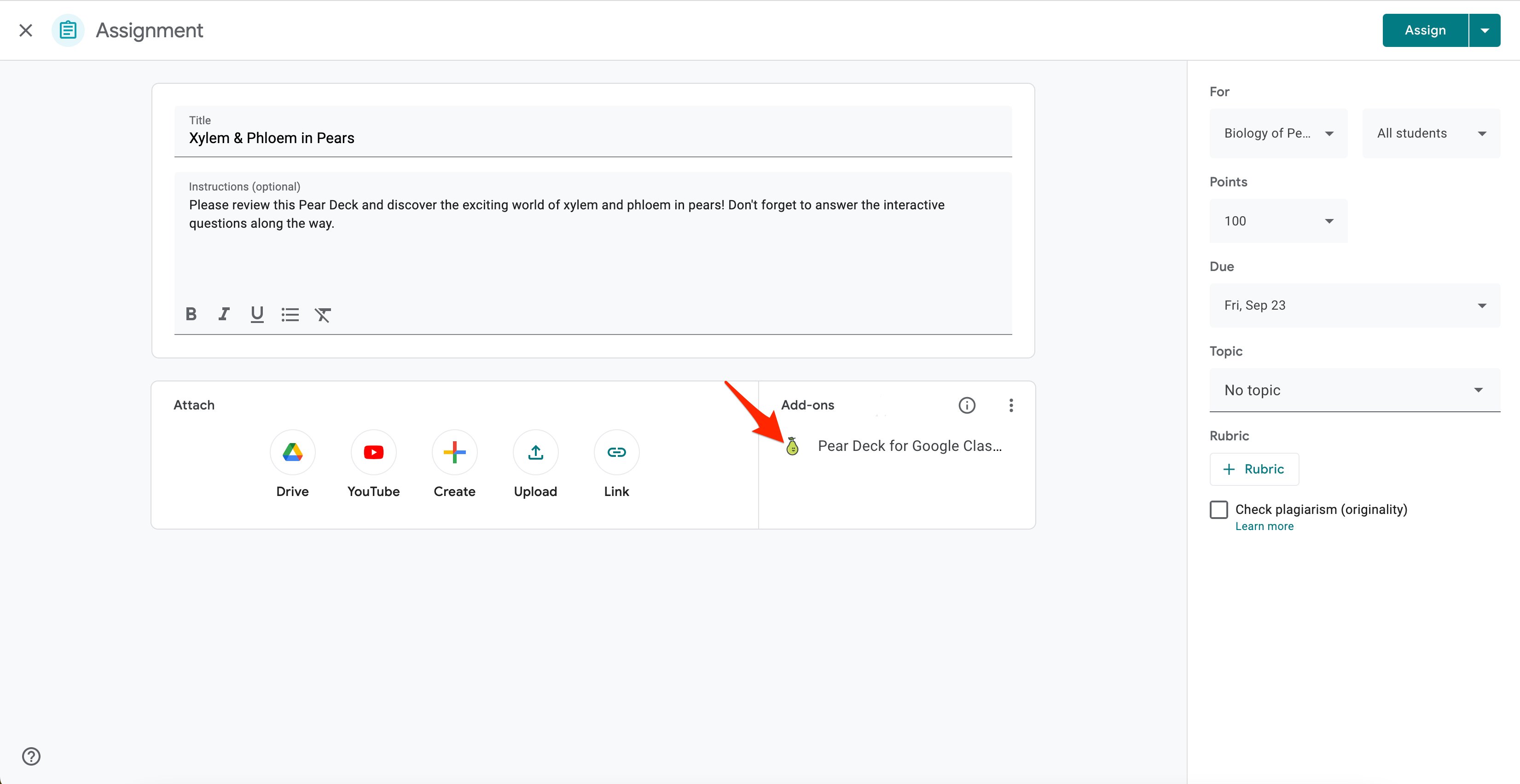
- Create a new Assignment and click the Pear Deck for Google Slides button under Add-ons.
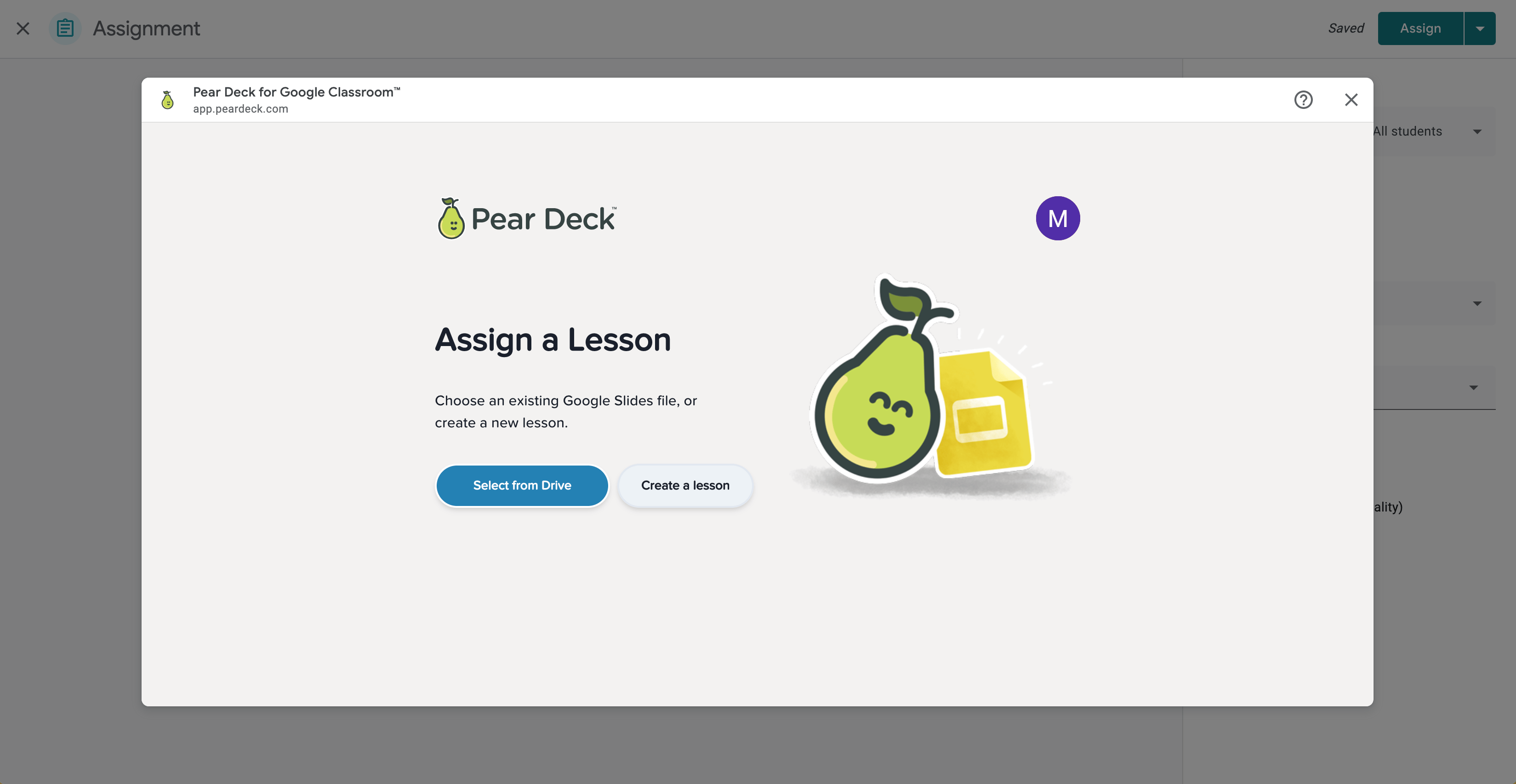
- Create a new Pear Deck, or click Select from Drive to choose from a previously created deck in your Google Drive.
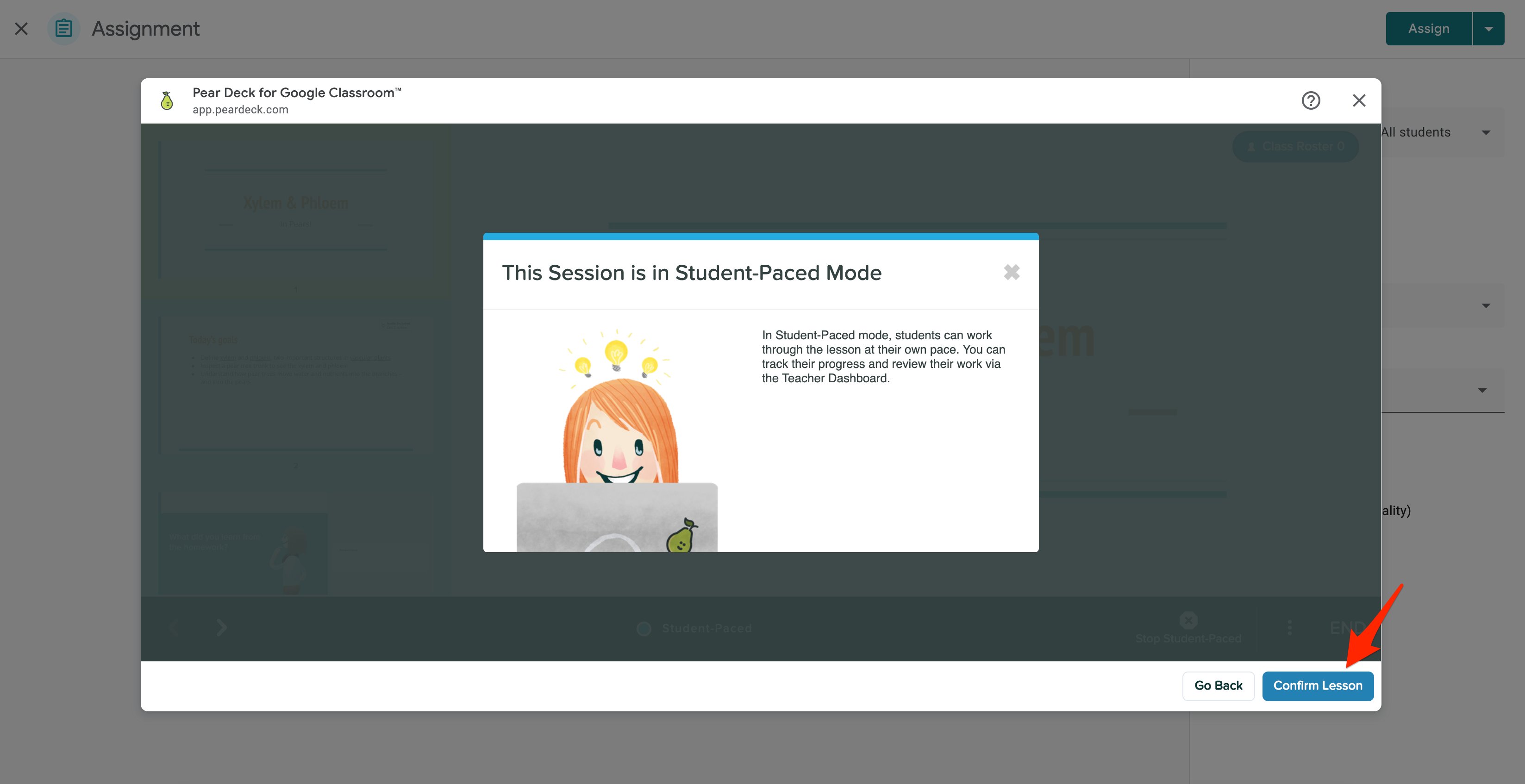
- Once you have chosen a deck, the session defaults to Student-Paced mode. You can change it to Instructor-Paced if you prefer. Exit the smaller pop-up window to review the deck, then click Confirm Lesson when you are ready to add it to the assignment.
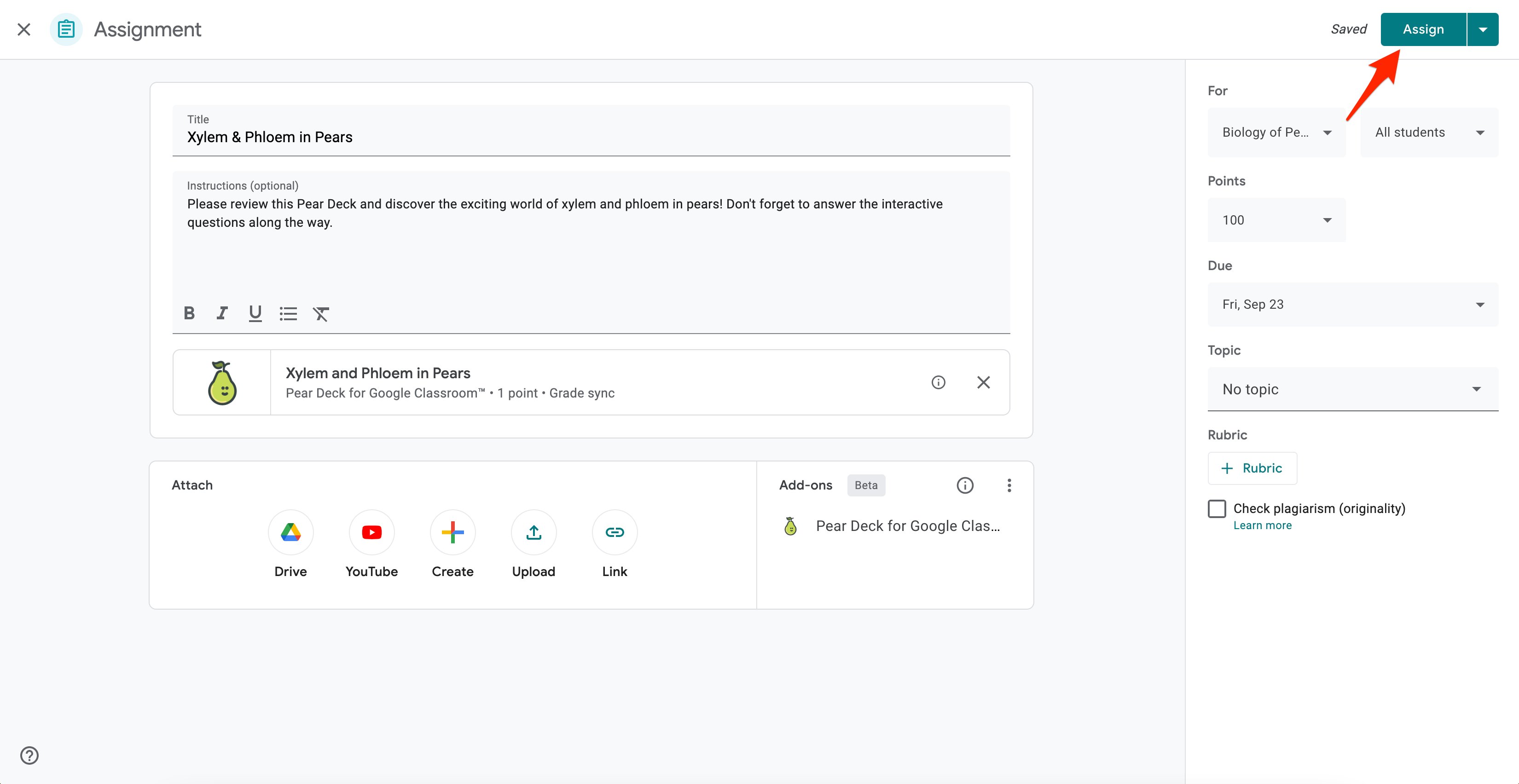
- Confirm all assignment details are correct, then click Assign.
What Students See
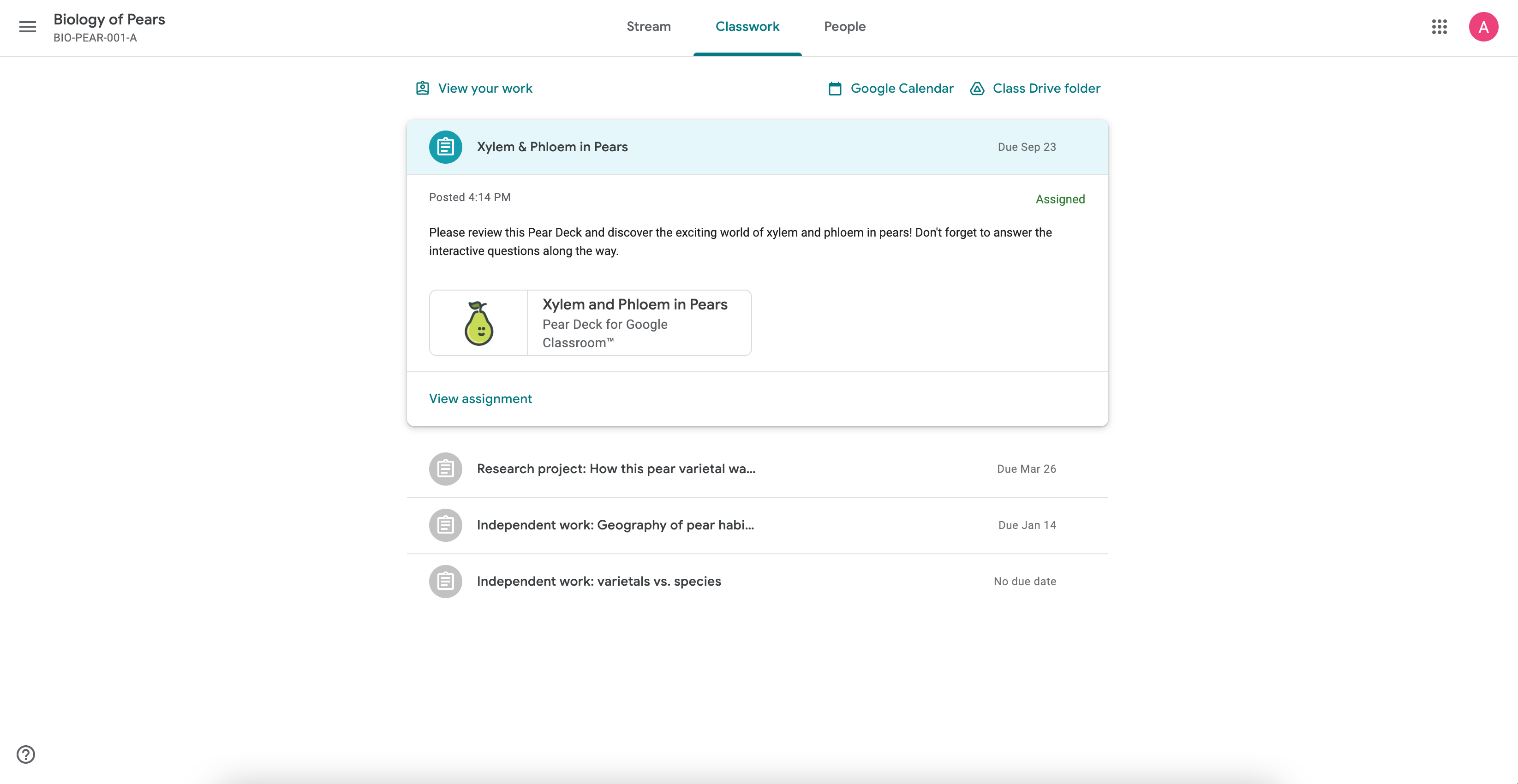
- The Pear Deck assignment appears in the students’ Classwork tab. Students click the assignment to open it. No join code is needed.
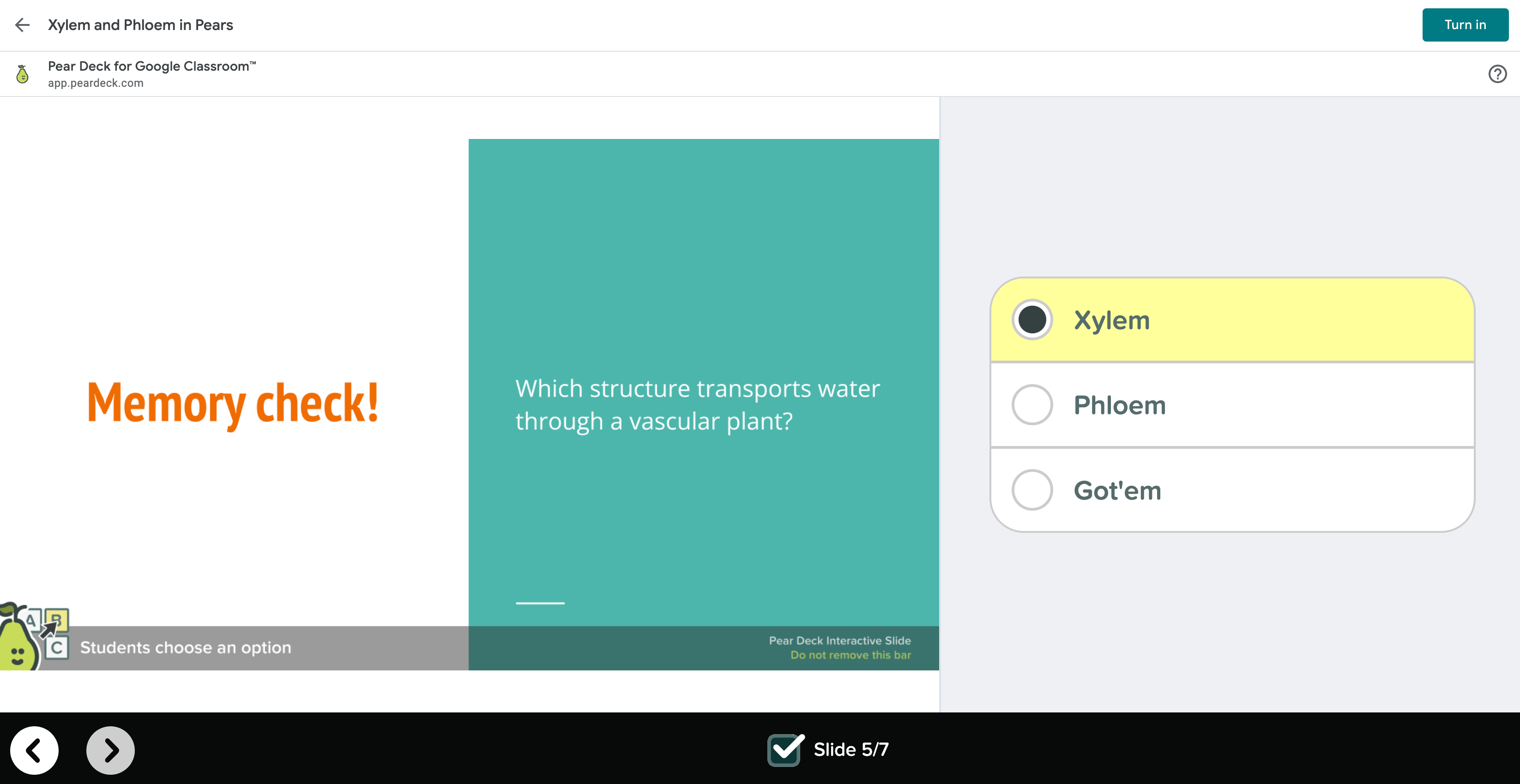
- Students move freely through the deck in Student-Paced mode, answering interactive questions along the way.
- When students reach the end of the deck, they are prompted to submit the assignment by clicking Turn In.

Review Student Work
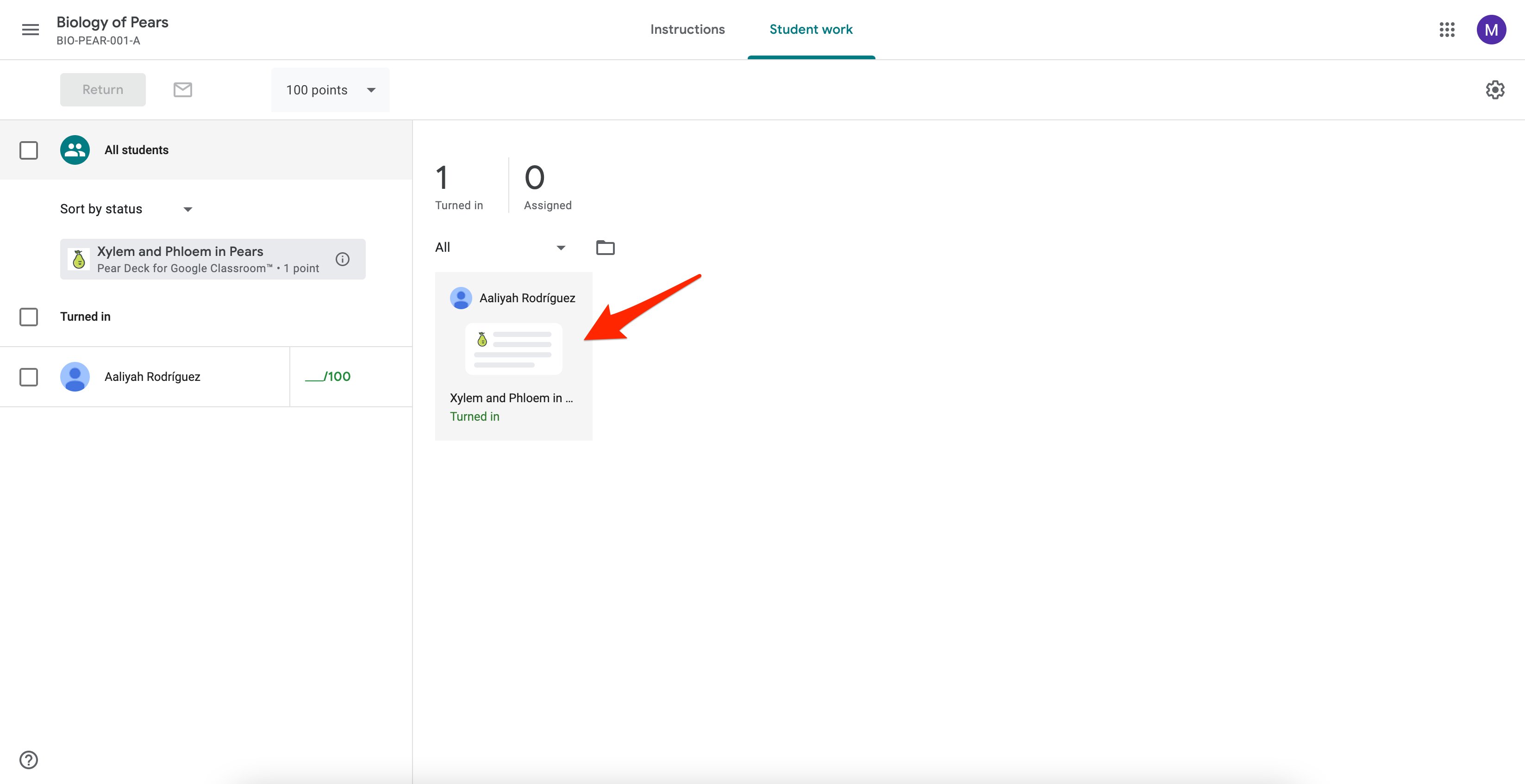
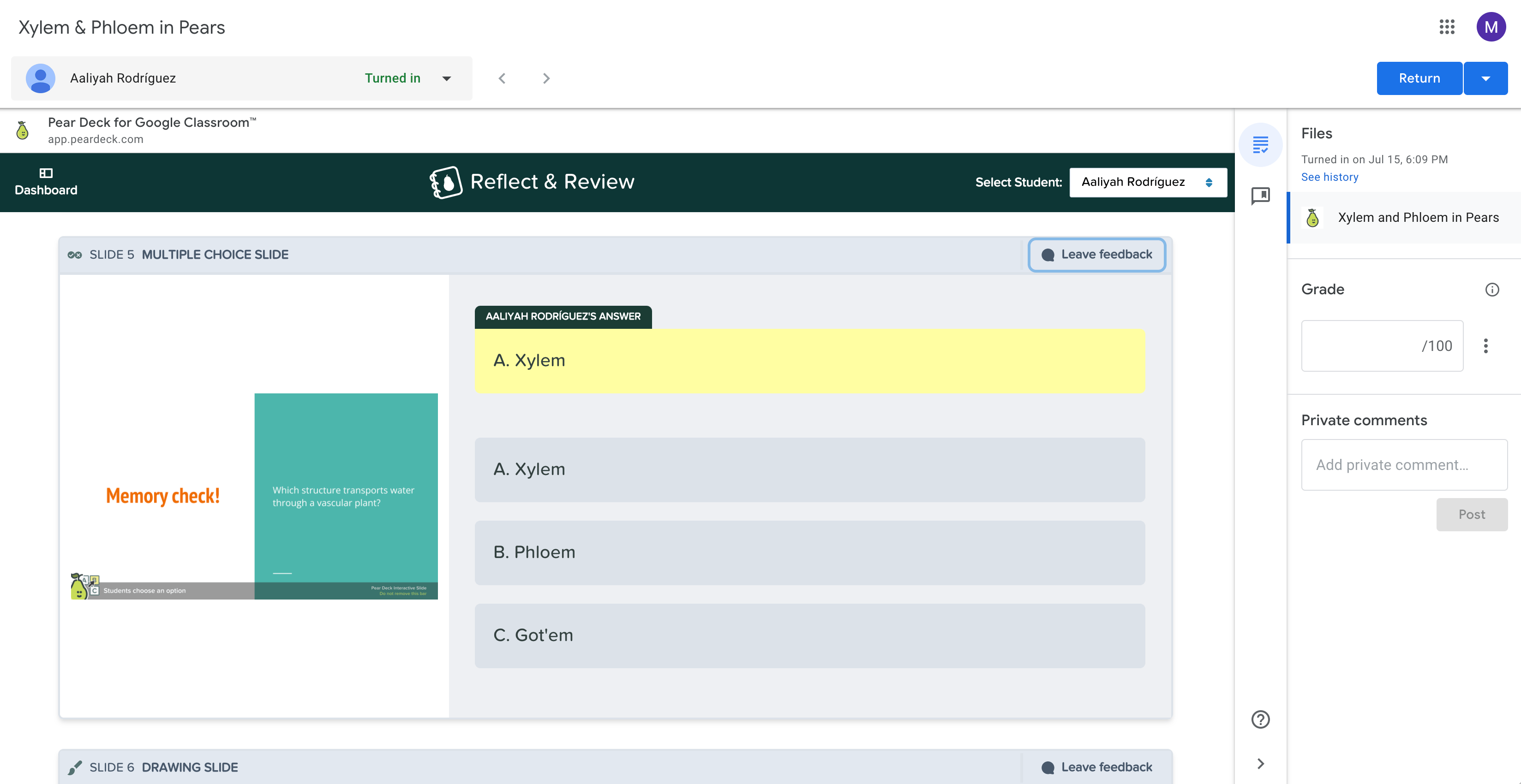
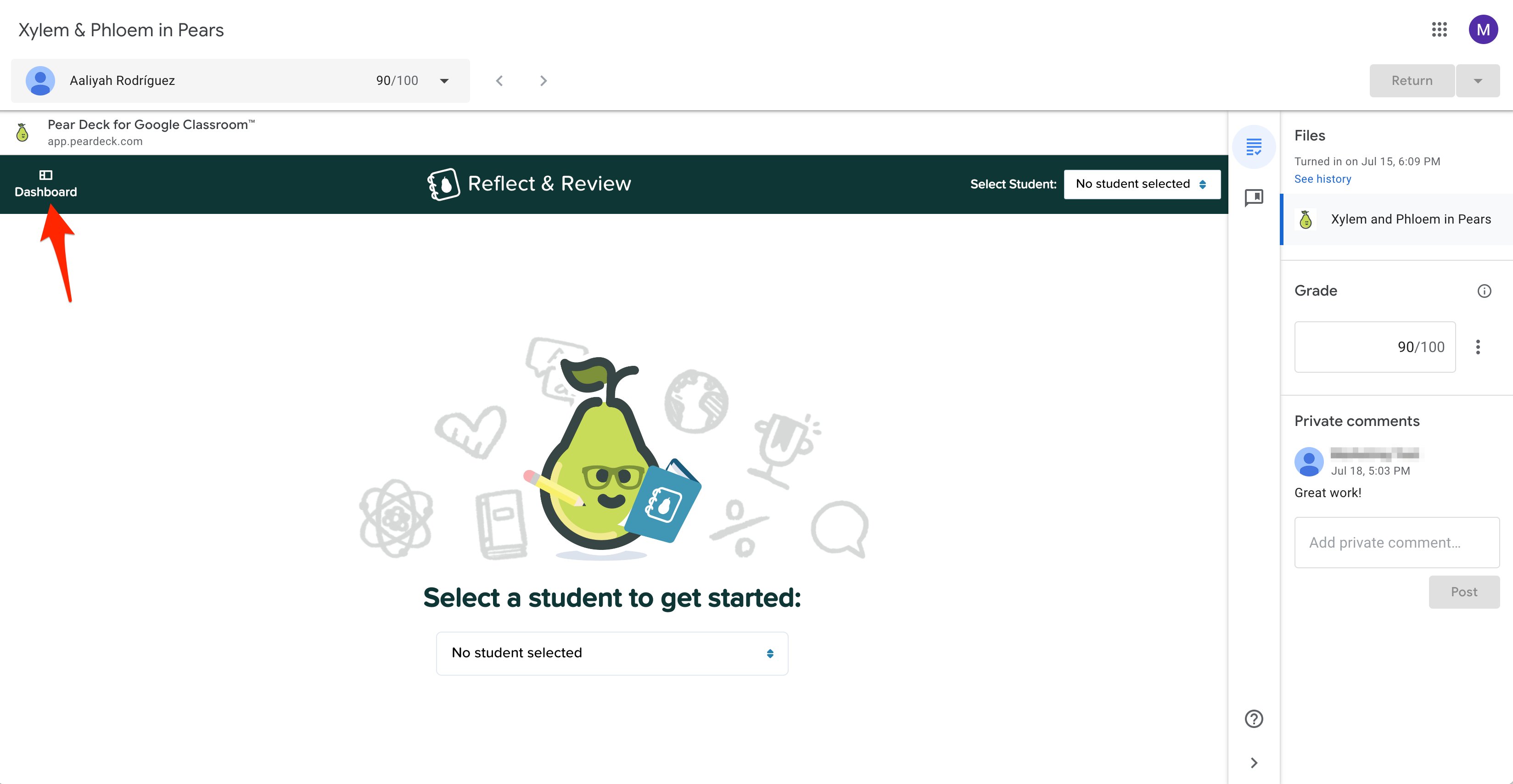
- Navigate to the Student Work tab of the assignment to review student responses. Click a student’s name to open Pear Deck’s Reflect & Review window.
- From this view, leave Teacher Feedback on each interactive question slide, and add private comments and a grade for the assignment. Students can see this feedback immediately when they reopen the deck.
Students can change their responses until you end the session.
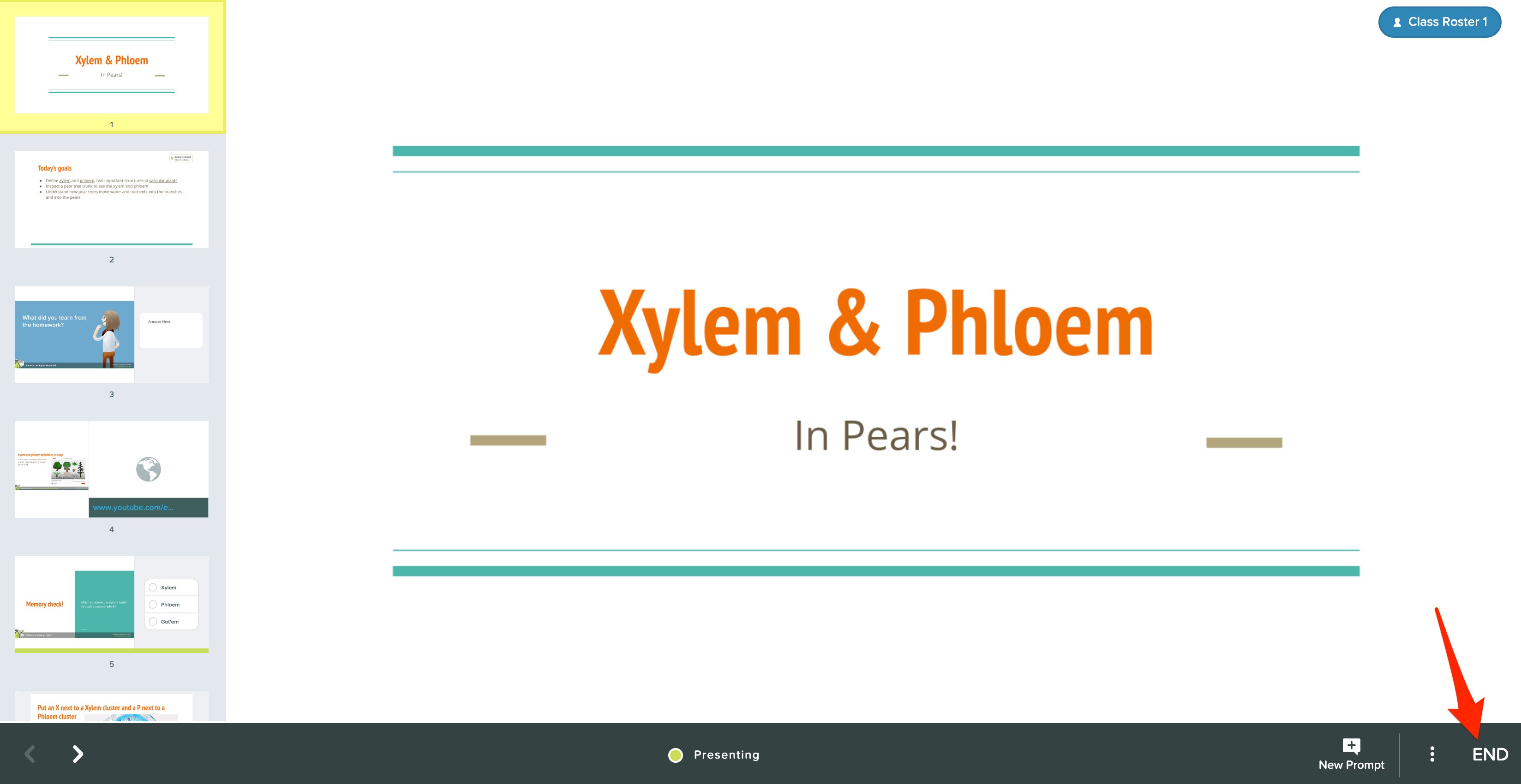
- Click the Dashboard button to navigate to the Teacher Dashboard, where you can end the session.
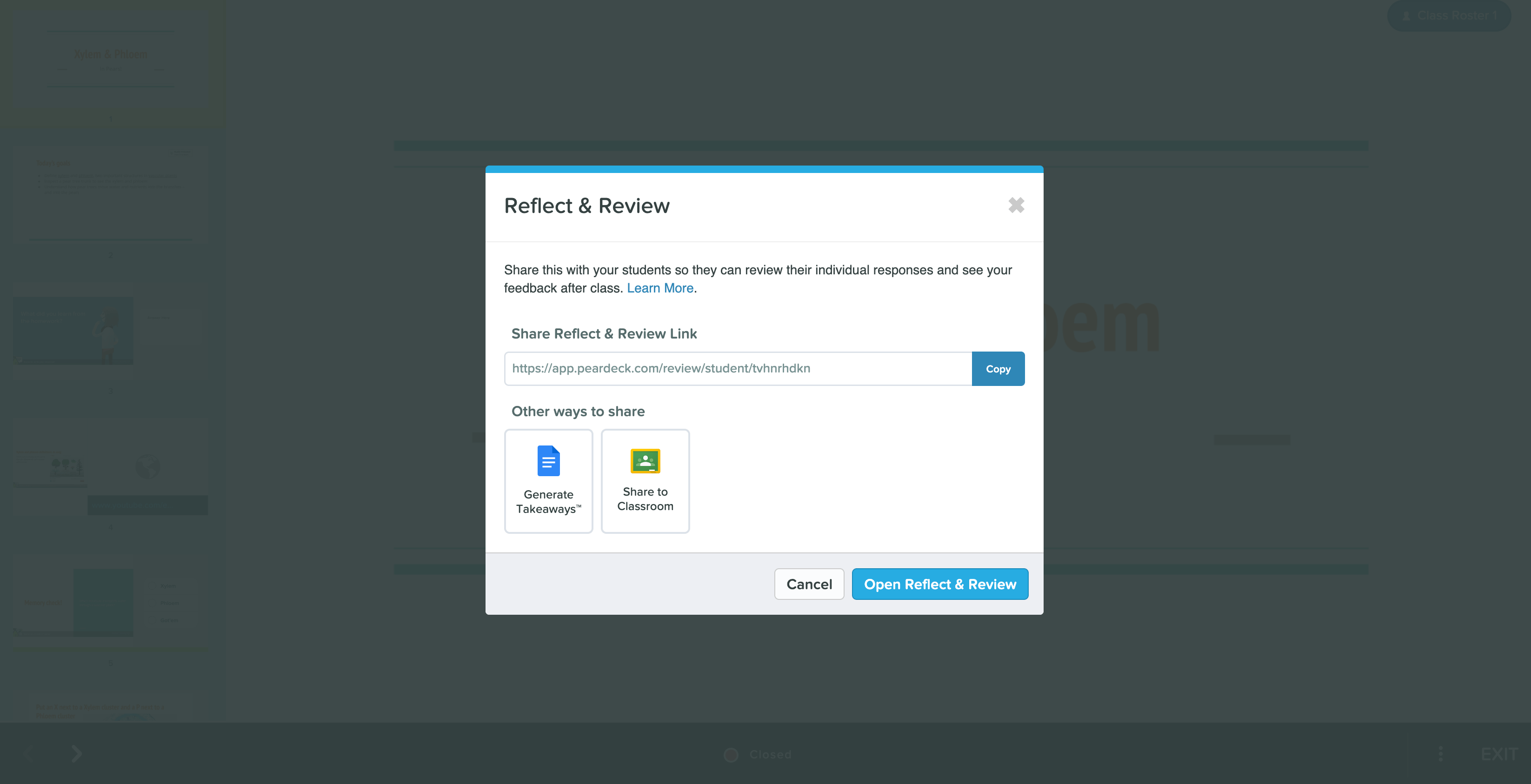
- After ending the session, access the Reflect & Review link to share with your students.
- Sharing the Reflect & Review link allows students to review the slides and their own responses, including any Teacher Feedback you left, without being able to change their answers.
Resources
Admin Install for the Google Classroom Add-on
Set up the Pear Deck for Google Classroom Add-on across your domain.
Getting Started with Pear Deck
Learn the basics of creating and running Pear Deck sessions.