

Before You Begin
You need a Pear Deck account before installing the curriculum. Account setup is free. If you have not created one yet, the installer launches the account setup flow automatically when you begin. See Create a Pear Deck Account for details.Install to Your Personal Google Drive
Use this option if you are an individual teacher setting up the curriculum for your own classroom.- Go to https://app.peardeck.com/biaInstaller/.
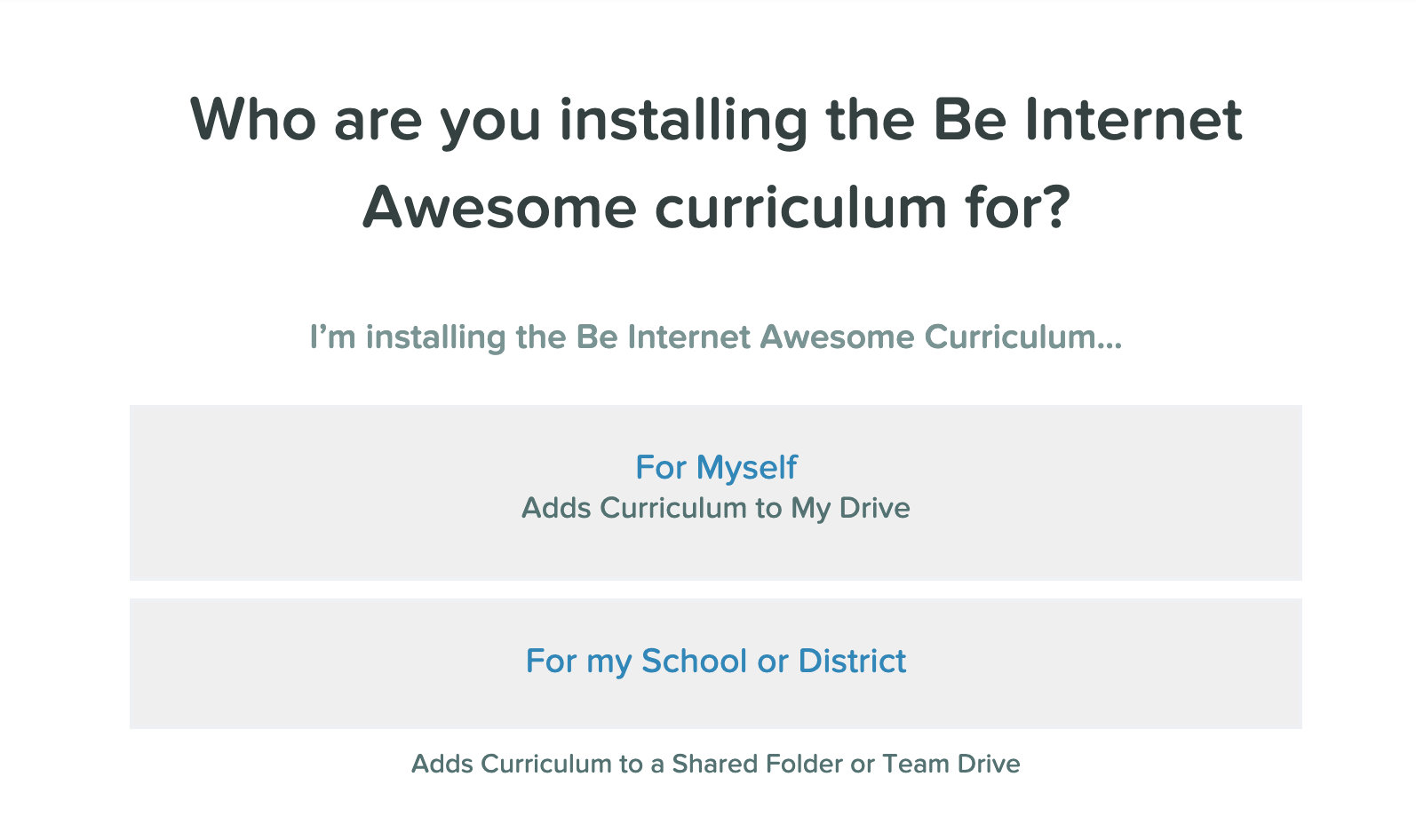
- Select For Myself.
- Wait while the curriculum installs. Do not close the window while installation is in progress. Closing it may interrupt the process. Installation typically takes about one minute.
- Once installation is complete, click Open in Drive to go to the folder in your Google Drive.

Install to a Shared Folder in Google Drive
Use this option if colleagues at your school will also use the curriculum.- Go to https://app.peardeck.com/biaInstaller/.
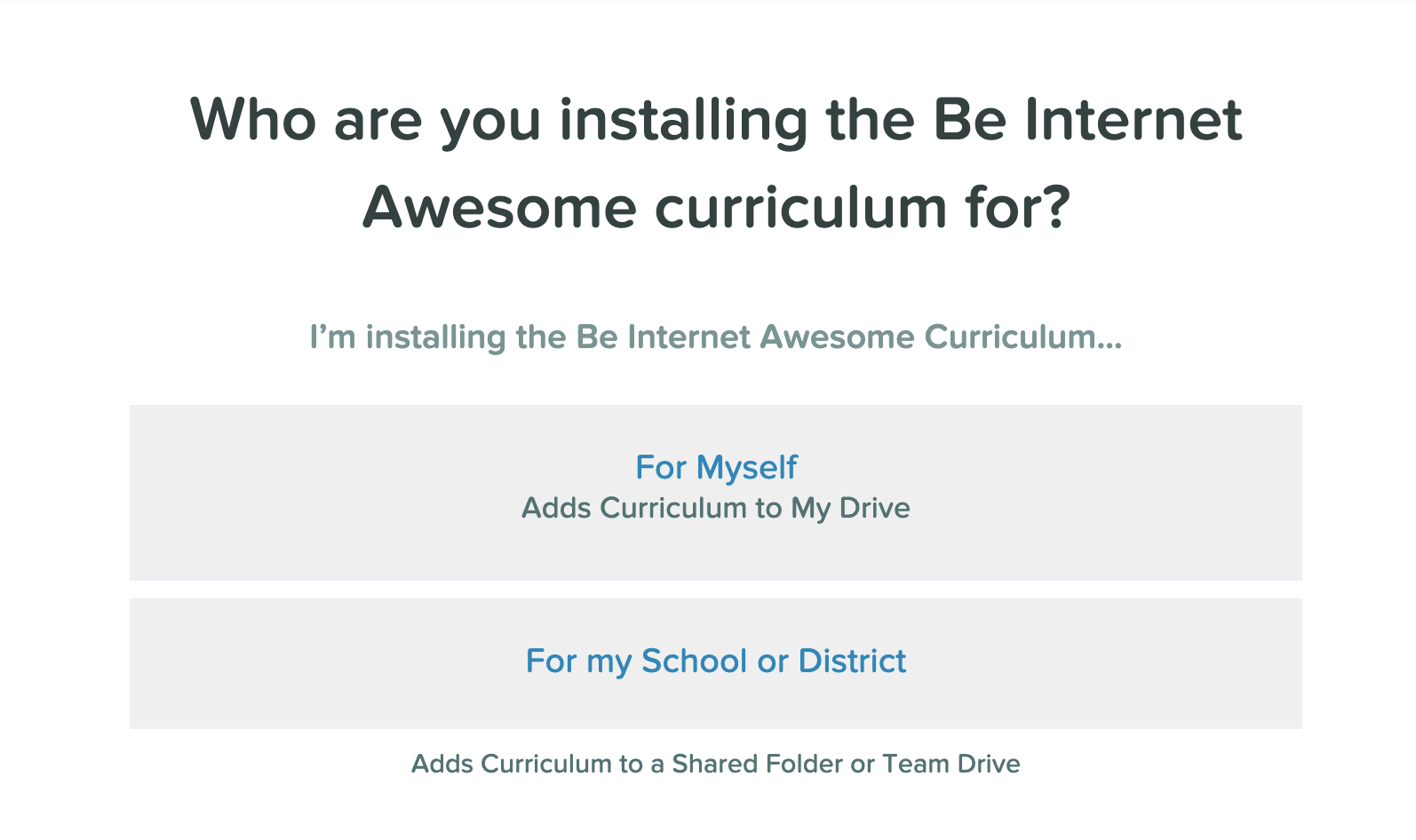
- Select For my School or District.
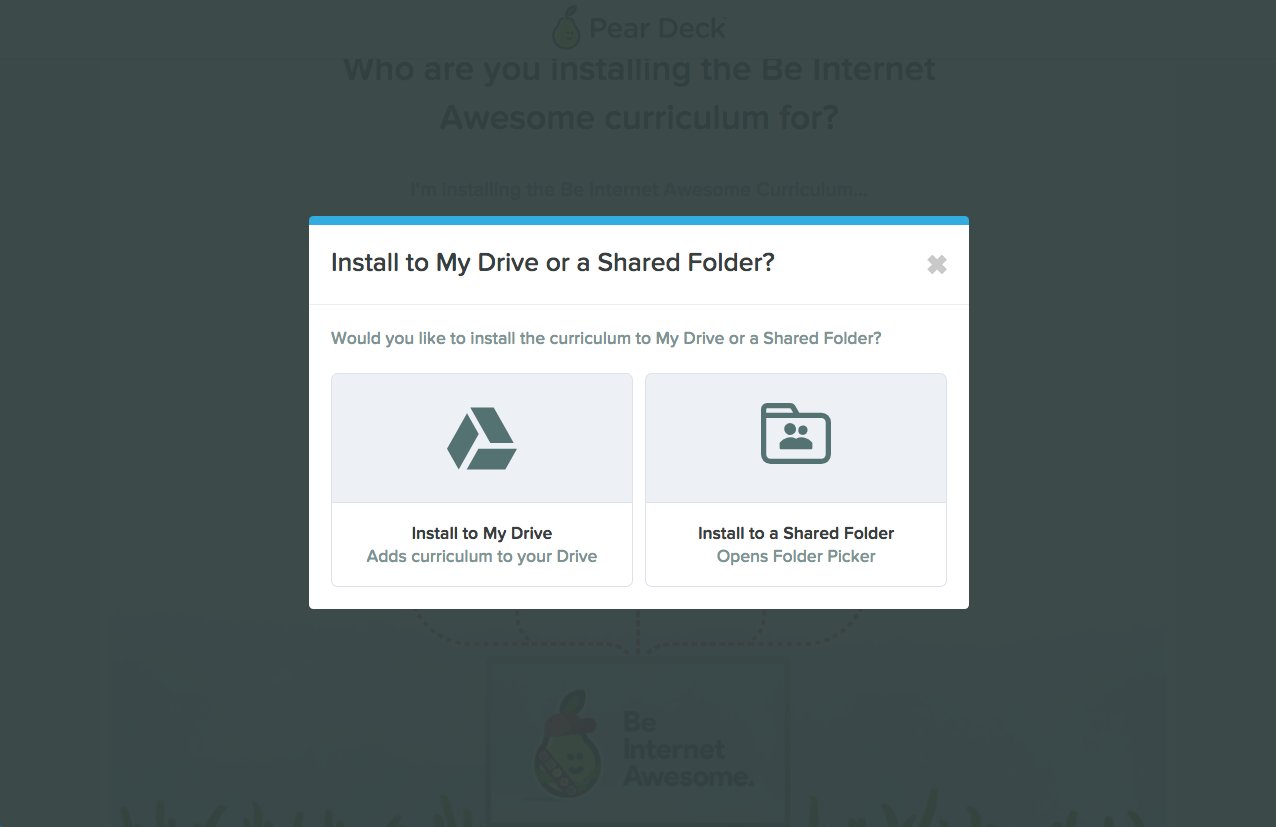
- Choose Install to a Shared Folder. You can also select Install to My Drive here if you change your mind and prefer to add it to your own Drive only.
- Wait while the curriculum installs. Do not close the window while installation is in progress. Installation typically takes about one minute.

-
Once installation is complete, a quick-start screen appears with next steps for getting your school started with Be Internet Awesome. From that screen you can:
- Review the curriculum in Drive
- Review the folder permissions to confirm the file is accessible to everyone
- Share the folder with specific individuals in Drive
- Send an automatic email to your faculty with instructions for getting started
- Click Review in Drive to locate the folder. The Be Internet Awesome files are saved inside the shared folder you selected. Anyone with access to that folder can view the curriculum.

Install to a Google Shared Drive
Use this option for school- or district-wide rollouts. Shared Drive integration for Pear Deck is available exclusively to school and district customers. To store and present Be Internet Awesome presentations from a Shared Drive, your school or district must have Shared Drive integration enabled with Pear Deck. Contact your Subscription Manager or Pear Deck representative to enable this before proceeding.- Go to https://app.peardeck.com/biaInstaller/.
- Select For my School or District.

- Select the Shared Drive where you want to store the Be Internet Awesome curriculum.
- Wait while the curriculum installs. Do not close the window while installation is in progress. Installation typically takes about one minute.
-
Once installation is complete, a quick-start screen appears with next steps. From that screen you can:
- Review the curriculum in Drive
- Review the folder permissions to confirm the file is accessible to everyone
- Share the folder with specific individuals in Drive
- Send an automatic email to your faculty with instructions for getting started
- Access the Be Internet Awesome folder directly from your Shared Drive.
Resources
Create a Pear Deck Account
Set up a free Pear Deck account before installing the Be Internet Awesome curriculum.
Google Drive Folder Permissions
Review and manage sharing permissions so colleagues and students can access the curriculum folder.