

Before You Begin
- You need a Google account or a Microsoft Office 365 account.
- Personal, educational, and business accounts are all supported.
- Pear Deck files are saved automatically in your Google Drive or OneDrive.
- Students do not need a Pear Deck account to join sessions. Students only need their own Pear Deck account if they want to create and present their own Pear Deck lessons.
Start From peardeck.com
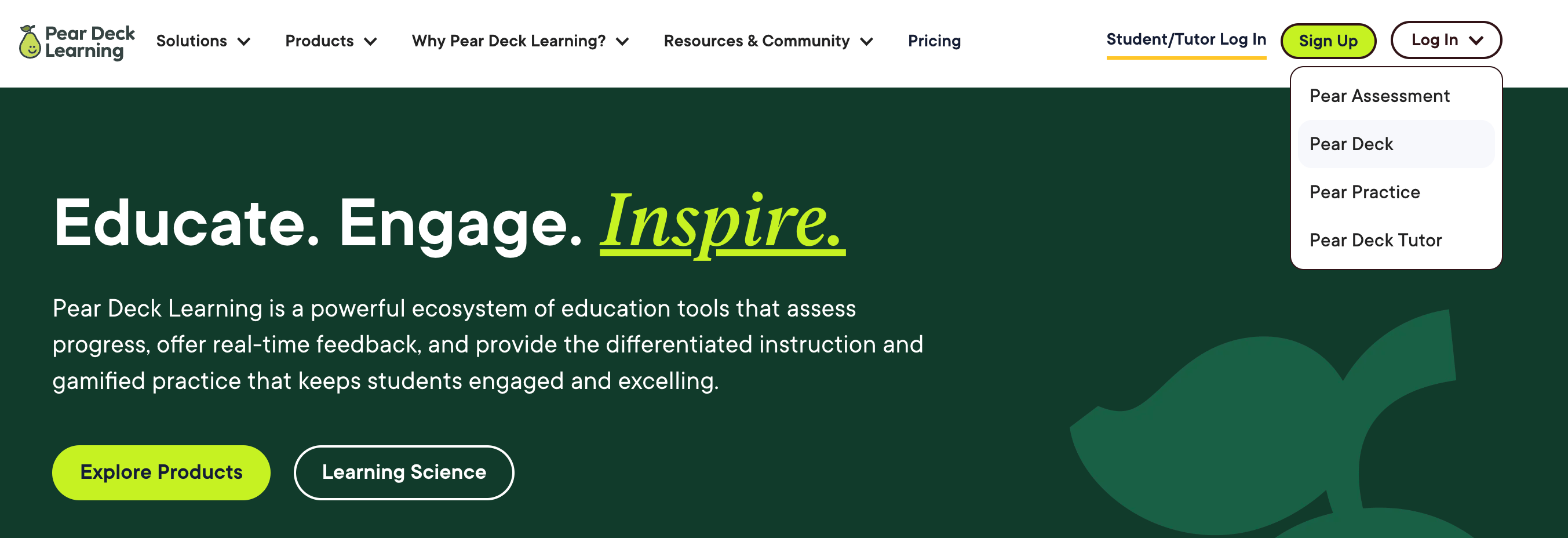
- Go to peardeck.com.
- Click Log In and select Pear Deck.
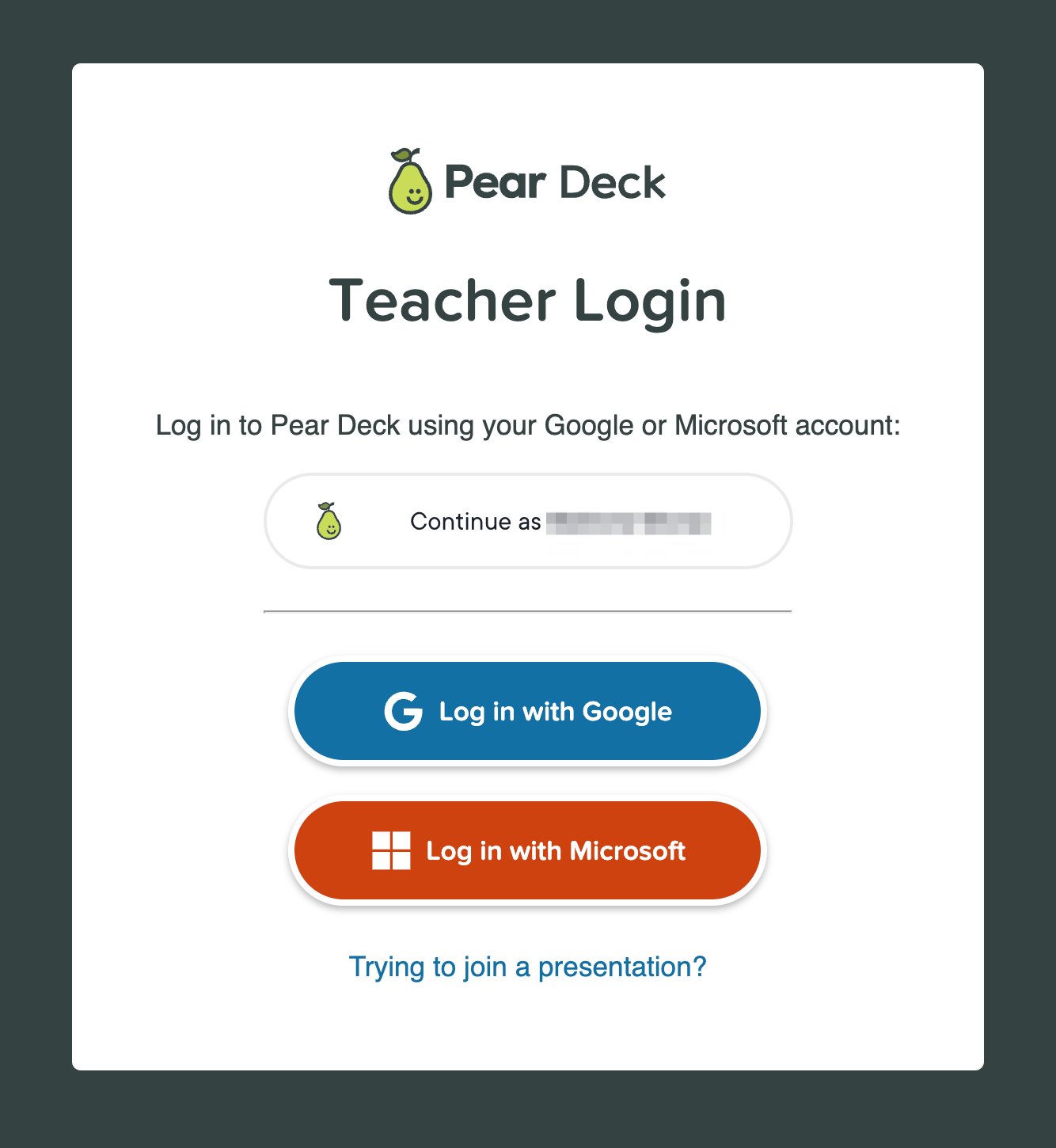
- Choose your account type — Google or Microsoft Office 365 — and sign in.
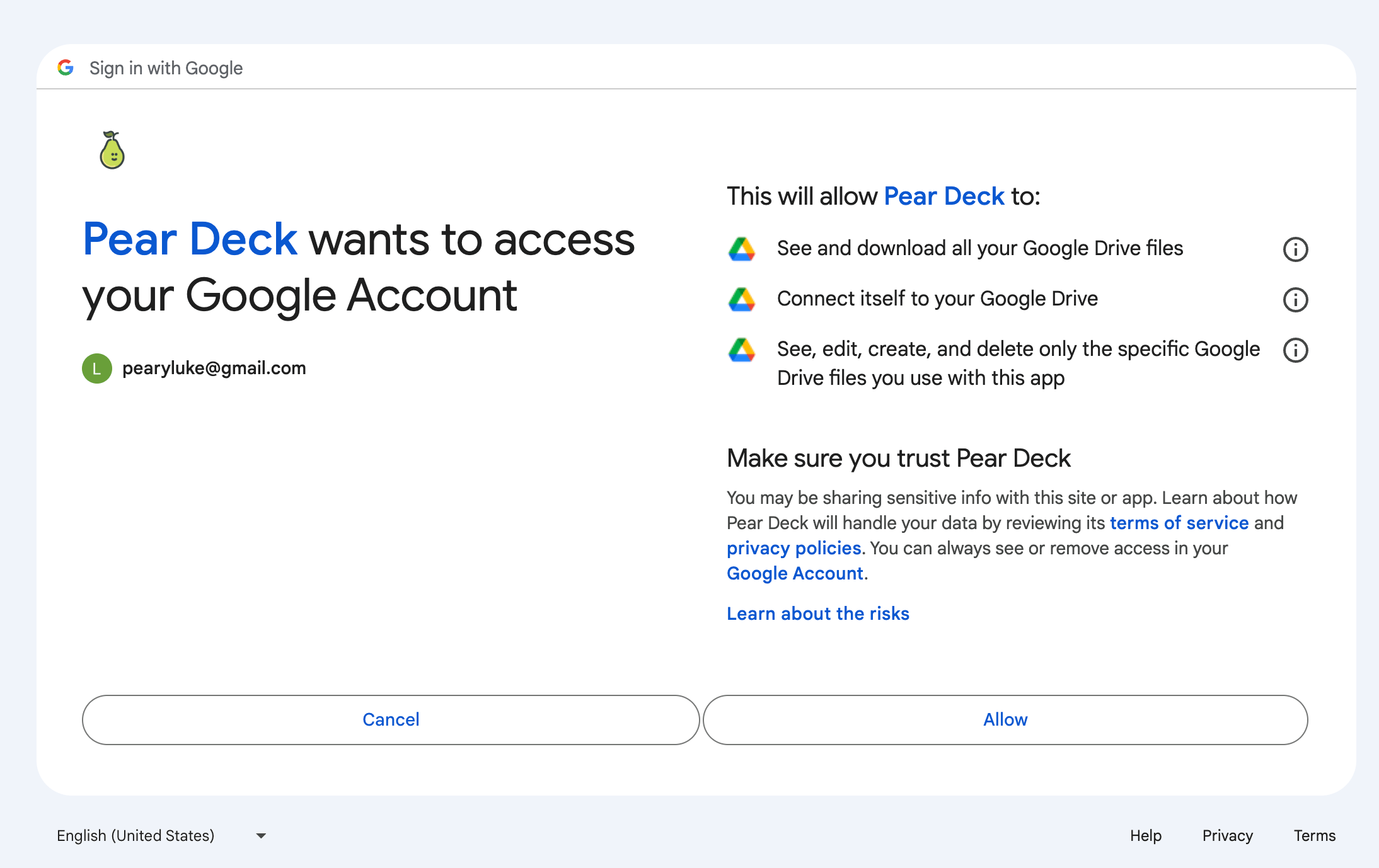
- Click Allow to grant Pear Deck access to your Google Drive or OneDrive. Pear Deck stores your presentation files in your drive and needs access to add interactive questions to them.
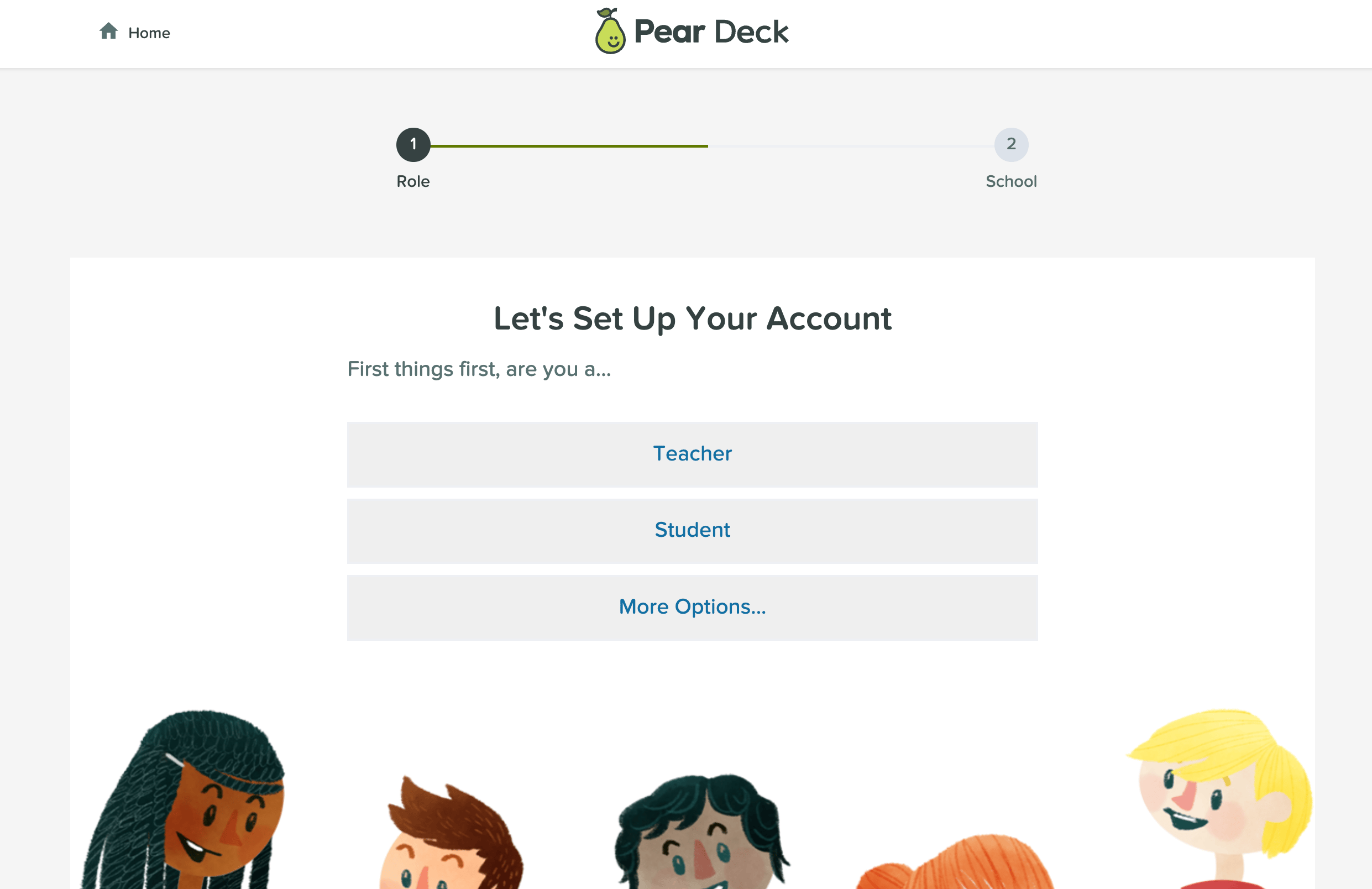
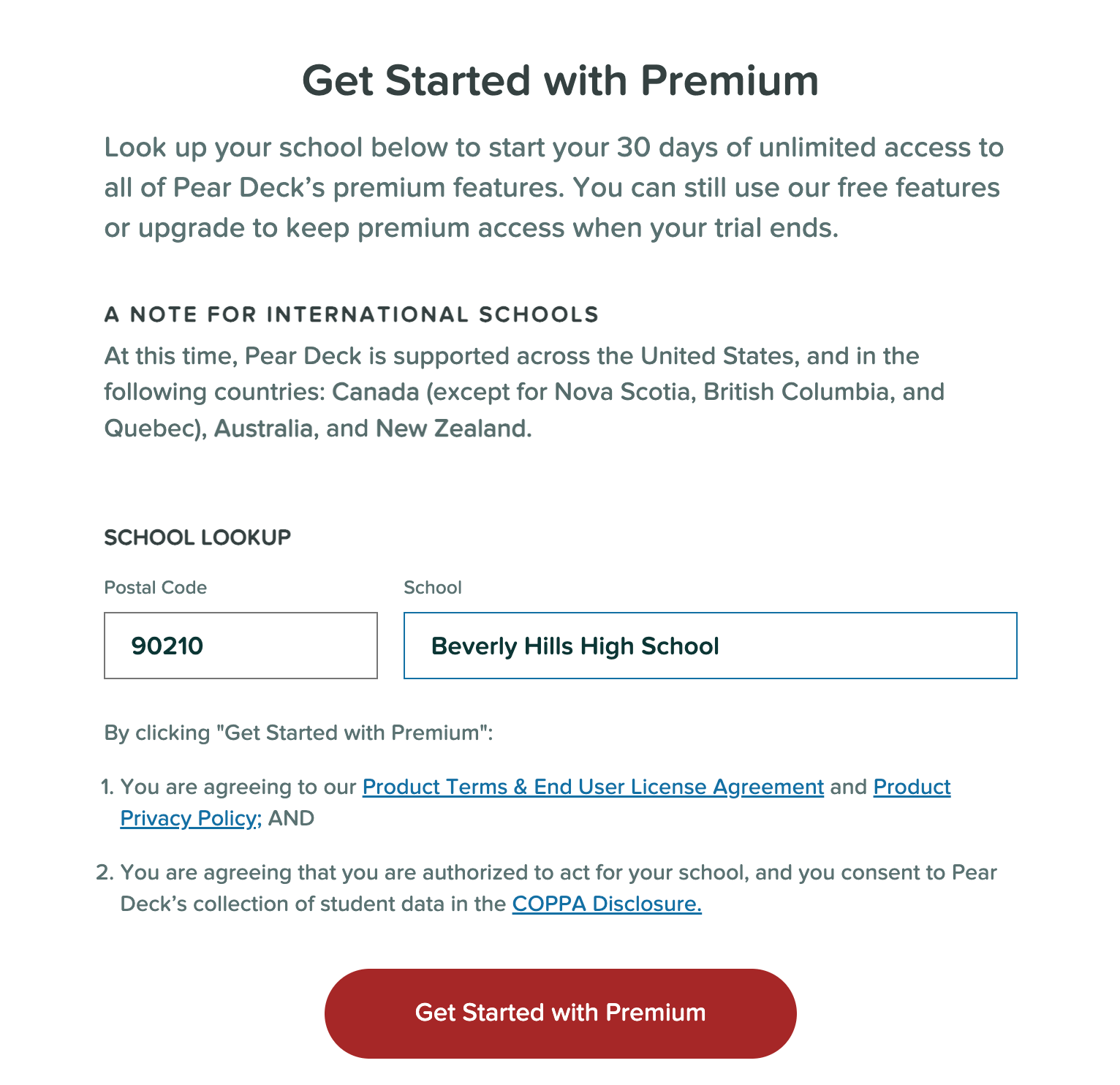
- Complete the account setup questions: select your role as Teacher, enter your postal code, and enter your school name. If your school does not appear in the dropdown, type the name directly.
- Verify the result: Your free 30-day Pear Deck Premium trial starts automatically. No payment information is required.
Start From Google Slides
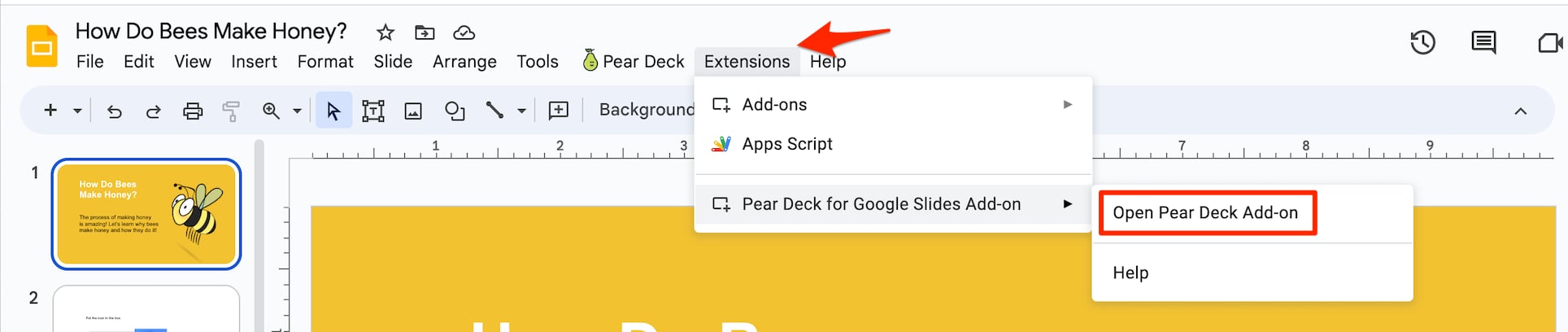
If you use Google, you can install the Pear Deck Add-on and create your account in one step from inside Google Slides.- Open any Google Slides presentation.
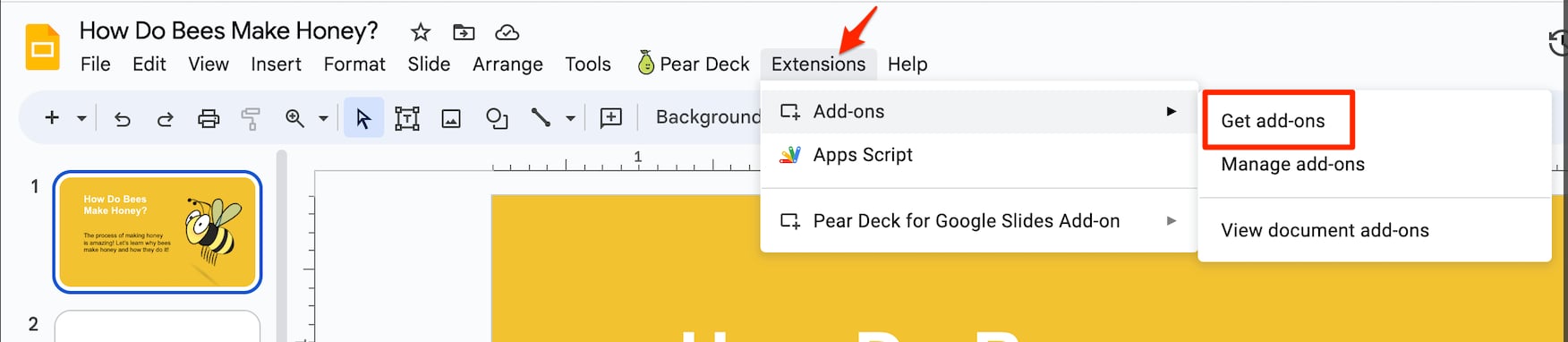
- Click Extensions > Add-ons > Get add-ons.
- In the Google Workspace Marketplace window, search for Pear Deck for Google Slides and click on the result.
- Click Install, then click Continue when prompted for permissions.
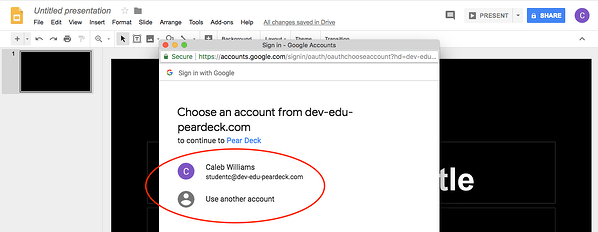
- Select the Google account you want to use with Pear Deck.
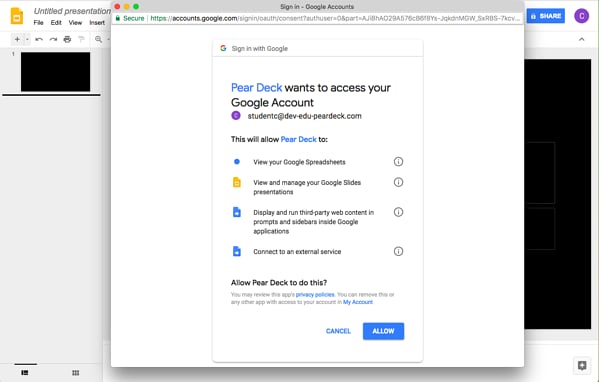
- Click Allow to grant Pear Deck access to your Google account.
- Verify the result: The Pear Deck Add-on is now available in the Extensions menu of any Google Slides presentation. The first time you present with Pear Deck, you are prompted to complete the account setup questions described in Step 5 of Start From peardeck.com.

Start From PowerPoint Online
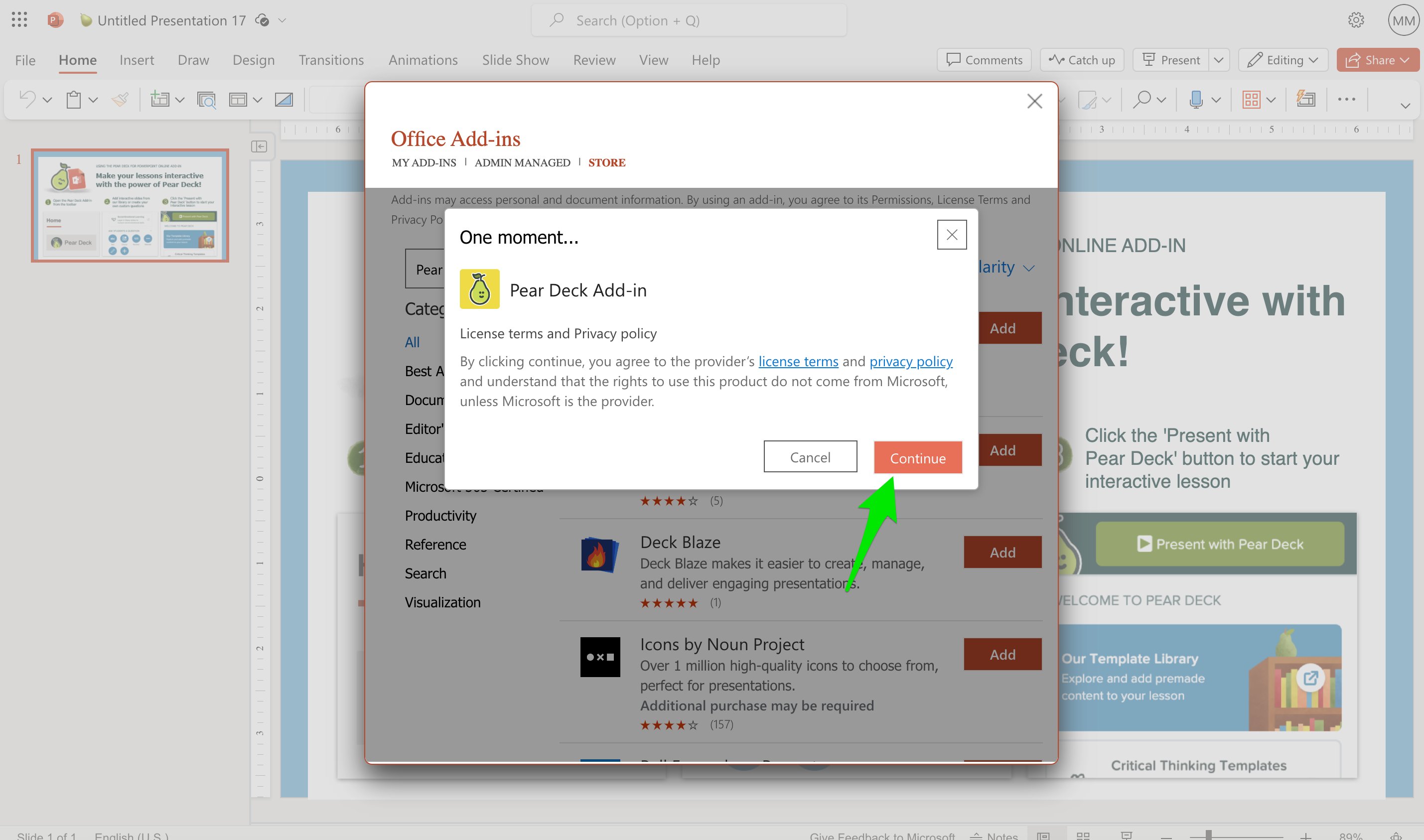
If you use Microsoft Office 365, you can install the Pear Deck Add-in and create your account from inside PowerPoint Online.- Open any PowerPoint Online presentation.
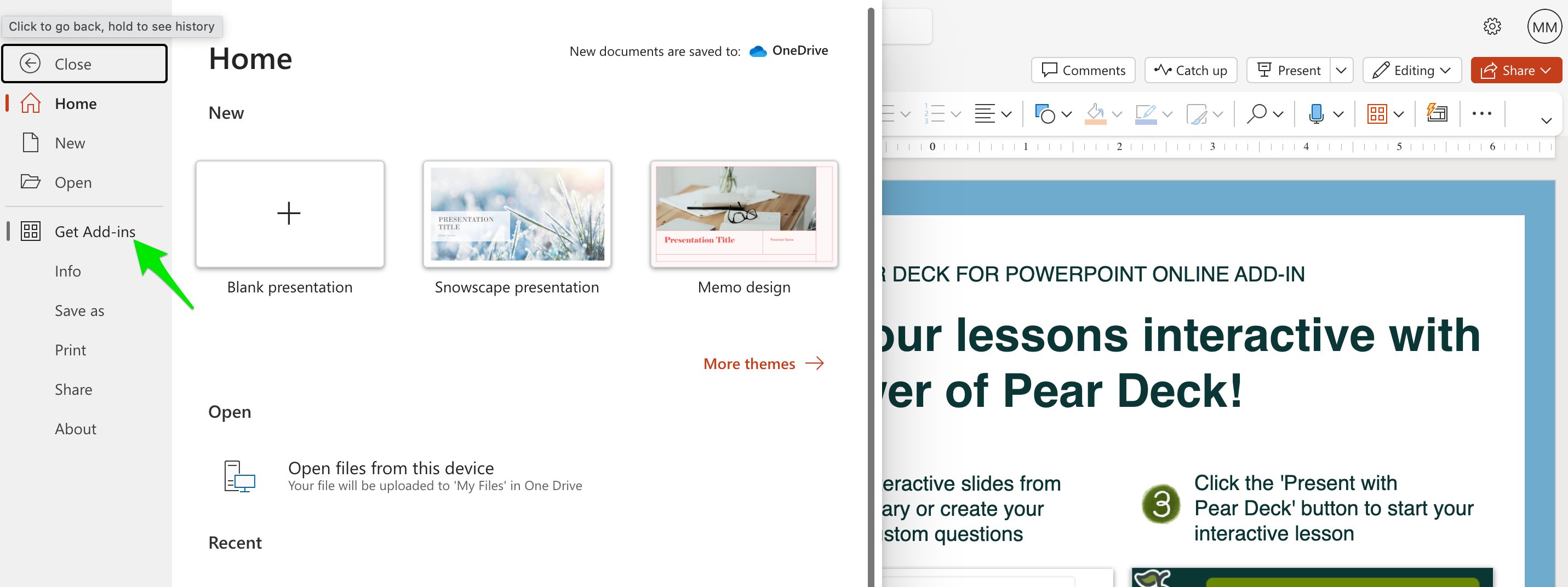
- Click File > Get Add-ins.
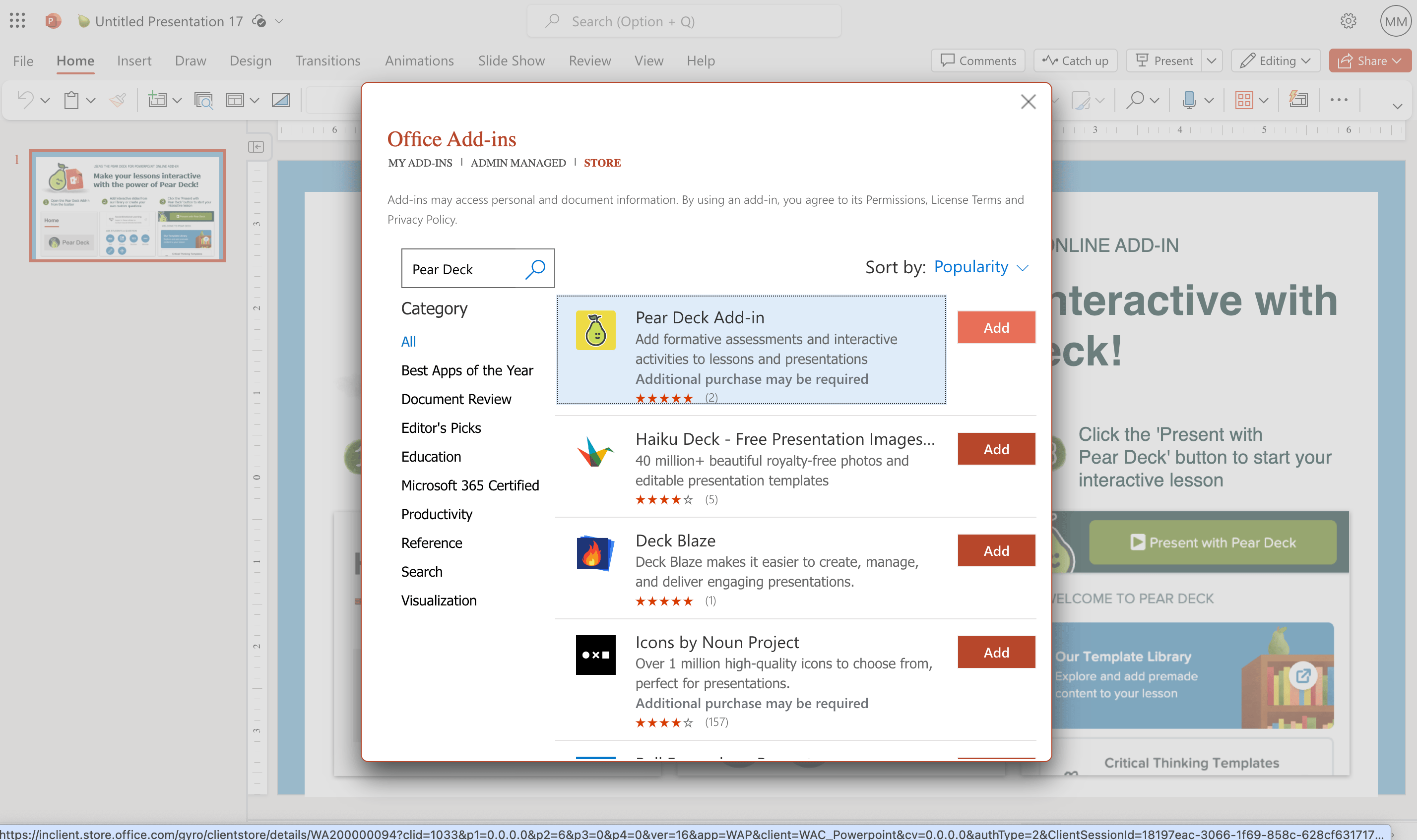
- In the Office Add-ins menu, click + More Add-ins and search for Pear Deck.
- Select Pear Deck and click Add.
- Click Continue to confirm.
- Once the add-in installs, click the Home tab, then click the More Options (three-dots) button and select Pear Deck to open the sidebar.
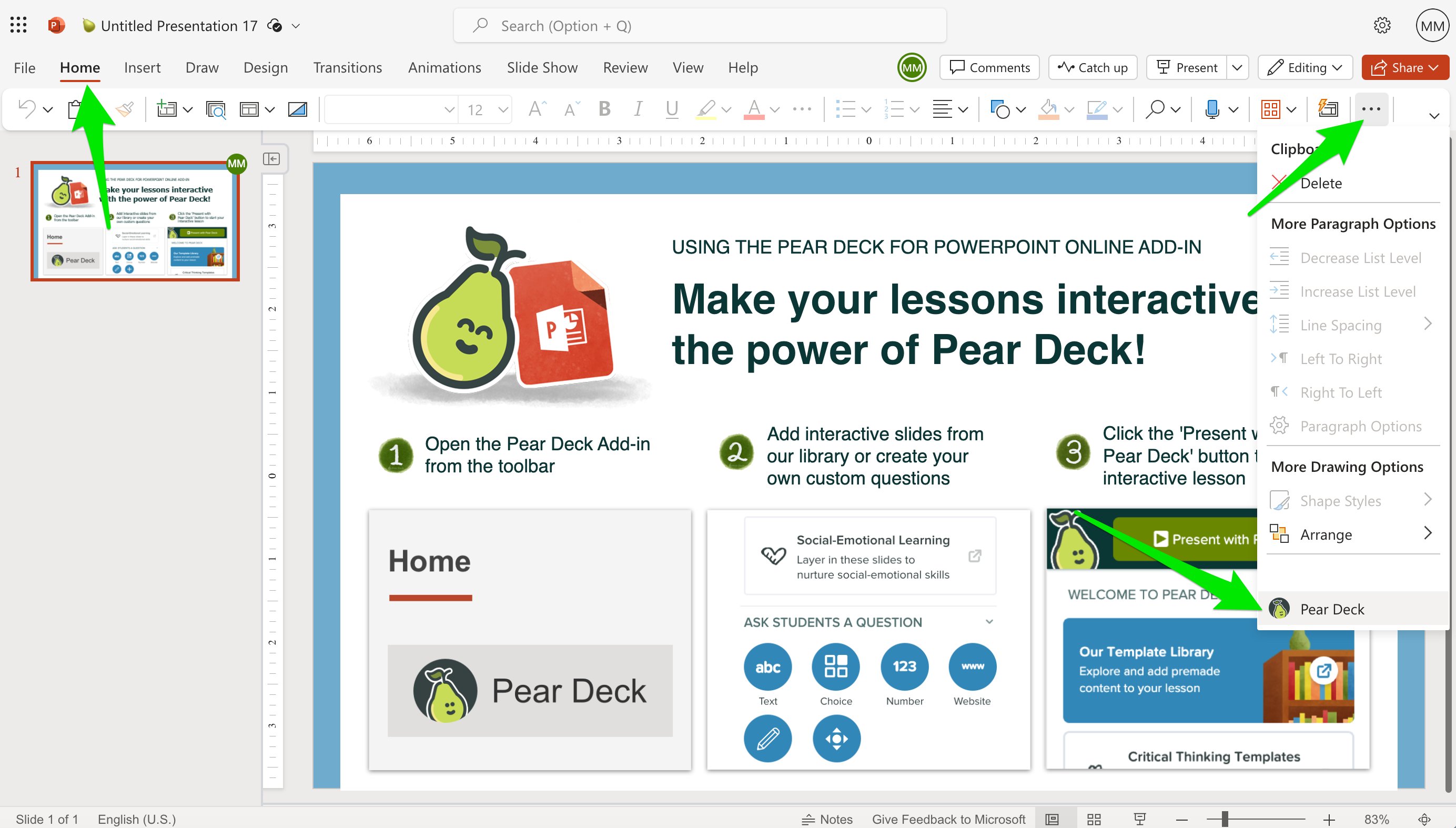
- Verify the result: The Pear Deck sidebar opens in PowerPoint Online. Going forward, access it from the Home tab > More Options (three-dots) > Pear Deck.

Find Your Account After Setup
After creating your account, go to app.peardeck.com/home at any time to:- View and present recent files
- Open past sessions (student responses are stored here automatically)
- Adjust account settings
- Review plan and billing information in My Account
For Administrators
Pear Deck works well for schools that use Google or Microsoft 365. If you are a school administrator, use the following resources to make sure teachers can get Pear Deck at your site:- Enable or install Pear Deck in the Google Admin Console.
- Deploy Pear Deck in your Microsoft 365 Admin Center.
- To upgrade to Premium at your school or district, request a quote on the Pear Deck Pricing Page.
FAQ
Do Students Need a Pear Deck Account?
Students do not need an account to join a session. They join using a six-letter Join Code at joinpd.com or a Join Link. If you want to see students’ names next to their responses, turn on email sign-in so students sign in with a Google or Microsoft Office 365 account when joining. Students only need their own Pear Deck account if they want to create and present their own Pear Deck lessons. We do not collect student data. Anyone who chooses the role of Student during account setup is directed to joinpd.com to join a presentation.Can I Use Google Slides and PowerPoint Online With the Same Account?
Your account is tied to the platform you use to sign in — Google or Microsoft. If you created your account with a Google address, use Google Slides. If you used a Microsoft Office 365 address, use PowerPoint Online.My School Is Not in the Dropdown List. What Do I Do?
Type your school’s name directly into the field. If you are not affiliated with a school, enter your organization name or any descriptive text.Why Does Pear Deck Need Access to My Drive?
Pear Deck stores your presentation files in Google Drive or OneDrive and needs access to add interactive questions to them. For details, see Understand Pear Deck Security Practices.Resources
Get Started with Pear Deck Slides
Build your first interactive presentation, run a session, and review student responses.
Manage Your Pear Deck Account
Switch from Premium to Free, or disconnect Pear Deck from Google Drive or PowerPoint Online.