

Troubleshoot Pear Deck for Google Slides
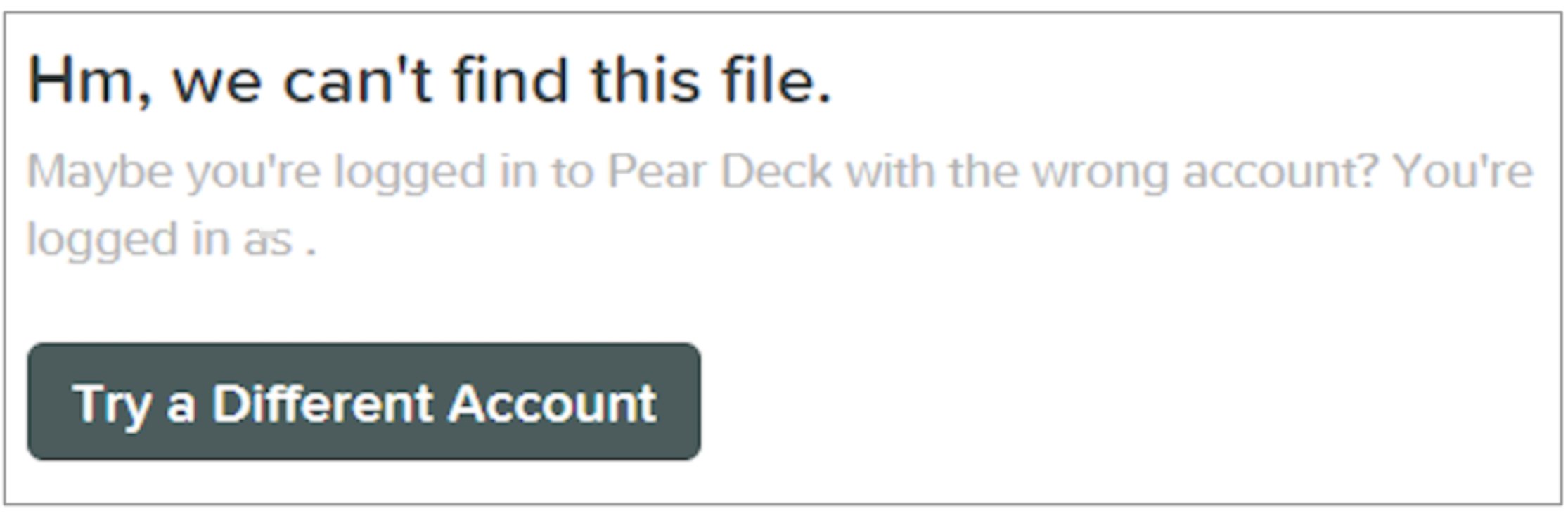
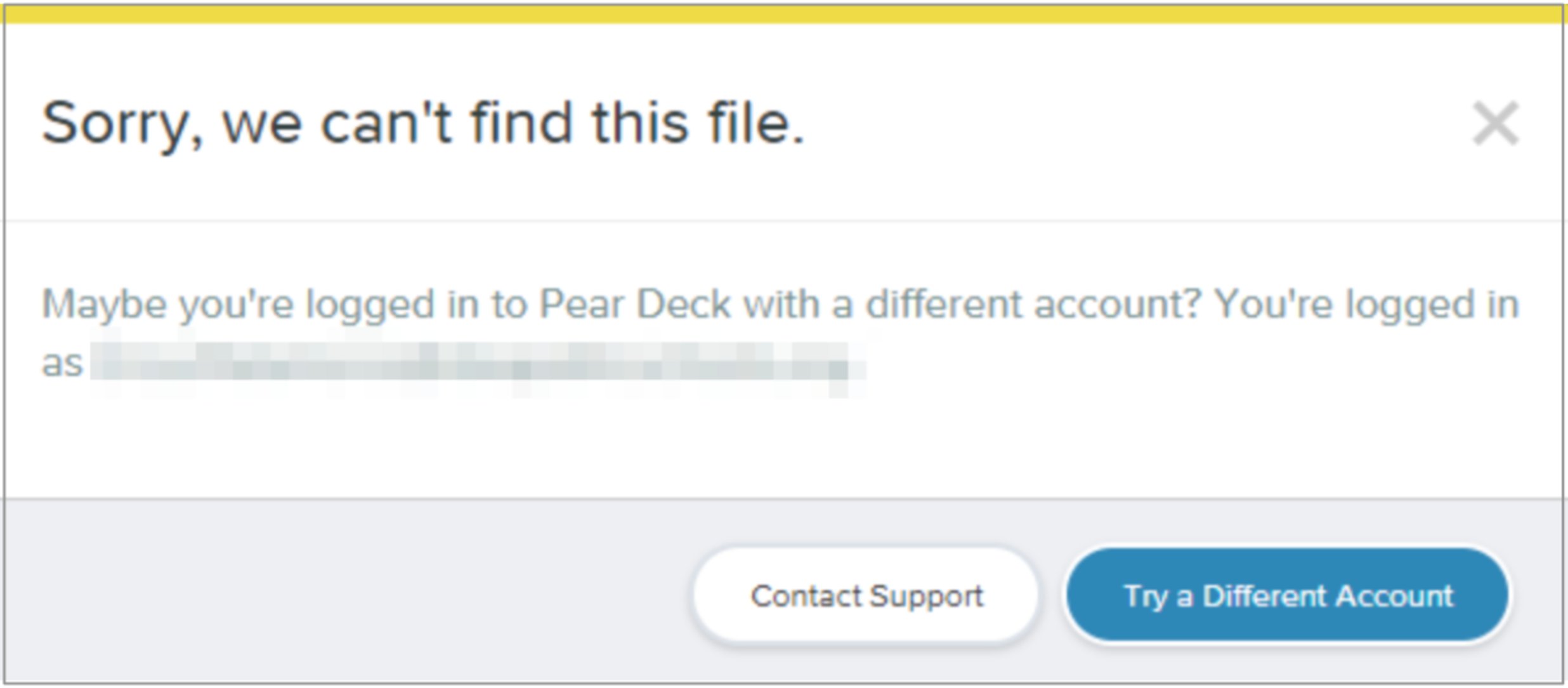
Confirm Your Accounts Match
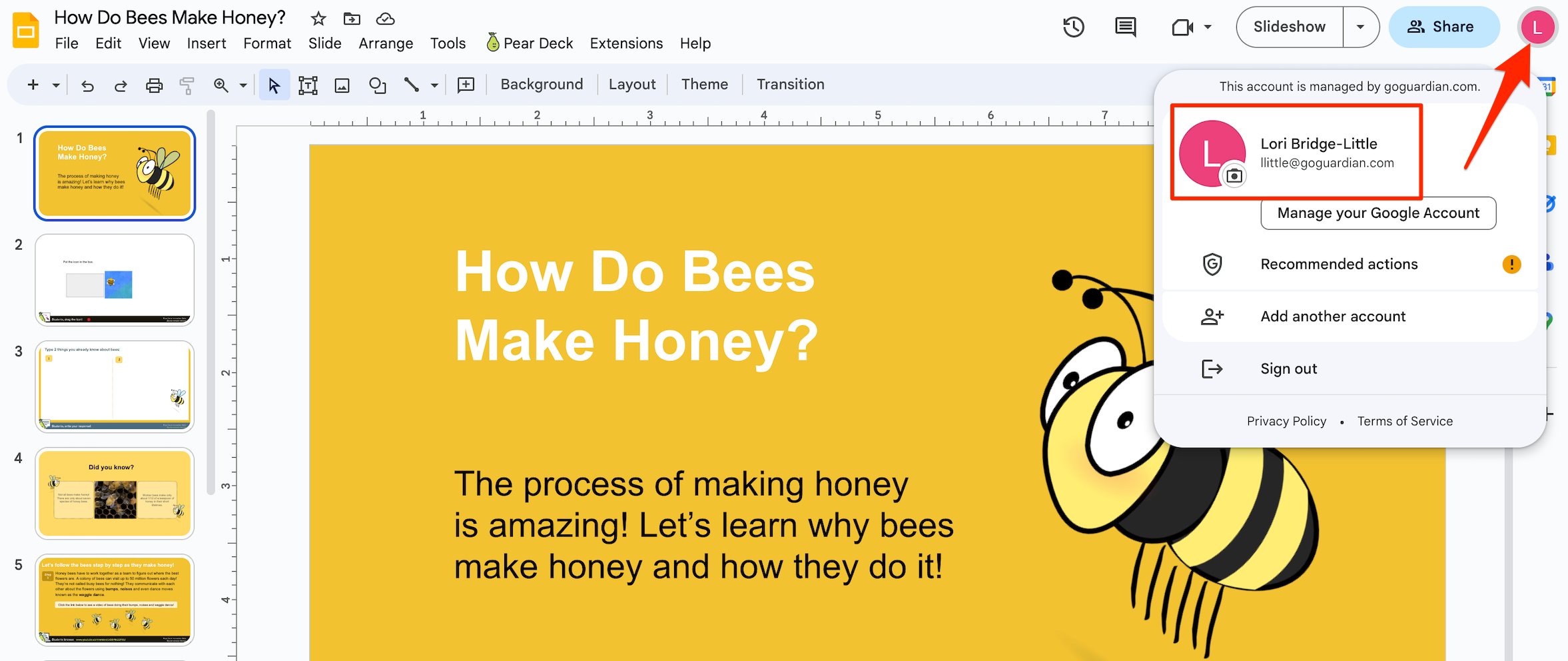
Pear Deck must be signed in to the same Google account as Google Slides.- In Google Slides, click your profile picture in the upper-right corner. Note which Google account is signed in.
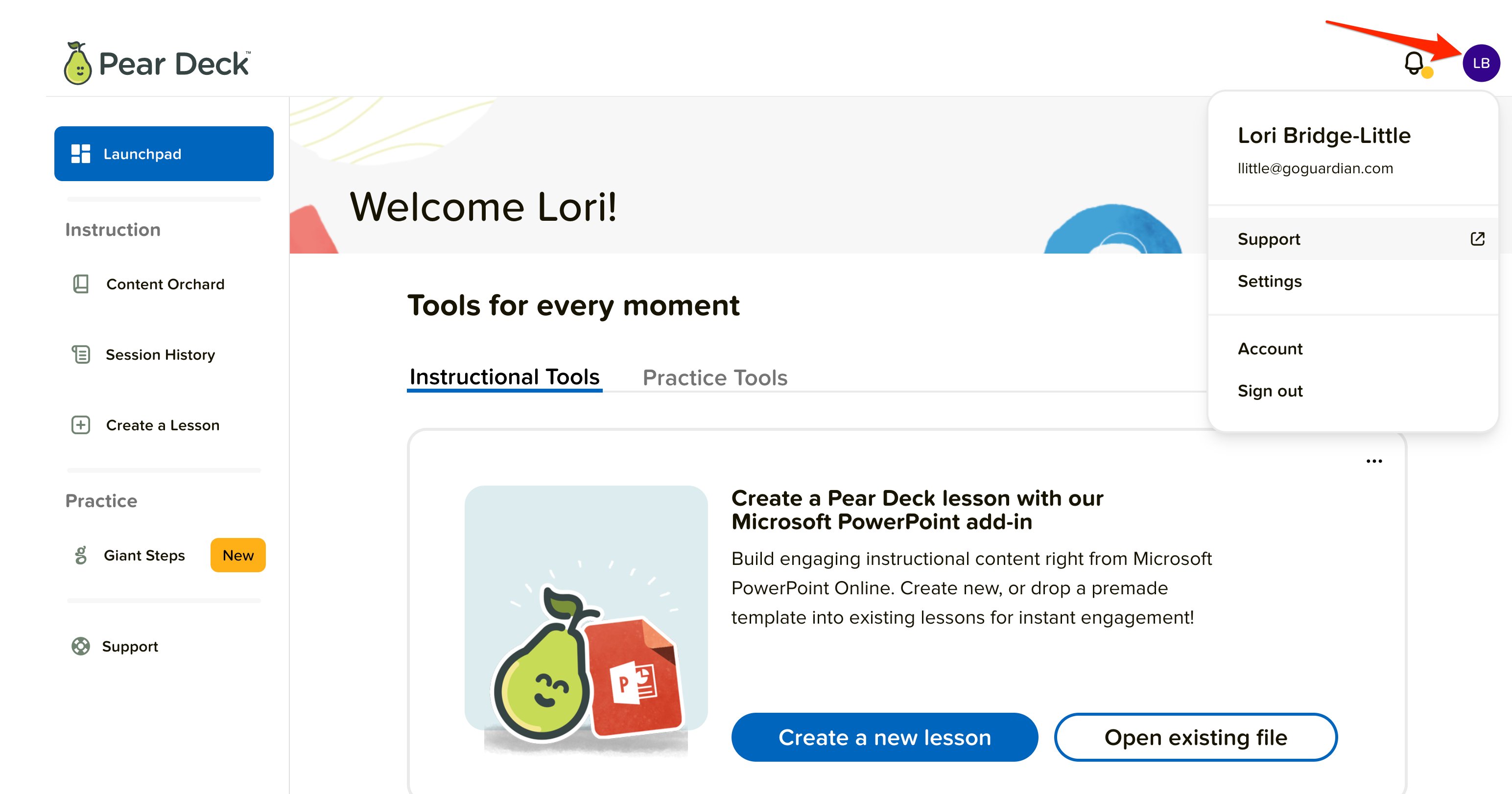
- In a new tab, open Pear Deck and check the email shown in the upper-right corner.
- Confirm both accounts match. If they don’t, sign out of one and sign back in with the correct account.
- Close any other browser tabs signed in to a different Google account.
- Try presenting again.
Check Where Your File Is Stored
Your Google Slides file must be in the Google Drive of the account that has Pear Deck installed. If the file is in a different account’s Drive, Pear Deck can’t access it. If the file is stored in the wrong Drive, move it to the correct account before presenting. See Manage Your Pear Deck Account for guidance on transferring files between accounts.Clear Your Browser Cache
A stale cache can cause Pear Deck to lose access to your file even when accounts match.- Sign out of both Pear Deck and Google.
- Clear your browser’s cache and cookies.
- Sign back in to Pear Deck and Google Slides.
- Try presenting again.

Troubleshoot Pear Deck for PowerPoint Online
Confirm Your Accounts Match
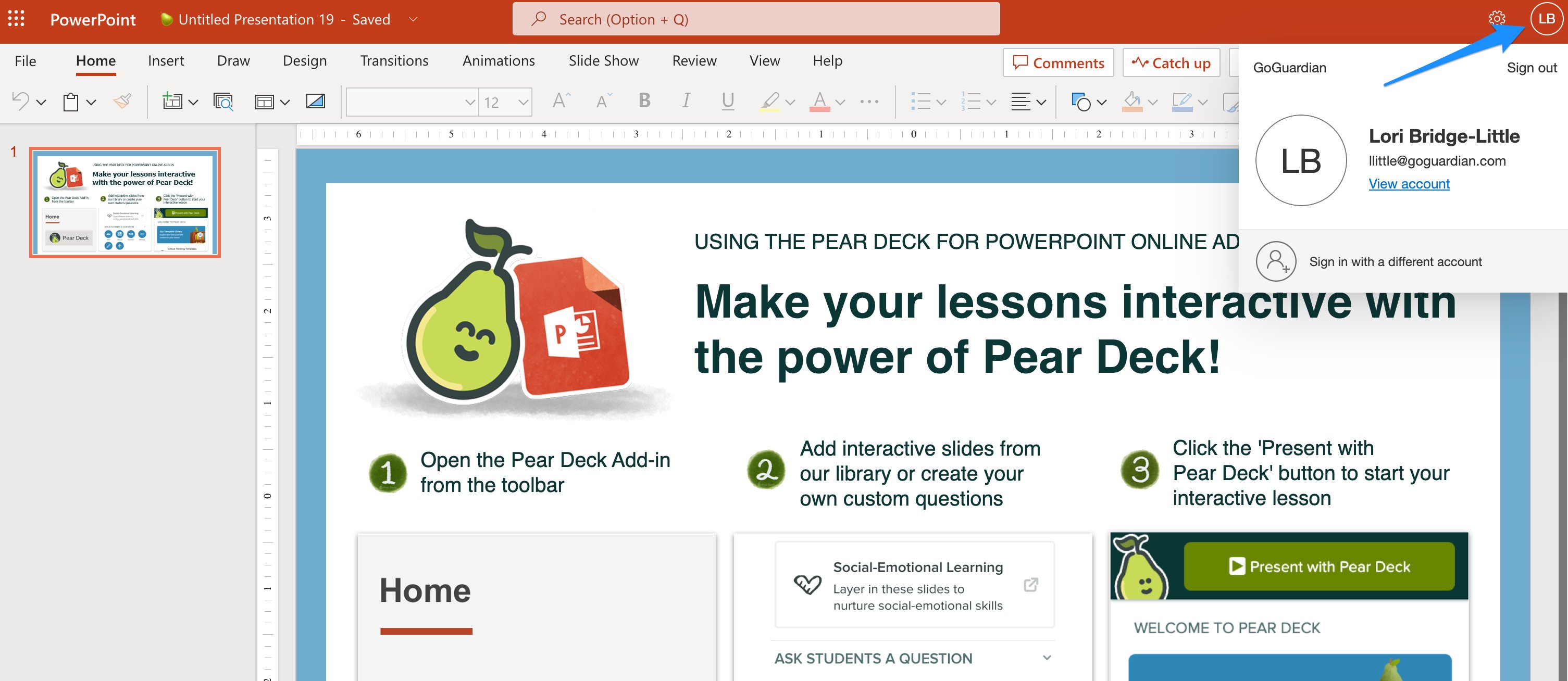
Pear Deck must be signed in to the same Microsoft account as PowerPoint Online.- In PowerPoint Online, click your profile picture in the upper-right corner. Note which Microsoft account is signed in.
- In a new tab, open Pear Deck and check the email shown in the upper-right corner.
- Confirm both accounts match. If they don’t, sign out of one and sign back in with the correct account.
- Close any other browser tabs signed in to a different Microsoft account.
- Try presenting again.
Check Where Your File Is Stored
Your PowerPoint file must be in the OneDrive of the account that has Pear Deck installed. If the file is in a different account’s OneDrive, Pear Deck can’t access it. Move the file to the correct OneDrive location before presenting.Clear Your Browser Cache
If your accounts match and the file is in the right location but the error persists, clear your cache.- Sign out of both Pear Deck and Microsoft Office 365.
- Clear your browser’s cache and cookies.
- Sign back in to Pear Deck and Microsoft Office 365.
- Try presenting again.
Contact Support
If you’ve worked through all the steps above and the error persists, contact GoGuardian Support. Include the full error message and which version of Pear Deck you’re using (Google Slides or PowerPoint Online).Resources
Technical Requirements for Pear Deck
Supported browsers, devices, and account requirements for Pear Deck.
Allow Cookies for Pear Deck
Configure browser cookie settings required for Pear Deck to work.
Troubleshoot Pear Deck Loading Errors
Resolve app loading errors, blank screens, and session issues.