Managers of a domain-wide Pear Deck Premium subscription do not have a teacher list to manage — the whole domain automatically has Pear Deck Premium.
Add Users
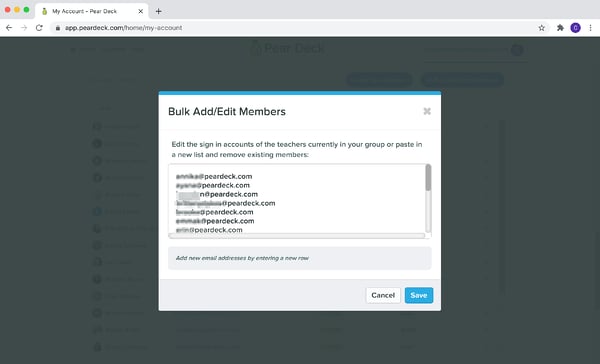
You can add one teacher email address or a whole list at once, and the addresses do not need to match your school domain. Users added this way do not receive a welcome or notification email.- Open your Pear Deck Home My Account page.
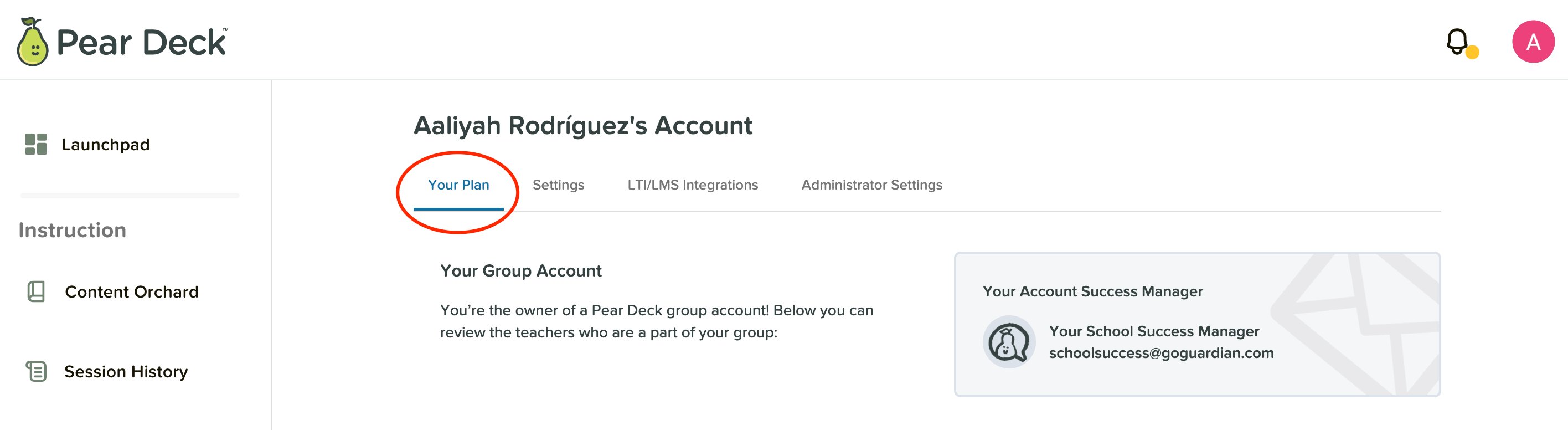
- Select Your Plan.
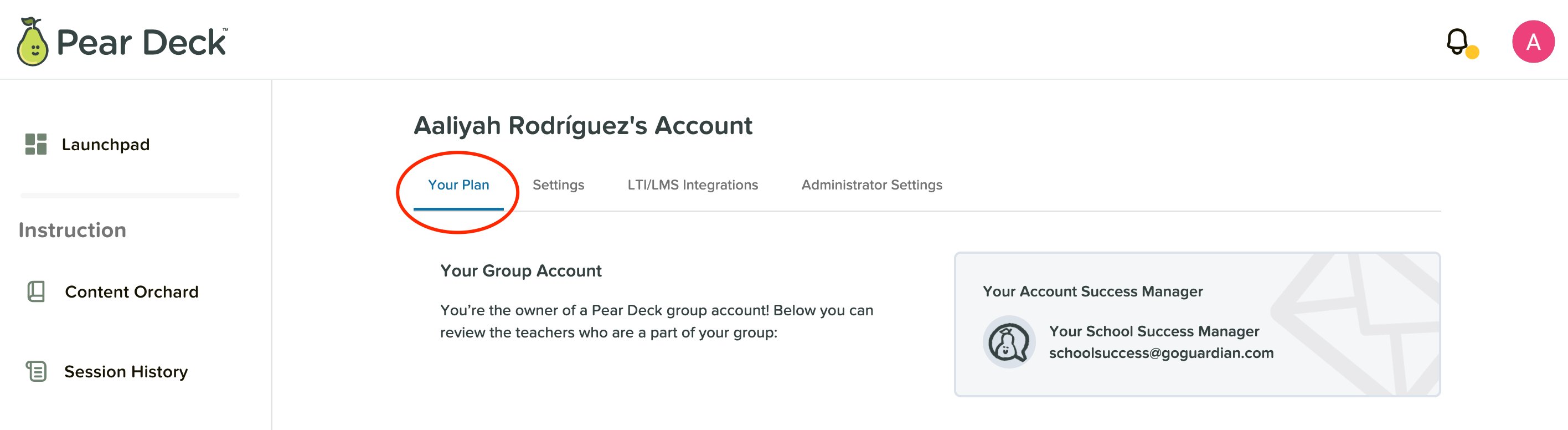
- Scroll to the Group Usage section.
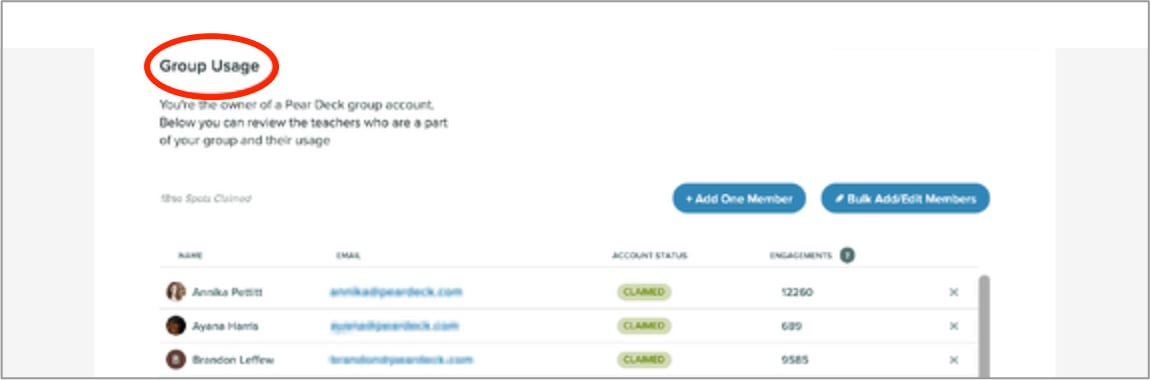
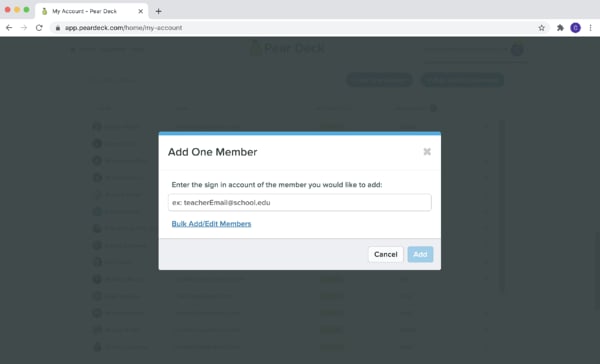
- Add a single teacher’s email, or add a list of teachers at once.

Remove or Transfer a User
From the same Group Usage section, you can remove a user, or transfer a Premium subscription to another user.