

Create a Pear Deck Account
- Go to app.peardeck.com.
- Click Sign in and select Pear Deck.
- When prompted, sign in with a Microsoft Office 365 or Google account and respond to a few onboarding questions.
- Install the Pear Deck for PowerPoint Online Add-in or the Pear Deck for Google Slides Add-on.
Create Slides
You can make Pear Deck presentations in either Google Slides or PowerPoint Online depending on your account type.- Open a new Slides presentation or copy a fully interactive, pre-made presentation from the Orchard for your use.
- Insert pre-made slide templates and/or custom interactive questions into your presentation.
Start a Session and Invite Students
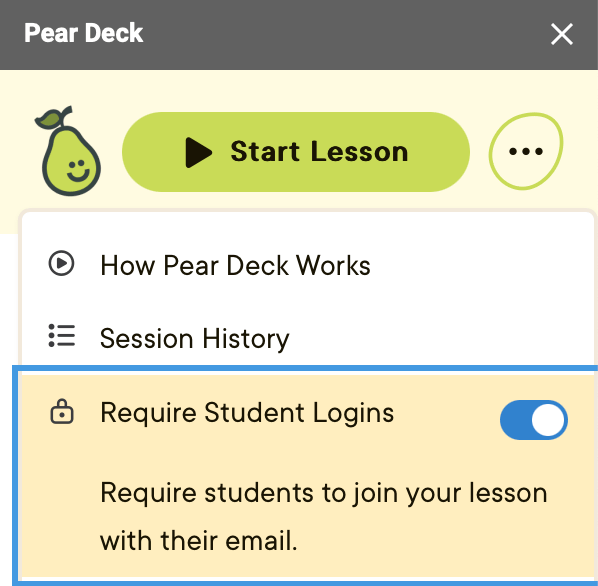
- Require email sign-in if you want to see students’ names in your sessions, or turn off email sign-in to have participants join completely anonymously. Complete this from the sidebar menu or your Settings page.
- Open your presentation in Google Slides or PowerPoint Online.
- Open the Pear Deck Add-on (in Google Slides) or Add-in (in PowerPoint Online) to reveal the Pear Deck sidebar.
- Click Start Lesson to present a session. Here is how it appears in the Pear Deck for Google Slides Add-on and PowerPoint Online Add-in sidebar:
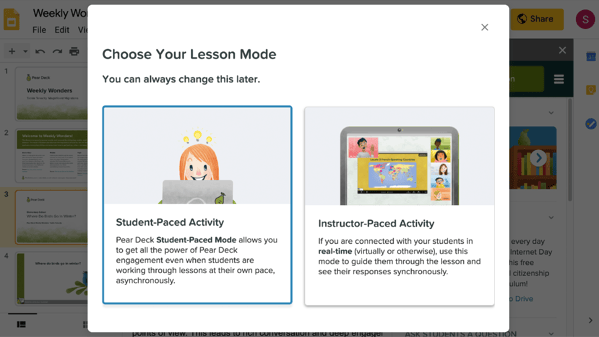
- In the modal window, select Instructor-Paced mode. In an Instructor-Paced session, students’ screens stay synced with yours. In a Student-Paced session, students have simple navigation controls on the Student View that allow them to move through your slides asynchronously. To learn more, see Student-Paced Lessons.
- Share the six-letter join code or the join link with students. Students either go to joinpd.com and enter the code, or click the link to join.
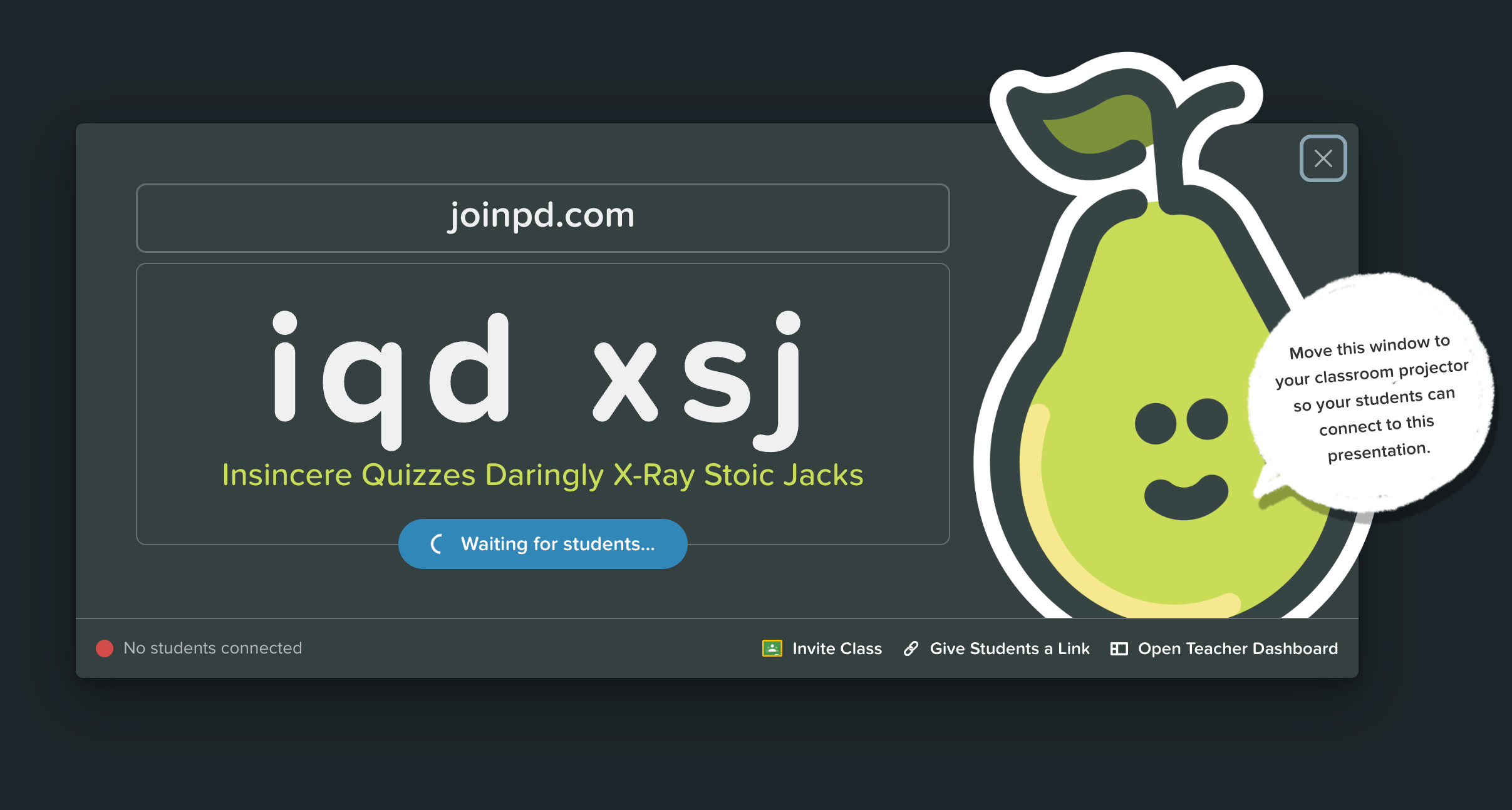
- Close the join instructions and hover over the bottom of the slide to open the Navigation Bar. Use the controls to run the lesson on your Projector View.
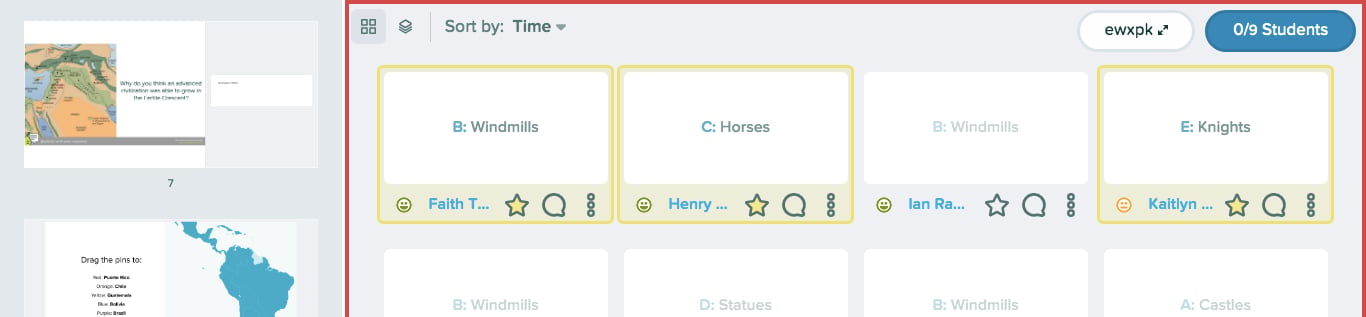
- Get insight into individual students’ progress by opening the private Teacher Dashboard (Premium feature). The Dashboard View syncs with the Projector View and lets you see students’ names and responses in real time, so you can quickly identify who is stuck or confused. You can also hide responses or highlight examples on the Projector View of an Instructor-Paced session, and leave feedback for individual students. Learn more about the Teacher Dashboard.
Extend a Lesson
Sometimes you do not make it through the whole lesson during class. Other times, students are absent and need to work through the lesson on their own, or you may want them to go back for review. When you need to extend your lesson, there are two options:- Turn on Student-Paced Mode: Student-Paced Mode lets students navigate the slides at their own pace and respond to all of the interactive slides. Their answers can be viewed by reopening the Projector and Dashboard Views, so you can discuss their answers the next day in class. Open either of these views from your Pear Deck Home Sessions page.
- Publish Takeaways™ (Premium with Google): When the session is over, you can give each student personalized notes. This is best when you want students to review all the content from the lesson and reflect on their own answers. Because a Takeaway™ is a Google Doc, you can easily share it with parents or tutors when a student needs help at home.
Review Responses
When the session is over, there are a few ways to review student work and provide feedback.- Export students’ answers to a Google Sheet (available when you sign in with Google) when you create a quiz or need to score Multiple Choice or Text responses.
- Review answers and leave feedback in the Teacher Dashboard (Premium) when you want to flip through the lesson slide by slide and see what each student said and what material might need to be revisited. Click the Feedback button next to a name to send comments directly to individual students.
- Share a Reflect and Review link with students so they can view all of their responses and any teacher feedback directly in the Pear Deck environment. This feature is available to both Google and Microsoft Premium users.
Resources
Create a New Pear Deck Lesson
Build a new interactive presentation in Google Slides or PowerPoint Online.
The Teacher Dashboard
Monitor student responses in real time and leave individual feedback during a session.