

Add a Slide Template to Your Presentation
- Install the Pear Deck for Google Slides add-on or the Pear Deck for PowerPoint Online Add-in.
- Open a presentation.
- Open the Pear Deck sidebar.
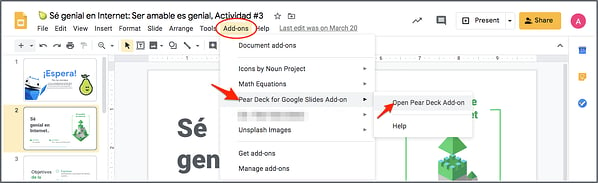
- In Google Slides, click Add-ons → Pear Deck for Google Slides Add-on → Open Pear Deck Add-on.
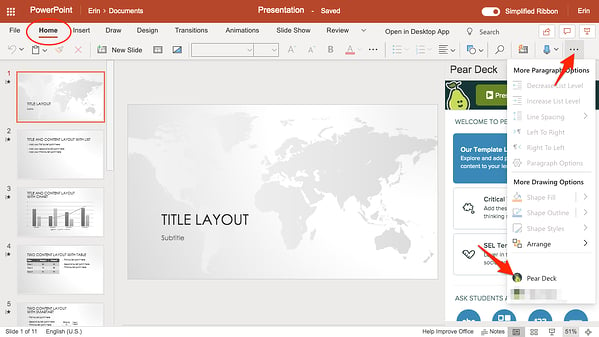
- In PowerPoint Online, click Home → More Options → Pear Deck.
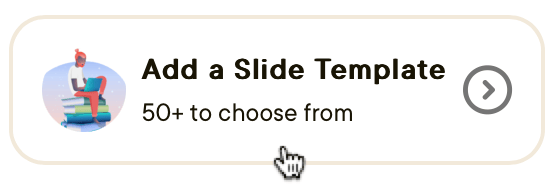
- In the Pear Deck sidebar, click Add a Slide Template.
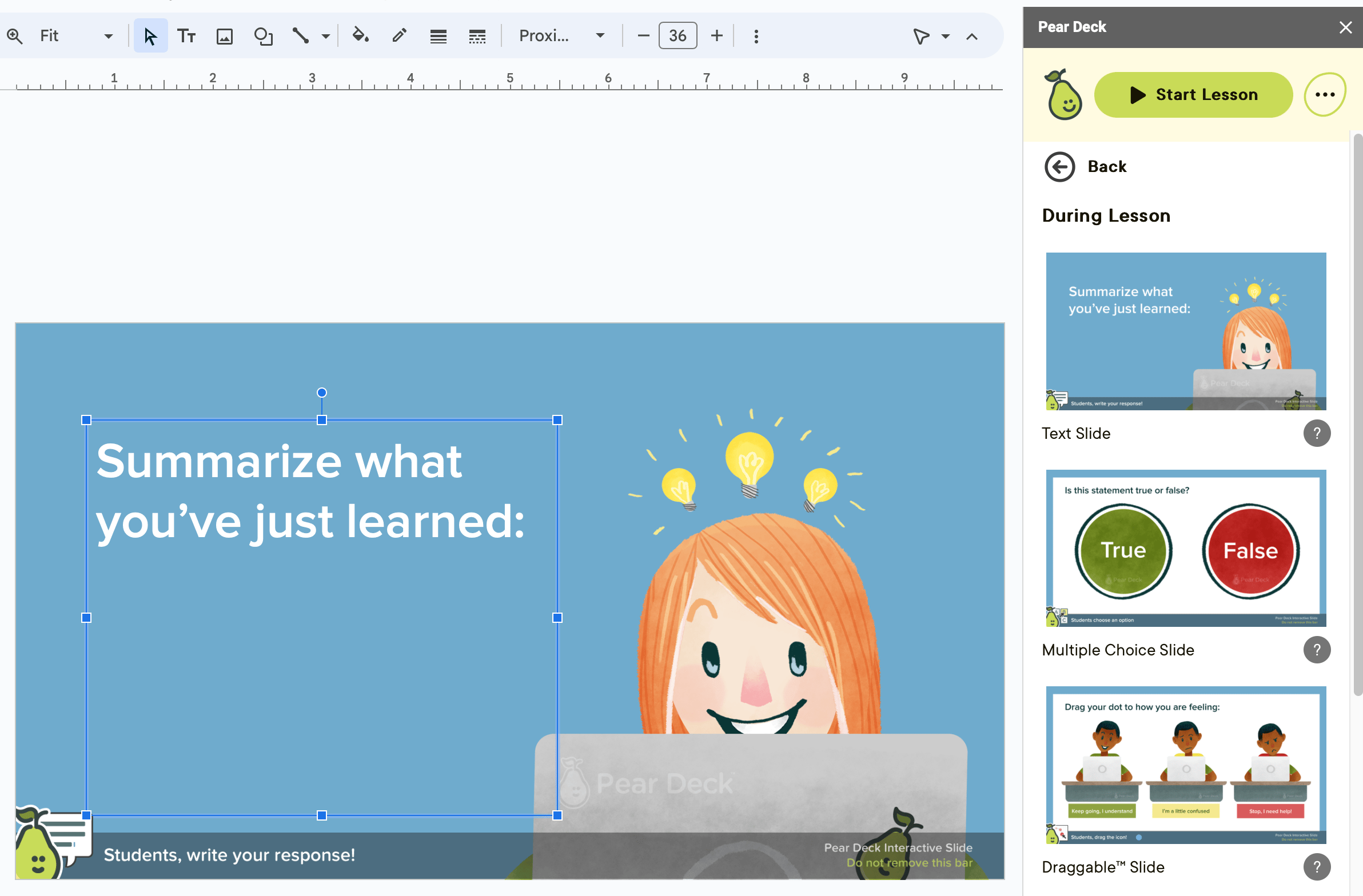
In Google Slides
- Click a category in the template library.
- Click a template to add it to your presentation.
In PowerPoint Online
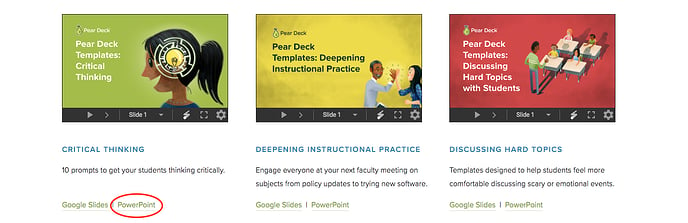
- When you click Add a Slide Template, the Pear Deck templates page opens. Preview templates by clicking the arrows underneath them.
- Click the PowerPoint link under the template you want.
- The read-only file opens in PowerPoint Online.
- Click File → Download As → Download a Copy to save a copy of the file.
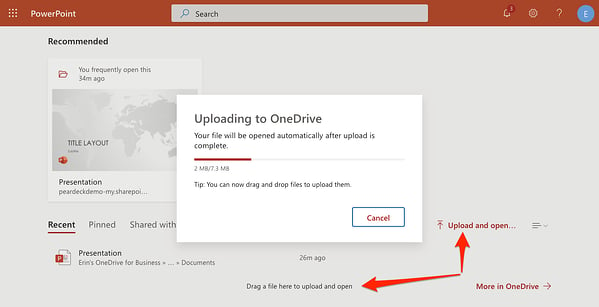
- Open PowerPoint Online again and click Upload to locate the file you downloaded, or drag it from your desktop.
- Once uploaded, copy and paste individual slides into any of your other PowerPoint Online presentations by selecting the slide, right-clicking, and choosing Copy or Paste.
- Customize the slide template by changing the text, font, images, background, and other elements.
- When you are ready, click Start Lesson / Present with Pear Deck in the Pear Deck sidebar to begin a session. See Present a Pear Deck Lesson for details.

Get a Premade Pear Deck Lesson
The Pear Deck Orchard features complete, premade, interactive lessons with built-in activities created by experienced educators.Some content in the Orchard, such as Certified Content, is available with Premium School or District subscriptions only.
- Open the Pear Deck Orchard.
- Click the deck title.
- Copy the presentation (Google Slides) or download it (PowerPoint Online).
- Present the deck as-is, or copy and paste slides into your existing files.
Resources
Get Pear Deck for PowerPoint Online
Install the Pear Deck Add-in for PowerPoint Online to access interactive slide features.
Present a Pear Deck Lesson
Learn how to start a session and present an interactive Pear Deck lesson to students.