Before You Start
- Your district must have a domain or district Pear Deck subscription. Individual and free accounts do not have access to the District Library tab.
- The District Library is available only from the Pear Deck web app at app.peardeck.com. It is not available inside Canvas, Schoology, or Microsoft Teams.
- To publish a lesson, you need a Google Slides file saved in Google Drive.
Publish a Lesson
- Sign in to your Pear Deck account and navigate to District Library.
- Click Publish a Lesson.
- Click Select a File from Drive and choose the Google Slides file you want to add.
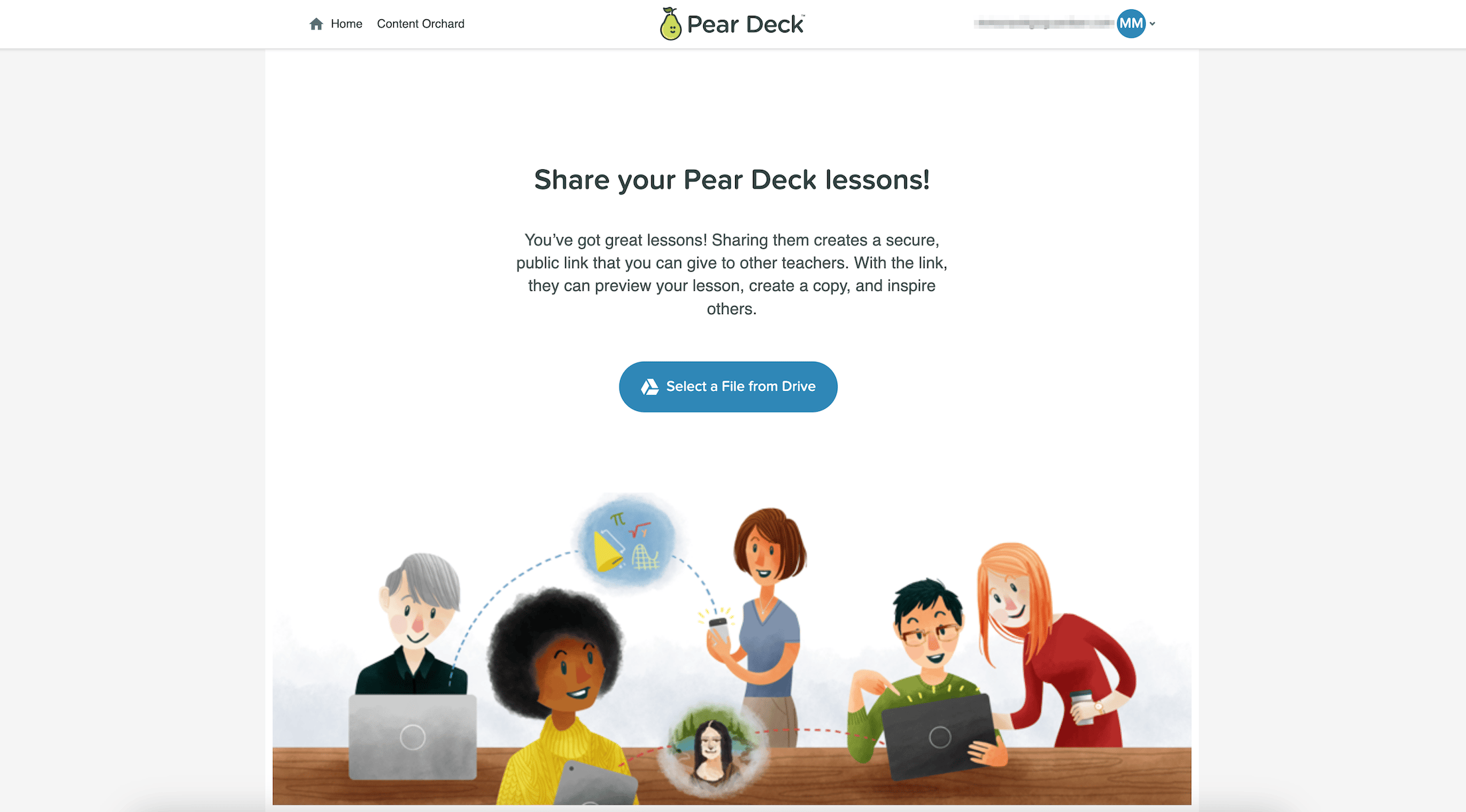
- Fill out the lesson details, including title, subjects covered, grade levels, and relevant standards.

- Check the box to publish your file to the District Library and agree to Pear Deck’s Terms of Service. You can also choose to be credited as the creator of the lesson.
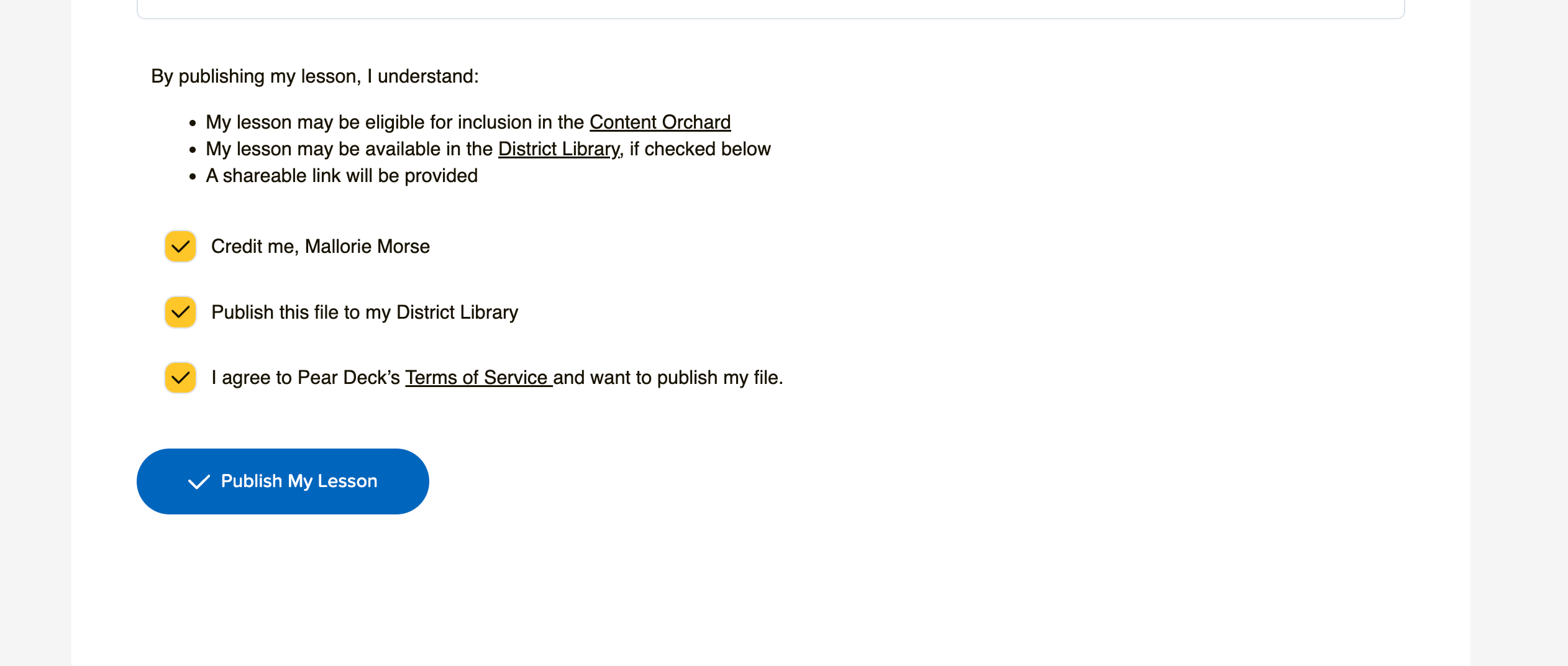
- Click Publish My Lesson. Your lesson is now visible in the District Library.
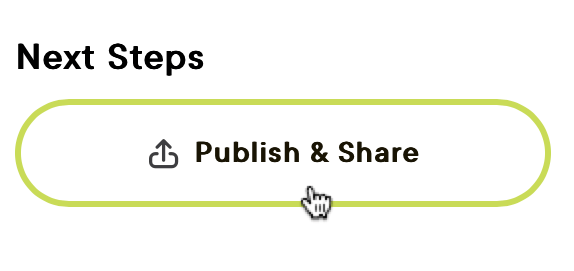
You can also publish a lesson directly from the Pear Deck for Google Slides add-on. Open the Pear Deck sidebar in Google Slides, click the menu button, and click Publish and Share. Then complete steps 5 and 6 above.
Find and Copy a Lesson
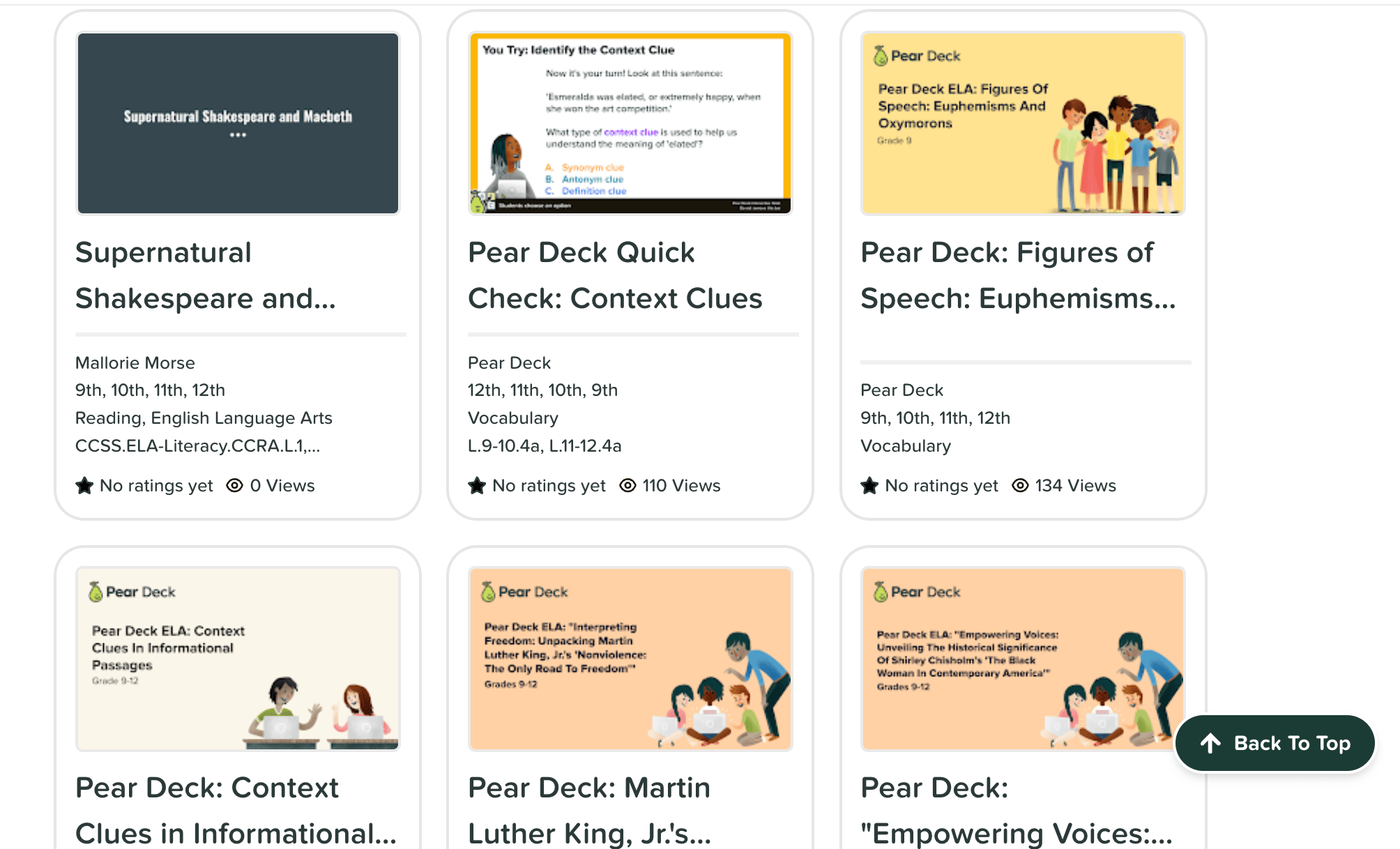
- Navigate to the District Library.
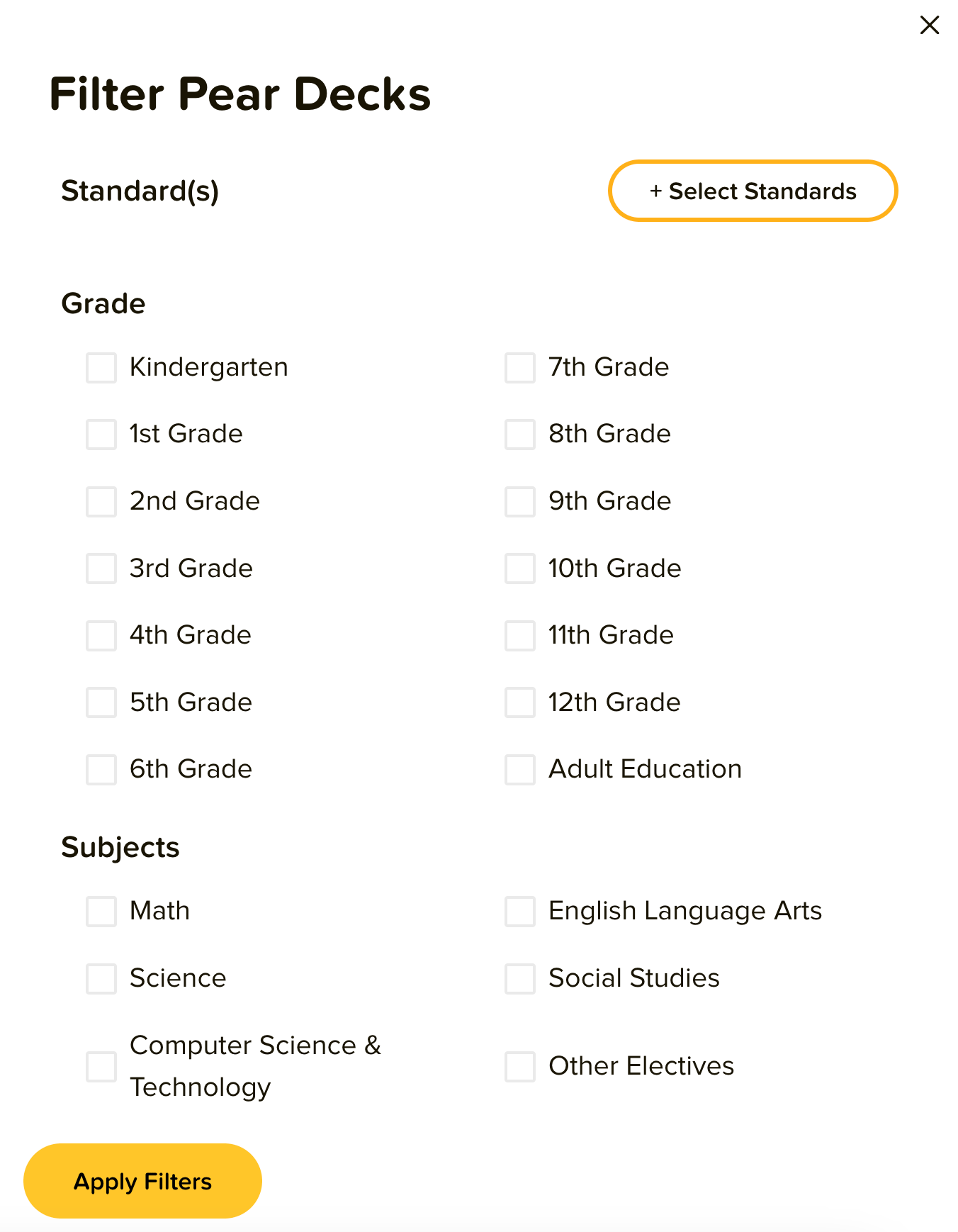
- Use the search bar or click Filter to narrow results by grade level and subject. Click + Select Standards to filter by specific standards, then click Apply Filters.
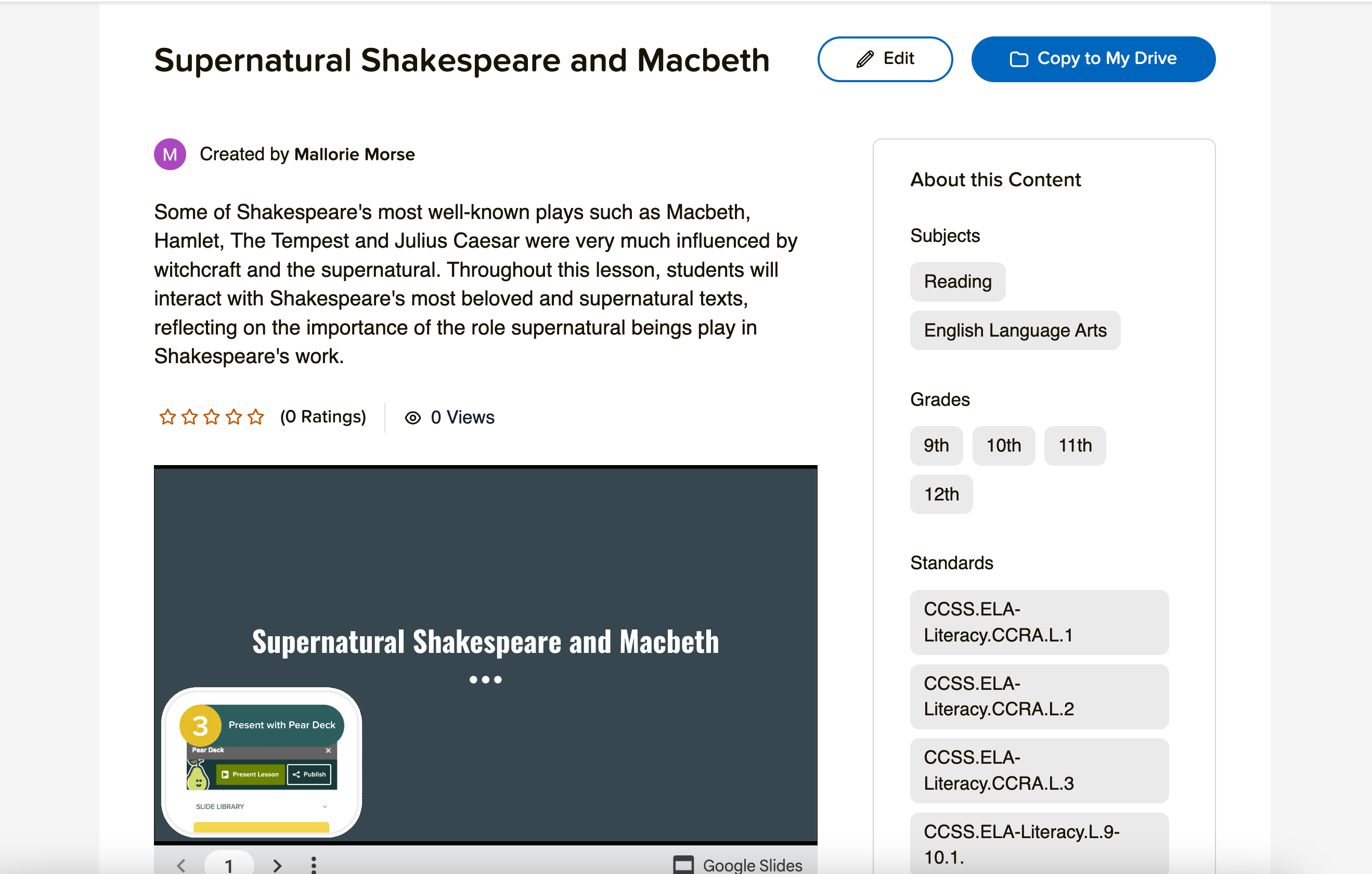
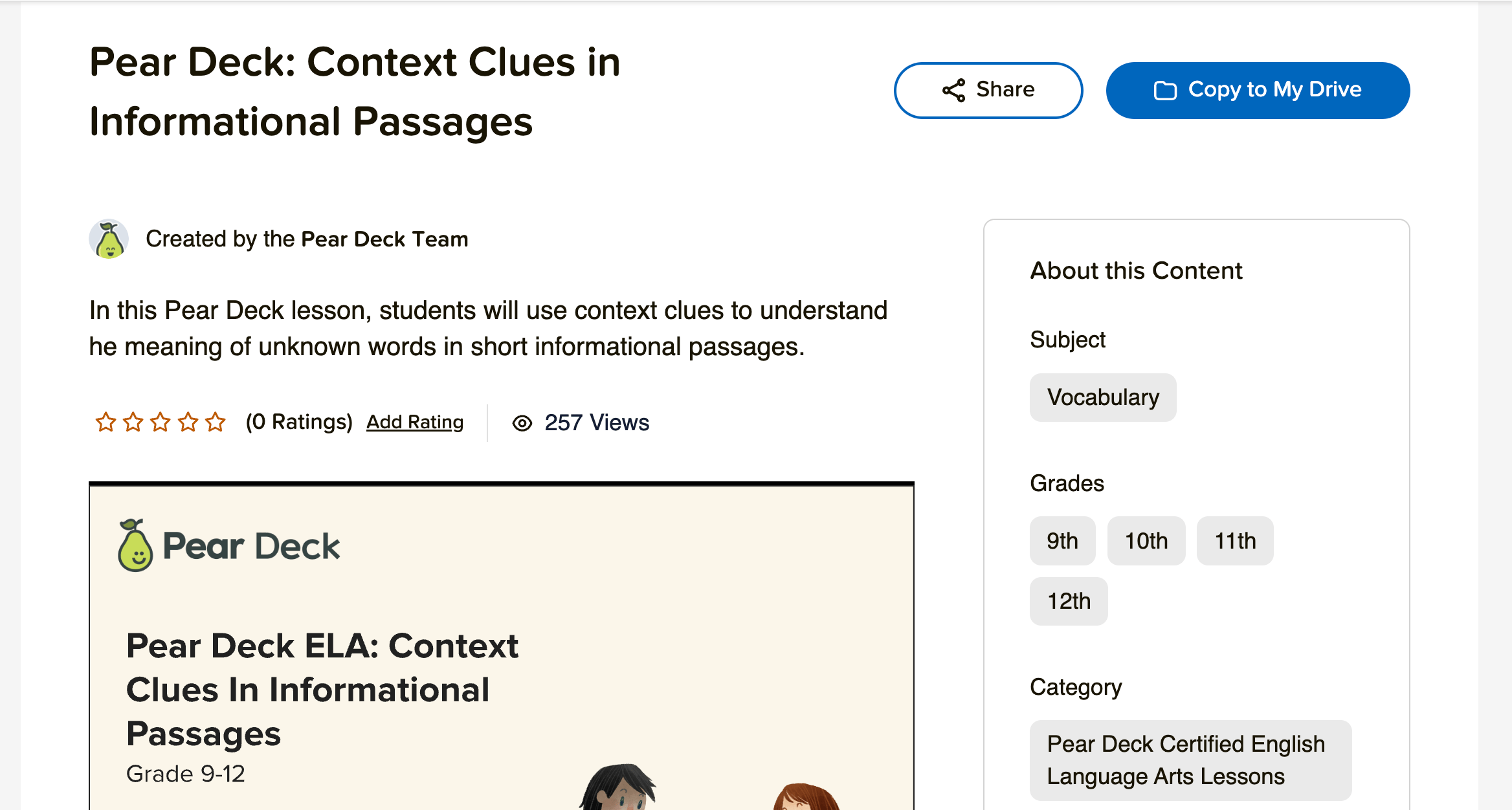
- Click a lesson to open a preview.
- Click Copy to My Drive.
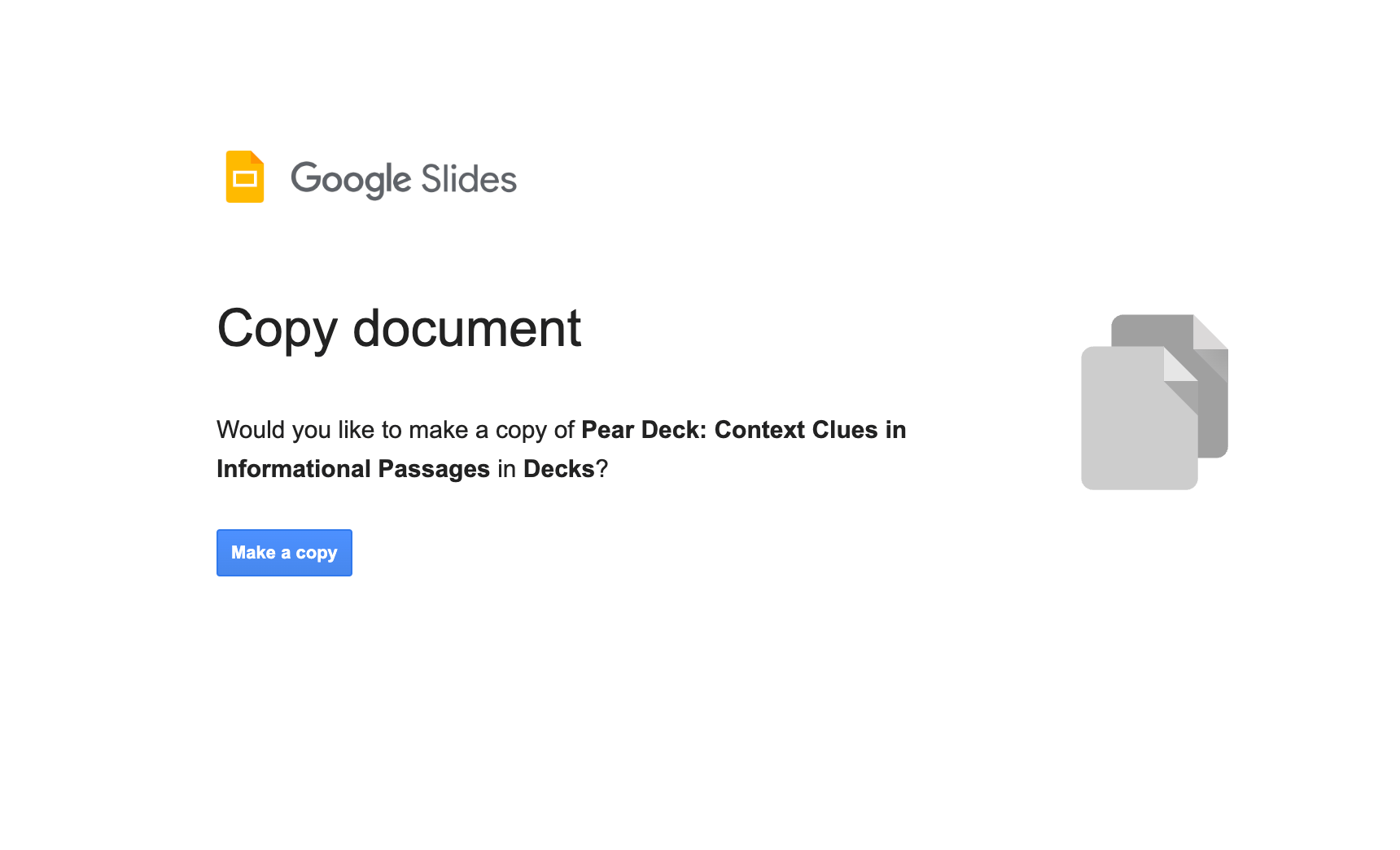
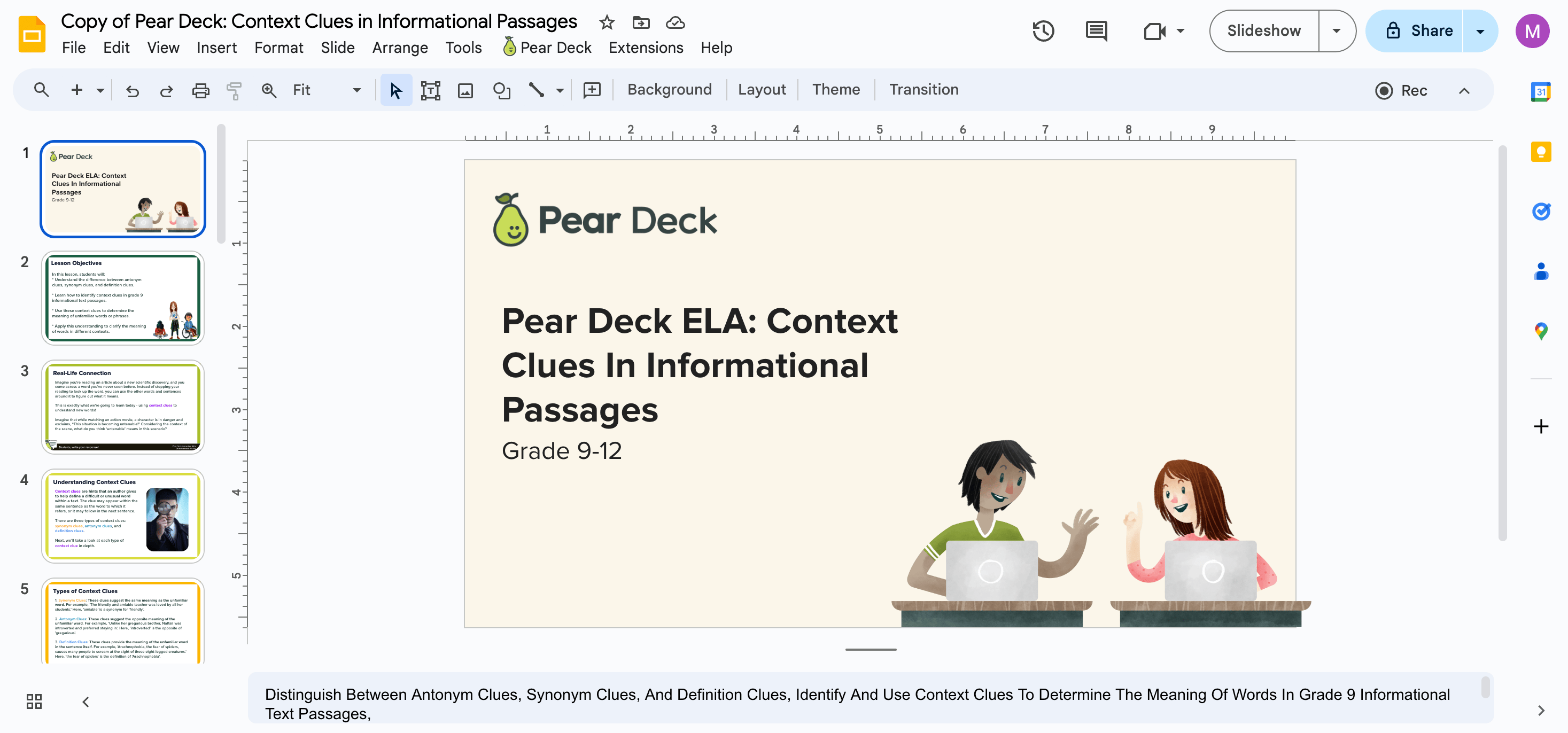
- Click Make a Copy to save the lesson to your Google Drive. Your copy opens in Google Slides.
- Customize the copy as needed. Your edits do not affect the original lesson in the District Library.
- Open the Pear Deck for Google Slides add-on sidebar and click Start Lesson when you are ready to present.
Rate a Lesson
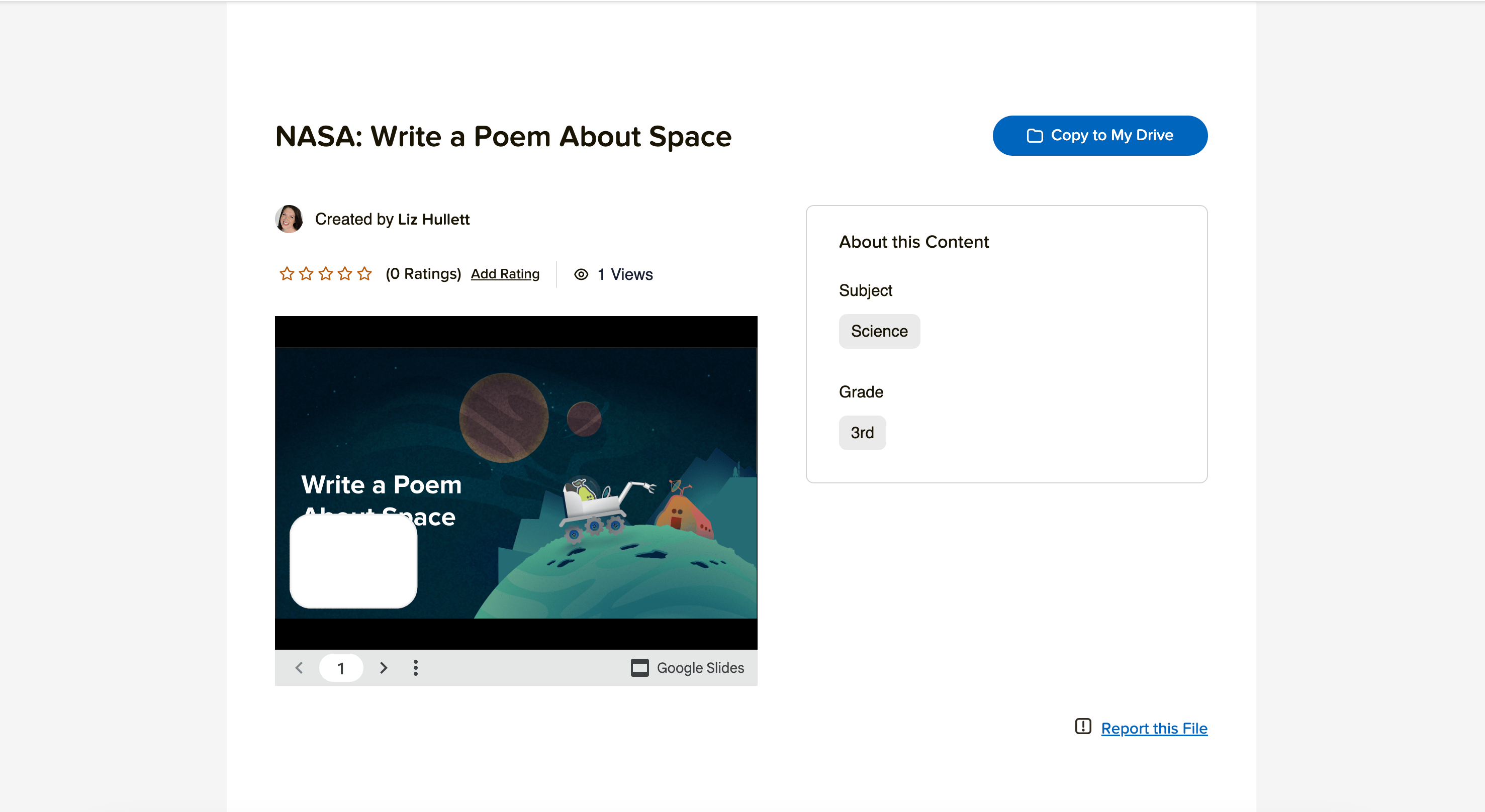
Ratings give you and your colleagues a quick signal about which lessons teachers have found most valuable. You can rate any lesson in the District Library from 1 to 5 stars.- Select a lesson from the District Library and click Add Rating.
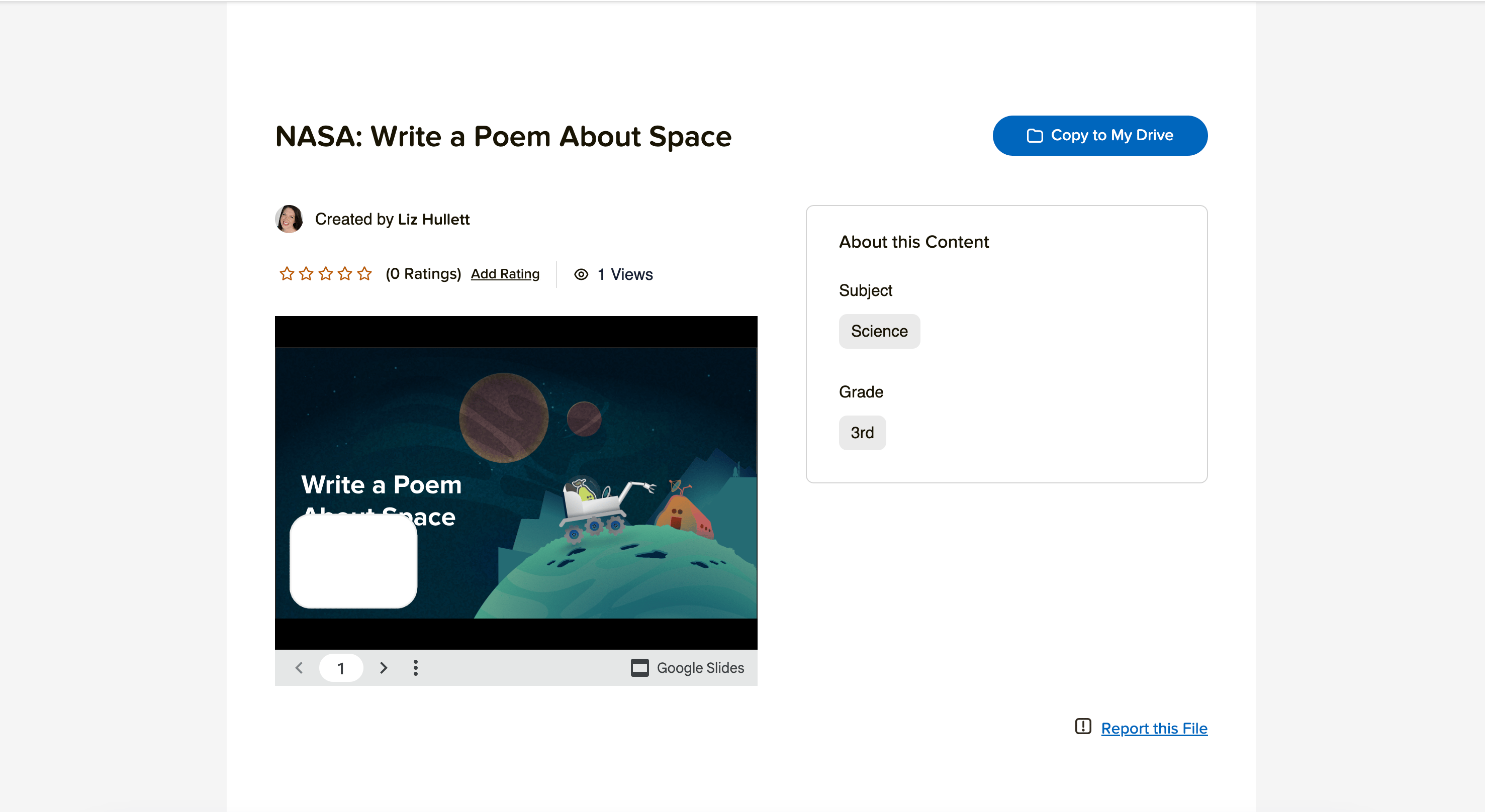
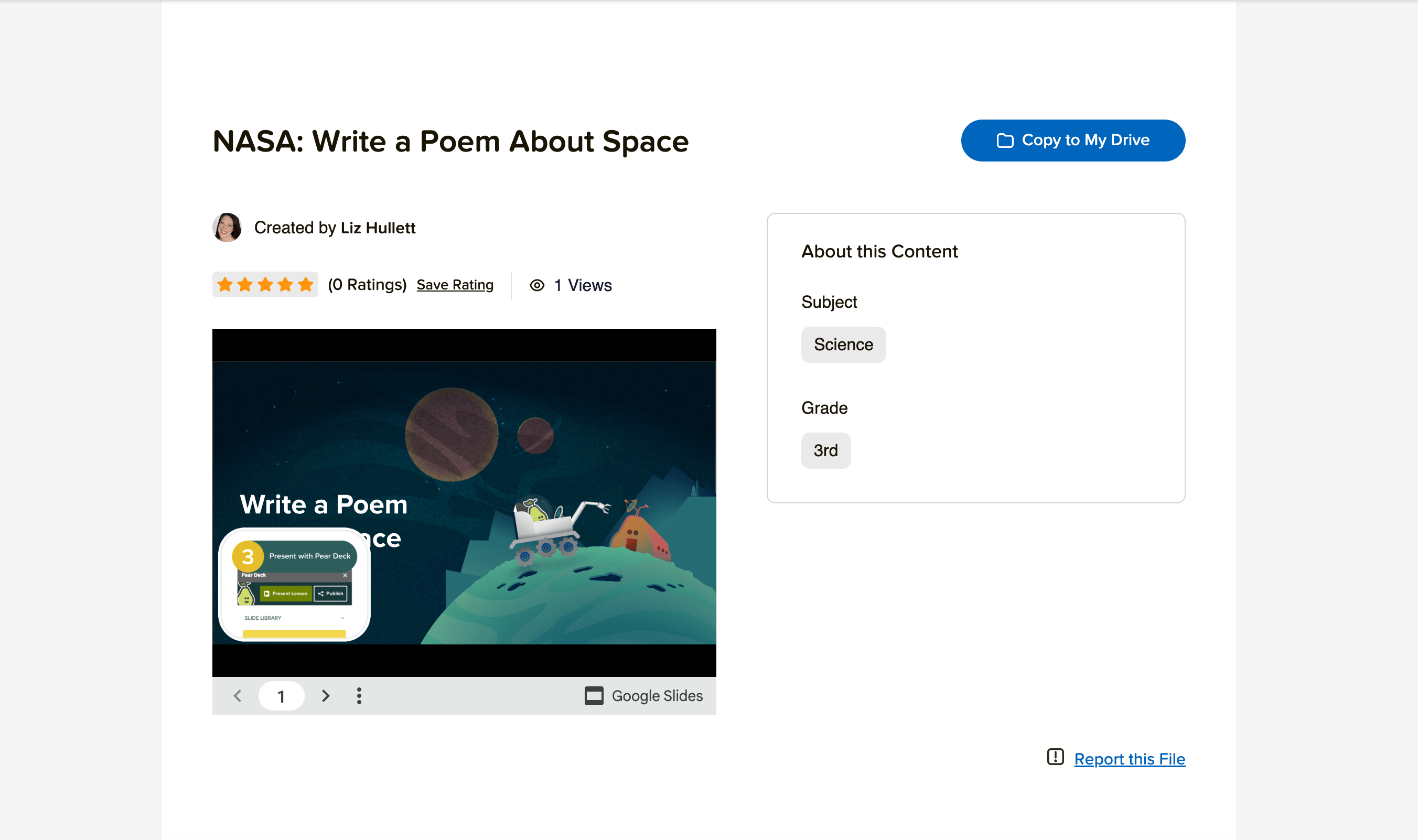
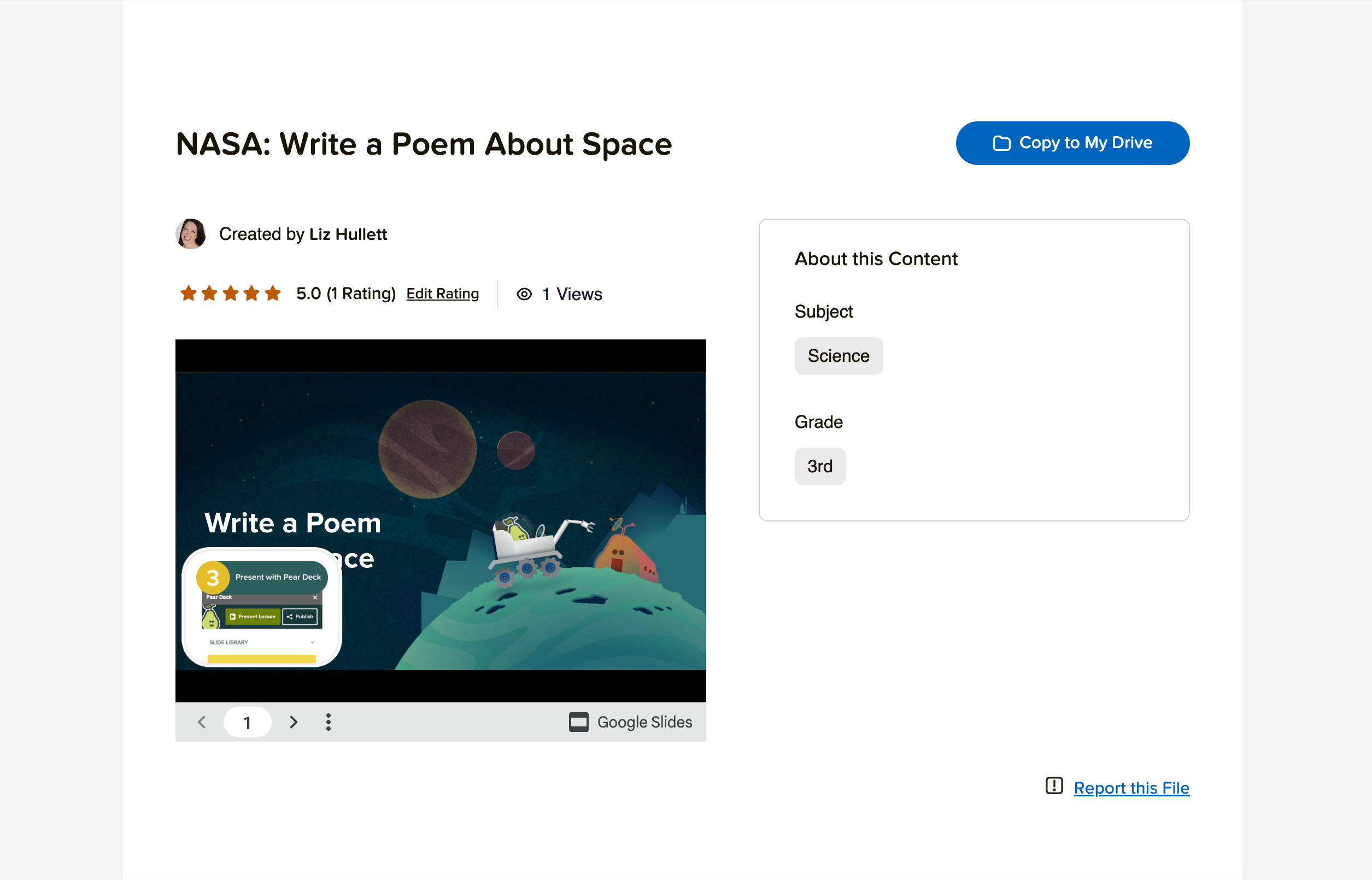
- Choose the number of stars and click Save Rating.
Report a Lesson
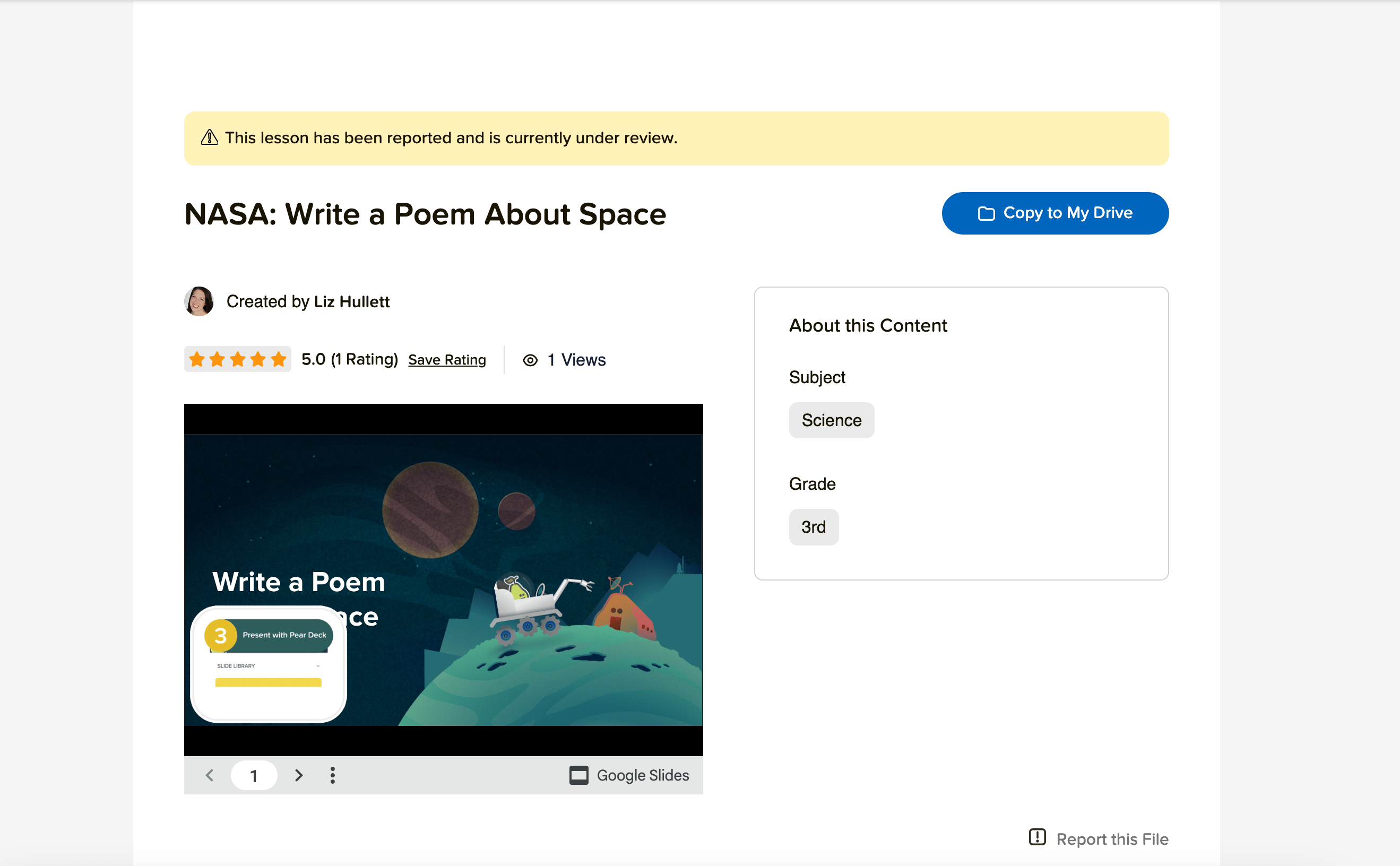
If a lesson should not be in the District Library, you can flag it for review. The Subscription Manager, the person in your district who manages your Pear Deck subscription, receives reported lessons and can remove them from the library.- Select the lesson from the District Library, then click Report this File.
- A confirmation banner appears, confirming that the lesson has been sent to your Subscription Manager for review.
Edit a Published Lesson
You can update the metadata, title, subjects, grade levels, and standards, for any lesson you have published.- Navigate to the District Library and locate your lesson using the search bar or filters.
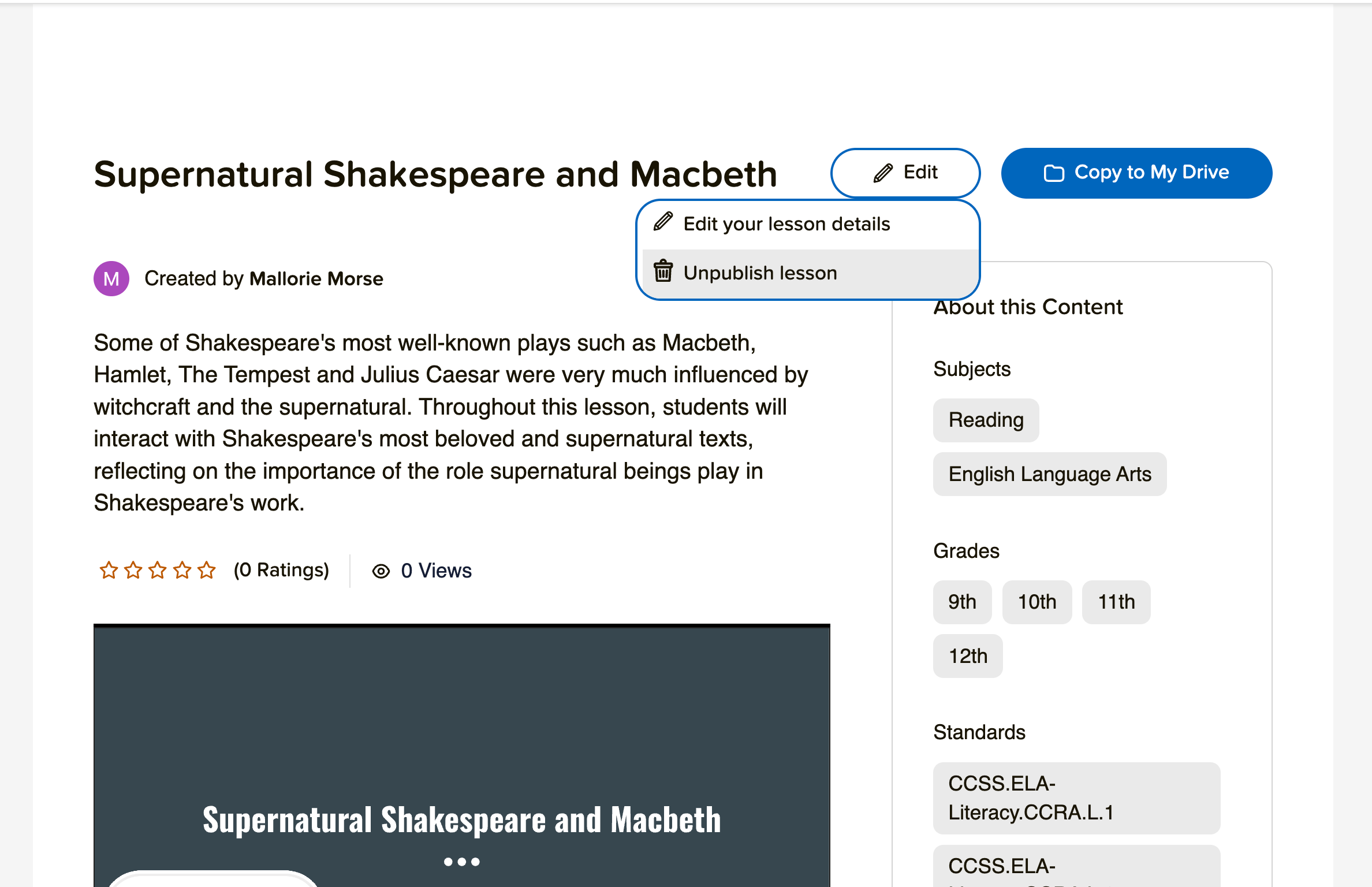
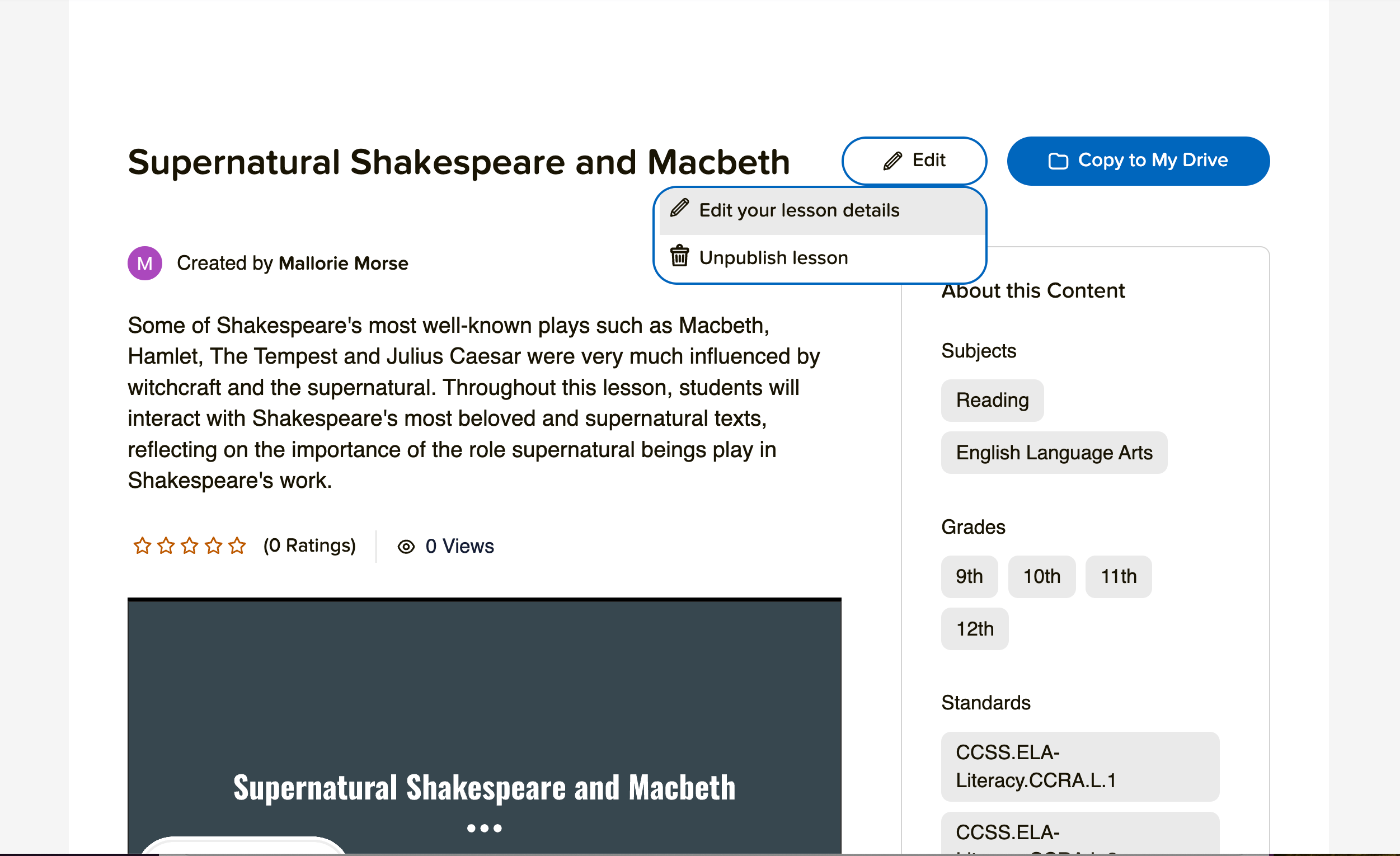
- Click your lesson, then click Edit.
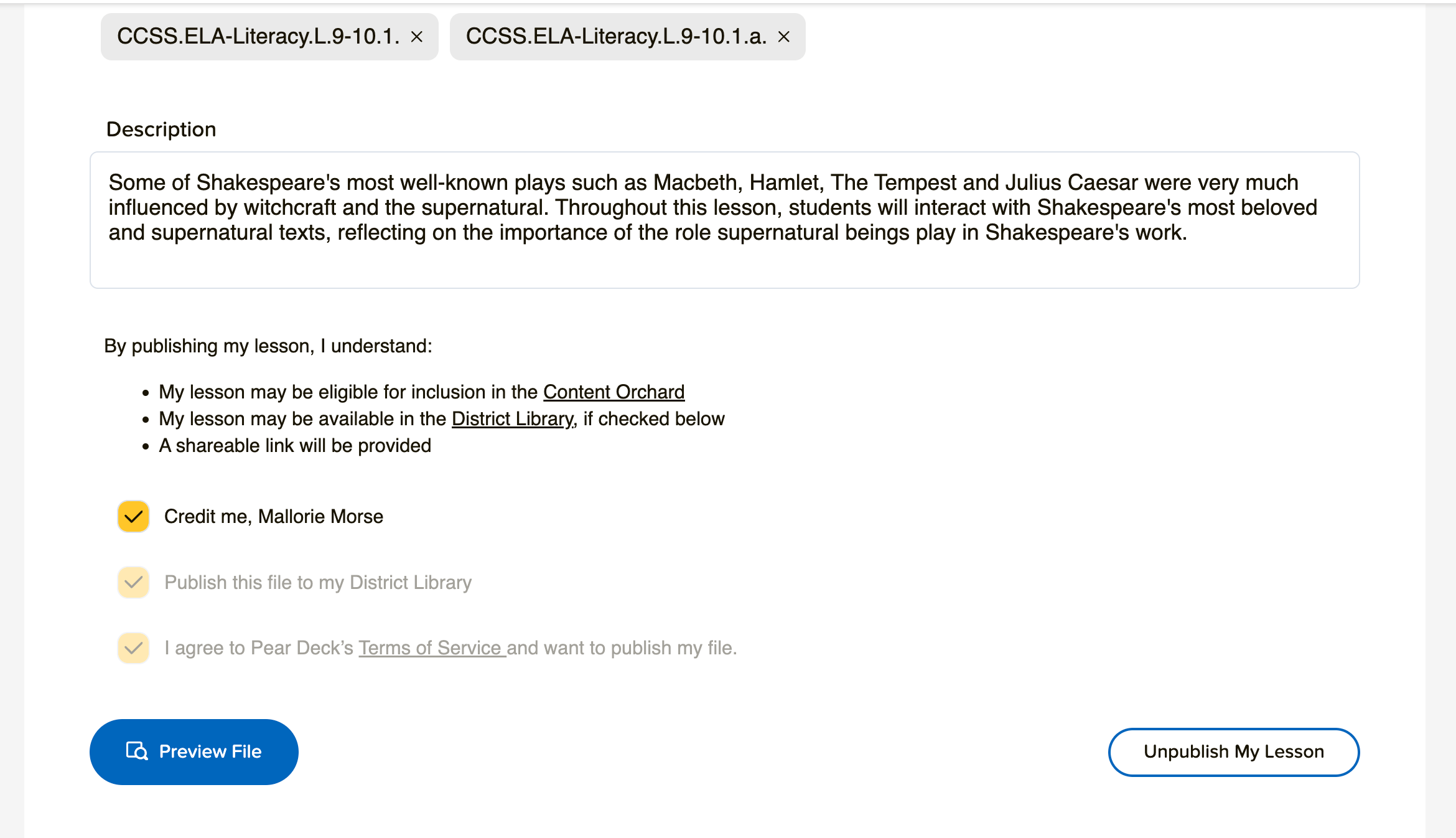
- Click Edit your lesson details, make your changes, then scroll down and click Preview File.
To update the slides themselves, open the original Google Slides file and make edits there. Changes to the original file are automatically reflected in the District Library listing. Copies other teachers have already made are not affected.
Unpublish a Lesson
- Navigate to the District Library and locate your lesson using the search bar or filters.
- Click your lesson, then click Edit.
- Click Unpublish Lesson.
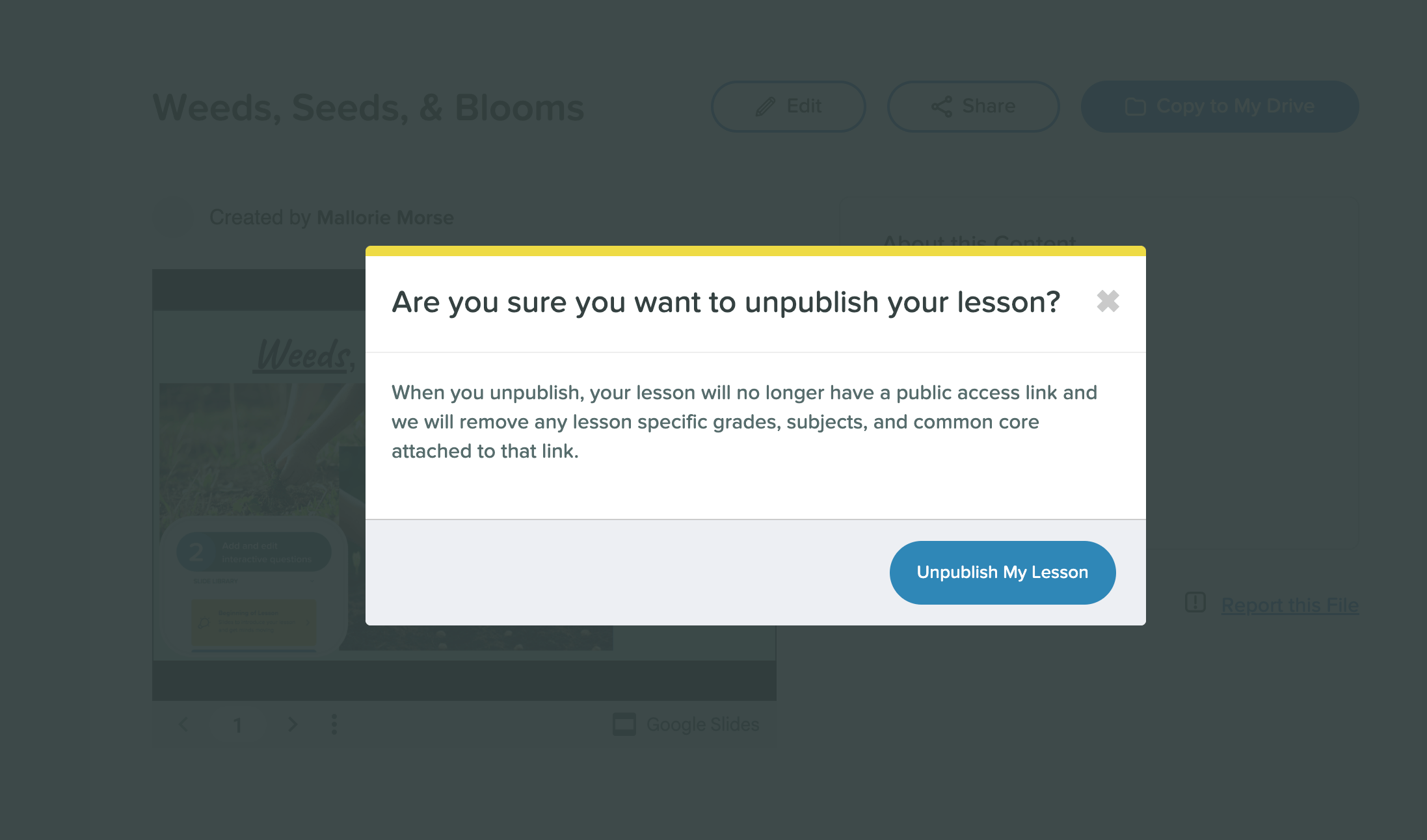
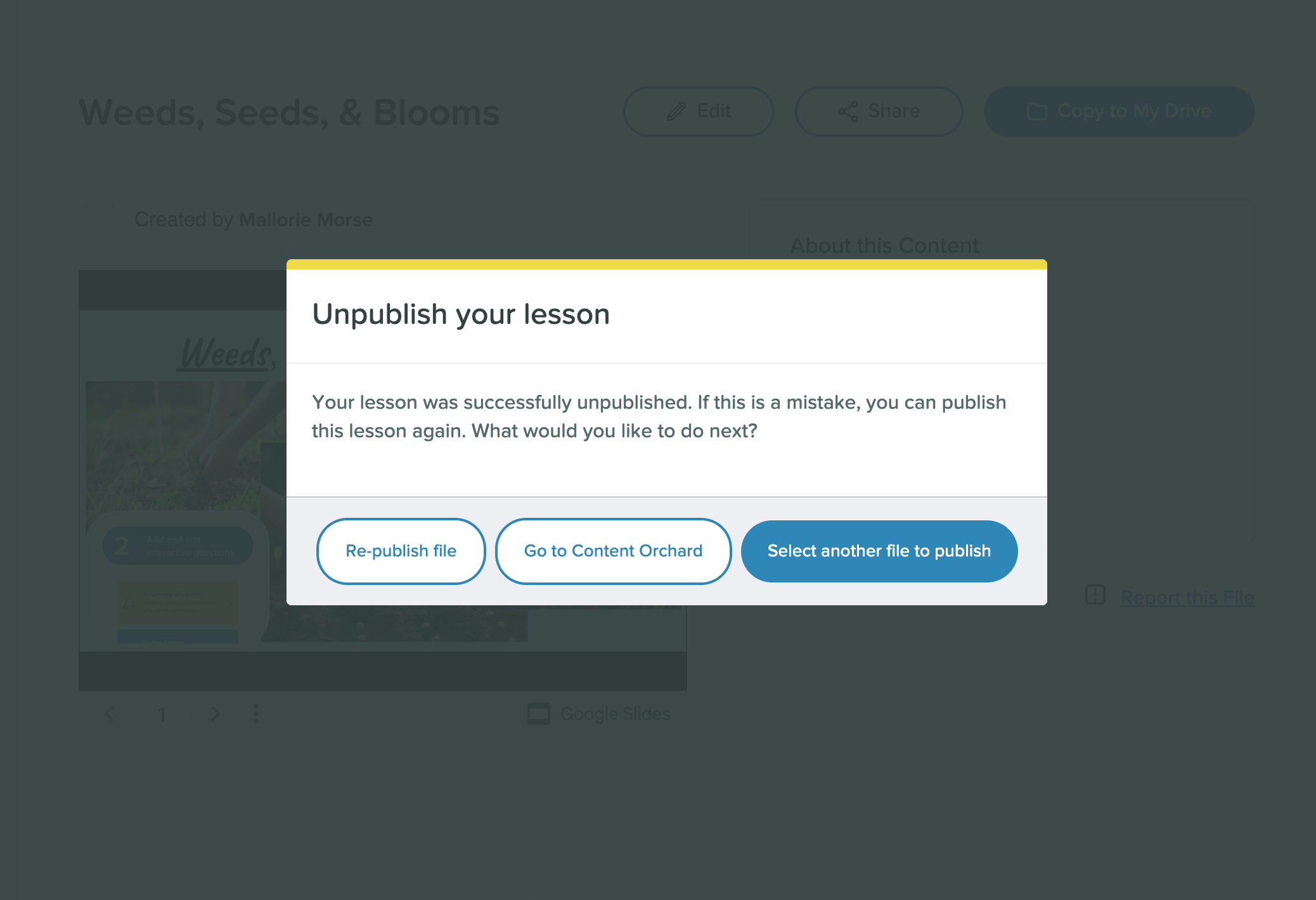
- Confirm by clicking Unpublish My Lesson.