

Access Certified Content
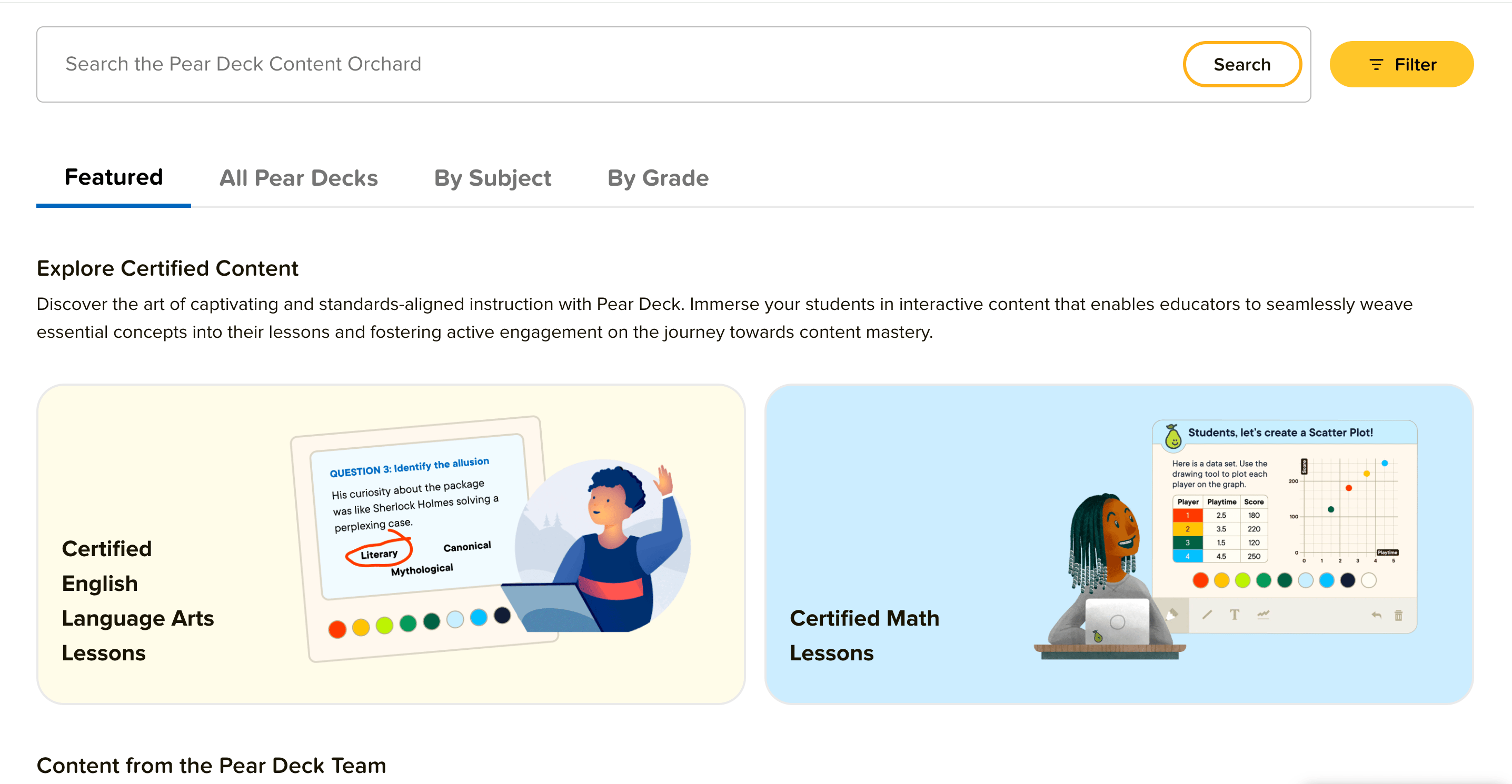
- Sign in to your Pear Deck account and click the Content Orchard tab, or navigate directly to Certified ELA or Certified Math lessons.
- Browse the available decks. Decks with the Certified badge are part of the Certified Content library.

Find a Lesson
- To find a specific topic, enter a keyword in the search field.
- Click Filter and use the menu options to narrow results by Standard(s), Grade, and Subject.
- Click Select Standards and use the dropdown menus to choose your preferred standards.
- When you are satisfied with your selections, click Save and Close.
- Click Apply Filters to see the matching lessons.
Copy a Lesson to Your Drive
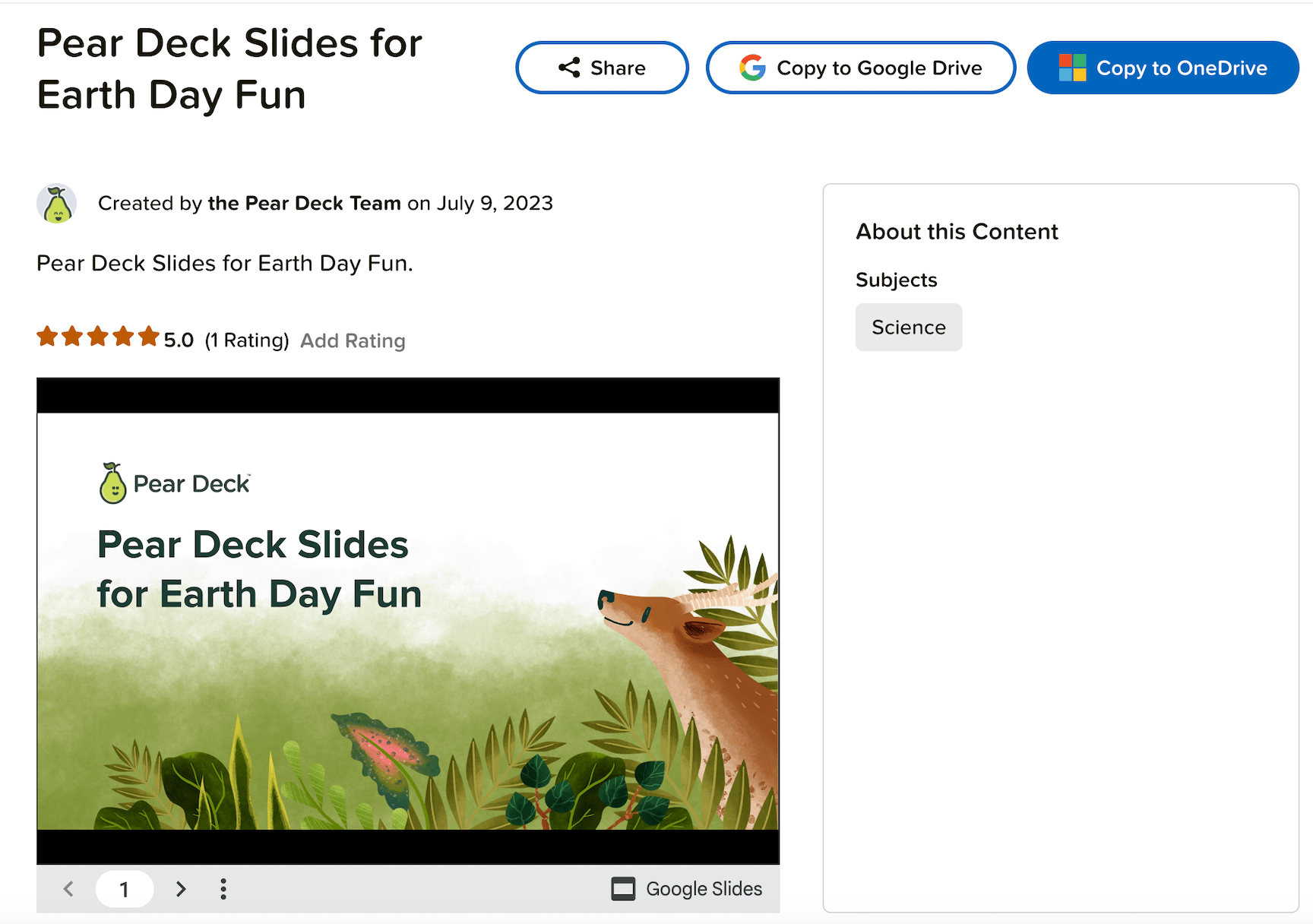
- Click a lesson to view its description, rating, and deck preview. Use the navigation arrows in the preview window to explore the slides.
Users who are not part of a school or district account can preview only the first two slides.
- Click Copy to Google Drive or Copy to OneDrive.
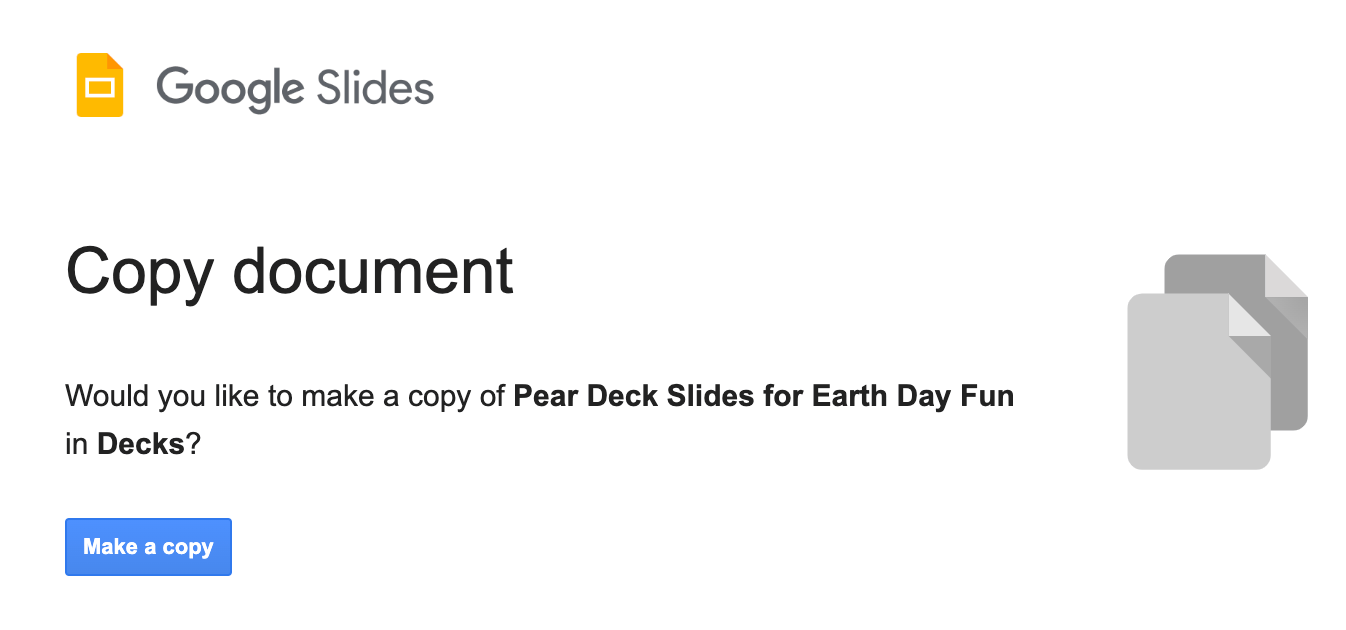
- For Google users, in the next tab, click Make a copy.
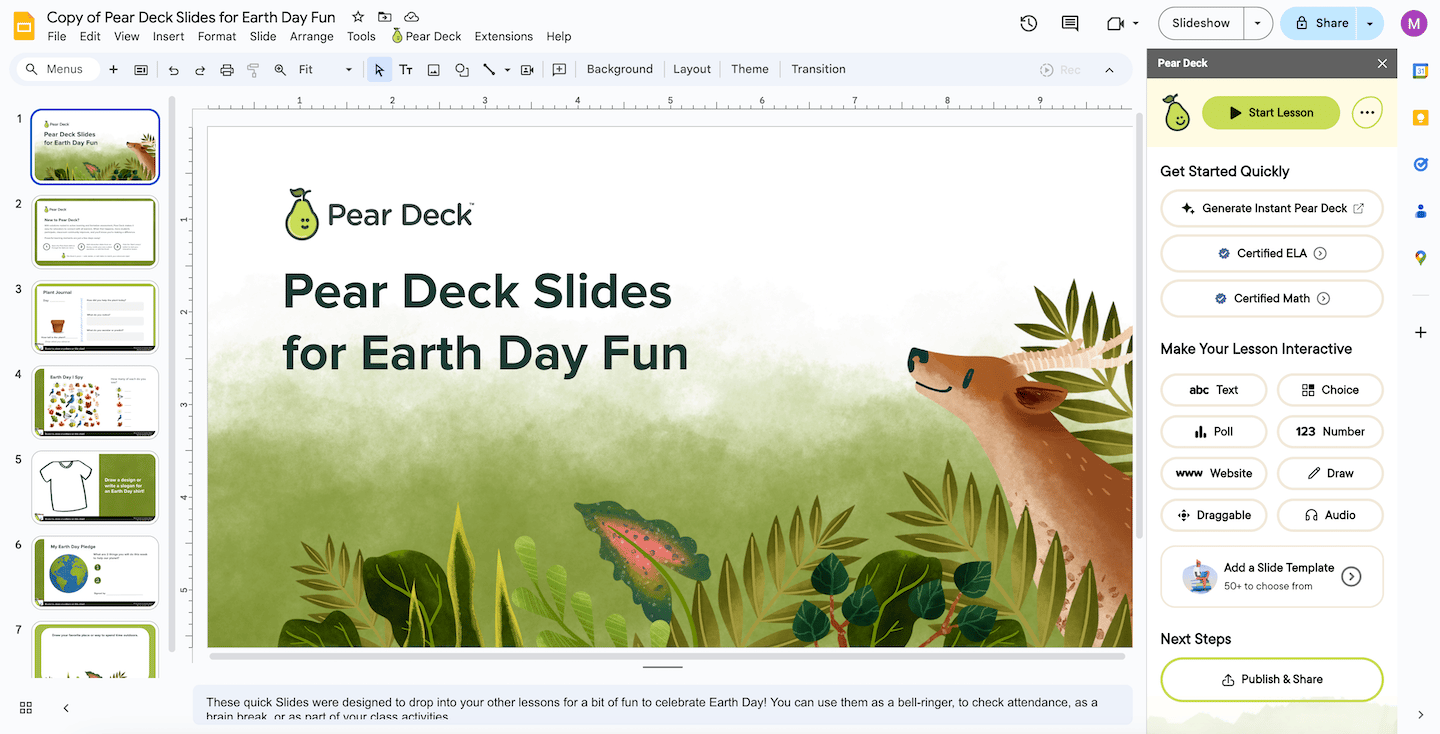
- Your copy of the deck opens automatically in Google Slides or PowerPoint Online. Open the Pear Deck Sidebar to edit the deck or present it to your students immediately.
Resources
Content Orchard Overview
Learn how to browse and use shared community lessons in the Pear Deck Content Orchard.
Present a Pear Deck Session
Start an interactive session and present your deck to students in real time.