

Requirements
Using Pear Deck Instant Share requires both GoGuardian Teacher access and a Pear Deck account.To use this feature and link accounts, the Pear Deck and GoGuardian email addresses must match. If the email address connected to an existing Pear Deck account does not match, you will need to create a new Pear Deck account.
Get Started and Link Accounts
To get started, click the Peary icon in the bottom left-hand corner of your GoGuardian Teacher page. Teachers with an existing Pear Deck account can click Link Account to connect their Pear Deck and GoGuardian accounts by following a short email selection prompt. Teachers without an active Pear Deck account can sign up for a free trial by clicking Sign Up for a Free Trial and following the email selection prompt. After the trial has been initiated, clicking Peary again will prompt you to Link Account and follow an account selection prompt to finish the process. Once account linking is complete, a new Pear Deck tab appears while GoGuardian Teacher classes are in session. Clicking the Pear Deck tab provides the following options:Open an Existing File in Google Drive
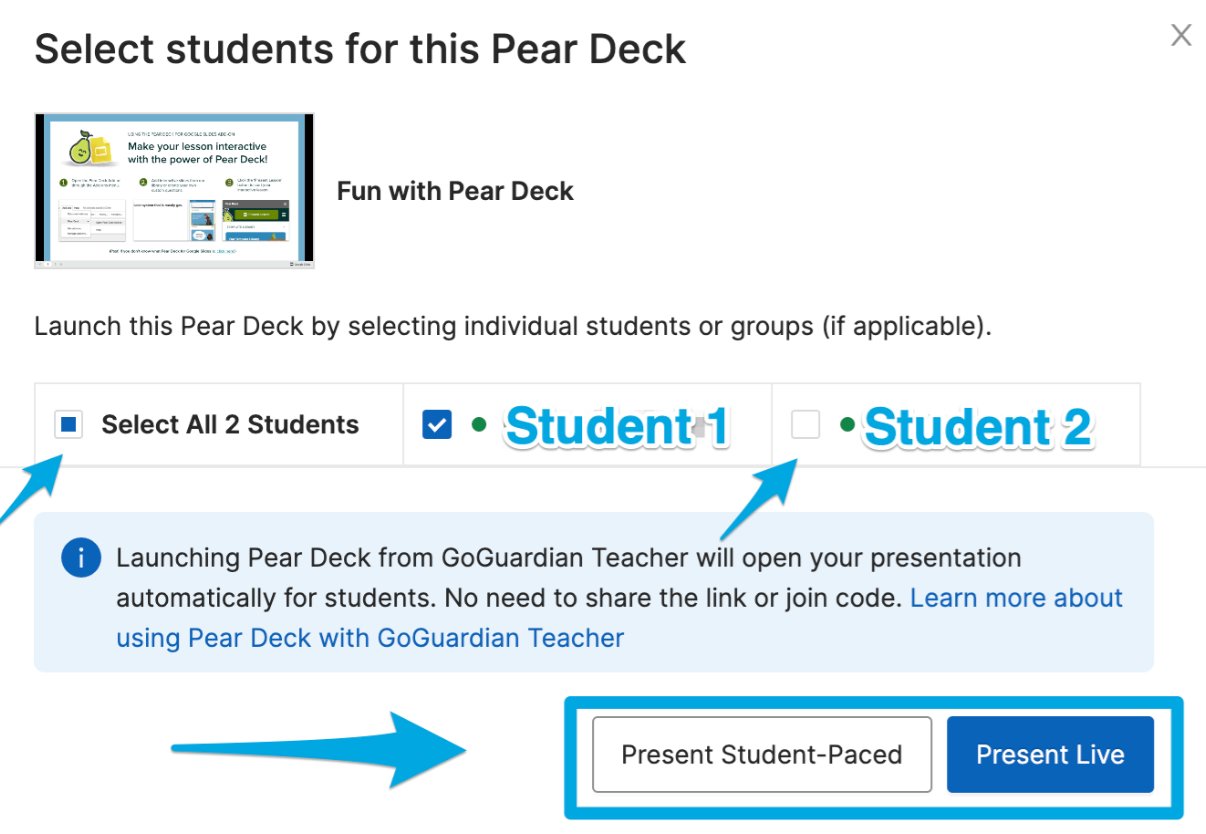
Choosing to open an existing file launches a Google Drive file selection window containing saved Google Slides presentation files. Select a file from your personal Google Drive account, or select Shared drives to choose a presentation file that has been shared with you. Once a file has been selected, a student selection modal appears. Use Select All to select all students in the classroom, or select students individually by checking the box next to each name. After completing the selection, choose either Present Student-Paced or Present Live. The Student-Paced option allows students to navigate through the presentation at their own pace, while Present Live gives teachers control over the pace of the presentation. For more information on lesson pacing options, refer to Student-Paced Lessons.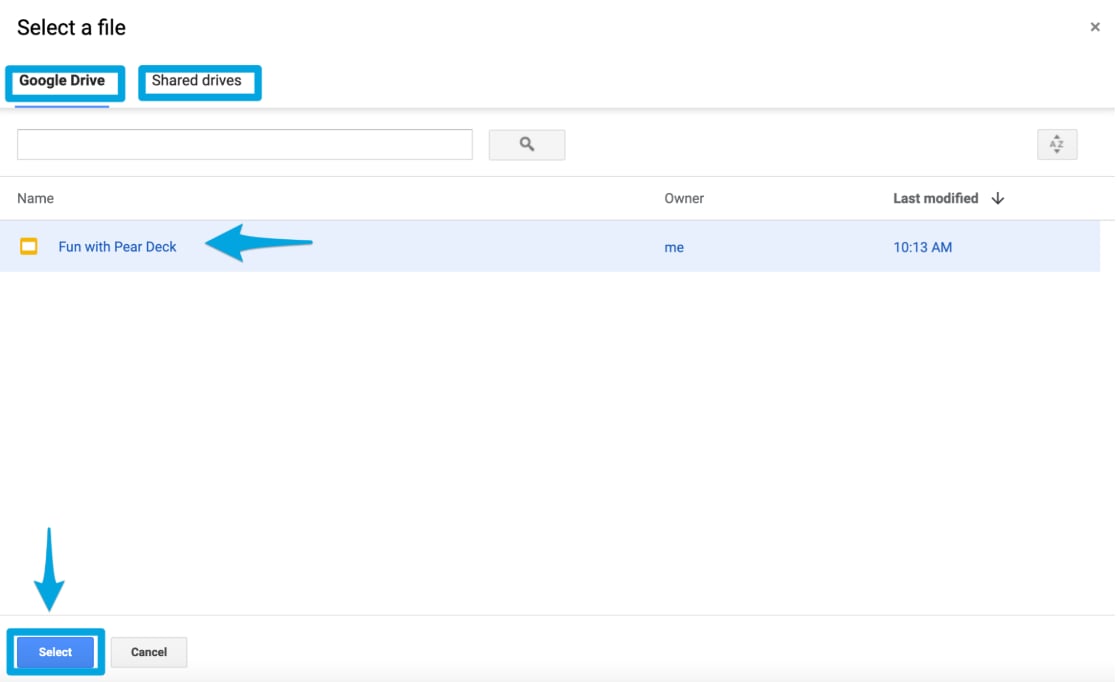
Create a Pear Deck Lesson
Opting to create a Pear Deck lesson opens a new Google Slides presentation that can be customized and used in class as needed. If you have not previously used Pear Deck, select the Pear Deck icon and install the Pear Deck for Google Slides add-on. For more information on the add-on and creating a new lesson, refer to Create a New Pear Deck Lesson.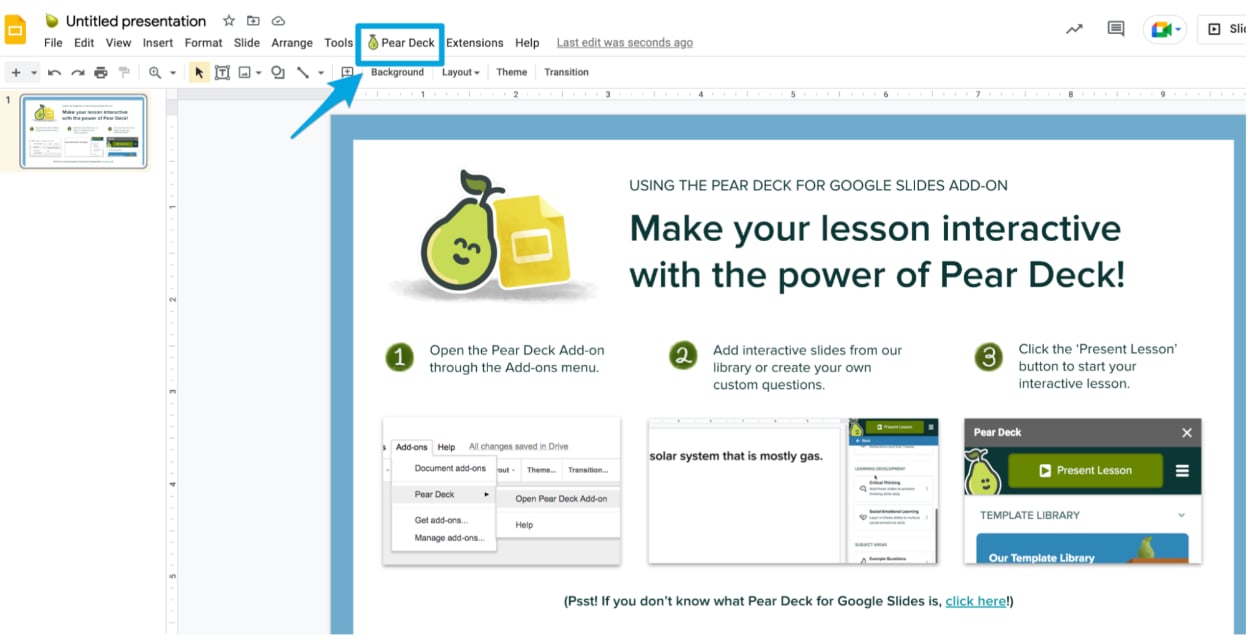
Visit the Content Orchard
The Pear Deck Content Orchard contains a library of free template packs that can be used and customized to improve class engagement. For more information on the Content Orchard and how to use it, refer to Content Orchard.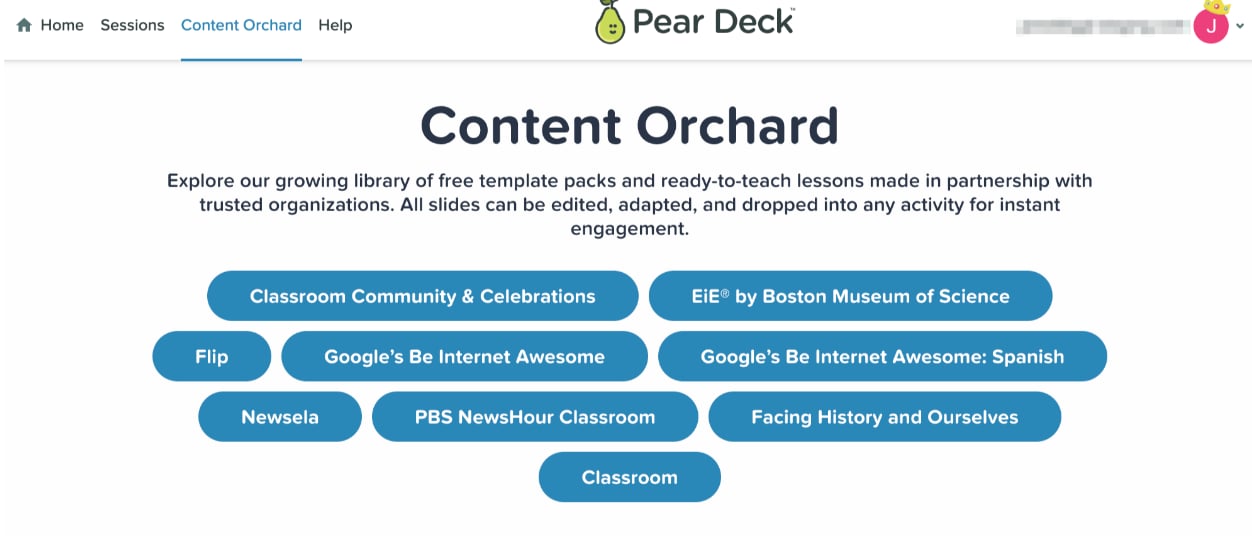
Resources
Student-Paced Lessons
Learn how to let students navigate presentations at their own pace.
Create a New Pear Deck Lesson
Build a new Pear Deck lesson using the Google Slides add-on.