

Quick Prompt activities require a Pear Deck Premium subscription.
- Running a low-stakes pop quiz as a retrieval practice tool
- Launching an entrance ticket as students arrive, or an exit ticket as they leave
- Opening a whole-class discussion when a student asks a question worth exploring together
Launch a Quick Prompt
- Open your Pear Deck Home.
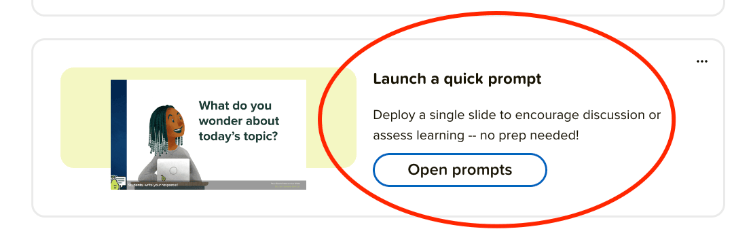
- Scroll down and click Open prompts.
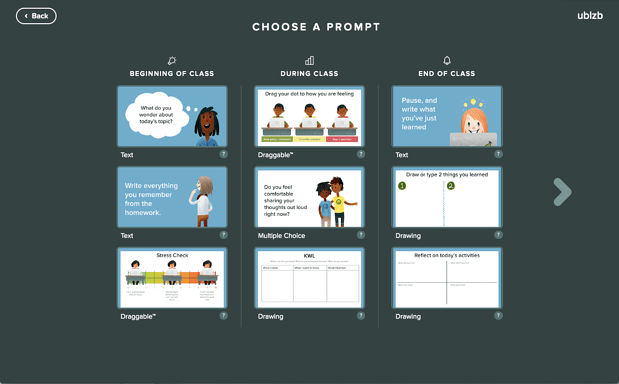
- Select one of the pre-made interactive slide prompts. Each prompt shows a preview and the interactive response type below it. Click the right arrow to browse the second page of options.
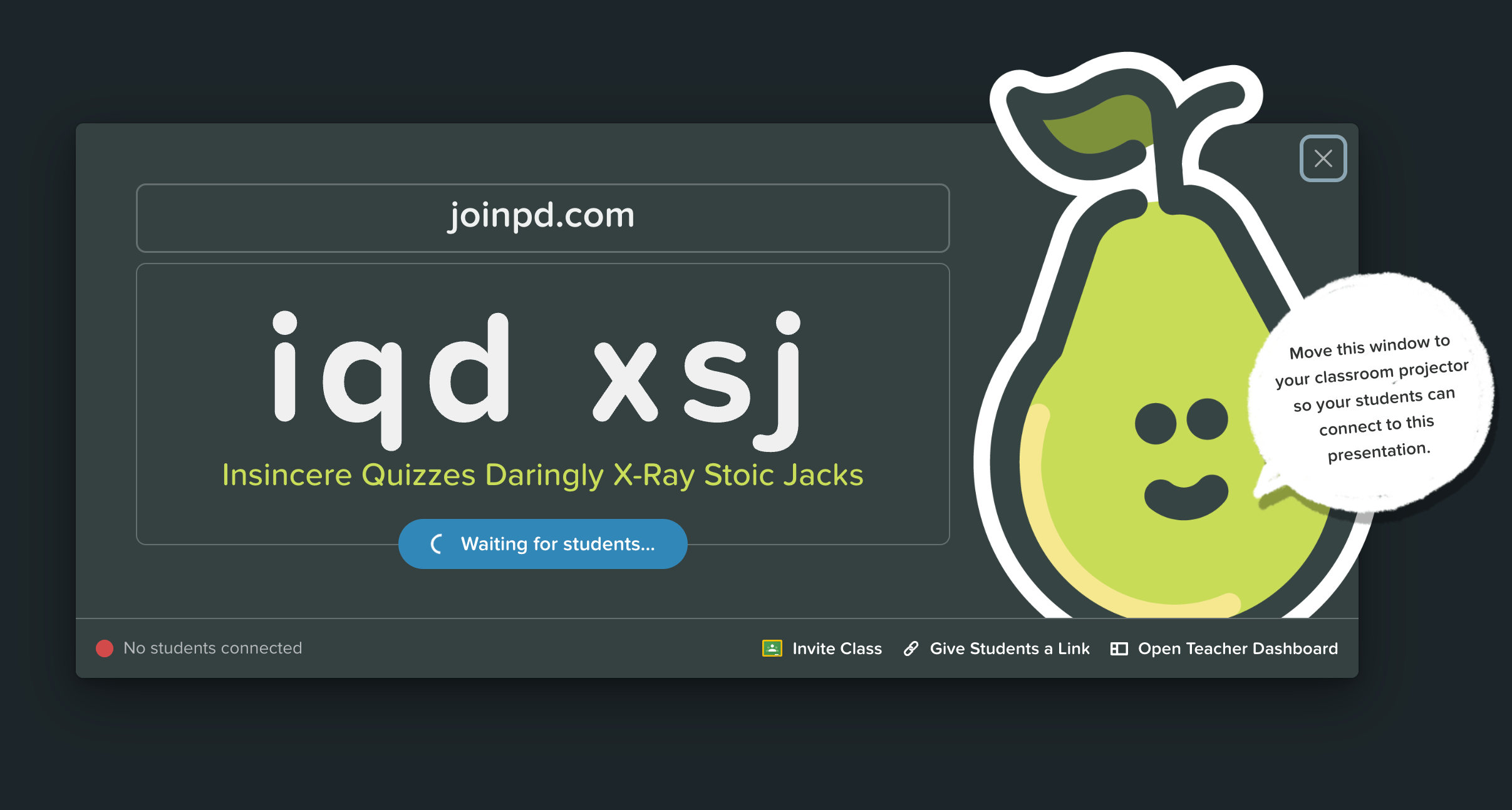
- A new Pear Deck session begins. To join, students go to joinpd.com and enter the Join Code. You can also click Give Students a Link and share the link through Google Classroom, Microsoft Teams, or any platform students can access. Students sign in with an email address or join anonymously with an avatar. You control this in your Session Settings.
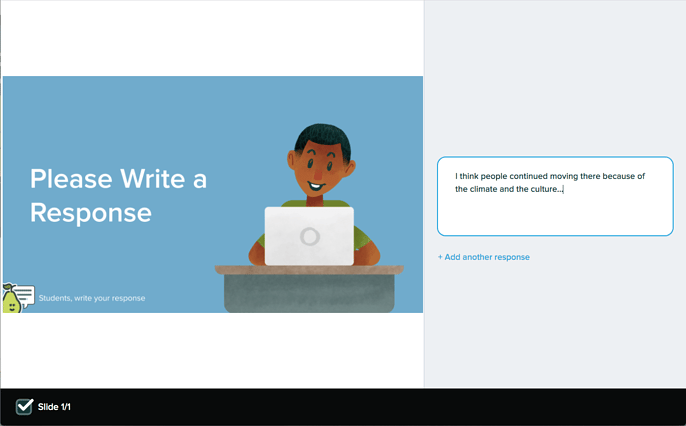
- Students respond on their own screens. The response format depends on the prompt type you selected.

Review Responses
On your Projector View, the Navigation Bar at the bottom of the screen shows the number of responses received.- Click Show Responses on your Projector View to display anonymized responses to the class.
- Click the three-dots button to open the private Teacher Dashboard, where responses appear with student names.
- Visit your Sessions Menu to review responses from past Quick Prompt activities.
Resources
Present a Pear Deck Session
Configure session settings, share join codes, and manage student access during a live Pear Deck session.
How to Use the Pear Deck for Google Classroom Add-on
Install and use the Pear Deck Add-on to launch interactive presentations directly from Google Classroom.