

Install the Add-In
- Open any PowerPoint Online presentation.
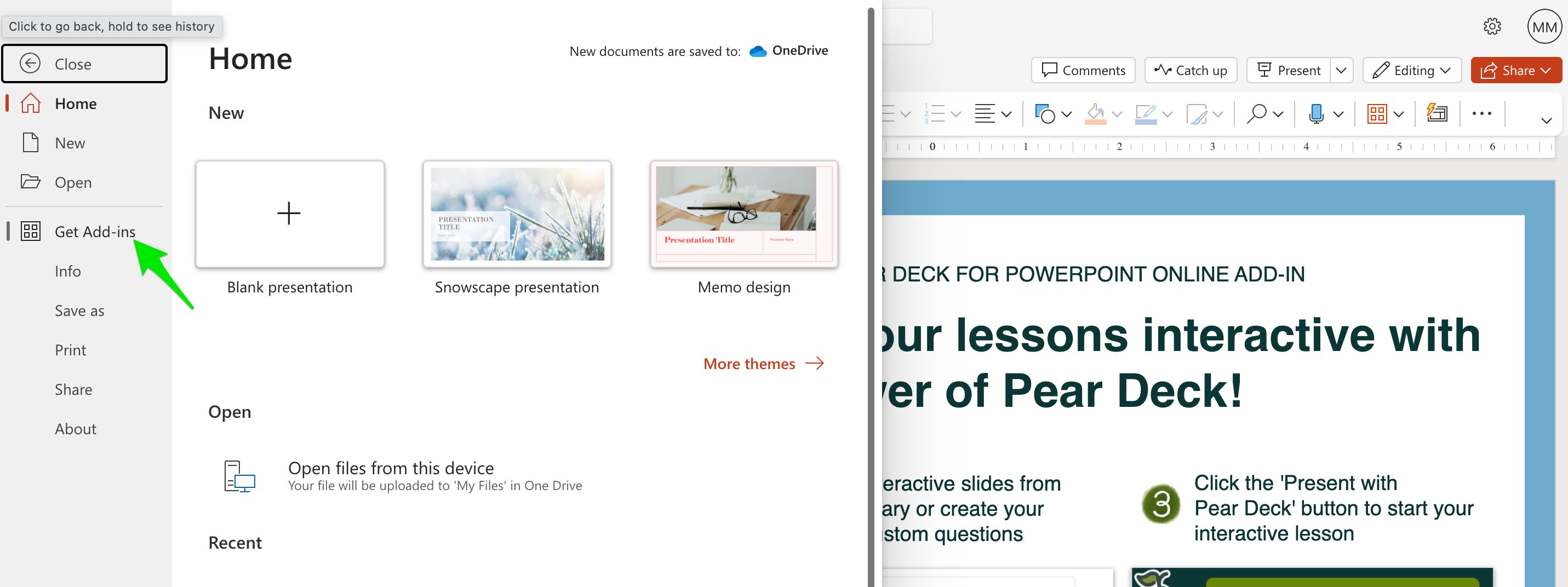
- Click the File tab.
- Click Get Add-ins.
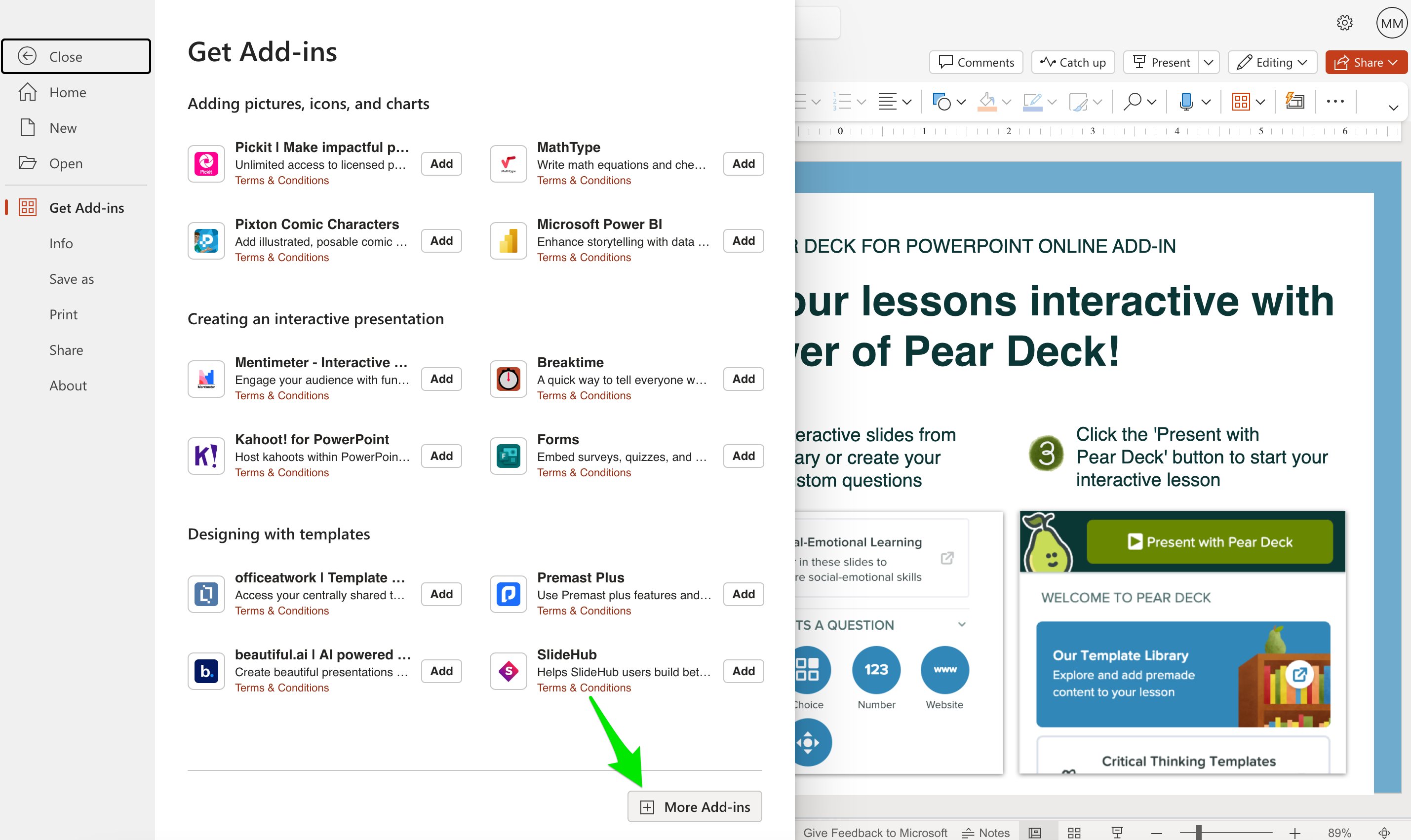
- In the Office Add-ins menu, click More Add-ins.
- Search for the Pear Deck Add-in and click Add to install it. The Add-in is free, with additional features available through Pear Deck Premium.
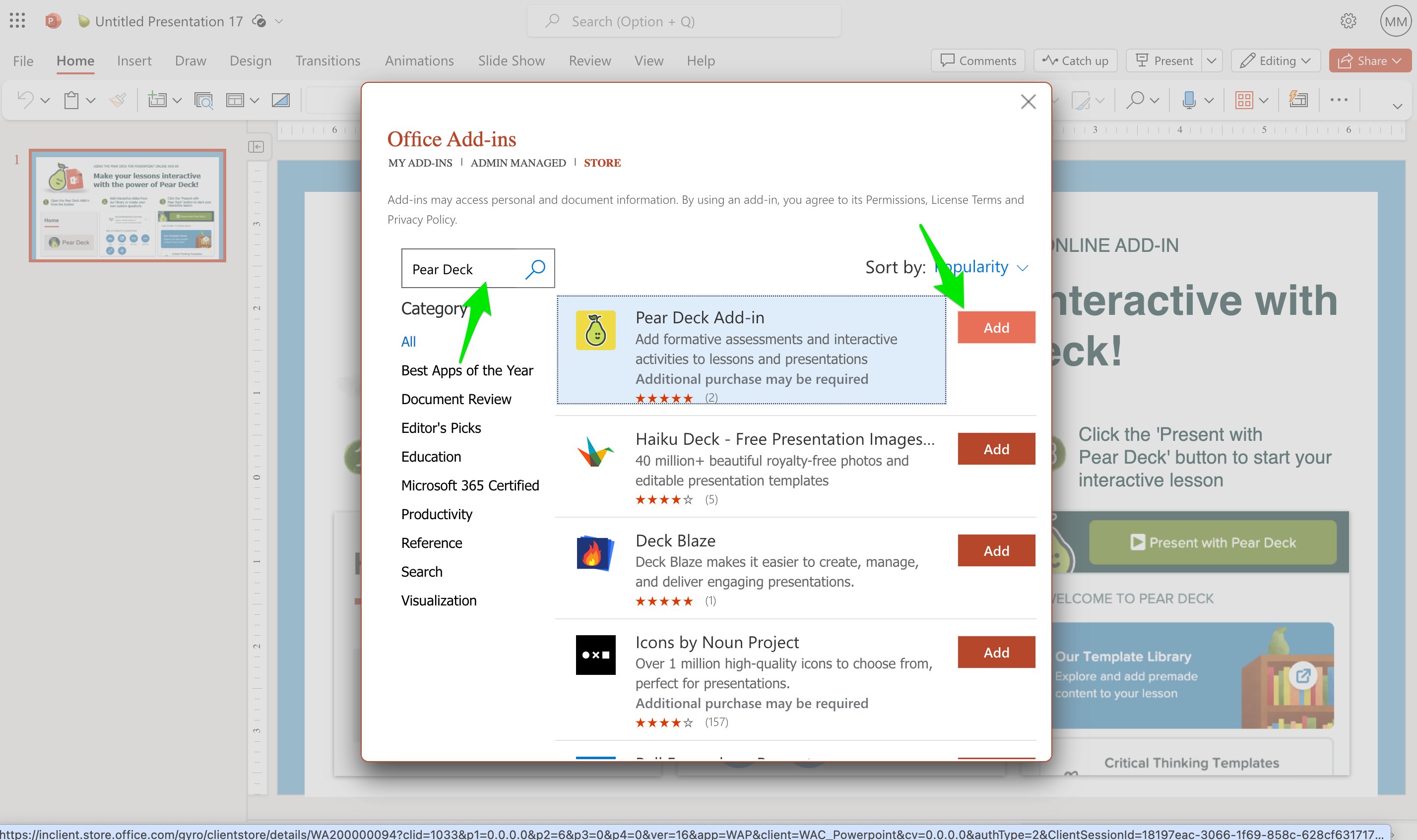
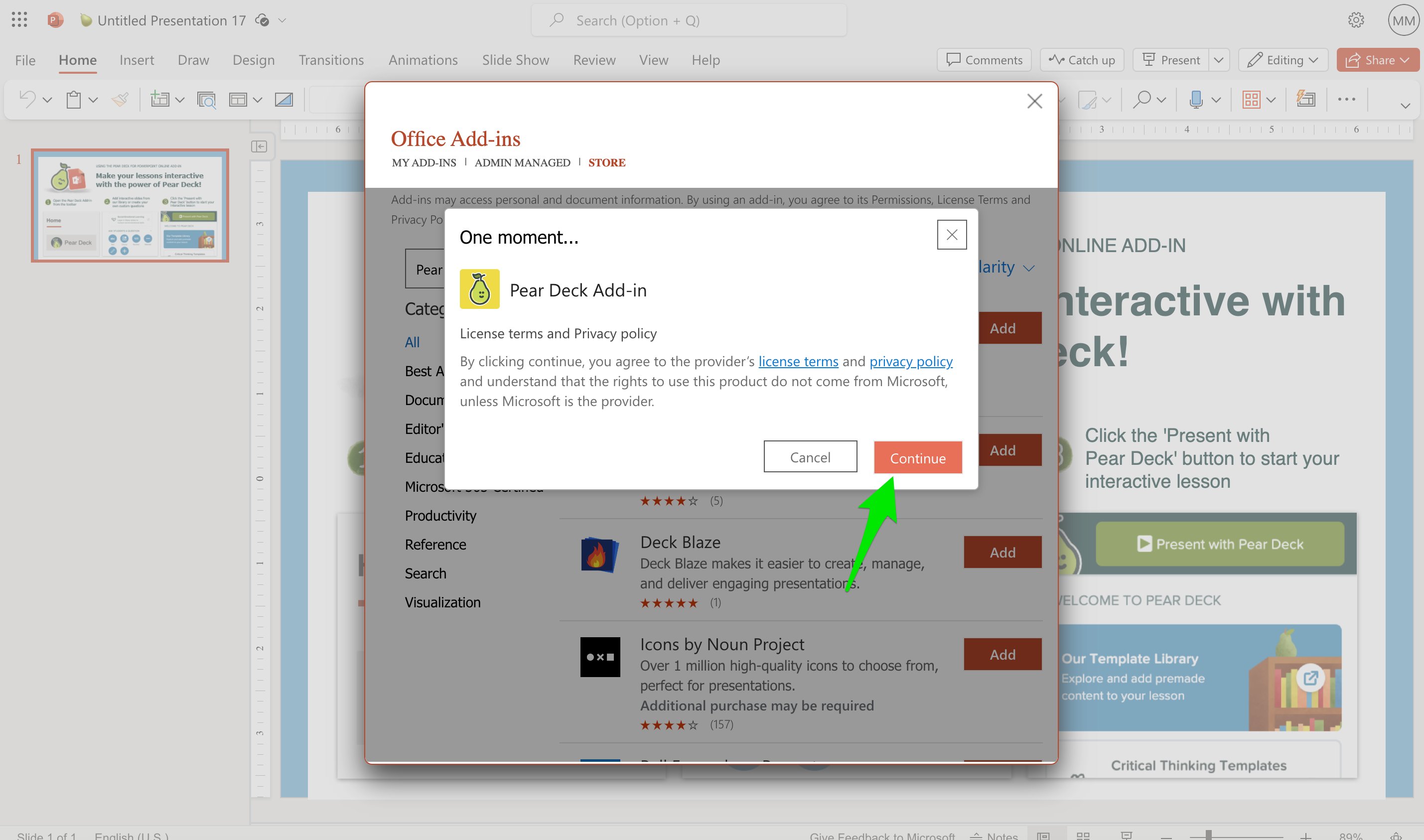
- Click Continue.
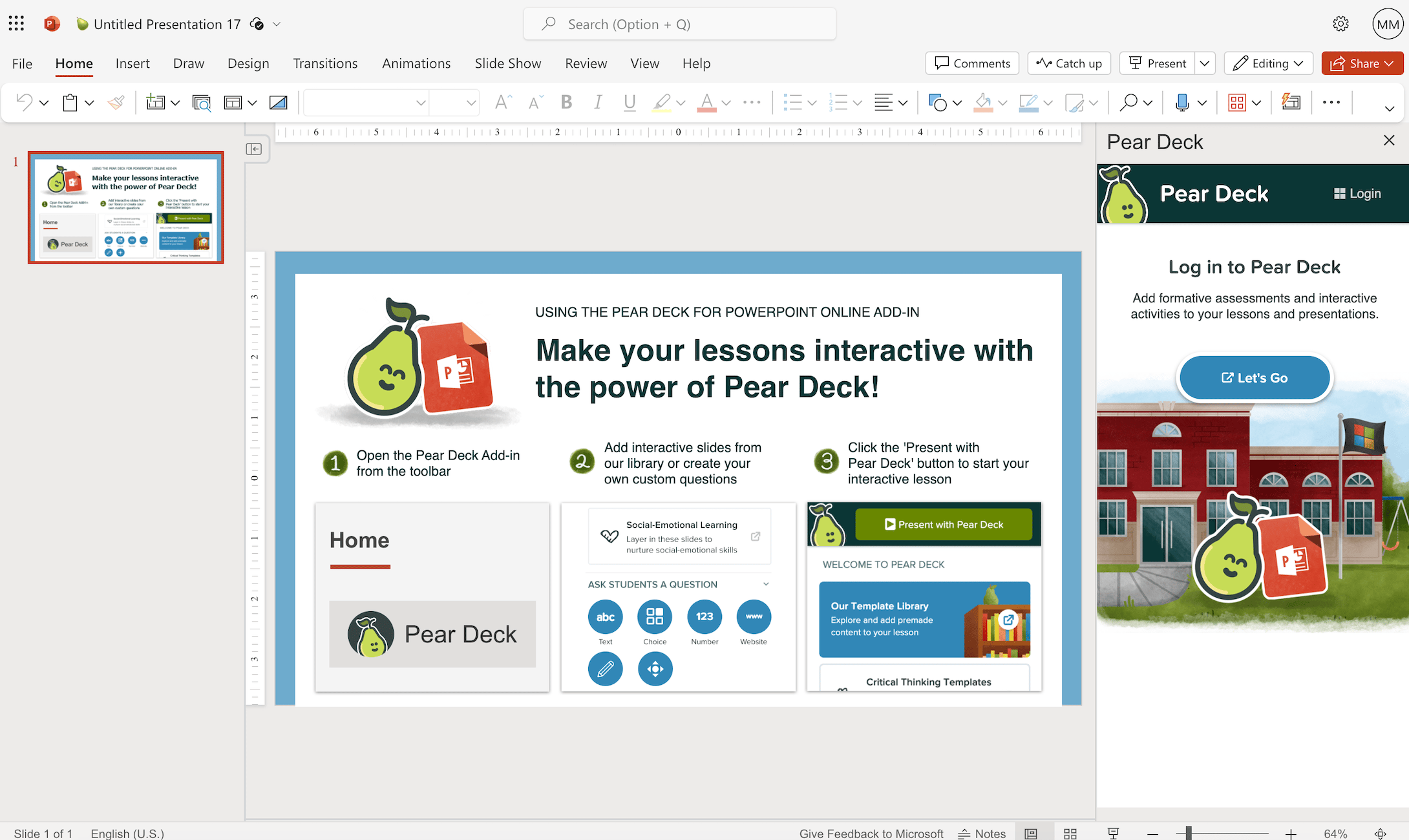
- When prompted in the sidebar, sign in to your Pear Deck account.
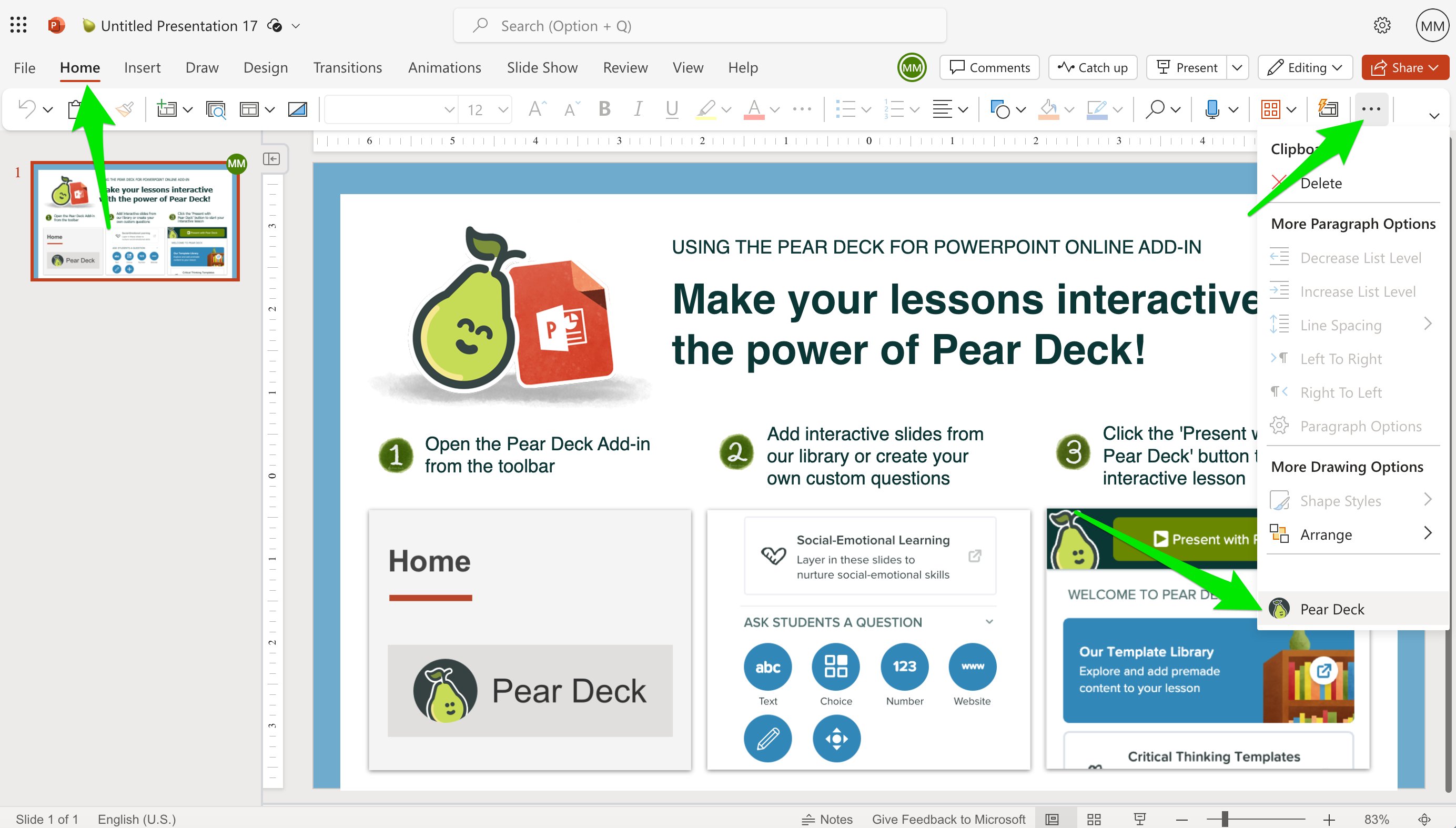
- After installation, click the Home tab, then click the More Options (three-dot) button and select Pear Deck to open the sidebar.

Can’t Find the Pear Deck Add-In?
If you followed the steps above but could not find the Pear Deck Add-in, your Office 365 site administrator may need to deploy it for your school first. Share the Pear Deck for PowerPoint Online Administrator Installation Guide with your administrator so they can enable your access.Resources
Add Premade Slide Templates to Your Presentation
Download and use pre-made interactive slide templates from the Pear Deck Template Library.
Pear Deck for PowerPoint Online Administrator Installation Guide
Deploy the Pear Deck Add-in for all users at your school as an Office 365 administrator.