

Start Your Presentation
- Sign in to your Office 365 account.
- Go to Apps and click Teams.
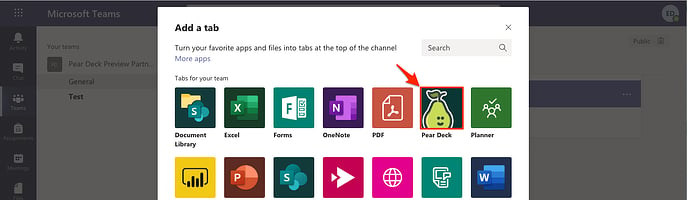
- With the Teams screen open, click the new tab button.
- In the Teams apps menu, select Pear Deck.
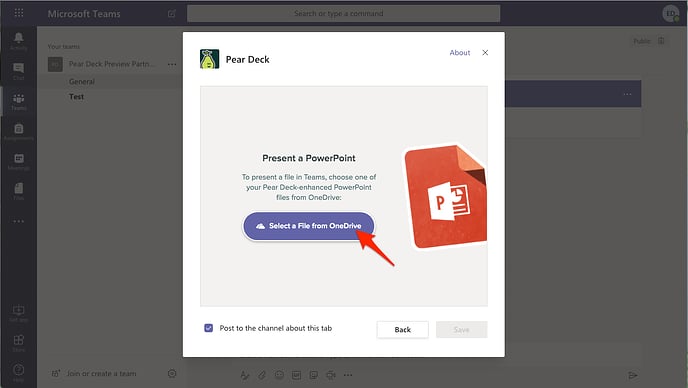
- Click Select a File from OneDrive to choose the PowerPoint Online file you want to present.
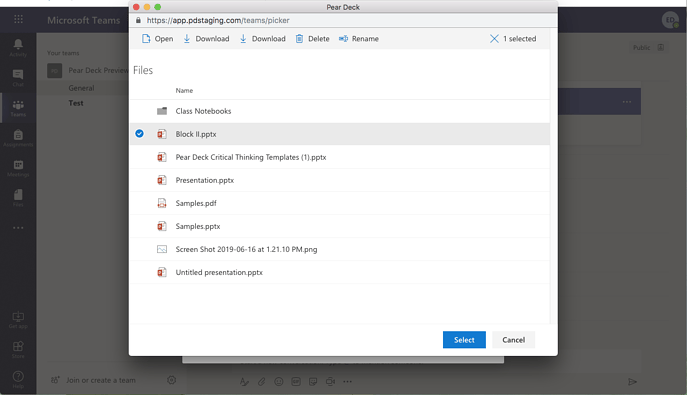
- In the file picker, select the file you want to present with Pear Deck.
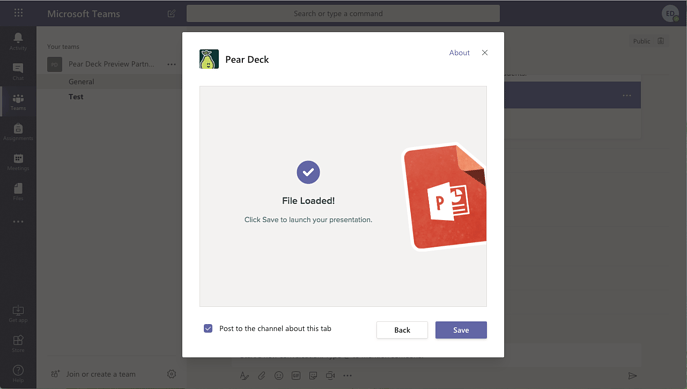
- Once the file has loaded, click Save to launch your presentation.
- Your presentation starts and the Dashboard opens in a new tab. Use the Dashboard to run the presentation and review student responses in real time. See Use the Teacher Dashboard to learn what you can do. Responses from this session are saved automatically in your Sessions menu.

Help Students Join
How students join depends on whether they are already in your Teams environment. Both paths work. Students already in your Teams environment Students who are in your Teams environment do not need a Join Code. They navigate to Teams, click the presentation tab, and click Sign in to Pear Deck to join.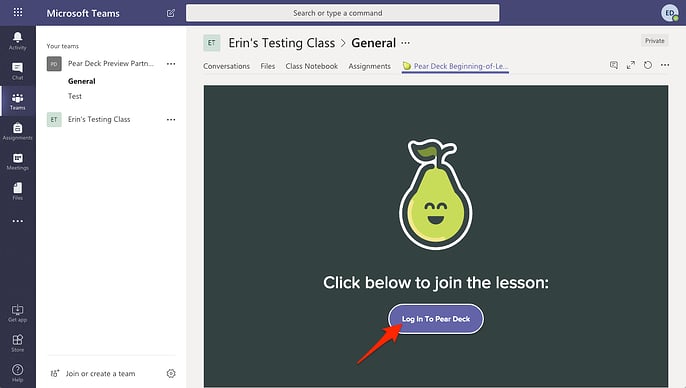
- Click Open Projector View. This opens the Projector View in a new tab.
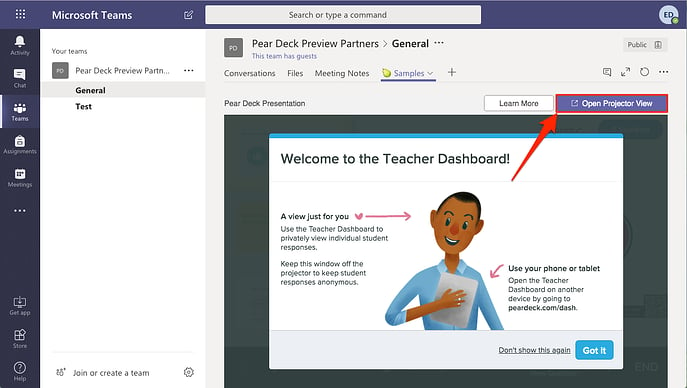
- The Projector View always displays student responses anonymously. This is the view to show on your classroom screen. See Present a Pear Deck for more detail.

- Students go to joinpd.com, enter the Session Join Code shown in your Projector View, and sign in with their Microsoft Office 365 accounts.

Run Your Presentation
The Dashboard and Projector Views stay in sync automatically. Use the Navigation Bar in the Dashboard to move through slides. The Projector View and student views follow. See Present a Pear Deck to learn what you can do with the Navigation Controls.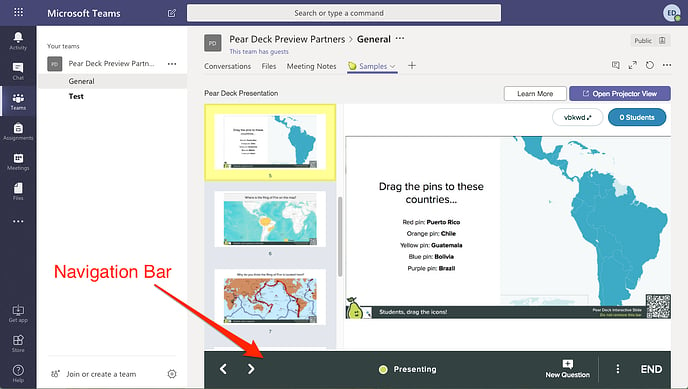
Resources
Use the Teacher Dashboard
Control your session and review student responses by name from the private Dashboard View.
Present a Pear Deck
Learn how to use the Navigation Controls and Projector View during a live session.