

This integration is available only to users who have a district- or school-wide subscription to Pear Deck. Contact your Pear Deck Partnership Manager or email help@peardeck.com for more information.
Check the Requirements
Before you begin, make sure you have:- A district- or school-wide Pear Deck subscription
- Canvas administrator access to install and enable the integration
- For LTI 1.3, LTI learning management system (LMS) integration access assigned to your Pear Deck account through the Pear Deck Admin Portal
- For LTI 1.1, administrator access to your Pear Deck district-wide subscription to generate the Key and Secret
Choose Your LTI Version
Choose the setup method you want to use, then follow only that version’s instructions. The credentials and configuration steps are different.Install Pear Deck With LTI 1.3
Complete the following steps as an administrator.Generate a Registration URL in Pear Deck
- Sign in to Pear Deck with an account that has LTI LMS Integration access.
- Go to Accounts > LTI/LMS Integration Settings.
- Click + Add New Integration.
- Configure the following settings:
- LMS integration: Canvas
- LTI specification: LTI 1.3
- Registration method: Dynamic Registration
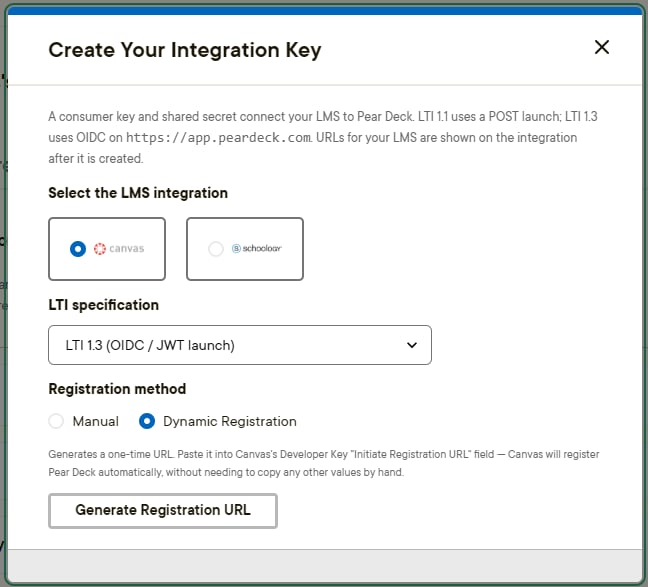
- Click Generate Registration URL.
- Copy the generated URL to use in Canvas.
The registration URL is valid for 30 minutes after it is generated. Complete registration in Canvas within that time. If the URL expires, generate a new URL in Pear Deck.
Register the App in Canvas
- Sign in to Canvas as an administrator.
- Go to Admin Settings > Apps > Manage.
- Click Install New App.
- Choose LTI 1.3, then select Dynamic Registration.
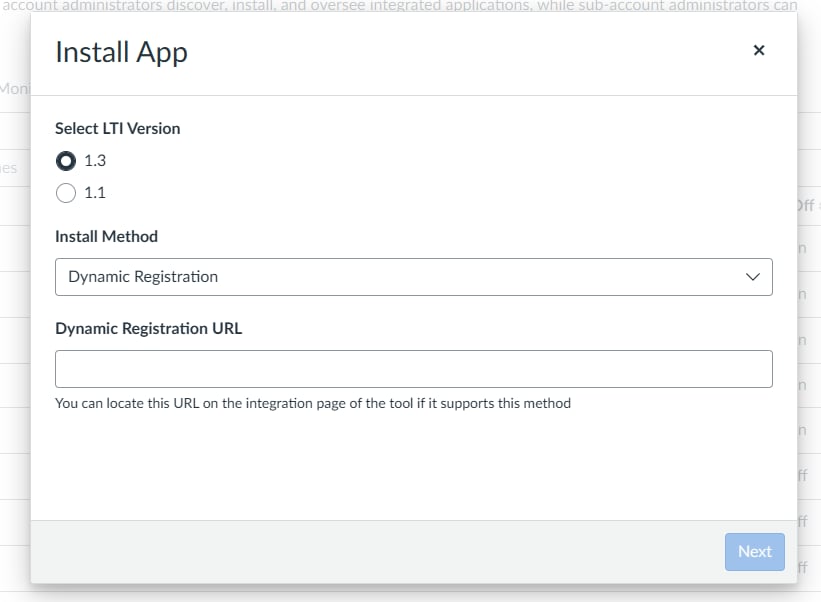
- Paste the registration URL you copied from Pear Deck.
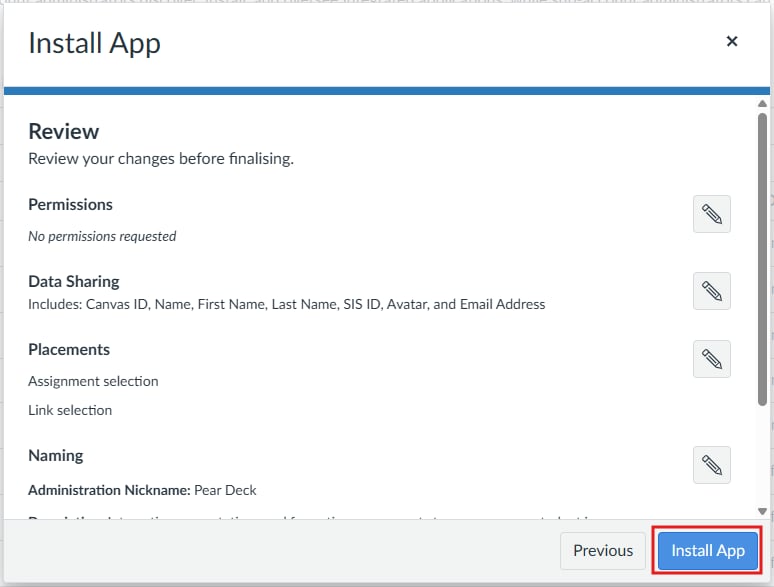
- Review and accept the requested user-data sharing permissions, then follow the on-screen prompts.
- Install the application.
Enable the App and Verify the Client ID
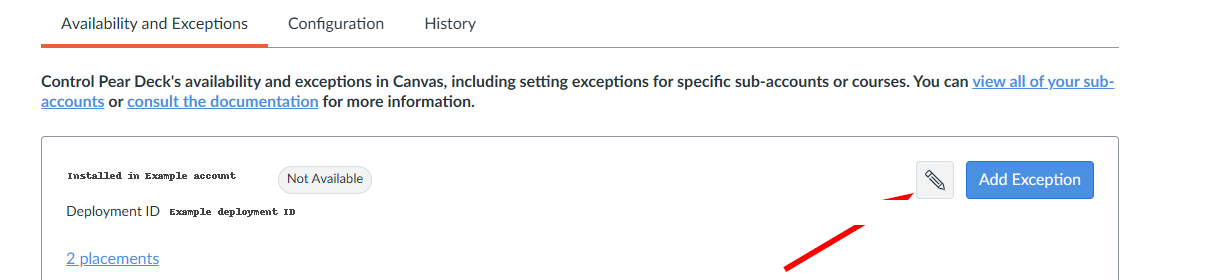
- Locate the newly installed Pear Deck app in Canvas.
- Change the app’s status from Not Available to Available.
- Click Save.
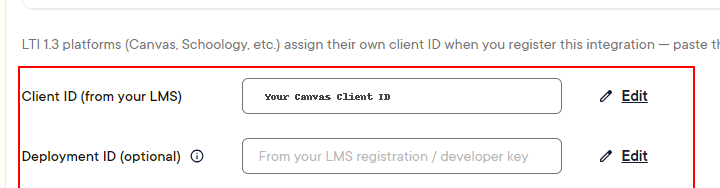
- Copy the Client ID generated by Canvas.
- Return to the Pear Deck configuration page.
- Verify that the Client ID in Pear Deck matches the Client ID in Canvas. If the IDs do not match, click Edit, paste the Client ID from Canvas, and save your changes.
Review the LTI 1.3 Setup Checklist
If you cannot complete setup, confirm that:- Your Pear Deck account has LTI LMS Integration access.
- You are using a Canvas administrator account for installation.
- The registration URL is still within its 30-minute validity period.
- The installed app’s status is set to Available.
- The Client ID in Pear Deck matches the Client ID in Canvas.
Install Pear Deck With LTI 1.1
Generate a Key and Secret in Pear Deck
- As the administrator of your Pear Deck district-wide subscription, go to your Pear Deck My Account page and click + Add New Integration.
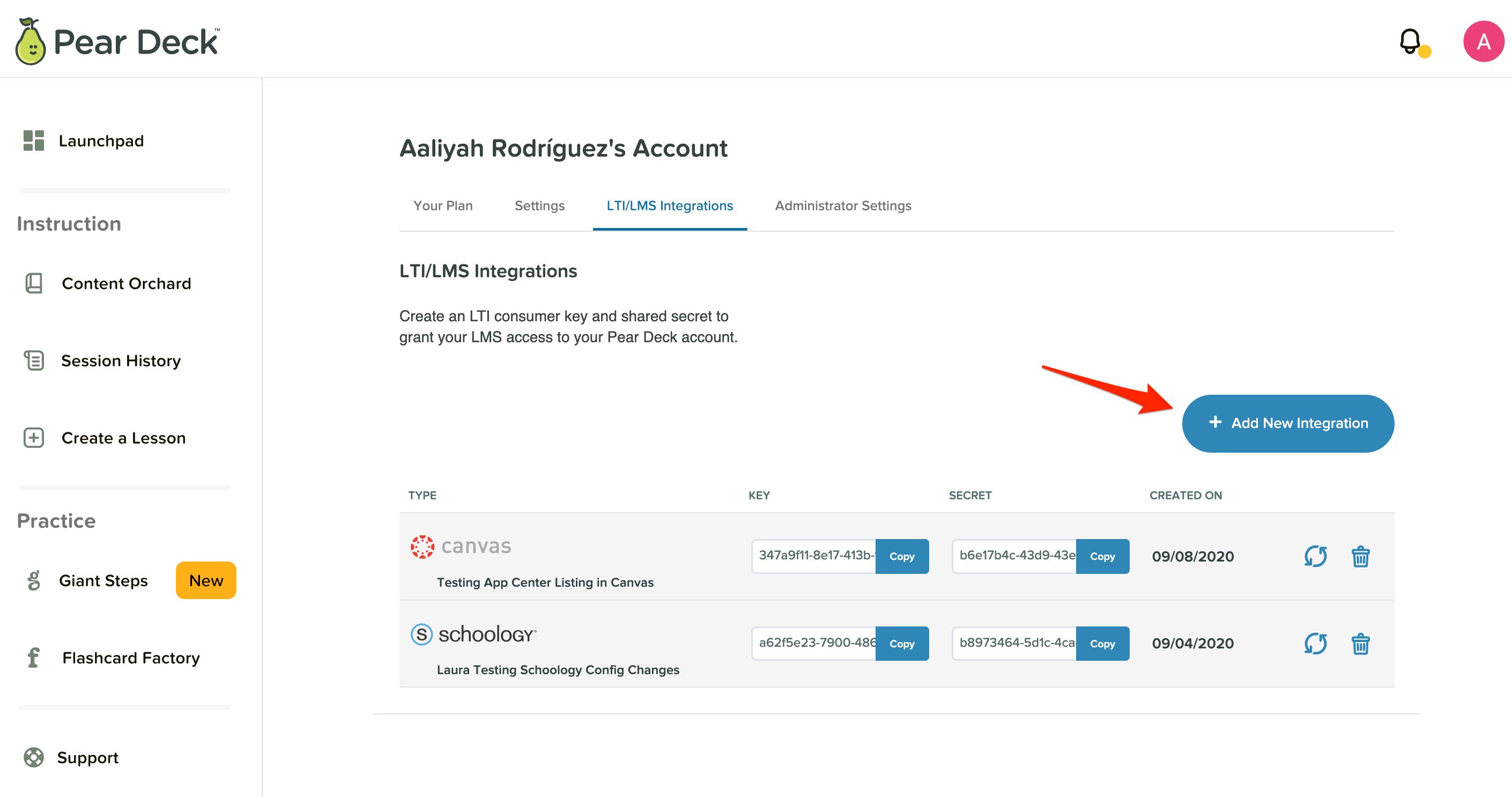
- Select Canvas. If an LTI specification option appears, select LTI 1.1.

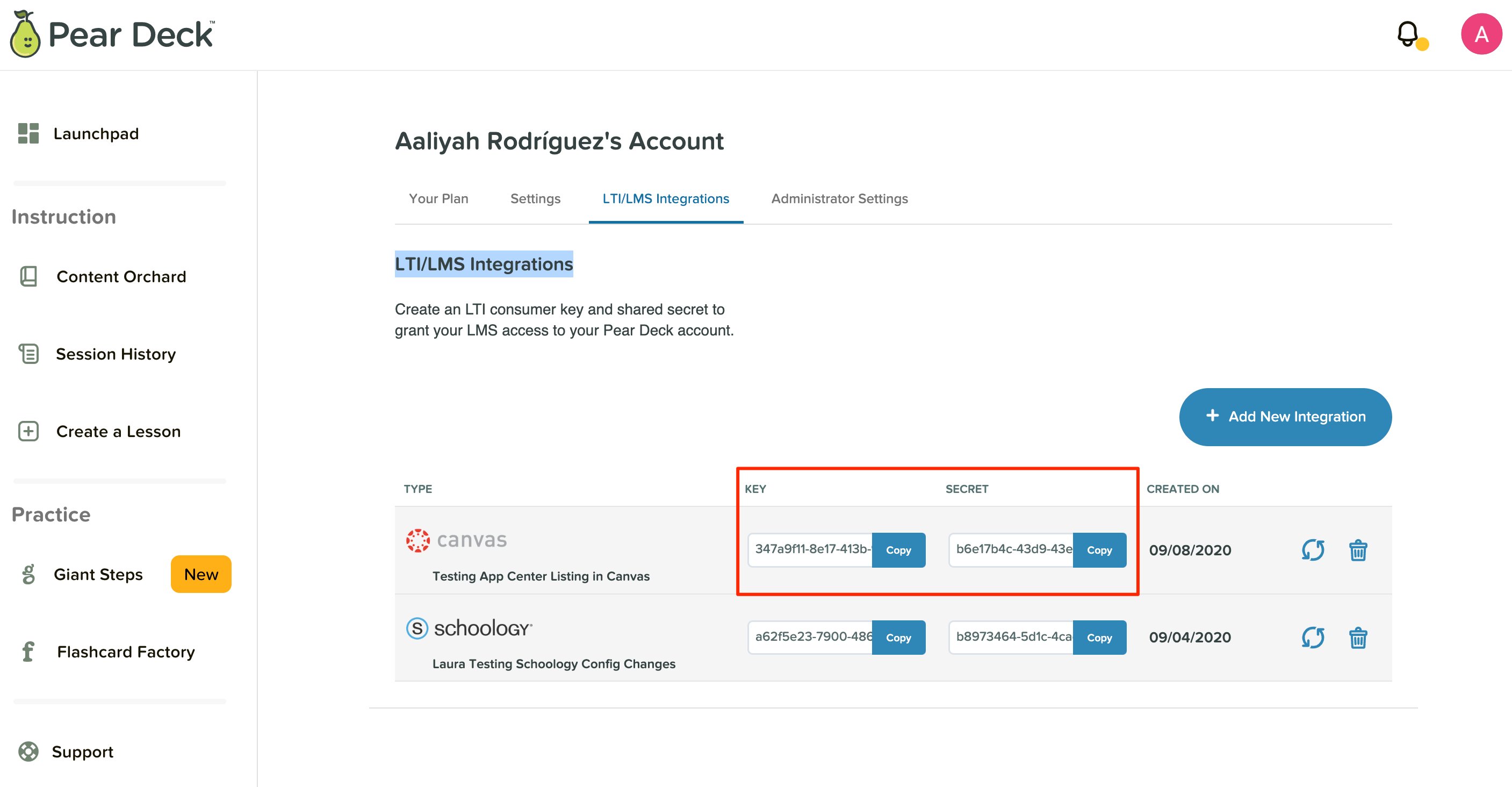
- Copy the Key and Secret that are generated for you.
Add the App in Canvas
- Sign in to Canvas as an administrator.
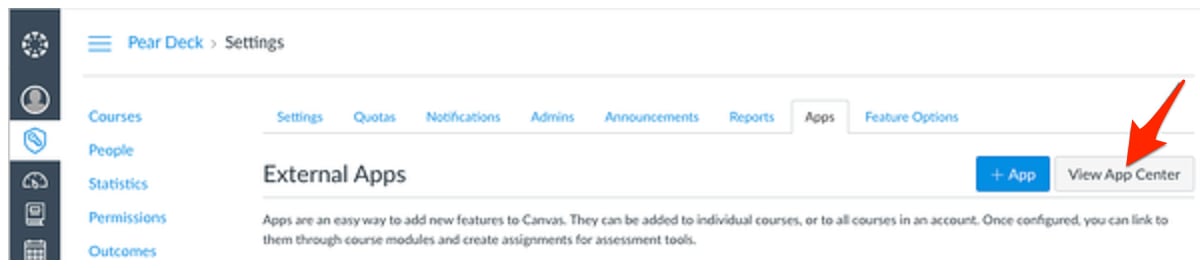
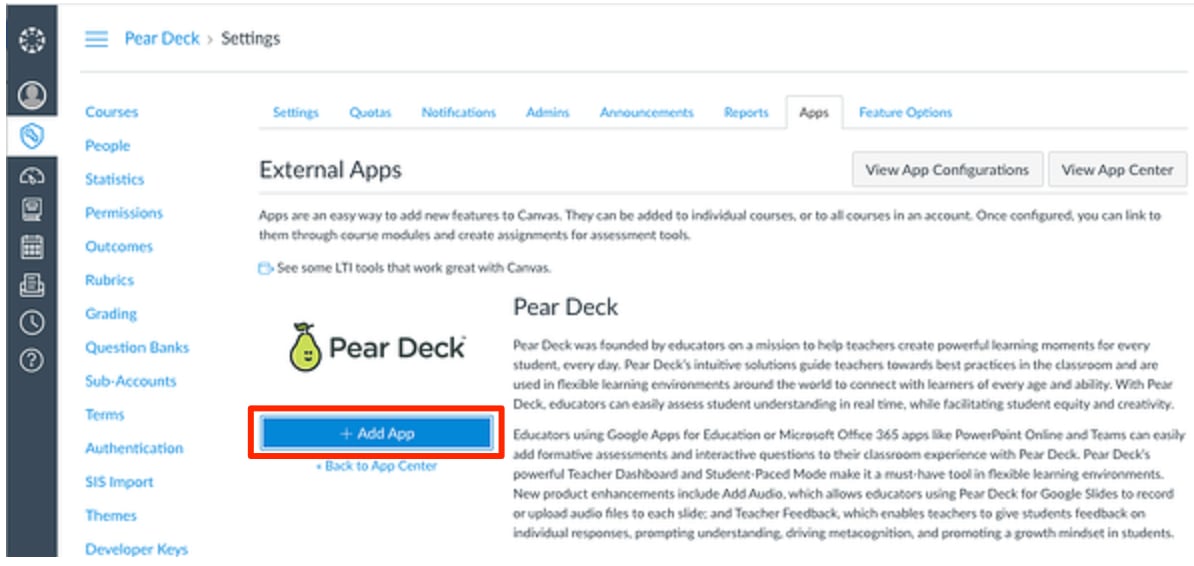
- In the left control panel, open the Admin Center. Scroll to the bottom of the menu and select Settings, then go to the Apps tab.

- If the App Configurations screen appears, select View App Center to search for external apps.
- In the App Center, search for Pear Deck and select it from the search results.
- Click + Add App.
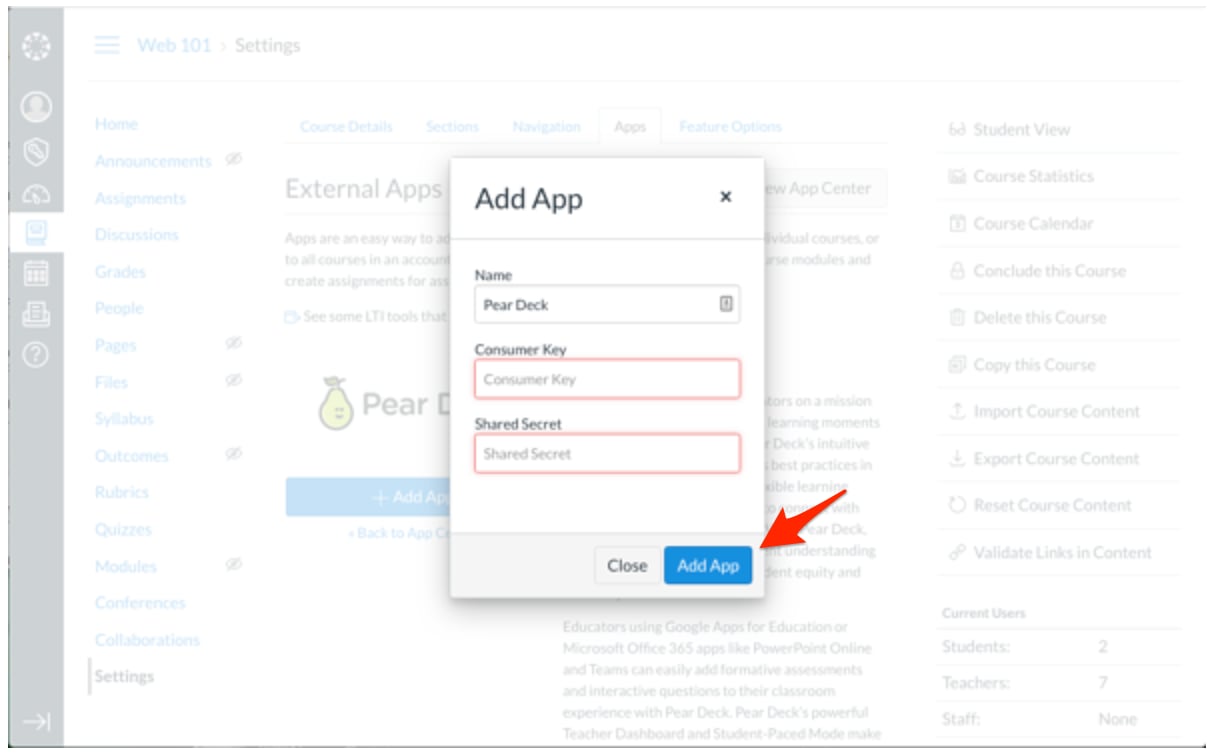
- Paste the Key and Secret from your Pear Deck My Account page into the Consumer Key and Shared Secret fields.
- Select Add App to complete the installation.
Launch a Lesson to Verify the Integration
After an administrator completes setup with either LTI version, teachers can use these steps to launch a lesson from a Canvas assignment:- Open a Canvas course and create a new Assignment.
- Set Submission Type to External Tool.
- Click Find, then choose the configured Pear Deck tool.
- Select your lesson file and settings.
- Click Save and Publish.
- Choose a session mode, such as Instructor-Paced, to start the lesson.
Resources
Canvas Integration for Teachers and Students
Review guidance for using Pear Deck assignments in Canvas.
Install Pear Deck in Schoology
Set up the Pear Deck integration in Schoology.