

Start a Pear Deck Assignment (Teachers)
- Have an interactive Pear Deck for Google Slides or PowerPoint Online Slides file ready to present. Presentation files are saved automatically in your Google Drive or OneDrive. You will select the one you want to present in step 10.
- Open your course in Canvas.
- Go to Assignments.
- Click + Assignment.
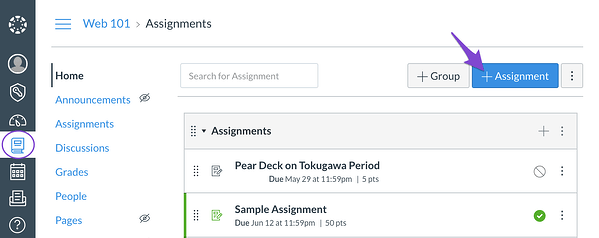
- Customize your assignment. To add an interactive Pear Deck presentation, scroll down to Submission Type.

- Next to Submission Type, open the drop-down menu and select External Tool. Then click Find to search for Pear Deck.

The Canvas administrator must install Pear Deck before it appears in this list. After installation, Pear Deck appears in the External Tools list when you click Find.
- In the list of External Tools, click Pear Deck and then click Select.
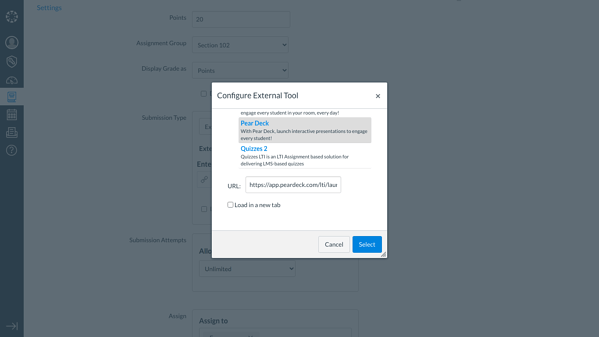
- The Pear Deck URL appears in the External URL field of the Submission Type section.
- When you finish customizing your assignment, scroll to the bottom of the page and click Save and Publish.
- Click Select a file from Drive. The first time you present a Pear Deck file in Canvas, you will be prompted to sign in to Pear Deck. You can sign in to Pear Deck Home in another tab to confirm it works.
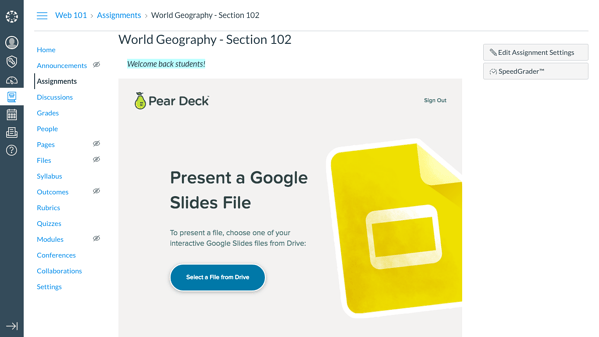
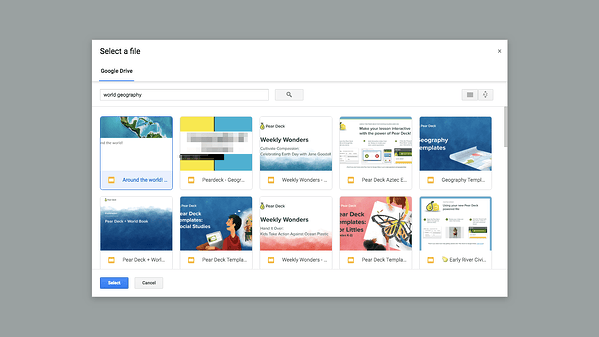
- The file picker opens. Select the Pear Deck for Google Slides or PowerPoint Online Slides presentation you want students to complete.
-
Choose your Lesson Mode. One of the Presenter Views opens for you in Canvas depending on the mode you select:
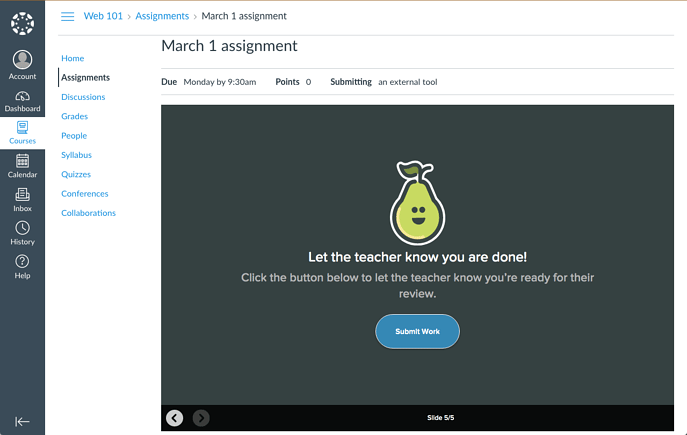
- Student-Paced Lessons (asynchronous, recommended for this integration): The private Dashboard View opens so you can see students’ names next to their responses in real time. When students open this assignment, they get navigation controls to scroll through the slides and respond to interactive questions. This mode also allows students to click Submit Work at the end of the assignment to officially close it.
- Instructor-Paced Mode (synchronous): The Projector View opens and responses are anonymous by default. The Student View syncs to your current slide, so you need to advance the slides for students to see them and respond to interactive questions.
- In either view, use the Navigation Bar controls to scroll through slides, show responses, open the More Actions (three-dot) menu to change the Lesson Mode, open the Dashboard in a new window, and more.

Have Students Complete Your Assignment
Here is what students do:- Open Canvas.
- Go to Courses.
- Select the assignment the teacher created.
- Scroll through the slides and respond to interactive questions. Responses are saved as usual in the teacher’s Pear Deck Home Sessions regardless of Session Mode.
- If the Session is in Student-Paced Mode, select Submit Work on the final slide to turn in and close the assignment.
The Submit Work button does not appear in the Canvas Student View preview on the teacher’s screen, but it does display on the final slide of the actual Student View.


Grade Your Assignment
In Canvas, you can manually assign points in the Gradebook, review the status of assignments for individual students, and open the Pear Deck Teacher Dashboard to view and evaluate individual responses.Pear Deck is not integrated with Canvas SpeedGrader at this time.
- Go to Courses and select your course.
- In Course Options, select Grades. Use the Canvas tools to customize your grading options.
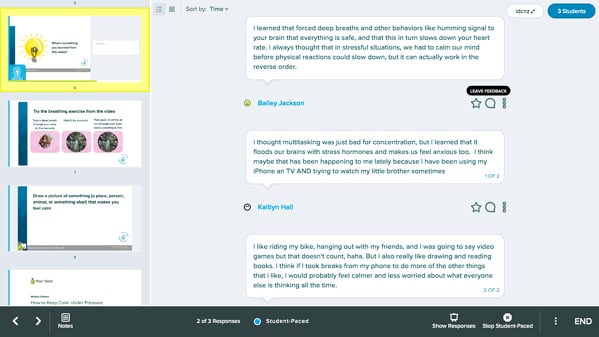
- Go back to the Courses page and click on the assignment to open the Teacher Dashboard. Click through the slides in the Dashboard to see individual responses with student names. If the Projector View is open, click the three-dot menu to open the Dashboard in a new tab so names are visible.
- Toggle back to the Grades page to adjust point values.
- In the Dashboard, leave comments for individual students using Pear Deck Teacher Feedback.
- Open the Teacher Dashboard and click on a slide to view all responses collected for it. You can open this Dashboard View from within your Pear Deck Assignment in Canvas.
- Export student responses when you sign in to Pear Deck with Google.
-
Use Takeaways to extend your lesson and give students feedback when you sign in to Pear Deck with Google.
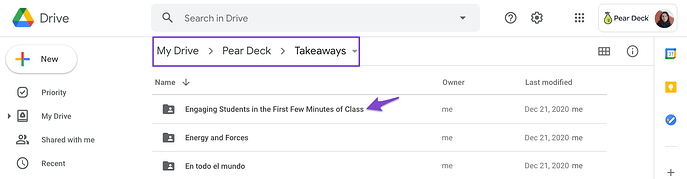
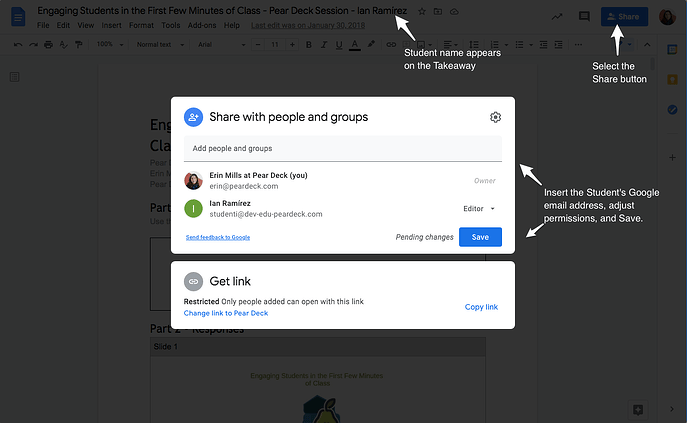
When you publish Takeaways from Canvas, they are not automatically shared with your students. To share a Takeaway, open Google Drive → Pear Deck → Takeaways → the Deck folder → the Session folder. Open a Takeaway Doc to see who it belongs to, then click Share to share it in Drive with that student. To let the student continue adding to the Doc, select Editor next to their email address.
Resources
Install Pear Deck in Canvas
Set up the Pear Deck LTI integration in Canvas at the district or school level.
Student-Paced Lessons
Let students move through a Pear Deck presentation at their own pace.