

Understand How Teachers Get Premium Access
When your subscription is set up, the GoGuardian team requests a list of teachers to include. Each teacher receives a welcome email asking them to confirm their Pear Deck account. They click Confirm Your Pear Deck Account and sign in with their existing Google or Microsoft Office 365 account — no new password required.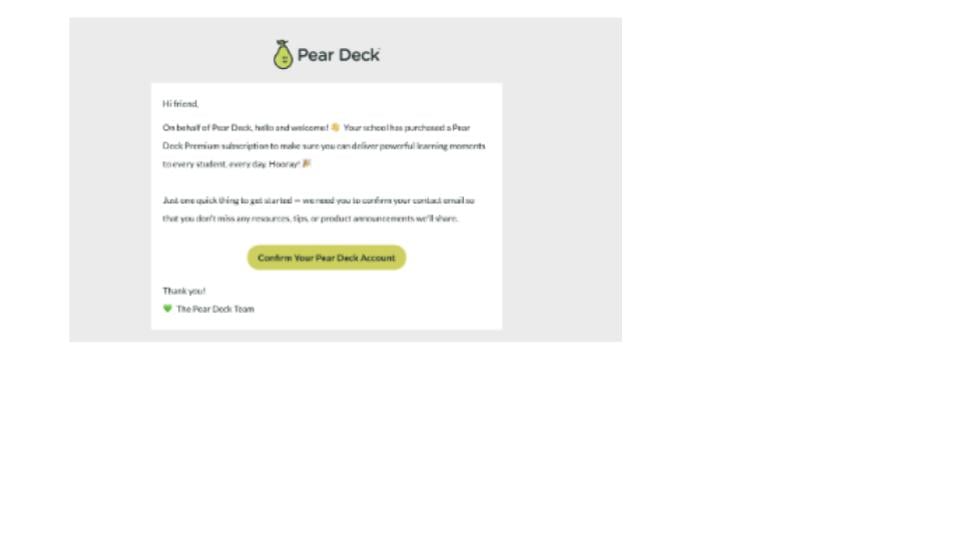
Install Pear Deck for Teachers
To give your teachers seamless access to Pear Deck, install the appropriate add-on or add-in for your school’s platform before they begin using it.- Google Workspace schools: Install the Pear Deck for Google Slides Add-on from the Google Workspace Marketplace. You can also install the optional Pear Deck Power-Up — a free Chrome extension that ensures videos, animations, and GIFs in Google Slides play correctly during Instructor-Paced sessions.
- Microsoft 365 schools: Deploy the Pear Deck for PowerPoint Online Add-in through your Microsoft 365 Admin Center.
Log In as a Subscription Manager
You receive the same welcome email as your teachers. Sign in with your Google or Microsoft Office 365 account to access Pear Deck Home. From there:- Go to app.peardeck.com/home.
- Click your profile picture in the upper-right corner of the page.
-
Select Account from the menu.
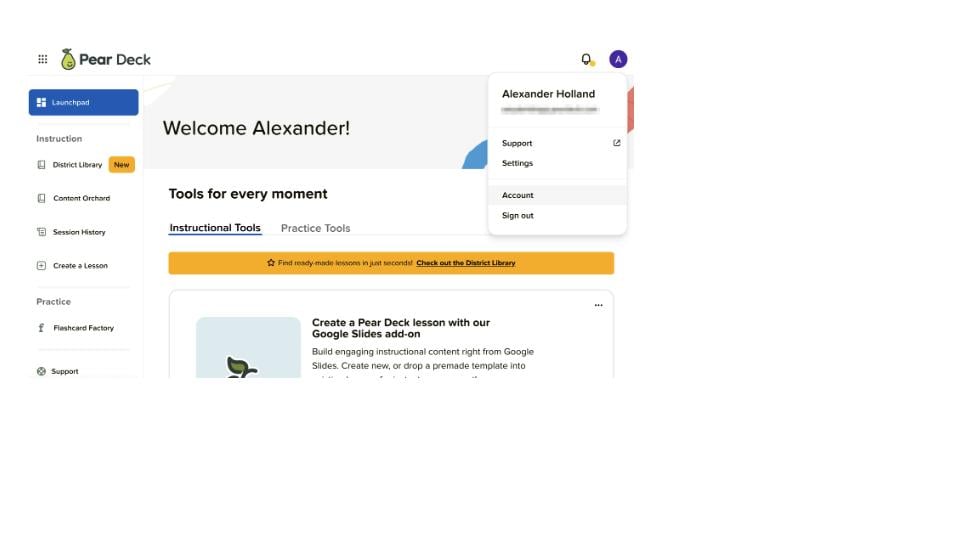
- Verify the result: Your plan information and the Administrator Dashboard appear on the Account page.
Use the Administrator Dashboard
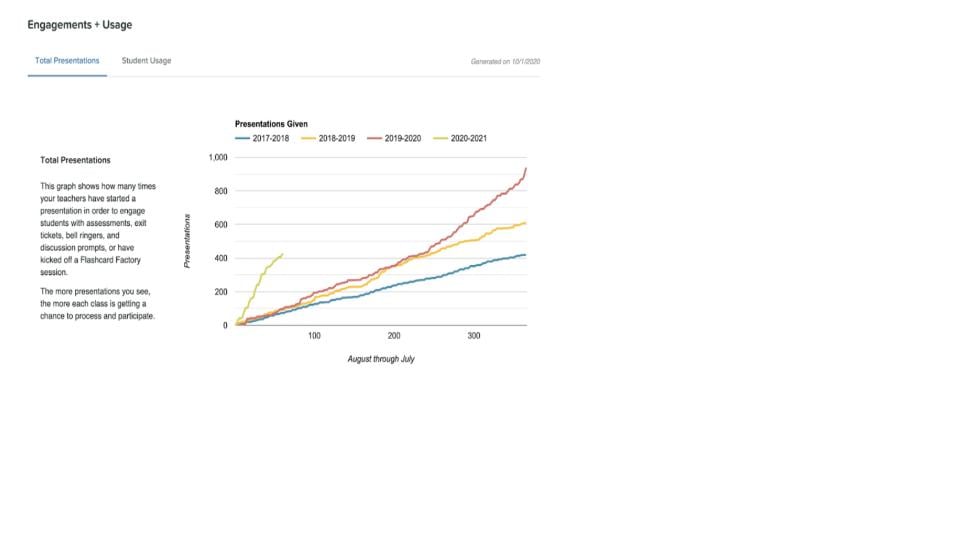
The Administrator Dashboard gives you visibility into how teachers and students use Pear Deck across your school. Access it from your Account page.View Engagement and Usage Data
The Engagements + Usage section shows year-over-year Pear Deck activity for your school or district:- Total Presentations tab: Shows how many times teachers have started a Pear Deck session.
- Student Usage tab: Shows the total number of students who participated in a session each year.
Restrict Student Join Access
To limit which students can join your teachers’ sessions, go to the Administrator Settings tab and set an allowed domain for student email addresses. See Restrict Student Join Access by Domain for steps.Manage Teachers (School-Wide Subscriptions)
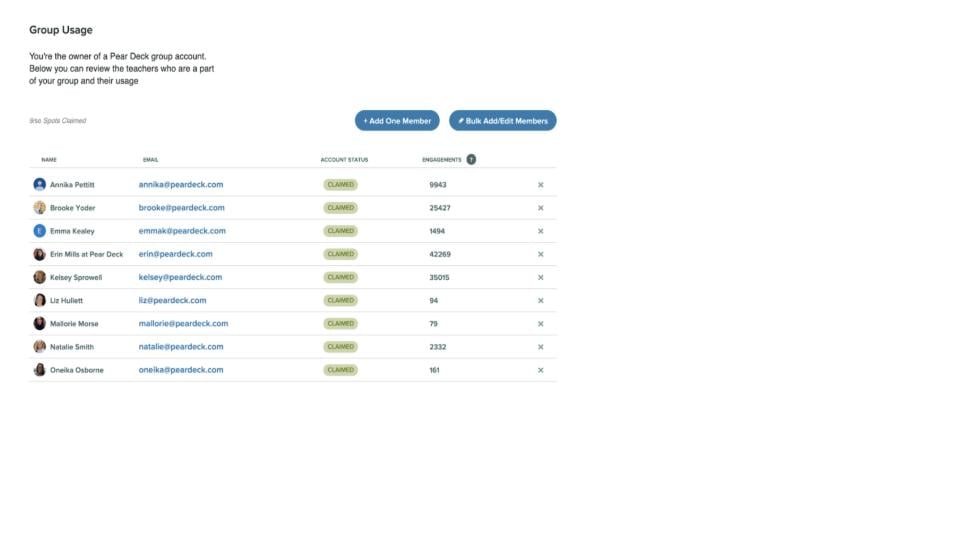
The Group Usage section lists all teachers currently on your Premium subscription. From here you can:- Click Add One Member to add a single teacher by email address.
- Click Bulk Add/Edit Members to add or update multiple teachers at once.
- Click the X next to any teacher to remove them from the subscription.
Set Up LMS Integrations (District Subscriptions)
For district-level subscriptions, the LMS/LTI Integrations tab provides the Key and Secret values needed to connect Pear Deck to Canvas or Schoology. See Install Pear Deck in Canvas or Install Pear Deck in Schoology for setup instructions.Resources
Manage a School Subscription
Add, remove, and transfer teachers on a school-wide Pear Deck Premium subscription.
Restrict Student Join Access by Domain
Limit which student email domains can join teachers’ Pear Deck sessions.