

What Gets Imported
GoGuardian Teacher automatically imports all Google Classroom classwork, including:- Quizzes
- Assignments
- Materials
- Questions

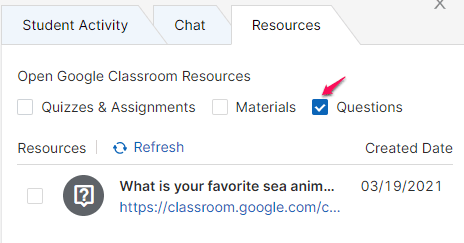
Access Coursework During a Session
You can access Google Classroom coursework in 2 ways during a live session.From the Enlarged Student Screen View
- Open a Google Classroom-synced classroom from within GoGuardian Teacher. Synced classrooms are identified by the Google logo at the top of the classroom tile.

- Start the classroom session.
- Select any student tile to open the enlarged screen view.
- Select the Resources tab on the right side of the enlarged screen view to access classwork.
From the Open Tab Command
- Open a Google Classroom-synced classroom from within GoGuardian Teacher. Synced classrooms are identified by the Google logo at the top of the classroom tile.
- Start the classroom session.
- Select the checkbox next to 1 or more student names.

- At the bottom of the screen, select Open New Tab.

- In the Open Tab window, confirm a Google Classroom tab is present, showing all classwork from that class. This confirms the integration is working.
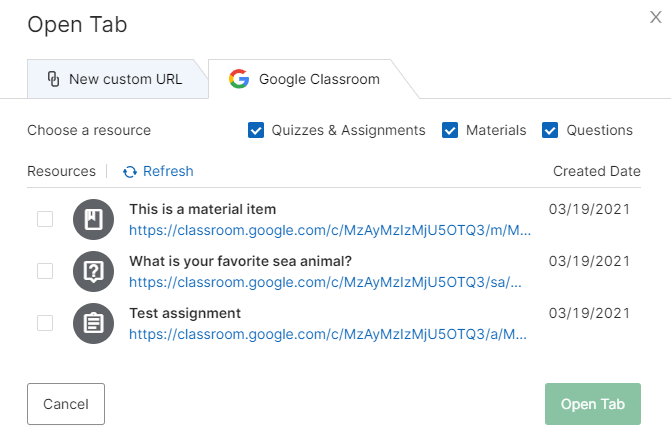
Filter Classwork by Type
In the Resources tab or the Open Tab window, all classwork types are shown by default. To view a single type, uncheck all boxes except the one you want. For example, to see only Questions, uncheck Quizzes, Assignments, and Materials.Share Classwork with Attachments
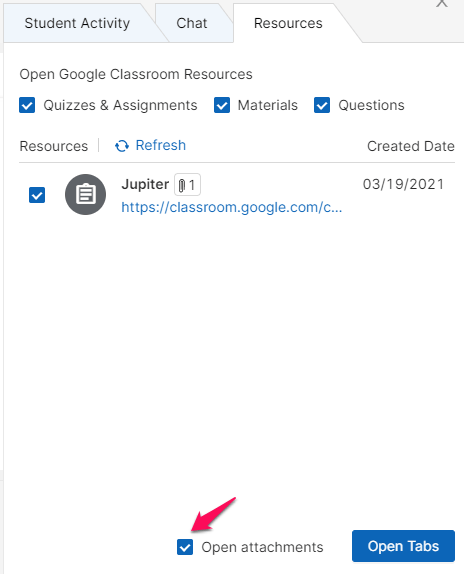
If a classwork item includes an attachment, a small icon appears next to its name. When you select that item and open it, a checkbox appears asking if you want to Open attachments. If you select Open attachments, the attachment opens immediately as the student’s current view.If an item has more than 1 attachment, the most recently added attachment in Google Classroom opens first. Additional attachments open in separate tabs for the student.

Update Classwork Content
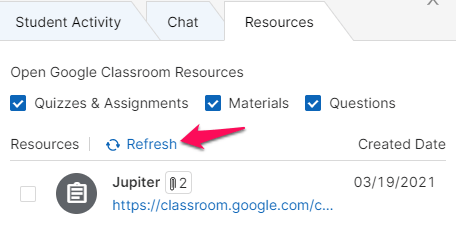
Google Classroom classwork cannot be edited from within GoGuardian Teacher. Make all changes in Google Classroom first, then resync to Teacher. To resync after making changes in Google Classroom, select Refresh in the Open Tab screen.There is no limit to the number of items that can appear under Resources, and there is no limit on how many times you can select Refresh.
What to Do If You’re Not Synced
If your classroom isn’t synced with Google Classroom, the classwork tab won’t appear. Instead, you’ll see a prompt to sync. Select Pull Google Classroom resources into GoGuardian and follow the steps provided.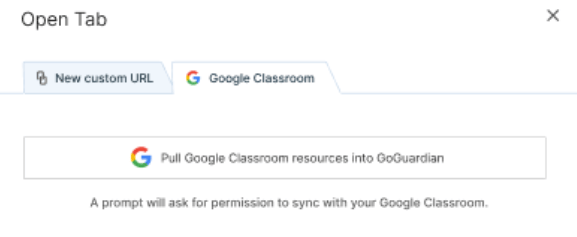
Troubleshooting
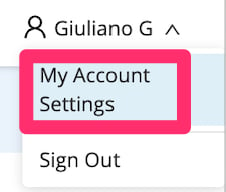
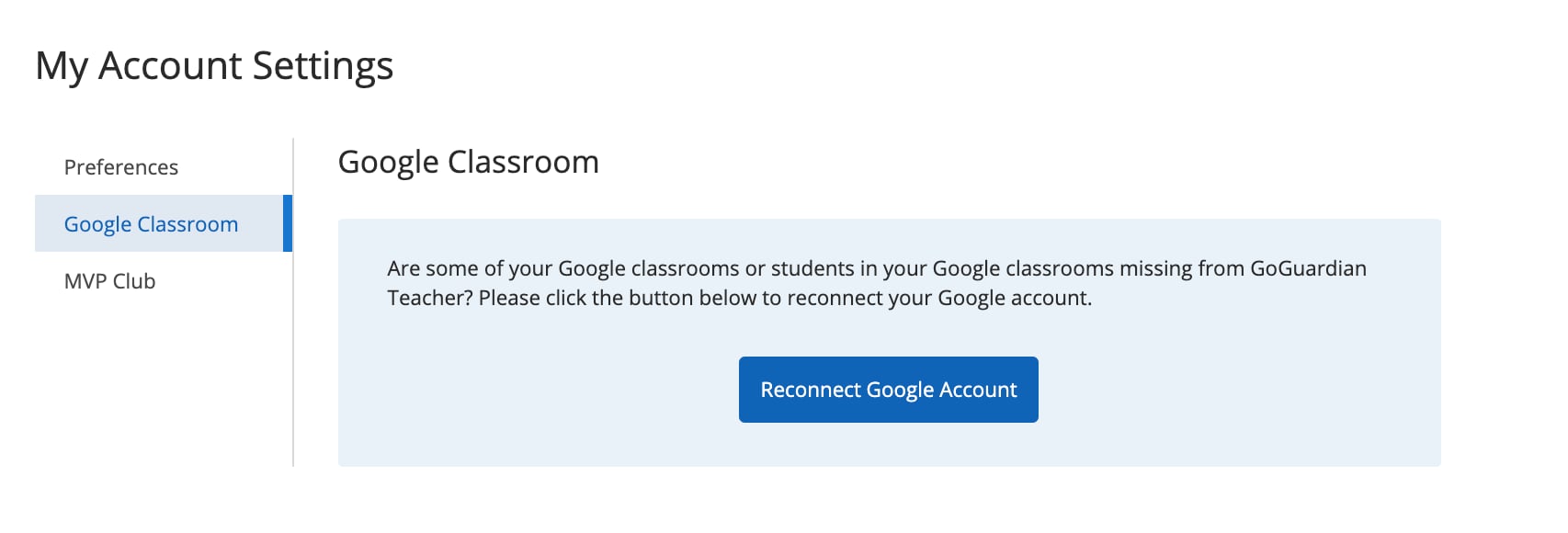
If the Resources tab or Google Classroom options aren’t appearing, reconnect your Google account:- Go to the top-right panel, select your name, then go to My Account > Google Classroom.
- Select Reconnect Google Account and follow the prompts.
Classrooms with Multiple Teachers
Both Google Classroom and GoGuardian Teacher support classrooms with multiple teachers. Keep the following in mind:- Any teacher in a GoGuardian Teacher classroom can share Google Classroom classwork with students, even if they’re not a teacher in the Google Classroom itself.
- Any teacher in the Google Classroom with permission to add or delete classwork can affect your GoGuardian Teacher classroom if they modify classwork.
- Changes made in Google Classroom are reflected in GoGuardian Teacher after the next refresh.
More Efficient Workflows
Google Classroom Integration reduces the steps needed to share classwork during a session. Previous workflow:- Start a GoGuardian Teacher session
- Choose the Open Tab command for students
- Navigate out of GoGuardian Teacher to Google Classroom
- Find the assignment and copy the link
- Navigate back to GoGuardian Teacher
- Paste the link
- Send to students
- Start a GoGuardian Teacher session
- Choose the Open Tab command for students
- Select your Google Classroom classwork
- Send to students
Resources
Commands Overview
Learn all commands available during a live session, including Open Tab.
Start a Classroom Session
How to begin a live session with your students.
Active Screens View
Navigate the live session view and interact with student screens.
Scenes Overview
Use scenes to control which sites students can access during a session.