

New Classes Appear in Your Active List
When classes are first synced to GoGuardian Teacher, they’re automatically added to the class owner’s Active classes page.- Each newly synced class displays a New badge until the owner opens it.
- A banner at the top of the Active classes page announces the sync: “[Number] Classes Added: Your administrator synced new classes to your Active list.”
This behavior applies to classes an administrator synced on or after June 1, 2026. Integrated classes left in a pending state from before June 1, 2026 are not shown.
Add or Remove Teachers
Co-teachers rostered in Clever or ClassLink are automatically added as co-teachers in GoGuardian Teacher. Additional co-teachers and helpers can be added manually in the Teachers section of the class. For more information, see Add Students to a Class.Add or Remove Students
Integrated classes require roster changes to be made within Clever or ClassLink, which will then sync back to GoGuardian Teacher. Clever or ClassLink is the source of truth for rostering. Teachers can’t freely add or remove students directly in Teacher. To add or remove students, make all necessary changes in Clever or ClassLink. If you don’t have access, reach out to your IT contact or school administrator.Change Class Name
Class names for integrated classes come directly from Clever or ClassLink and can’t be changed manually in GoGuardian Teacher. To change an integrated class name, make the update in Clever or ClassLink. If you don’t have access, reach out to your IT contact or school administrator.Although integrated class names can’t be manually edited in Teacher, you can edit the class Description to help distinguish each class. To edit the Description: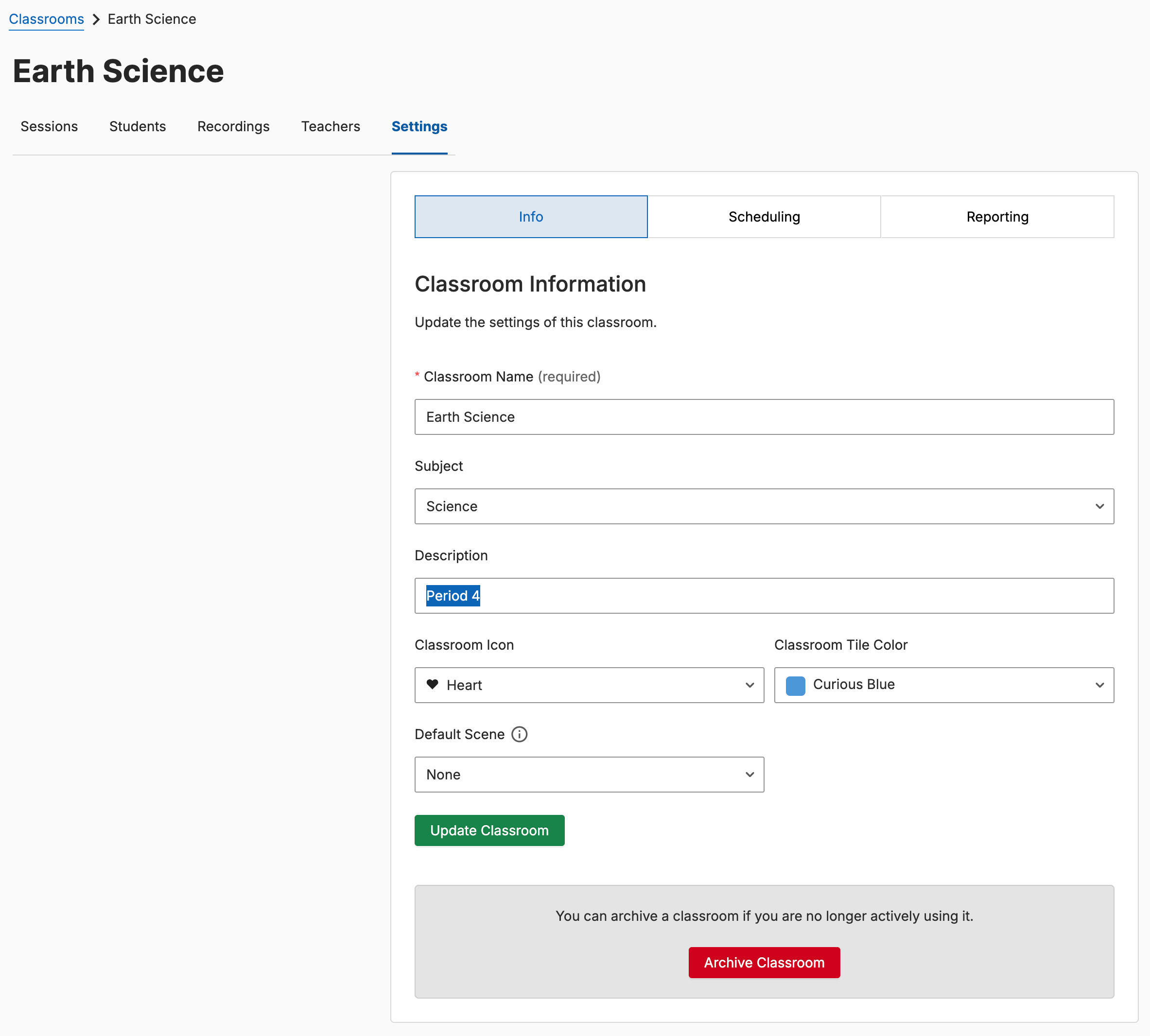
- Click on the class, or the Settings cogwheel, then select Edit Class.
- On the Settings page, edit the Description field.
- Click Update Classroom to save the change.
Integrations FAQ
For more information and frequently asked questions about GoGuardian Teacher integrations, see FAQs.Resources
FAQs
Answers to common questions about Teacher integrations and class management
Add Students to a Class
Manage student enrollment in Teacher classrooms
Archive, Restore, or Delete a Classroom
Manage class status in GoGuardian Teacher
Start a Classroom Session
Begin a session with an active class