

Classroom
How do I archive, restore, or delete a class? To archive a class, click the Settings cogwheel on the class tile, then select Archive Class.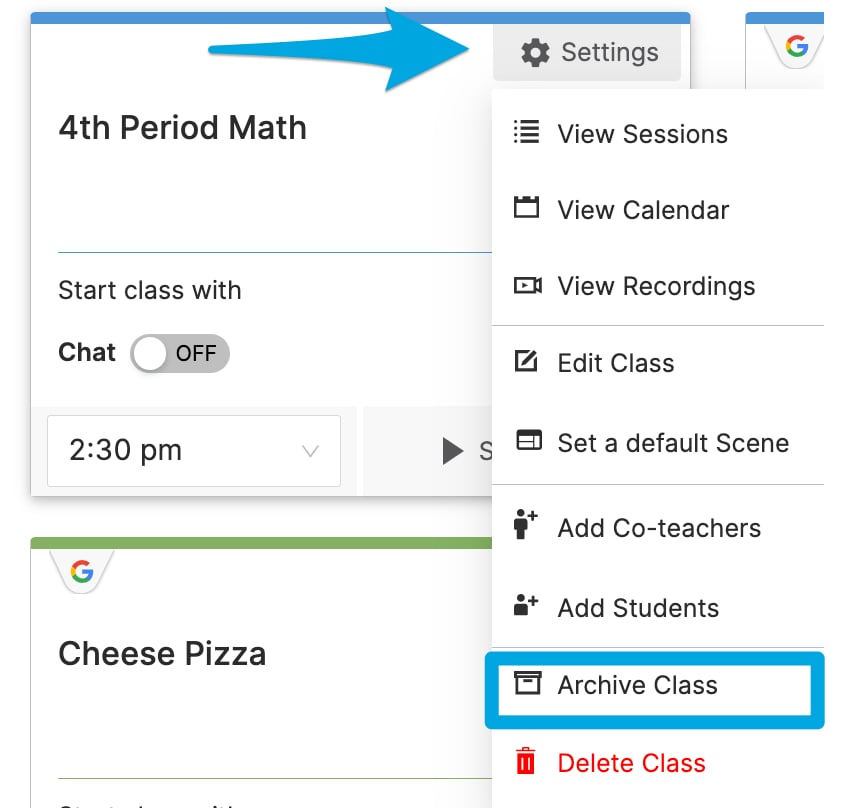
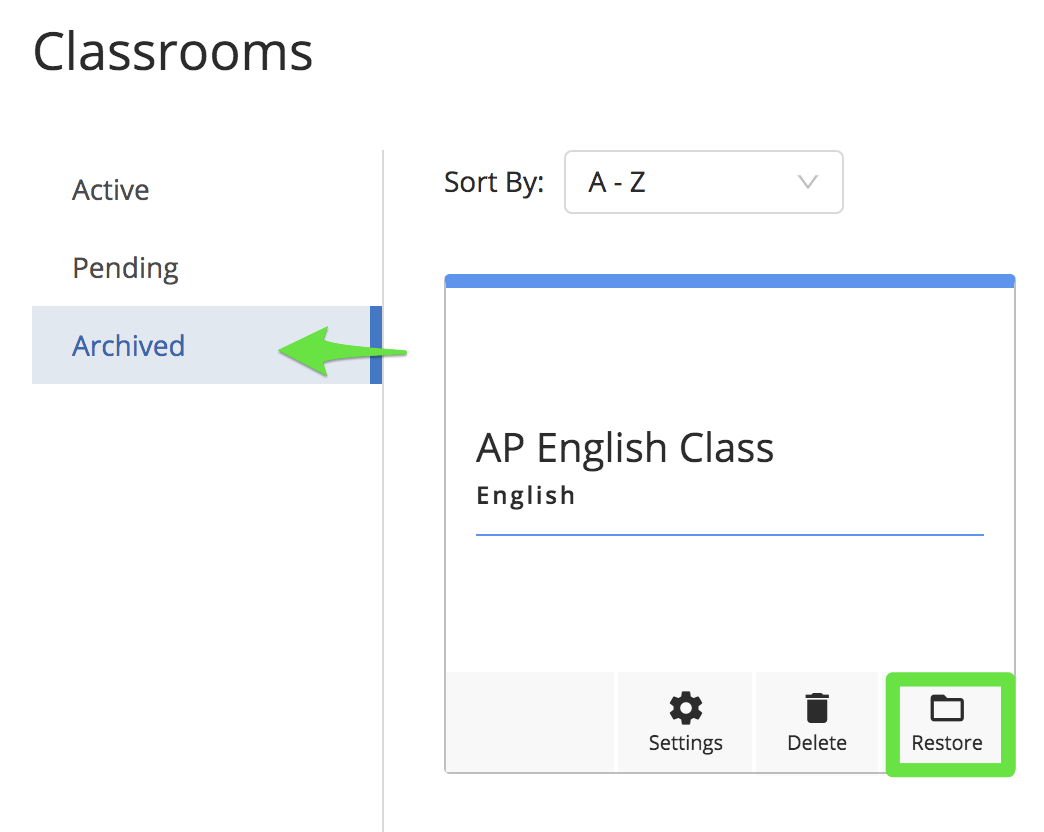
DELETE to confirm.

- Click into the class you want to edit.
- Go to the Settings tab.
- Select the Scheduling tab.
- Make your changes there, or use the Calendar to view and manage all scheduled classes.
- Click on the class from the Active class section.
- Go to the Settings tab.
- Select the Info tab and make the changes.
- Click Update Classroom to save.
- Select the classroom.
- Go to the Teachers tab.
- Click Add Teacher and search for the teacher by name within your domain.
- Select a permission level from the drop-down: Owner, Teacher, or Helper.
- Click Add.
- Go to the classroom’s Students tab.
- Click Remove to the right of the student’s name.
- Confirm by clicking Remove Student.
Sessions, Scenes, and Commands
How do I block students from websites? Create and apply a Scene. Scenes let you set a custom allowed list (only listed sites accessible) or a blocked list (only listed sites blocked). See Create and Apply a Scene for full details. Can students be in multiple sessions at once? Can teachers run multiple sessions? Yes to both. Students can be in multiple concurrent teacher sessions. Teachers can also run multiple sessions at the same time and switch between them using the sessions bar at the top of the screen. When a student is in overlapping sessions where Scenes conflict, you will see a Scene Conflict banner identifying the conflicting teacher and affected students. Click Reapply Your Scene to push your Scene back to those students. See Scene Conflicts for full details. How do I override a Scene from another teacher? The most recently applied Scene takes precedence. If students are not being affected by your Scene because another teacher’s Scene is active, click Reapply Your Scene from the Scene Conflict banner. See Scene Conflicts. How do I apply different Scenes to different groups of students? GoGuardian Teacher supports applying Scenes to independent student groups within a single class session. See the Scenes for Student Groups article for details.Student Screens
Why can’t I see a student’s screen? The status message on the student’s tile identifies the cause. See the relevant troubleshooting article: If you suspect a student is using an extension to bypass GoGuardian Teacher, contact your Super User to block that extension through Google Admin Console.Clever and ClassLink Integrations
Where can I find my Clever or ClassLink classrooms? Classrooms integrated by your organization’s Super Users appear under Pending Classrooms on your dashboard. Click Accept to move the class to your Active Classrooms, or Decline to send it to the Archived tab (where you can restore it later). All roster changes for integrated classes must be made in the SIS.General
Does GoGuardian Teacher work on Apple iPads? Teachers can access GoGuardian Teacher on an iPad by signing in to teacher.goguardian.com in an up-to-date Chrome browser. Student iPad support is available through The GoGuardian App deployment. Once The GoGuardian App is deployed by your IT administrator, GoGuardian Admin, GoGuardian Teacher, and GoGuardian Beacon are all supported on student iPads. Contact your IT department to find out whether The GoGuardian App is deployed at your school.Resources
Start a Classroom Session
Review how sessions work and what data is saved.
Scenes Overview
Review all Scene features and how filtering works.
Commands Overview
Review all teacher commands for managing student devices.
Device Unavailable
Troubleshoot the most common student connection issue.