

Scenario A: Student Blocked by Admin Policy
If a student is blocked by an Admin policy, you’ll see the message Website Blocked by Administrators with a padlock symbol on the student’s tile.How to Fix This
For teachers without GoGuardian Admin access: contact one of your organization’s GoGuardian administrators (typically IT or administration staff) for help with the blocked website. For administrators: for more information on policy filtering blocks, see Why Is a Website Blocked? (GoGuardian Admin). Administrators can also enable Teacher Override to let teachers unblock approved websites.
Scenario B: Student Blocked by a Teacher Scene
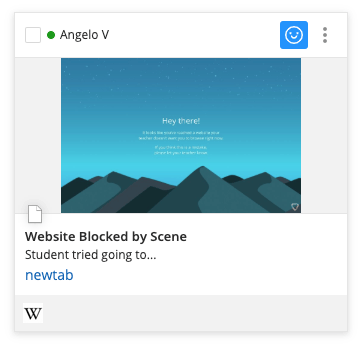
If a student is blocked by a Teacher scene, you’ll see the message Website Blocked by Scene with the “Hey there” block page on the student’s tile.How to Fix This
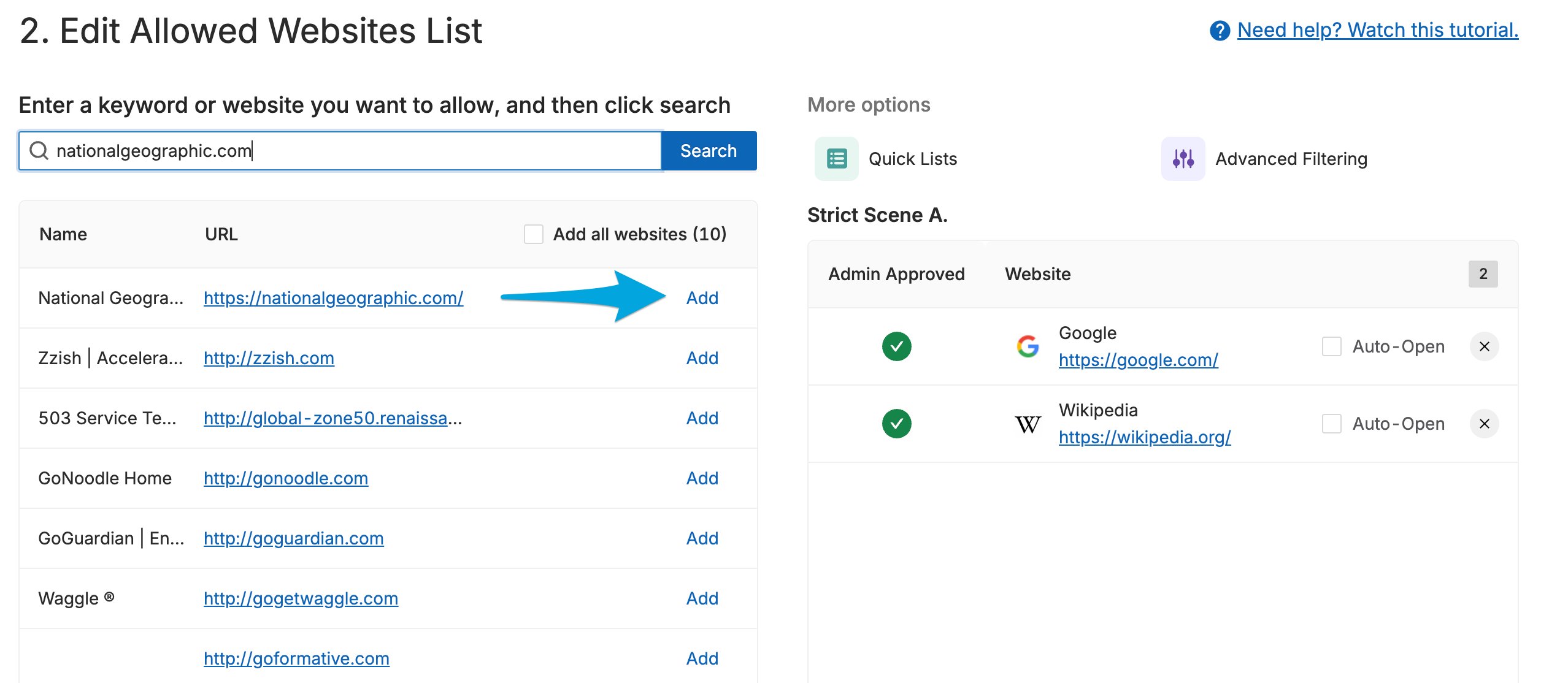
Update your scene to allow the blocked website.- Allow Mode scene: add the website or webpage to the scene’s allowed list.
- Block Mode scene: remove the website or webpage from the scene’s blocked list.
All Other GoGuardian Block Pages
For help with other block pages — including GoGuardian Admin Smart Alert blocks, GoGuardian DNS blocks, or Google Admin Console blocks — contact a GoGuardian administrator for assistance.Create and Apply a Scene
Learn how to set up and modify scenes to control which websites students can access.
Allow Access to Blocked Sites
Understand how Teacher Override works and how administrators can enable it.
Components of a Scene
Review the parts of a scene and how Allow Mode and Block Mode work.
Scene Conflicts
Find out what happens when multiple scenes apply to the same student.